

Seller Regular Coupon
Create Seller Regular Coupon
To create a coupon in Seller Center on PC, visit the Promotional Tools tab.

- Amount off: Reduce the price by setting a fixed amount
- Percentage off: Reduce the price by setting a percentage

The seller coupons can no longer be claimed or used by buyers once the usage limit is reached. This allows you to manage your promotions budget better.
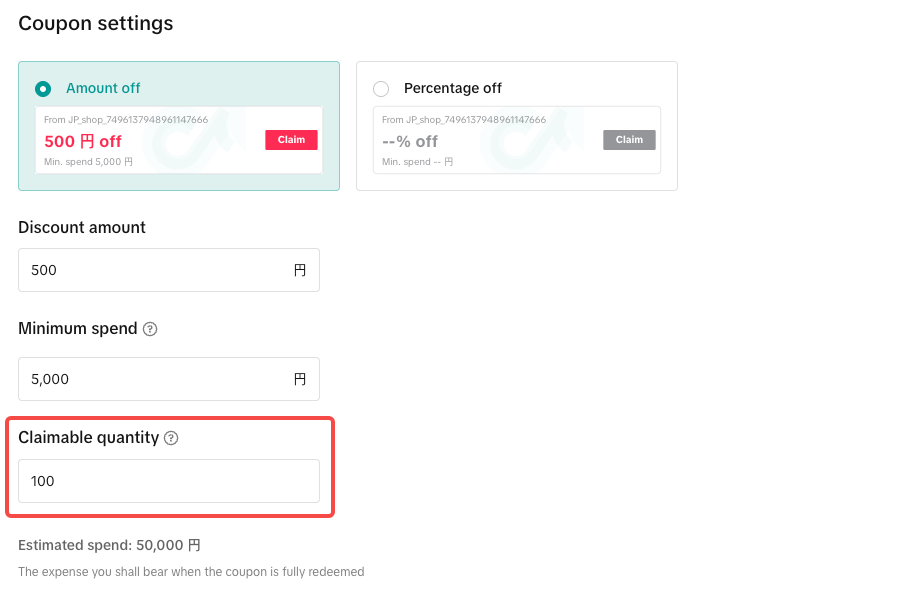

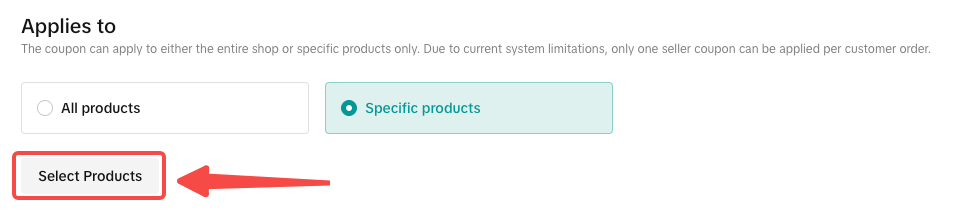
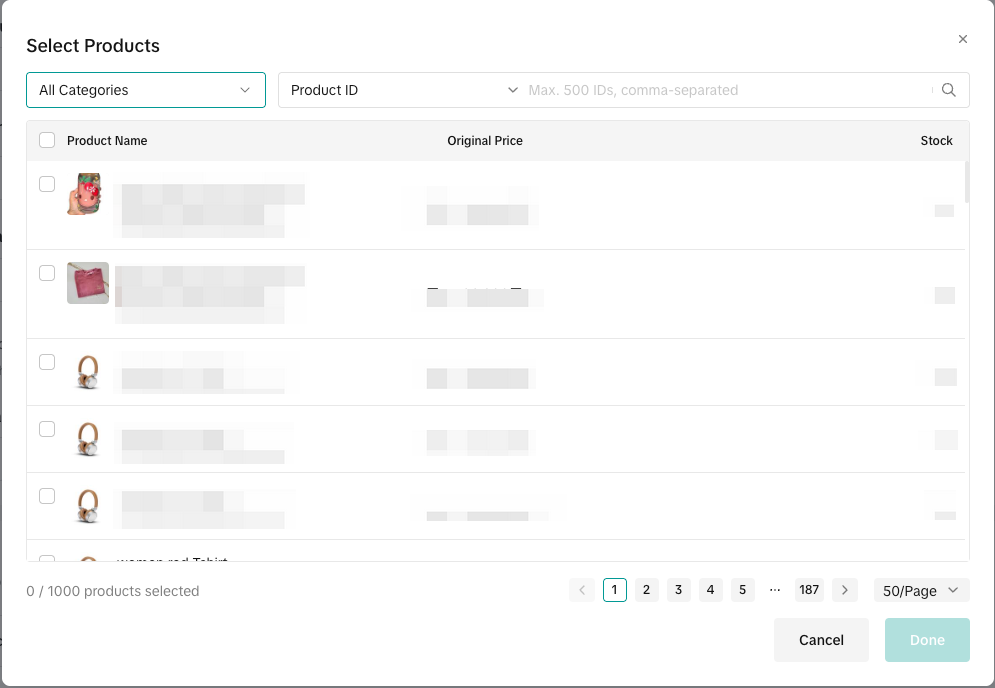
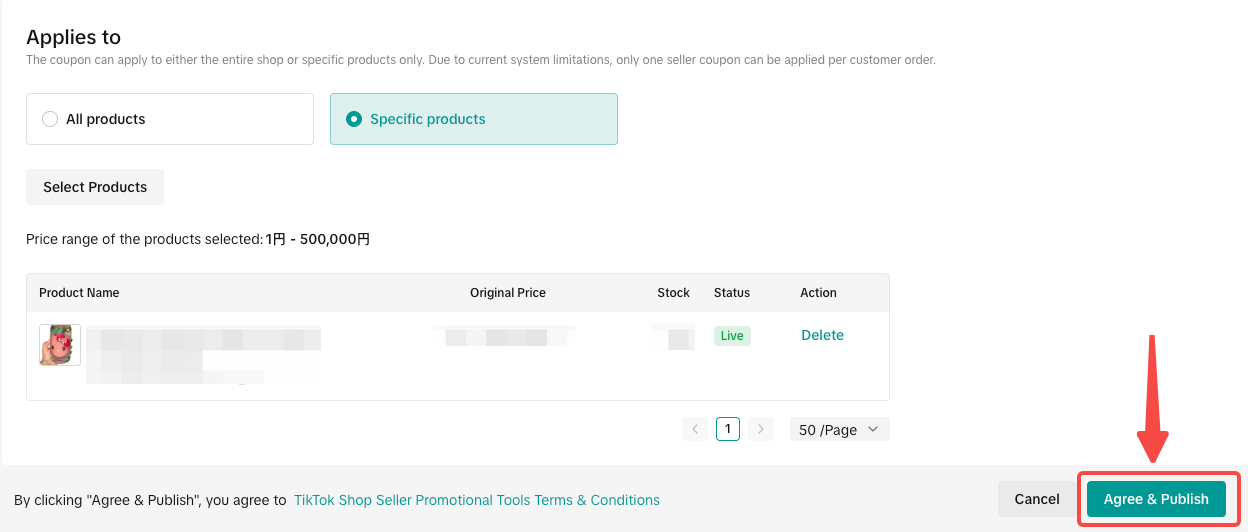
- Set your minimum spend at 1.2-1.5x higher than your average order value to increase your buyers basket size. You can obtain your store's historical average order value from Data Compass.
- Create multiple tiers of coupons with low, medium, and high minimum spend. This will encourage buyers to purchase more products in a single order by offering a deeper discount for higher minimum spend.
- You don't always have to give discounts to your entire store. Coupons could be valid on particular products such as promoting new products or running clearance sales.
❗ As a few configurations are not available on Seller Center App, you may need to visit Seller Center PC instead:
- You can only set up coupons for the entire shop. You can not select specific products for coupons on the app.
- You cannot configure the display channel.

Manage Seller Regular coupon
To manage a coupon on the Seller Center, visit the Promotional Tools tab.Enter Manage your promotions tab to view the details of ongoing, upcoming and deactivated promotions.

However, if the coupon is "upcoming" the seller will be able to adjust the discount information and usage quantity.
To manage a coupon on the Seller Center App, select one of the promotions to view coupon details.
Select Deactivate to end a coupon promotion.
❗ You can only view and deactivate a Seller coupon on the Seller Center App, you may need to visit Seller Center PC instead of other configurations.

Track coupon Performance
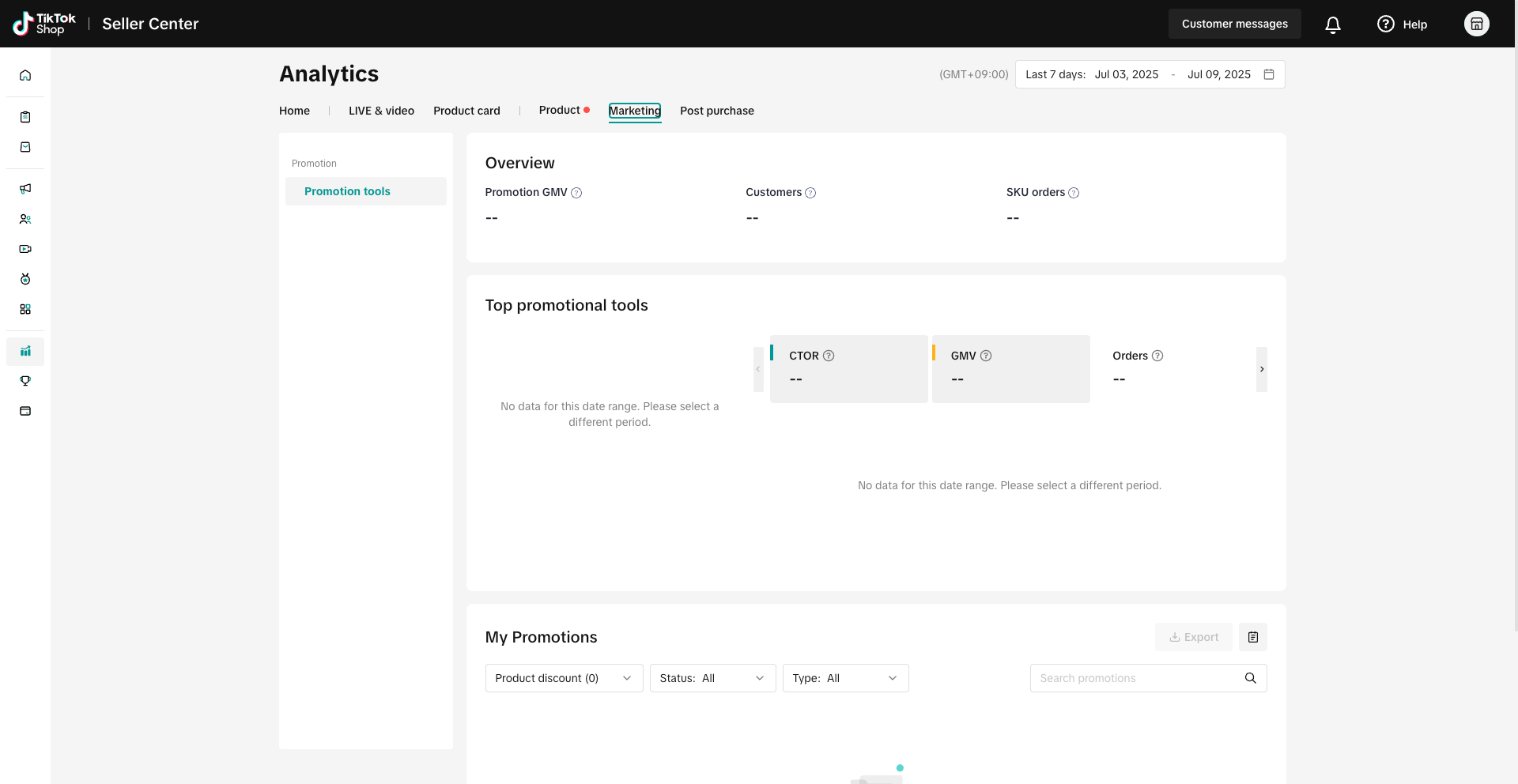
To monitor your coupon performance, visit the Promotion Analytics page.You can select a Promotional Tool to display its core data and trends. Core Data includes metrics such as coupon usage, Revenue, Orders, and Buyers.
💡 Pro Tips
- A low redemption rate could indicate that your promotions are not resonating with your audience or that they are too difficult to redeem.
- The minimum spend may be too high for the average selling price of the products.
- If you configured the coupon for specific products, you may need to test out a different selection of products.
- Analyzing your average order value (AOV) can also help you fine-tune your promotional tools. If your AOV is lower than you'd like, try setting a higher minimum spend to encourage customers to spend more.
- Track the revenue generated by your coupons to see which coupons are the most effective in growing your business.

Frequently Asked Questions (FAQs)
- Why am I receiving a "Maximum Discount Per Order is Low" message?
If you click Continue to submit after seeing the message, the promotion will take effect as configured.Example:
- A 20% off coupon where the maximum discount per order is $1
- The original price of product A is $100
- At 20% off the discount will be $20, however the maximum discount per order is only $1
- It's an unattractive promotion as the final price would be $99
- Maximum Discount Per Order is Low prompt will appear
- If the customer claimed a Shopping Center coupon and added multiple products from the seller to cart from both Shopping Center and non Shopping Center, can they continue to use Shopping Center coupons for those products?
- What happens when the coupon usage quantity has reached the limit?
- For orders that have applied regular coupons and resulted in cancellation or return, will the coupon usage quantity be updated?
For example: coupon usage quantity set as 100
- Usage quantity = 50
- Order cancellation = 1
- Usage quantity will be updated to 49