

Flash Deal
This article teaches you how to use Flash Deal to increase your average order value and conversion rates in your store. You will learn how to set up and manage flash deals on your Seller Center on PC.
 What is Flash Deal?
Flash Deal is a seller-funded promotion tool to create limited time offers with a countdown timer.
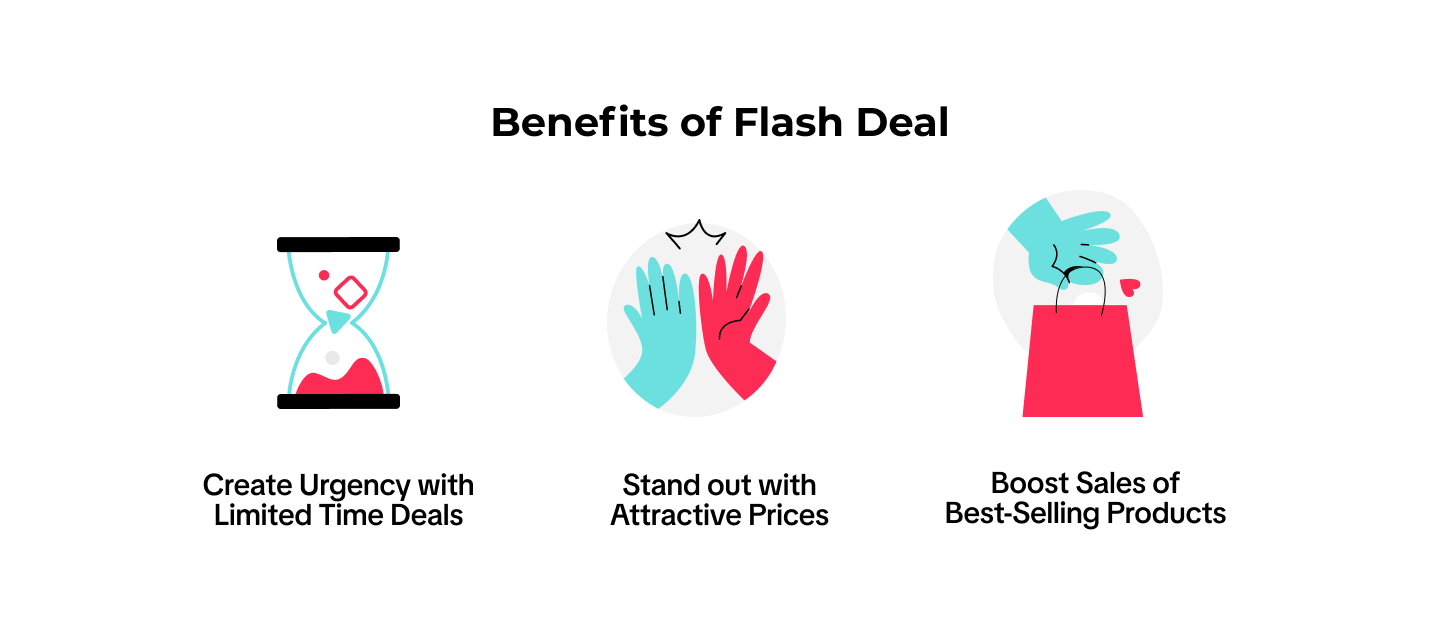 In this article, we share how to create, manage, and track Flash Deal promotions.
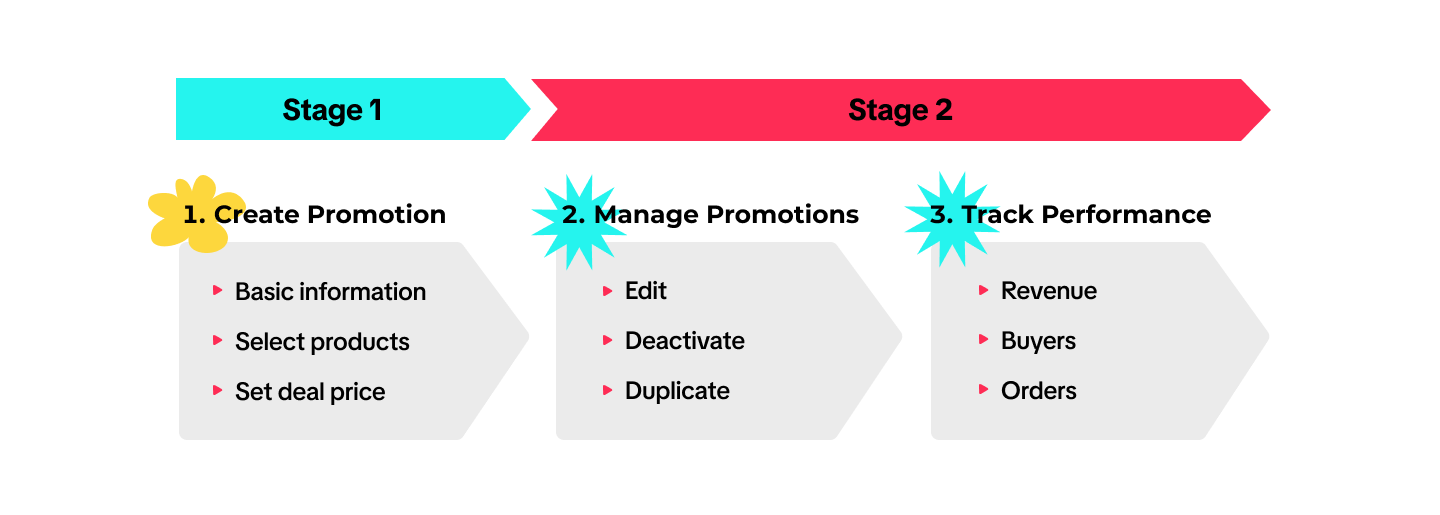


 Enter basic information

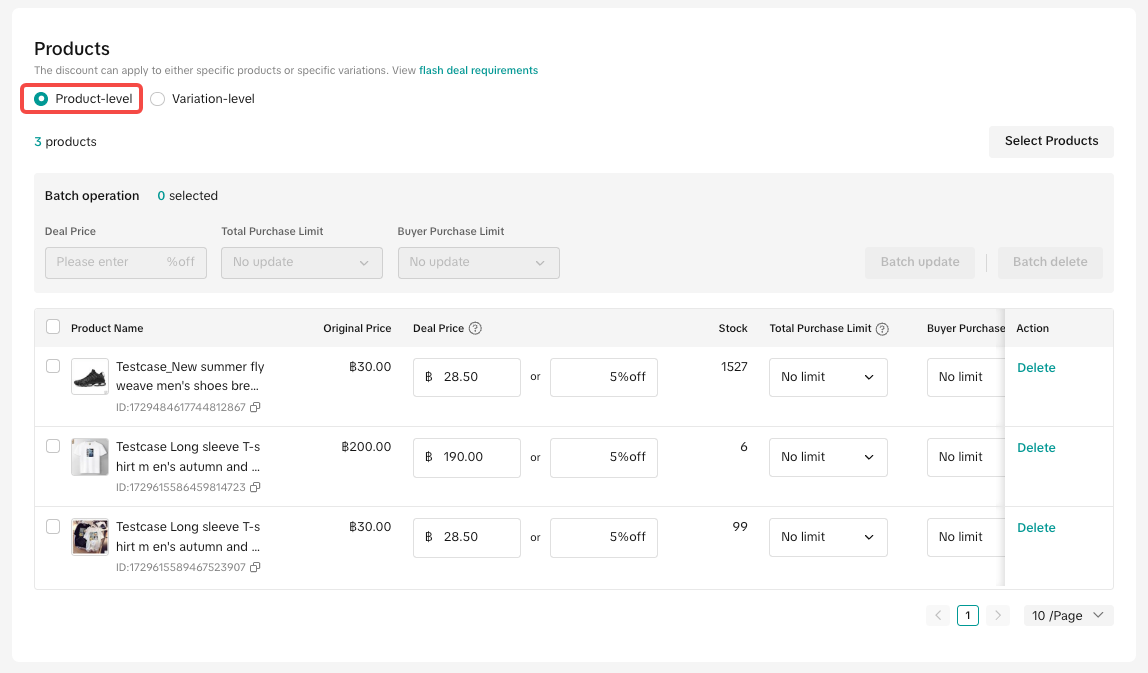
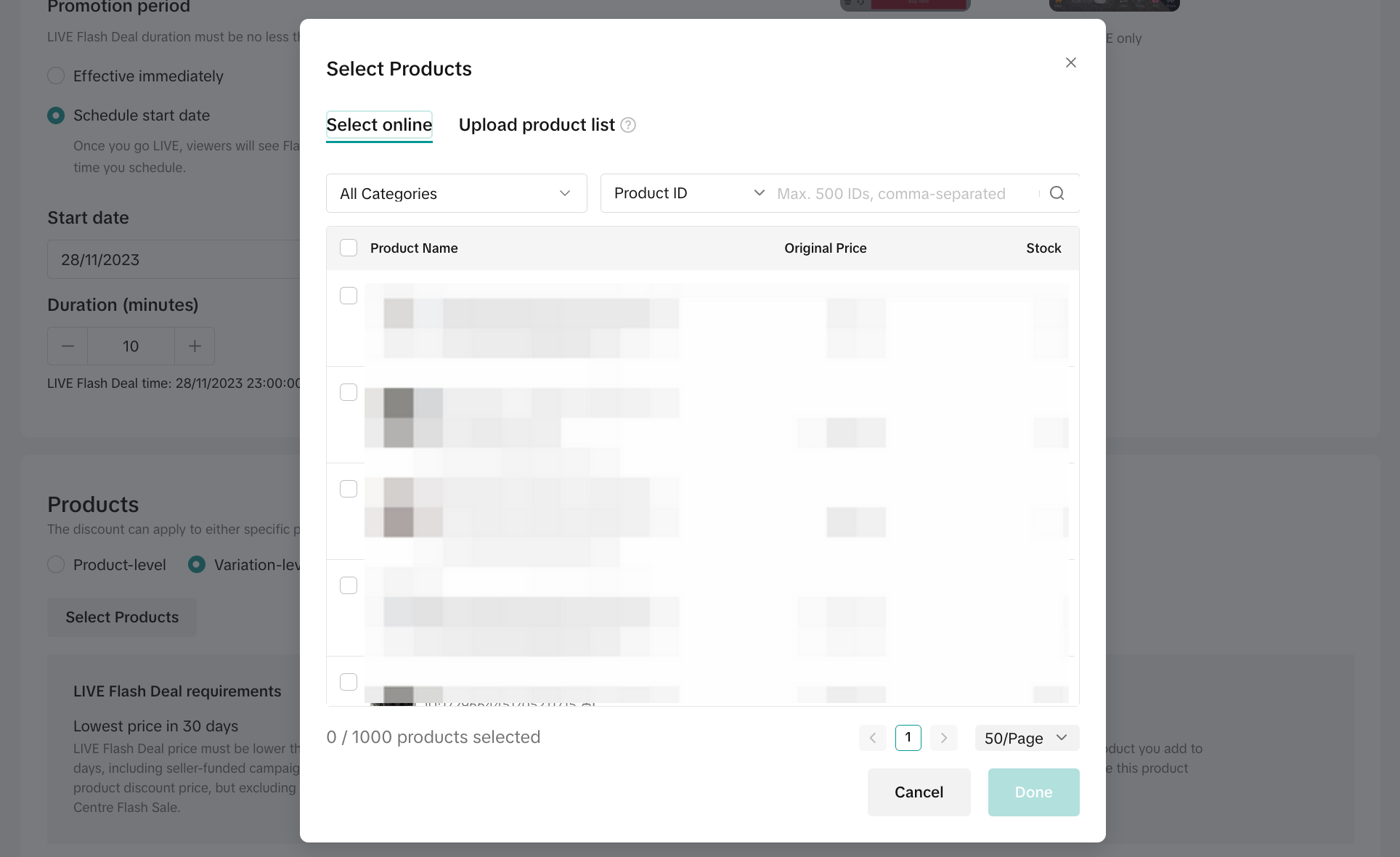 If you select Product-level, you will set the deal price on a product dimension, which means all variations under the product will be adjusted to the same price
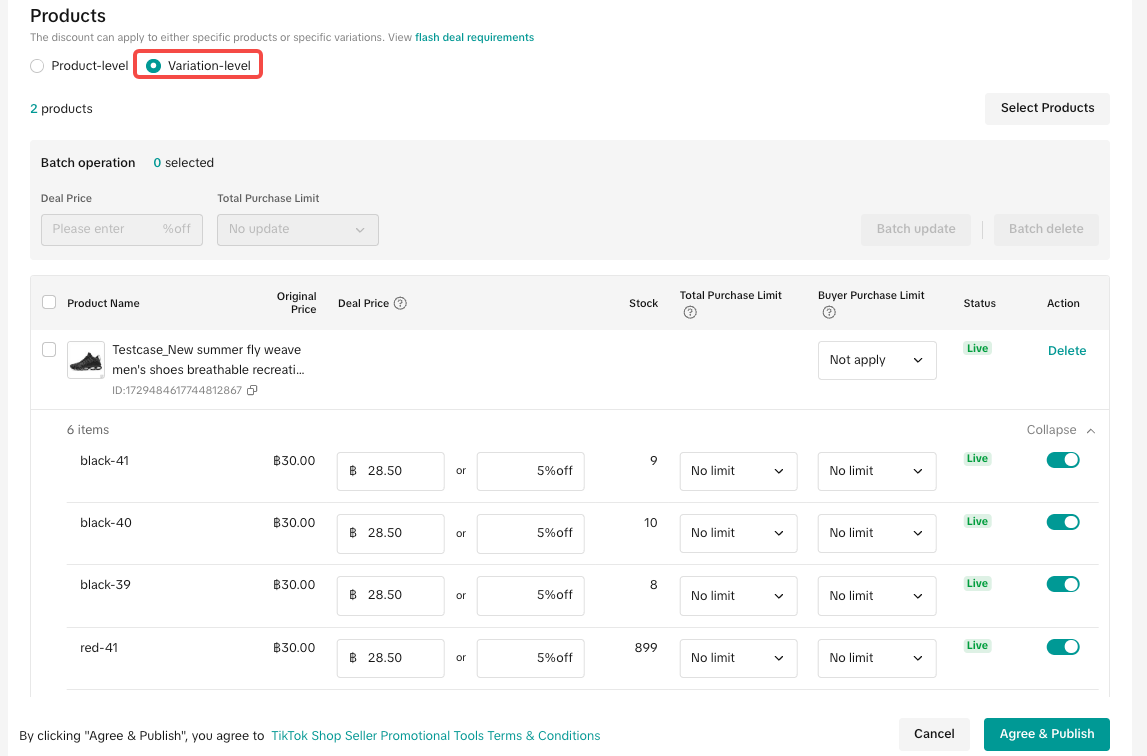
 If you select Variation-level, you will set the deal price on a variation dimension
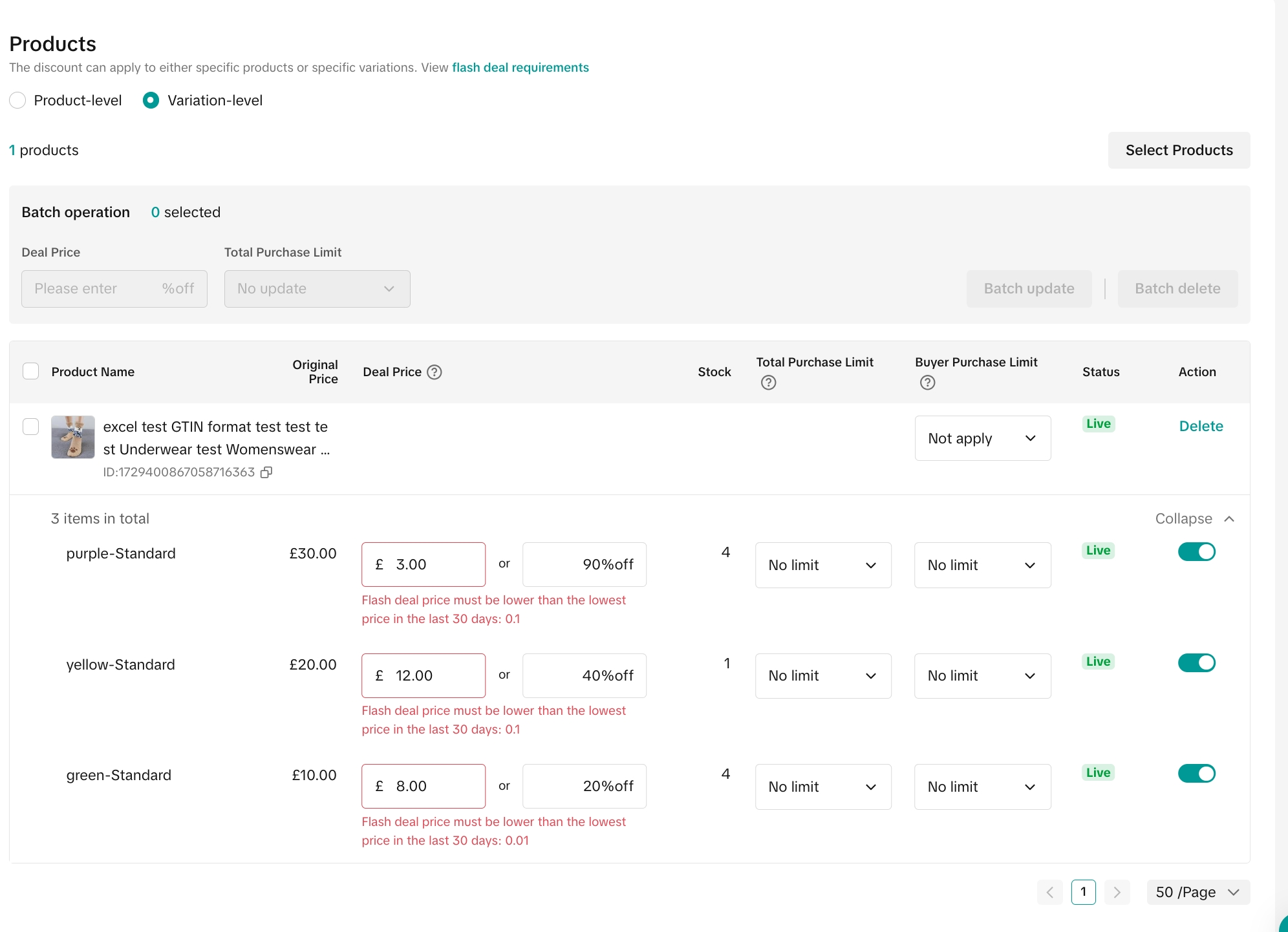
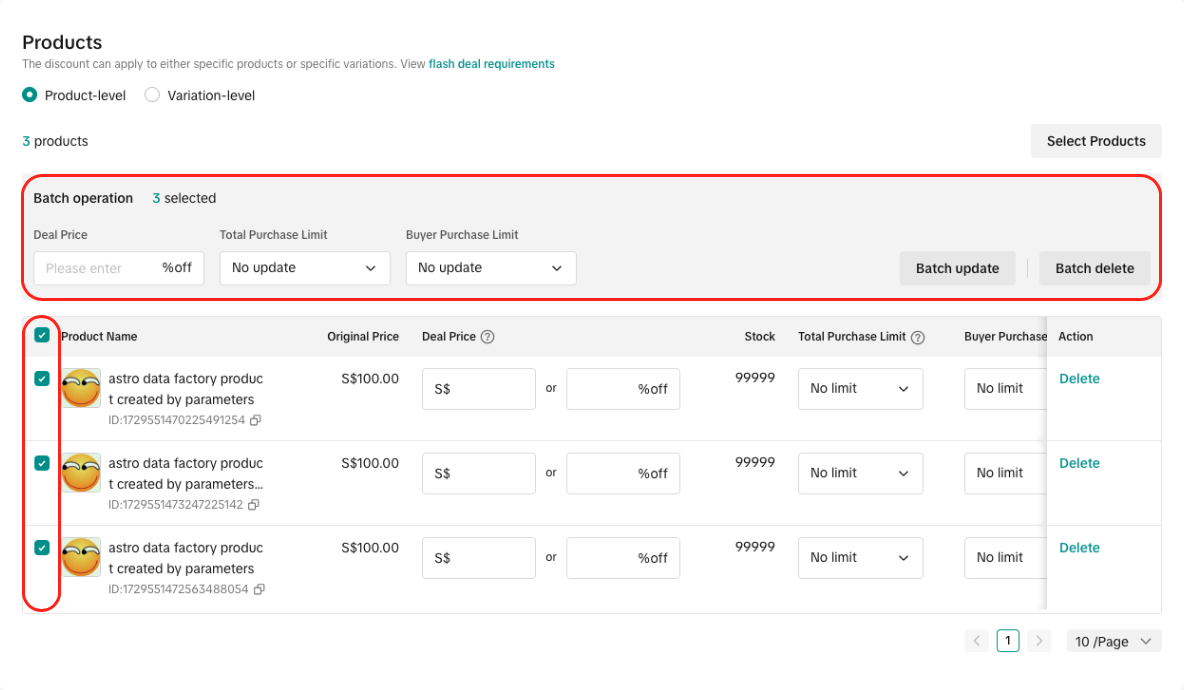
 Set Flash Deal priceThe Deal Price for Flash Deals can be configured either as a fixed price or percentage off. You can choose to edit the deal price, total purchase limit, and buyer purchase limit individually or in bulk.
 Once you have reviewed the Flash Deal promotion details, click Agree & Publish💡 Pro Tips


You can select a Promotional Tool to display its core data and trends. Core Data includes metrics such as Revenue, Orders, and Buyers.
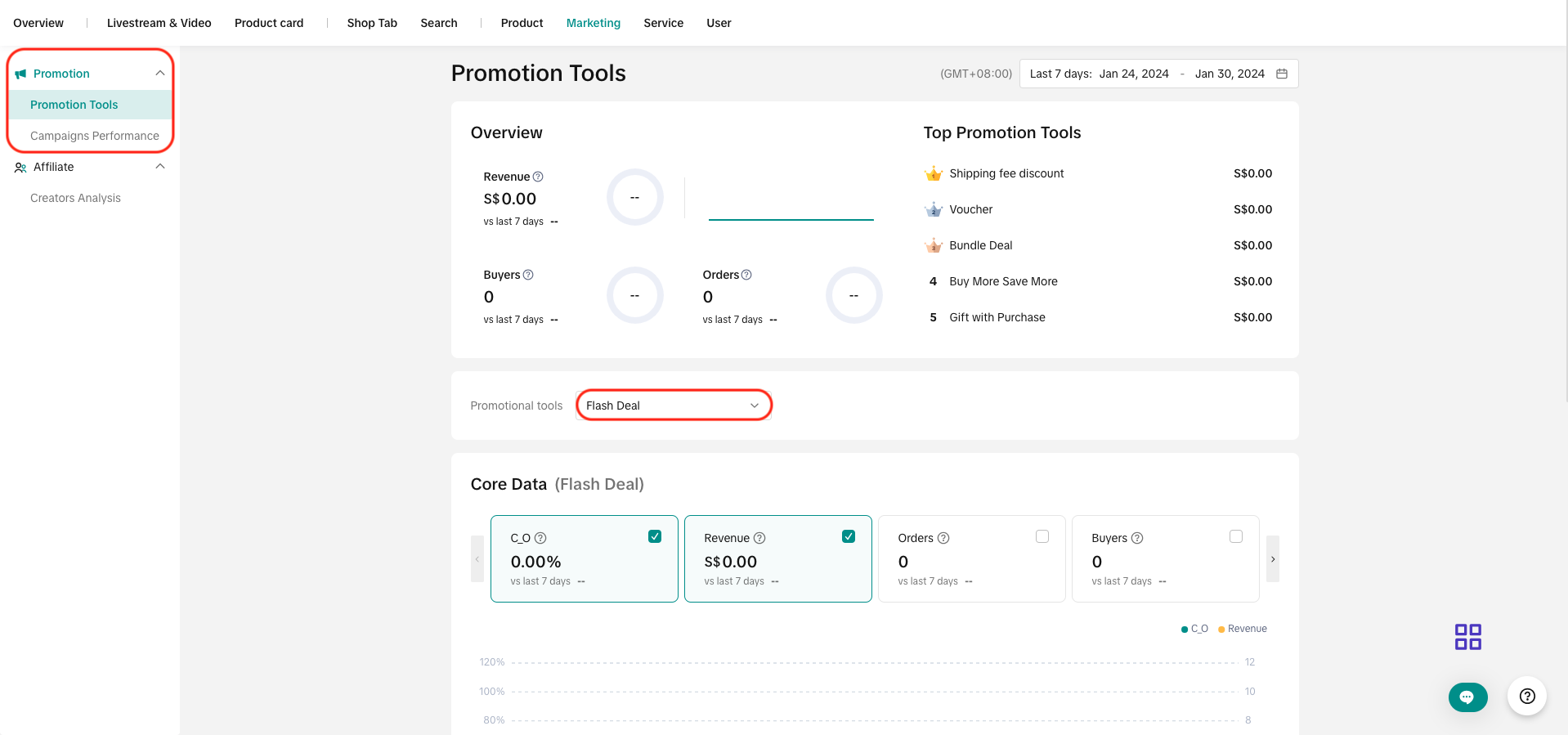 You can also check the status and conversion performance of each promotion through the Promotion List. You can use the list to analyze which promotion generates the most revenue or ROI and optimize your promotional events in terms of product, event time, and event channel.


Flash Deal is a seller-funded promotion tool to create limited time offers with a countdown timer.
Types of Flash Deal
- Flash Deals: Flash Deals of this type are displayed on all channels including product page, short video and showcase of all account types, and can be effective in driving conversion for best selling or new products, as well as stock clearance.

Flash Deal | |
Usage scenarios |
|
Configure | Seller Center PC & Seller Center Mobile App
|
Display Channel |
|
Pre-launch feature | Not available |
Promotion Price Requirement |
|
Minimum and Maximum Duration |
|
Maximum number of Flash Deal promotion event | A product must only be included in 1 Flash Deal promotion in a 24h period; inclusive of upcoming / ongoing /expired all channel flash deals |
Number of Flash Deal products per promotion event |
|
Create Flash Deal promotion
On Seller Center PC
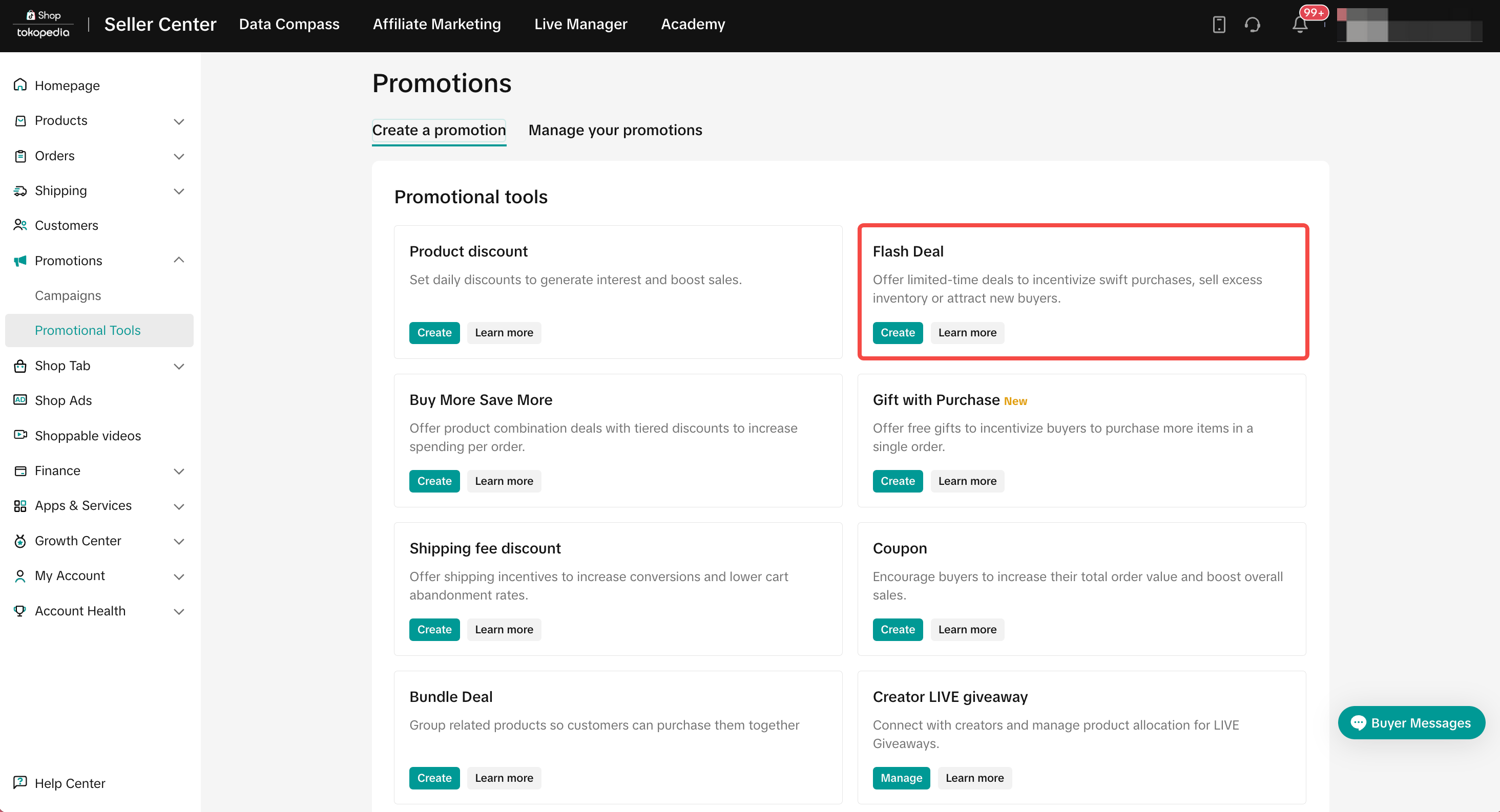
To create a Flash Deal promotion on the Seller Center on PC, visit the Promotional Tools tab.- Set a promotion name
- Choose the display channel for your Flash Deal
- All Channels: Flash Deals will be displayed on all channels across TikTok including your store page, Shopping Center, short videos, and more.
- Set a promotion period: Schedule the start and end date for your Flash Deal.
Select Products
When setting up your Flash Deal promotion, you can set a discount on either product-level or variation level. You can select products from your existing product list by clicking Select Online or Batch upload.If you select Variation-level, you will set the deal price on a variation dimension- Fixed price: Reduce the price by setting a fixed amount
- Percentage: Reduce the price by setting a percentage
- Total purchase limit: The total limit for this Flash Deal promotion
- Buyer purchase limit: The maximum quantity that each customer can purchase
- Individually
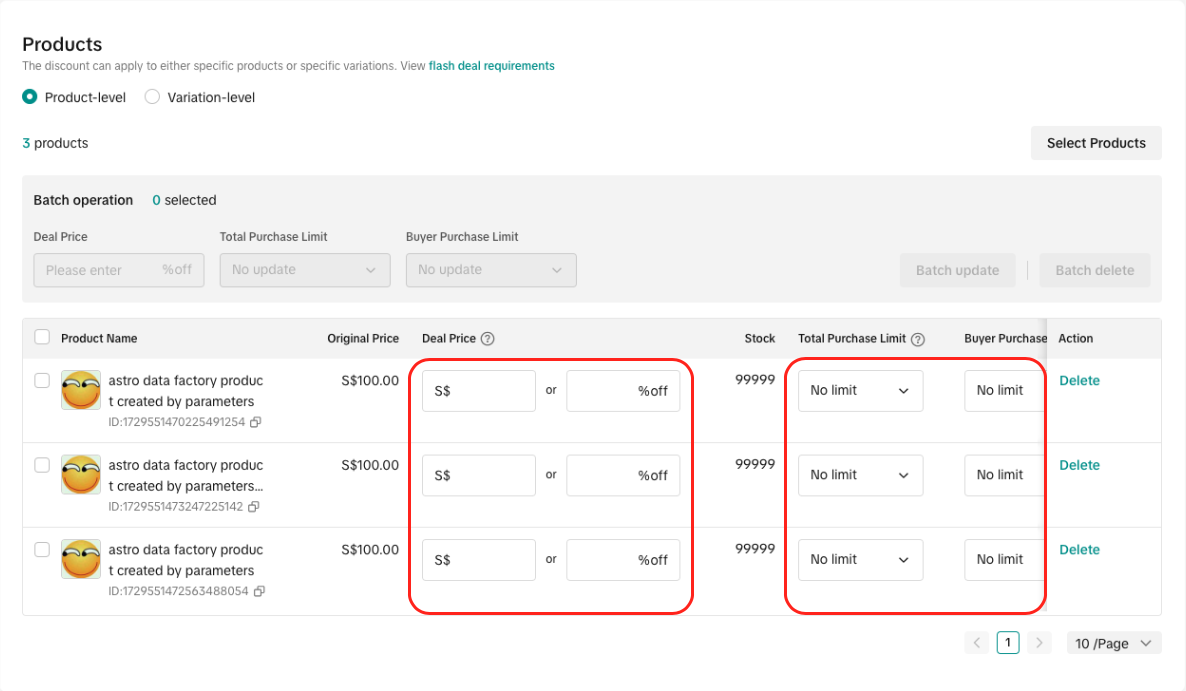
- In Bulk
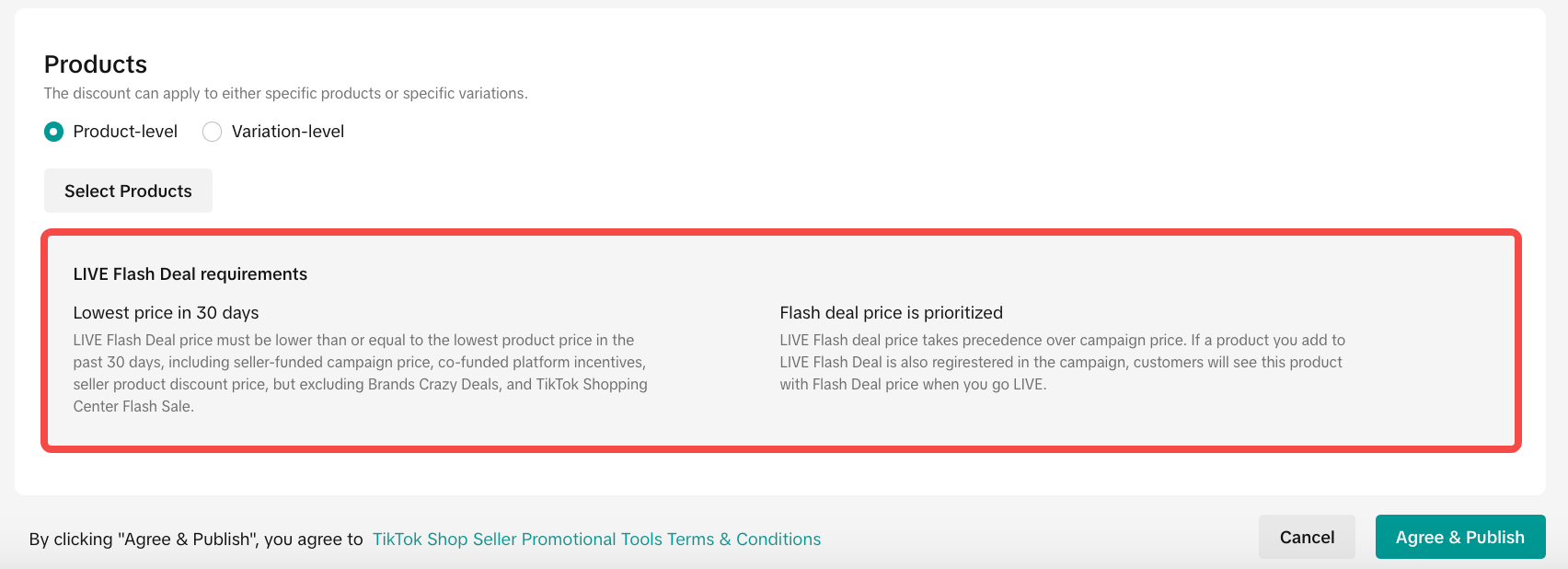
- Flash Deal price requirement: Lower than the lowest product price in the last 30 days, including seller product discount. If there is no order history in the last 30 days, the Flash Deal price is required to be lower than the original price.
- Choose the right product for Flash Deals
- Select best selling, trending or most viewed products to maximize sales, or utlize Flash Deal to introduce new products or stock clearance.
- Ensure to offer the best discounts with limited time and limited stock to create a sense of urgency and encourage immediate purchase
Manage Flash Deal Promotion
On Seller Center PC
To manage a Flash Deal promotion on the Seller Center on PC, visit the Promotional Tools tab.- Enter My Promotions to view the details of ongoing, upcoming and deactivated promotions.
- You can then choose to "Edit", "Deactive" or "Duplicate" a Flash Deal.

- For Upcoming Flash Deal, you can edit any information including promotion period, deal prices, purchase limits and select additional products.
- For Ongoing Flash Deal, you can only edit the end time of the promotion, select additional products or remove existing products.
Track Flash Deal promotion
To monitor your Flash Deal performance, visit the Promotion Analytics page.You can select a Promotional Tool to display its core data and trends. Core Data includes metrics such as Revenue, Orders, and Buyers.
Frequently Asked Questions (FAQs)
- How come I cannot create a Flash Deal?
- Only one product can be set in one Flash Deal type in the same period. Check whether you have previously created a Flash Deal promotion with the same product for the same period.
- Flash Deal have different price requirements. Check whether your price qualifies with the price requirement.
- Flash Deal price requirement: Lower than the lowest product price in the last 30 days, including seller product discount. If there are no order history in the last 30 days, the Flash Deal price is required to be lower than the original price.
- How many Flash Deal promotion events can be created?
- What is the minimum and maximum promotion duration?
- Flash Deal: minimum 10 minutes, up to 3 days
- If I fill in the "amount off" value, will the "percentage off" field automatically display the corresponding value?
- When there are multiple variations for a product with different prices, what happens when I fill in the "percentage off" value?
- What happens if there are multiple direct discounts applied to a product?
- If the Product Discount and Flash Deal are applied for the same product, then the Flash Deal will take priority.