

How to Set Up Free Shipping
Summary
Free shipping is one of the key factors that influence a customer’s decision to place an order in TikTok Shop.
Ways to offer Free Shipping
Via Free Shipping Promotions (Recommended)
|  |
Via Shipping Templates
|  |
note: All data displayed is for demonstration purposes only.

Customer Display
This Eye-catching "Free Shipping" label displayed across various channels helps draw attention and directly improves conversions.Livestream | Search Results | Product Detail Page (PDP) | Cart Page | Checkout Page |
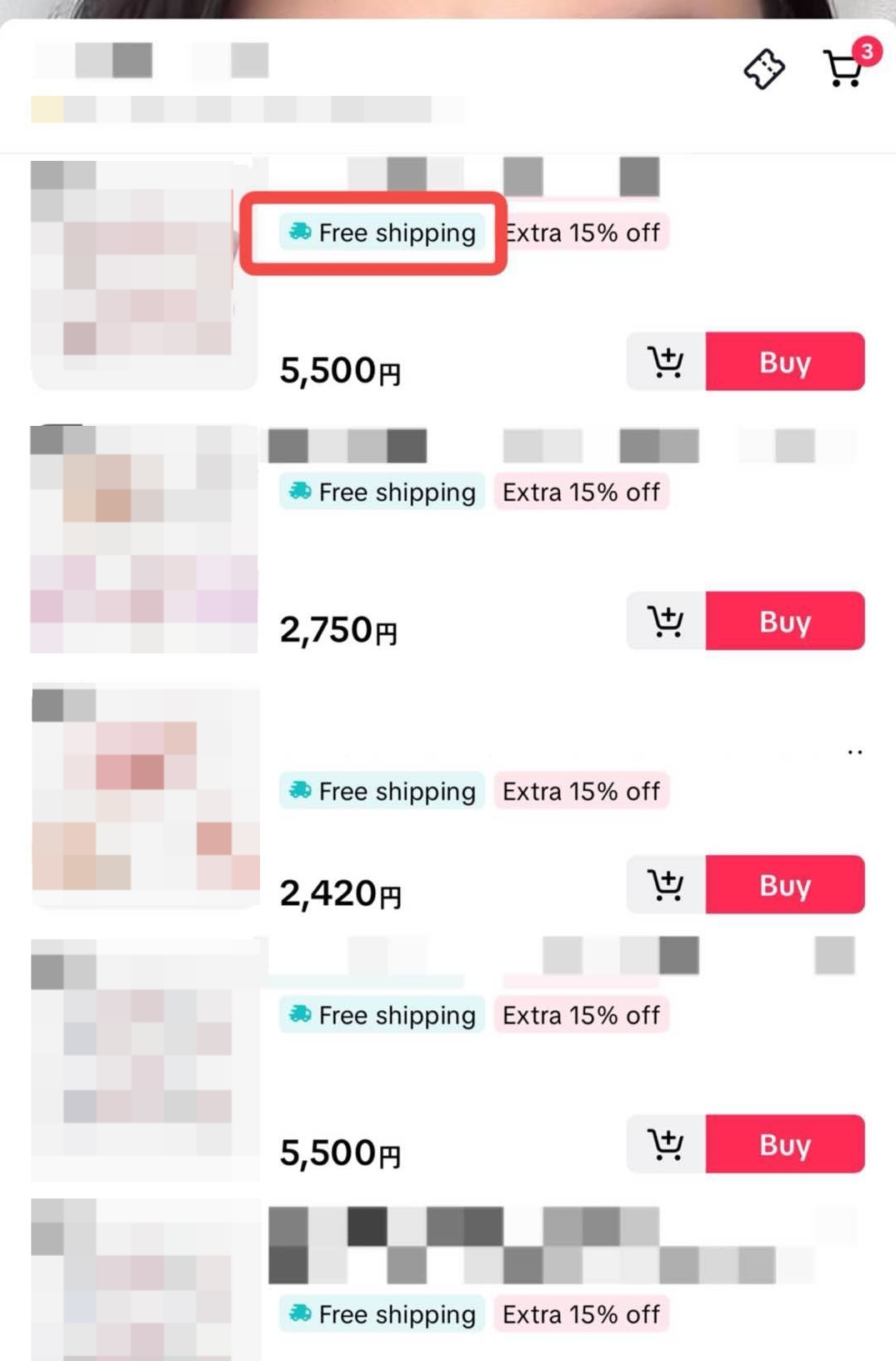 |  |  |  |  |

Free Shipping Settings Page
The new Shipping Settings page consolidates all shipping-related settings into one unified interface. Here, sellers can manage store-wide free shipping policies from a single hub. This unified experience is designed to simplify free shipping setup, optimize costs, and provide data-driven insights to help boost conversions and overall GMV.Key Benefits:
Simplified Setup: Configure all free shipping settings in one place.
Data-Driven Insights: View clear analytics to understand free shipping performance.
Access Location: Sellers can navigate to the page via:
Seller Center > Orders > Shipping settings
Key Features and How to Use Them
Overview Tab
Purpose:Provide a single place for store-wide free shipping setup, including free shipping coverage, estimated GMV uplift, suggest thresholds, and analytics insightsFeatures:
- Displays store-wide free shipping status and impact. Enabling seller to edit all store-wide free shipping in one place
If you set free shipping here, it means nationwide free shipping, including regions such as Okinawa and Hokkaido.
- Shows estimated GMV impact based on your current settings.


Product-Level Free Shipping Management Tool in Free Shipping Center
This feature allows you to manage free shipping at the individual product level, providing you with greater control over your shipping strategy.
Key Highlights:Free Shipping Status Overview: Quickly check the free shipping status of each product.
Manage Settings: Easily toggle free shipping on or off for each product via the Manage Product Free Shipping Settings page.
Flexible Adjustments: Make changes anytime without impacting your overall store-wide shipping rules.
How to edit Product Free Shipping- Navigate to Orders > Free Shipping > Overview
- In the Product Free Shipping section, click Manage Products
- Review the free shipping status for each product:
- Yes - In free shipping promotion: You have created unconditional free shipping for this product
- Yes - Conditional free shipping: This product has free shipping, but with restrictions (promotion period or shipping areas).
- Yes - Meets shop-wide threshold: The product price is above your shop’s free shipping threshold, so it qualifies for free shipping.
- No: The product does not currently have free shipping.
- To enable free shipping: Select one or more products and click Create Promotion
- To cancel free shipping: Select products and click Deactivate Promotion.
- Note: Only products with "in free shipping promotion" status can be deactivated here. For other promotions, please visit the Free Shipping Promotion page.


- Note: Only products with "in free shipping promotion" status can be deactivated here. For other promotions, please visit the Free Shipping Promotion page.
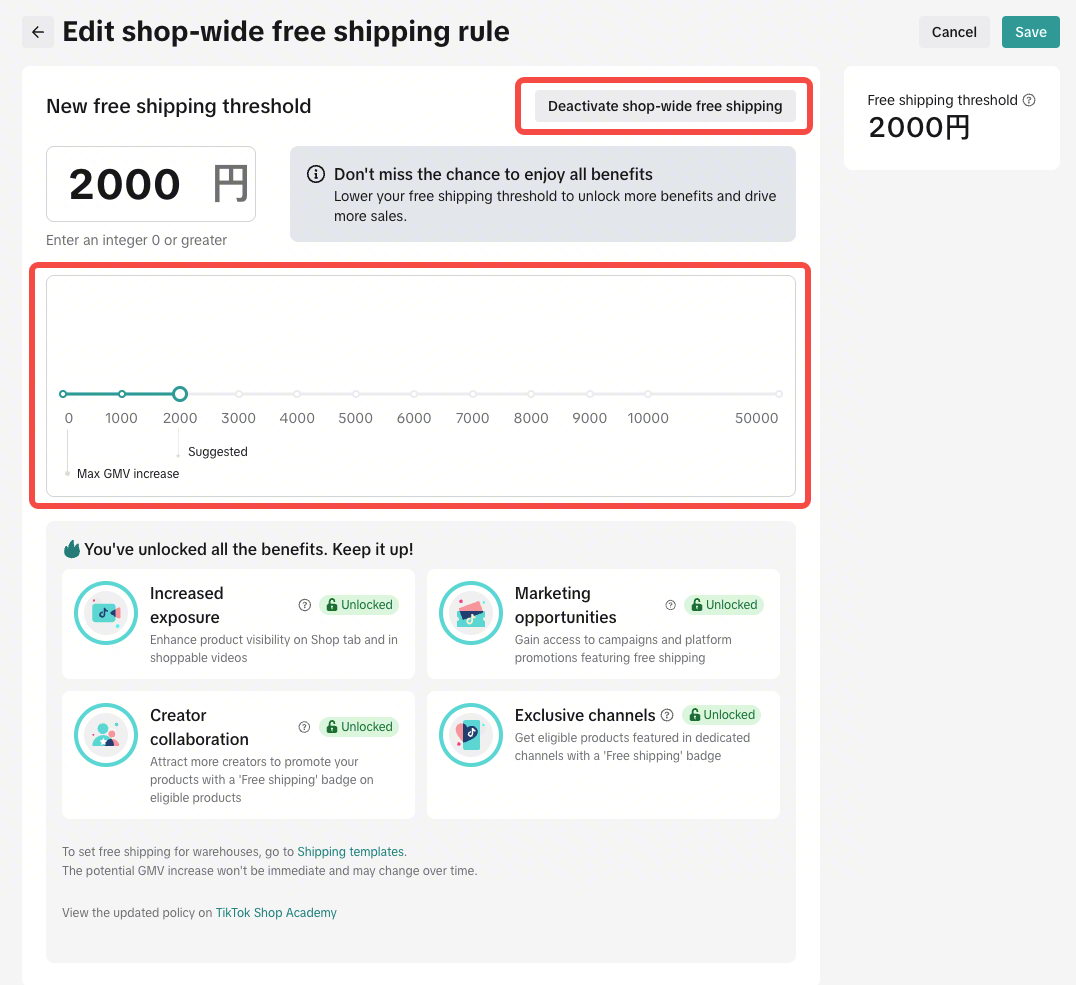
How to edit Store-Wide Free Shipping for Your StoreOption 1: Store-Wide Free Shipping
- Navigate to Orders > Free Shipping > Overview
- Click Edit on the “Shop-Wide Free Shipping” section
- Set a minimum spend threshold for free shipping using the slider
- The slider adjusts in 1000円 increments
- The slider is locked between 0円 and 50000円
- Preview the estimated GMV uplift as you adjust the threshold
- Click Save to apply your settings
FAQs
- Can I combine multiple free shipping options?
- How does the free shipping threshold slider work?
- It adjusts in 1000円 increments
- It displays the estimated GMV uplift for different thresholds
- What happens if I disable free shipping?
- All store-wide free shipping settings will be removed
- Your targeted promotions remain unaffected
- You will receive a confirmation prompt before any settings are disabled

How to Create Free Shipping
Let’s walk through the setup process for both methods.Set Up via Free shipping promotions (Recommended)
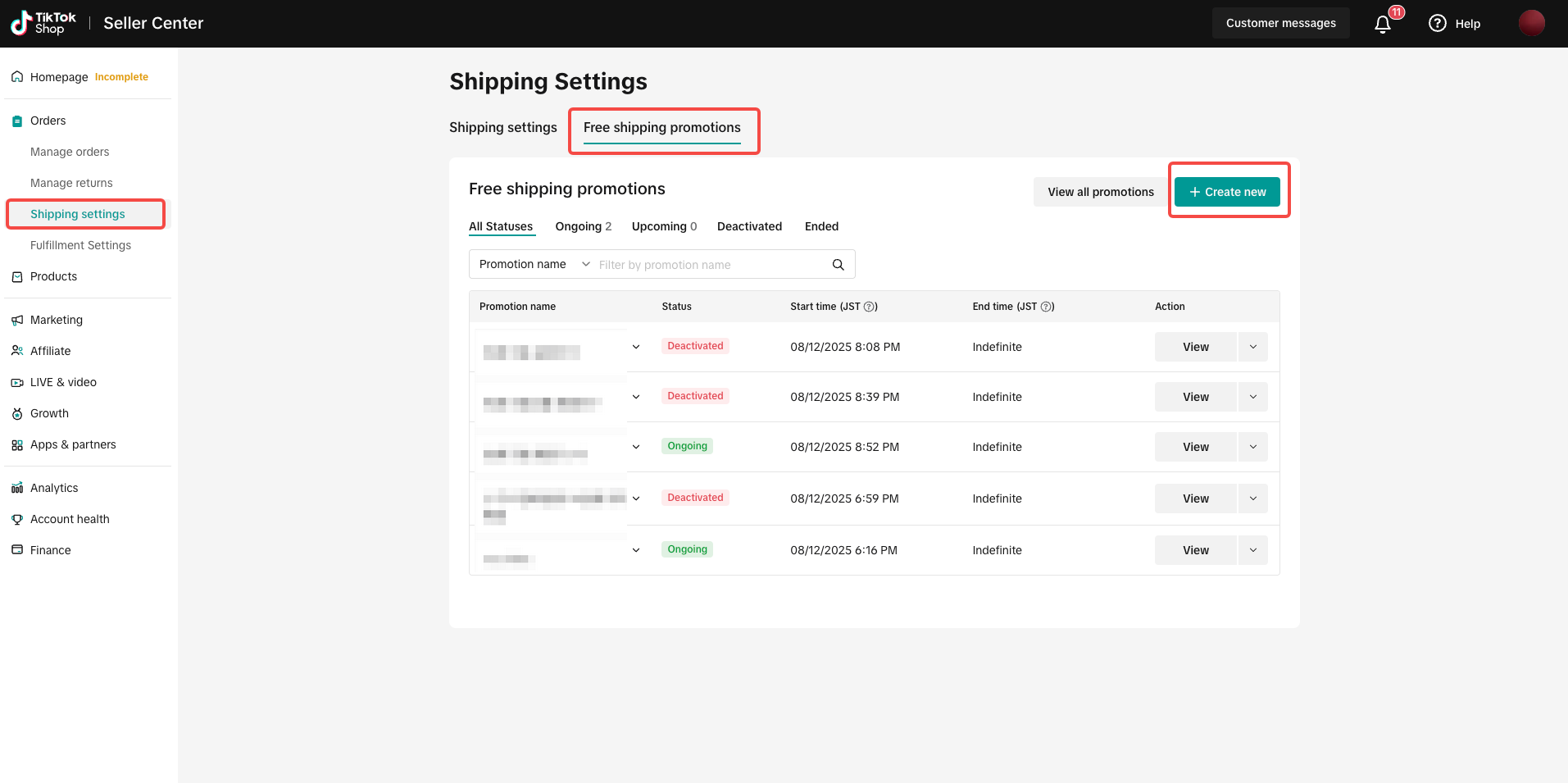
You can go to the Shipping Settings and click on the "Free Shipping promotions" tab to create a free shipping promotion. This is the same as the "Shipping Fee Discount" option under Promotions.Two entrances | |
| Go to Seller Center > Orders > Shipping Settings > Free shipping promotions > Create new | Go to Seller Center > Marketing > Promotions > Create a promotion > Shipping Fee Discount |
 |  |
Step 1 | Step 2 |
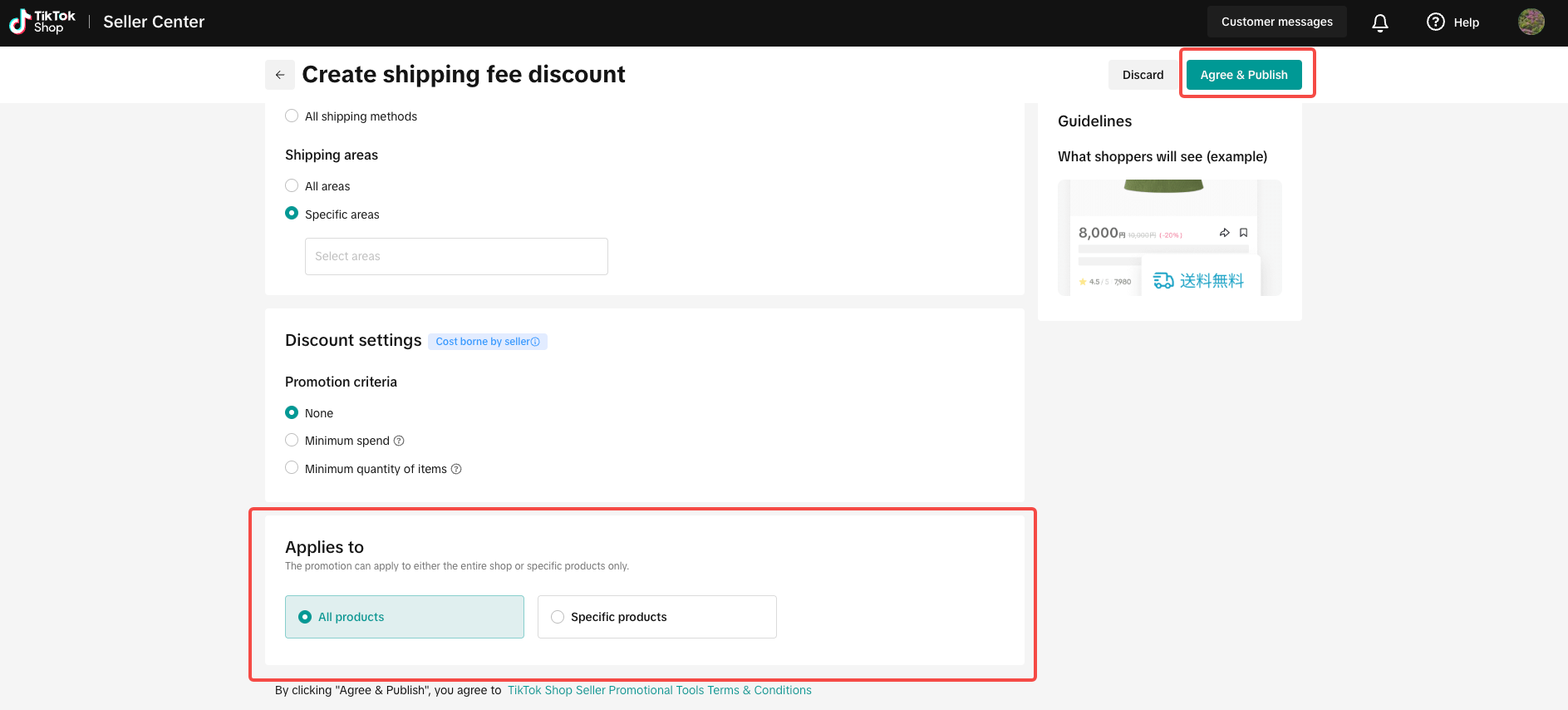
| Set the discount, select the applicable products, and click "Agree & Publish".
|
 |  |
Set Up via Shipping Fee Template
Shipping Fee Template is a basic logistics setting where you set shipping fees to 0 directly. It’s ideal for long-term or storewide Free Shipping policies and does not rely on the marketing system.💡Tips: To offer free shipping on all products in your shop, please select items from all warehouses and set the flat rate to 0.
Step 1 | Step 2 | Learn more |
| Set your shipping fee and submit:
|
|
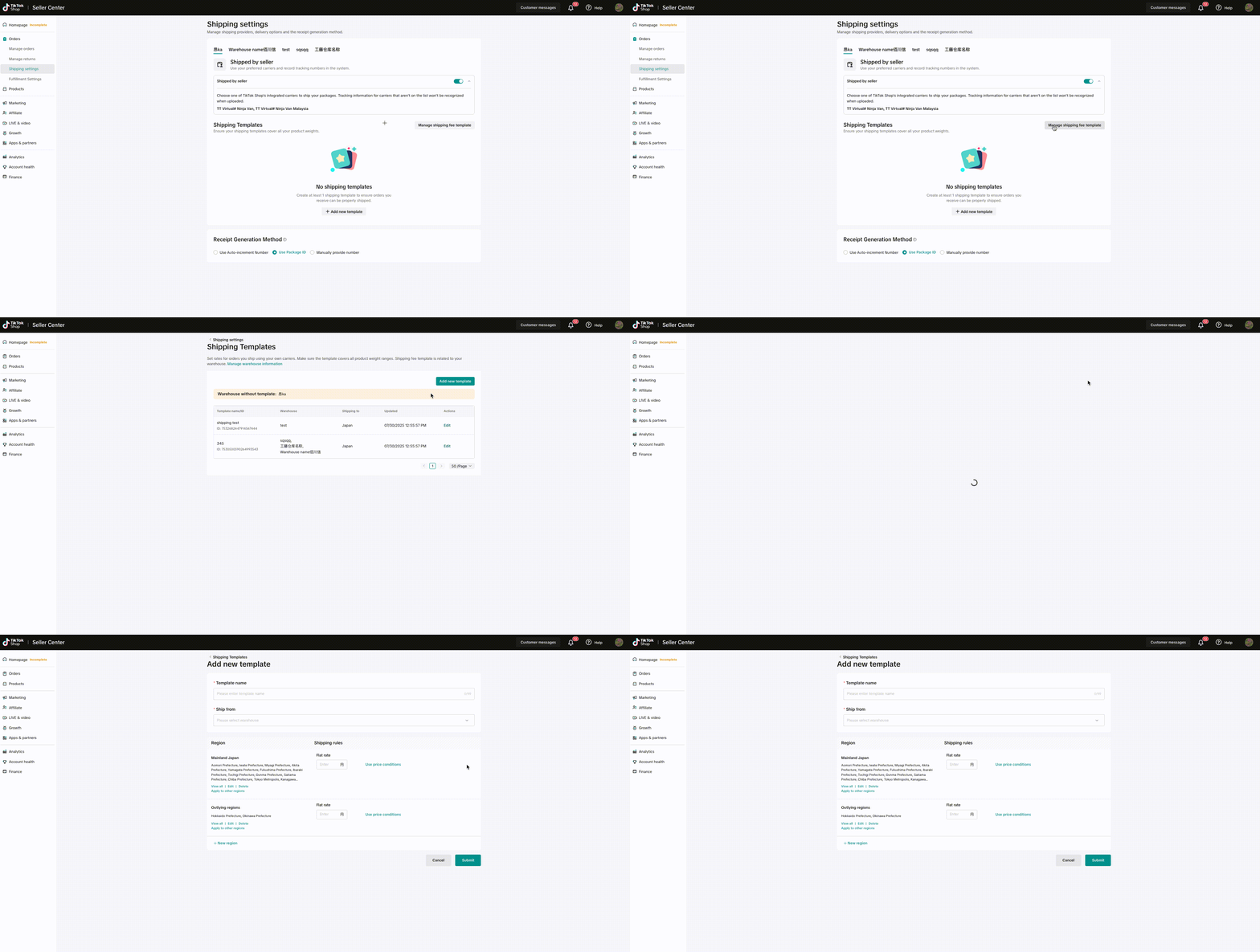 |  |  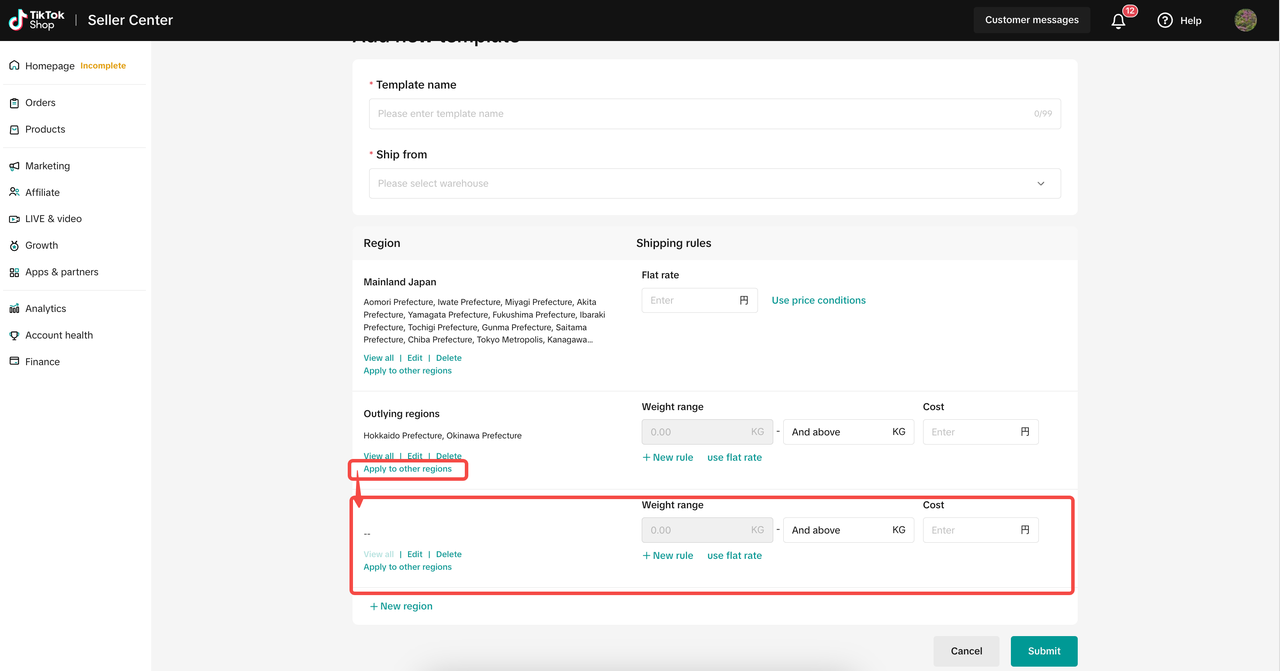 |
How to Manage Free Shipping
- Promotions
| Seller Center > Orders > Shipping Settings > Free shipping promotions > View all promotions | Seller Center > Marketing > Promotions > Manage your promotions |
 | 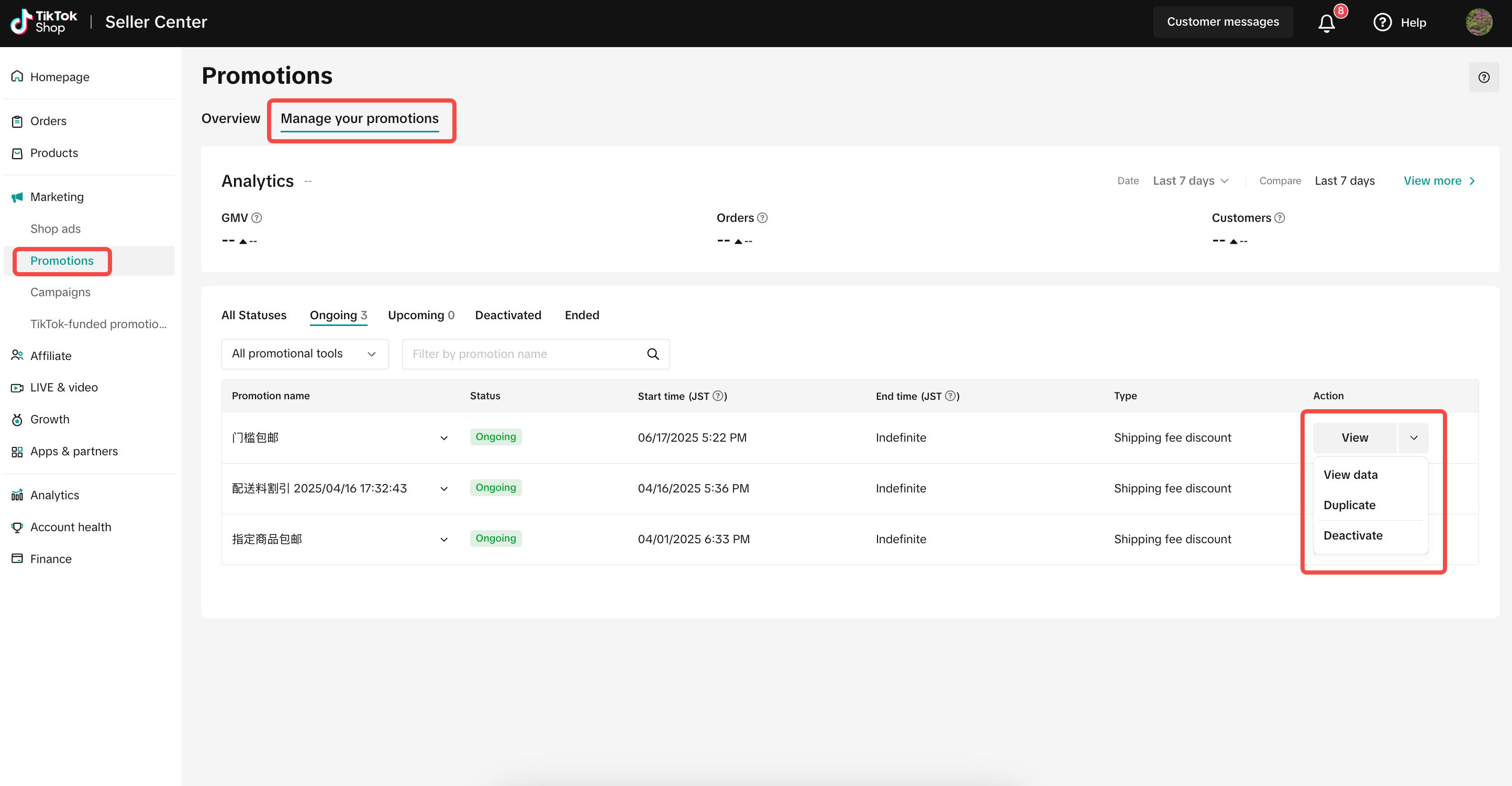 |
- Shipping fee template
 |  |