

How to communicate with customers
Summary
What communication tools does TikTok Shop provide for sellers to engage with buyers?
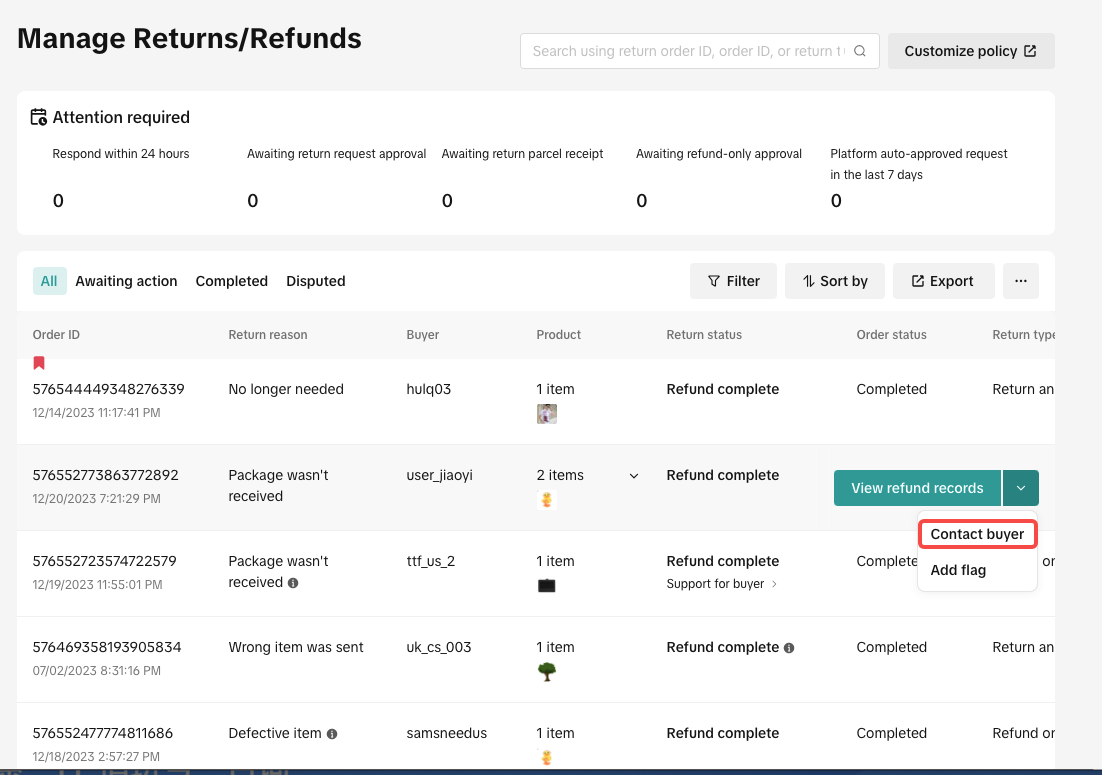
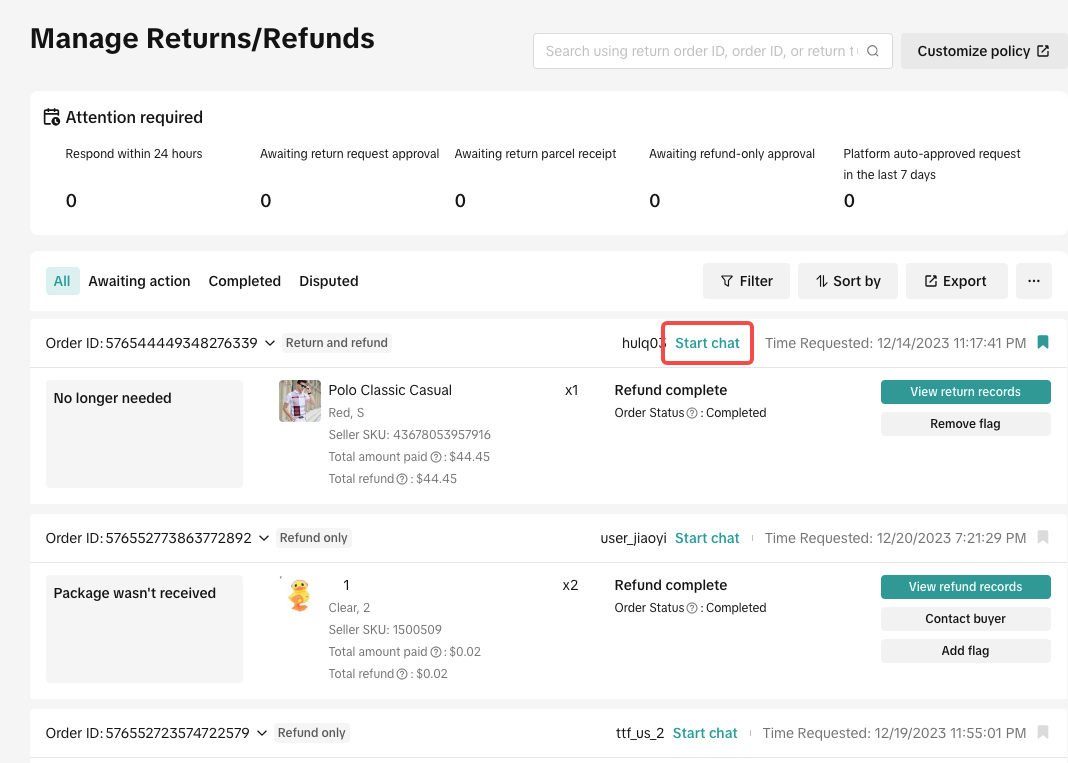
The first condition is if the buyer's order was created within the last 60 days. The second condition is if the buyer has an ongoing reverse order.
By initiating direct communication with buyers, sellers can provide personalized support, address any concerns or questions buyers may have regarding their orders, and build stronger relationships with their customers.


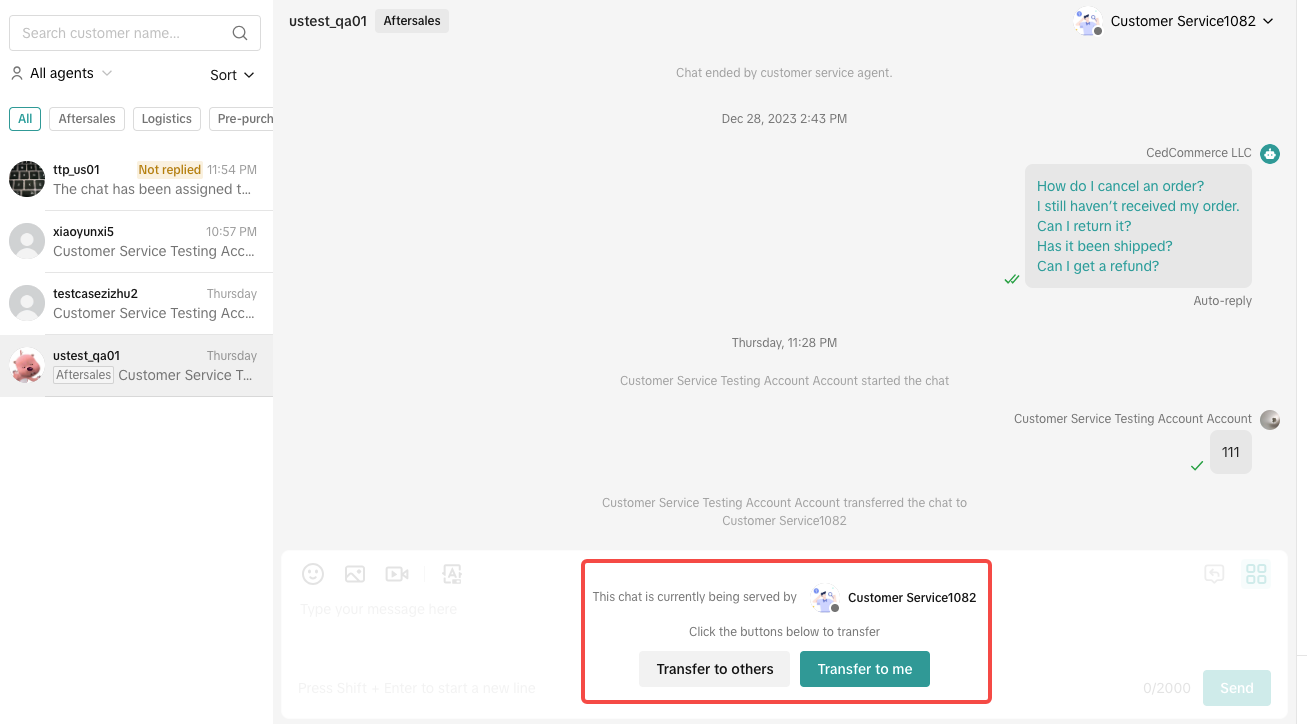
 In all open chats, you can view all open chats in the shop, including the chats assigned to you and the chats assigned to other agents. You can also filter the chat by different agents.
 For a chat that is being served by another agent, you can choose to transfer it to yourself or to someone else. For example, when customer service agents need to take over a shift, you can transfer the unfinished chats of the previous agent to yourself for processing.

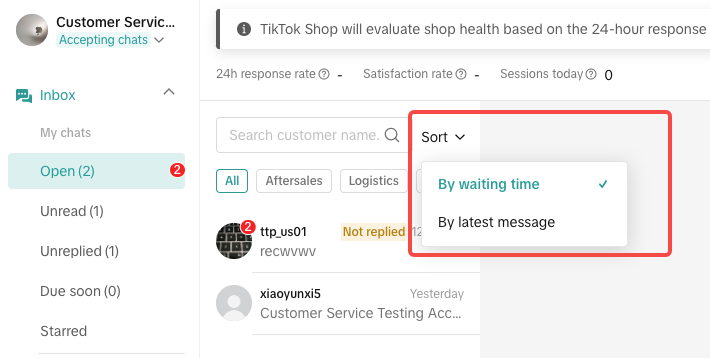 There are two options for sorting chats:
What communication tools does TikTok Shop provide for sellers to engage with buyers?
- TikTok Shop offers a chat feature accessible from the Seller Center, Manage Orders, and Order Details, allowing sellers to communicate directly with buyers for personalized support.
- Sellers can monitor unread messages and queue status via indicators in the chat tool, ensuring timely responses. They can also filter chats by tags like [Pre-sales], [Logistics], and [After-sales].
- The chat page includes sections like Customer service avatar, Function menu, Inbox, Chat window, Workbench, and Service data, each offering specific functionalities for managing buyer interactions.
- Agents can set their status to "Accept auto-assign chats" for automatic chat assignments or "Do not accept" for manual handling. Chats can be assigned manually if unassigned due to capacity or offline status.
- Unwanted messages can be marked as 'No response needed,' while abusive messages can be reported to the platform for review, ensuring they don't affect service analytics.
How to communicate with customers
TikTok Shop offers a suite of communication tools for our sellers to engage with buyers across the selling journey, from pre to post sales. Seller customer service teams can leverage these tools to provide the customer service experience that will help sellers build relationships with their buyers.Buyer message tools in Seller Center
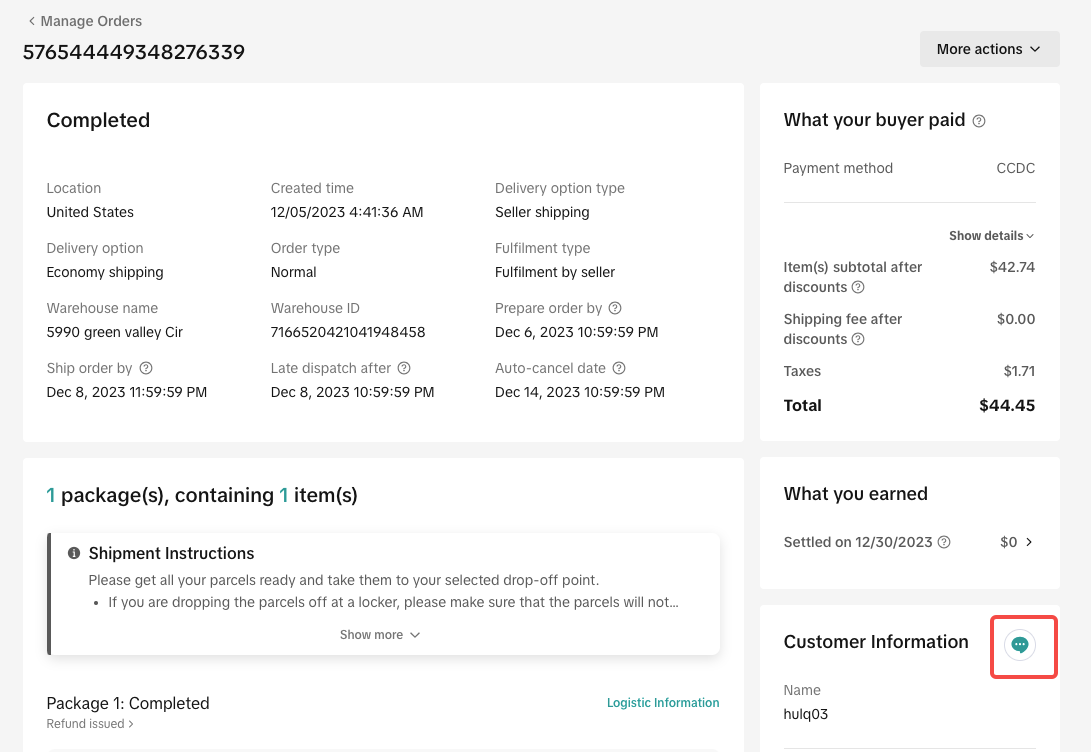
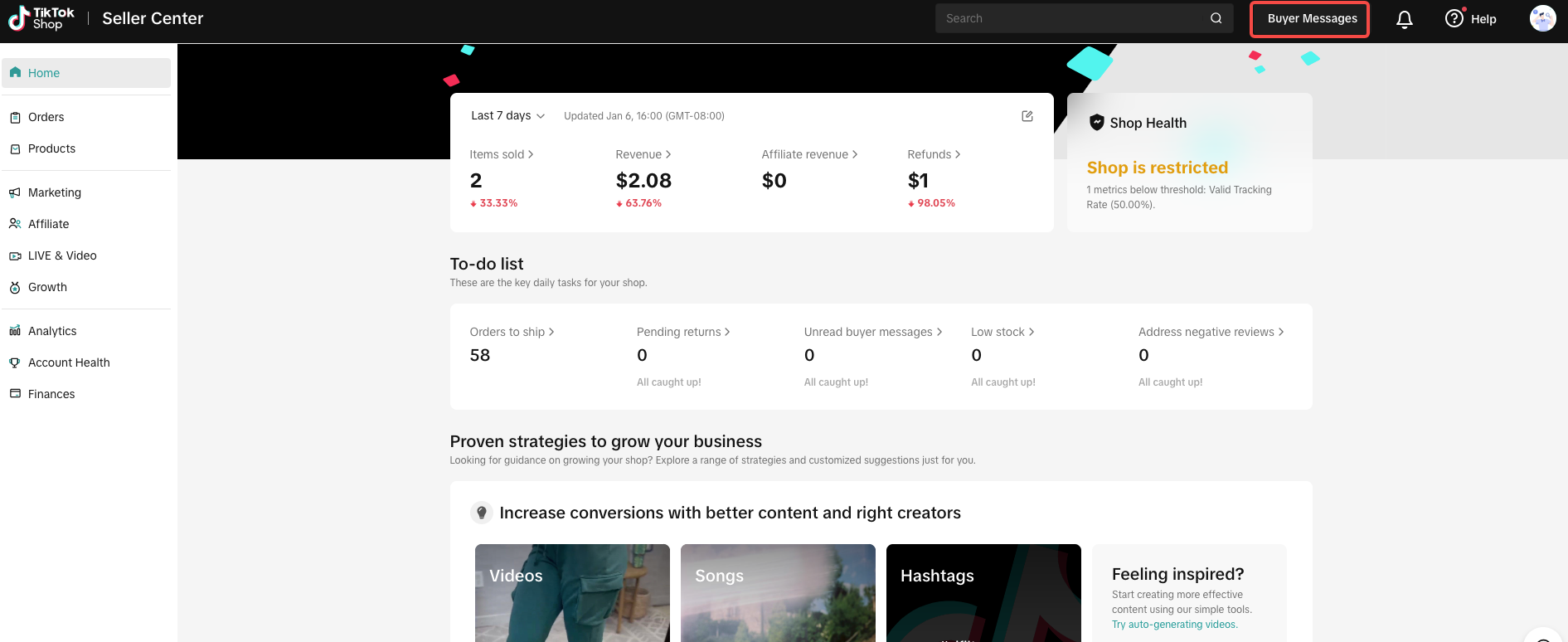
There are three ways to access the chat feature from the TikTok Shop Seller Center:- Buyer messages located in the top right corner of Seller Center
- Buyer messages located in Manage Orders
- If the buyer's order was created within the last 60 days.
- If the buyer has an ongoing reverse order.
- Buyer messages located in Order Details
The first condition is if the buyer's order was created within the last 60 days. The second condition is if the buyer has an ongoing reverse order.
By initiating direct communication with buyers, sellers can provide personalized support, address any concerns or questions buyers may have regarding their orders, and build stronger relationships with their customers.
Chat page
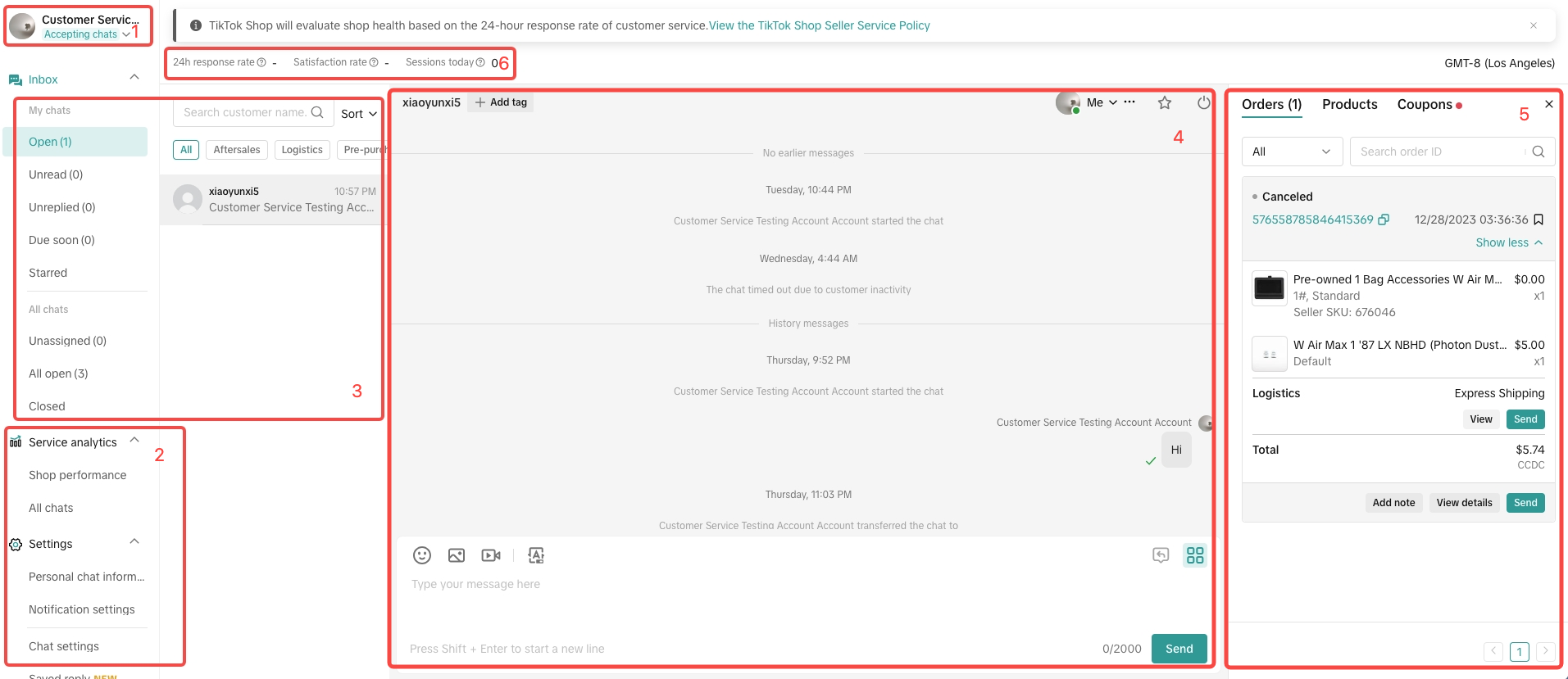
The chat page consists of six parts:- Customer service avatar
- Function menu
- Inbox
- Chat window
- Workbench
- Service data
2.1 Customer service avatar
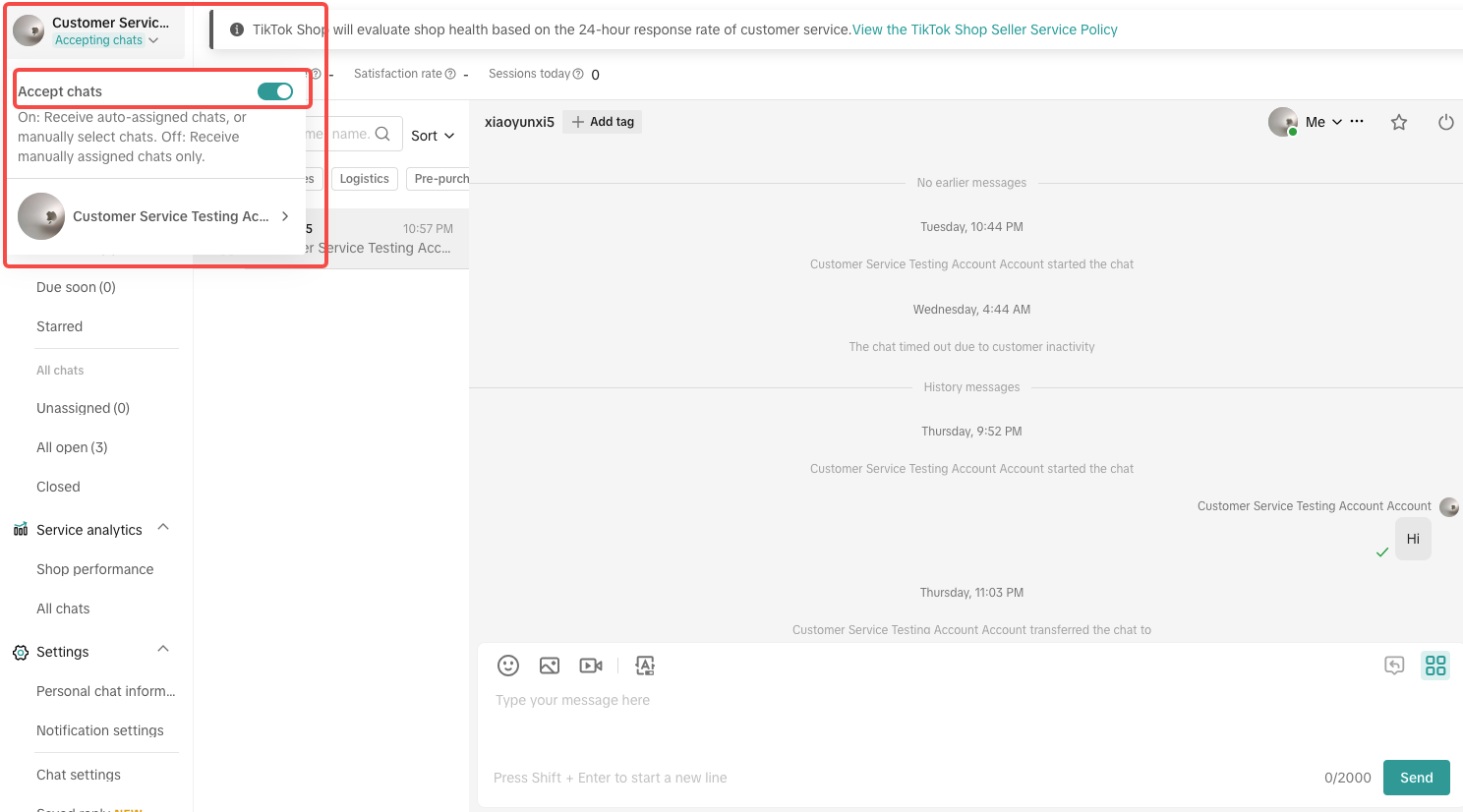
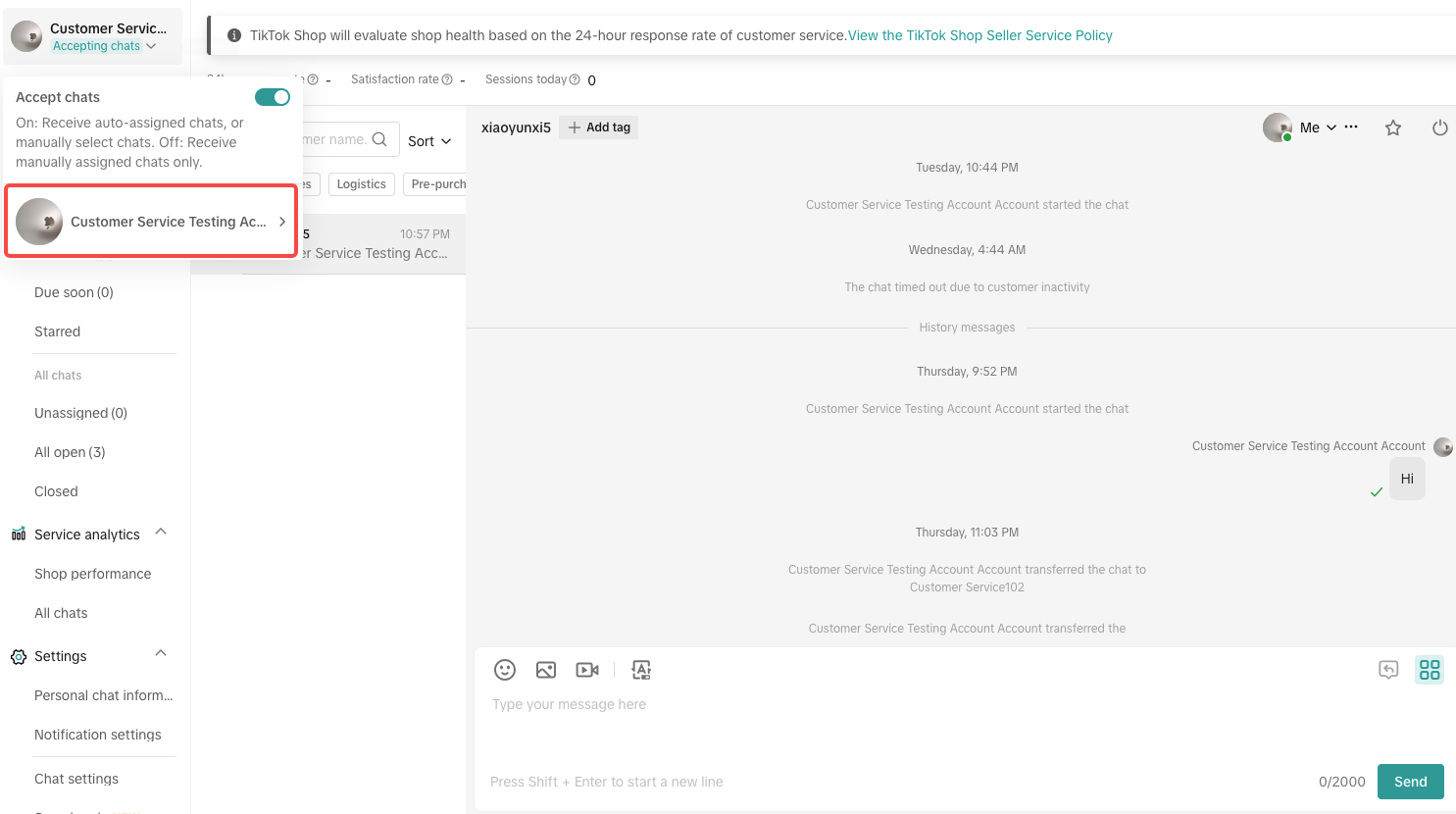
This section displays the profile picture and name of the customer service agent.A. Accept chats
In TikTok Shop's chat page, if there is only one account with customer service permission, there won't be an "Accept Chats" switch. In this case, all buyer messages will be automatically assigned to this account. However, if there are multiple accounts with customer service permission, agents can easily switch their personal status by clicking on their avatar.- Enabling the 'Accept auto-assign chats' switch: allows the system to automatically assign chats to you when you open the chat tool. This includes chats that are manually assigned to you by other agents.
- If you turn off the "accept auto-assign chats" switch, you will not receive chats that are automatically assigned by the system when you open the chat tool. However, other agents can still manually assign chats to you.
- If you are a shop manager or customer service supervisor and are not primarily responsible for responding to buyer messages, you can set your status to "Do not accept auto-assign chats." This will prevent new messages from being automatically assigned to you, allowing you to focus on other tasks such as escalations and viewing service performance data. However, you can still use all the other functions of the chat tool and manually handle any messages that require your attention.
- As a customer service agent responsible for replying to buyer messages, setting your status to "Accept auto-assign chats" allows new messages to be automatically assigned to you when you have the chat tool page open during work hours. When you close the chat tool page, the system recognizes that you are offline and will not assign new messages to you. If you need a short break during work or want to focus on existing chats without receiving new ones, you can switch to "Do not accept auto-assign chats" temporarily.
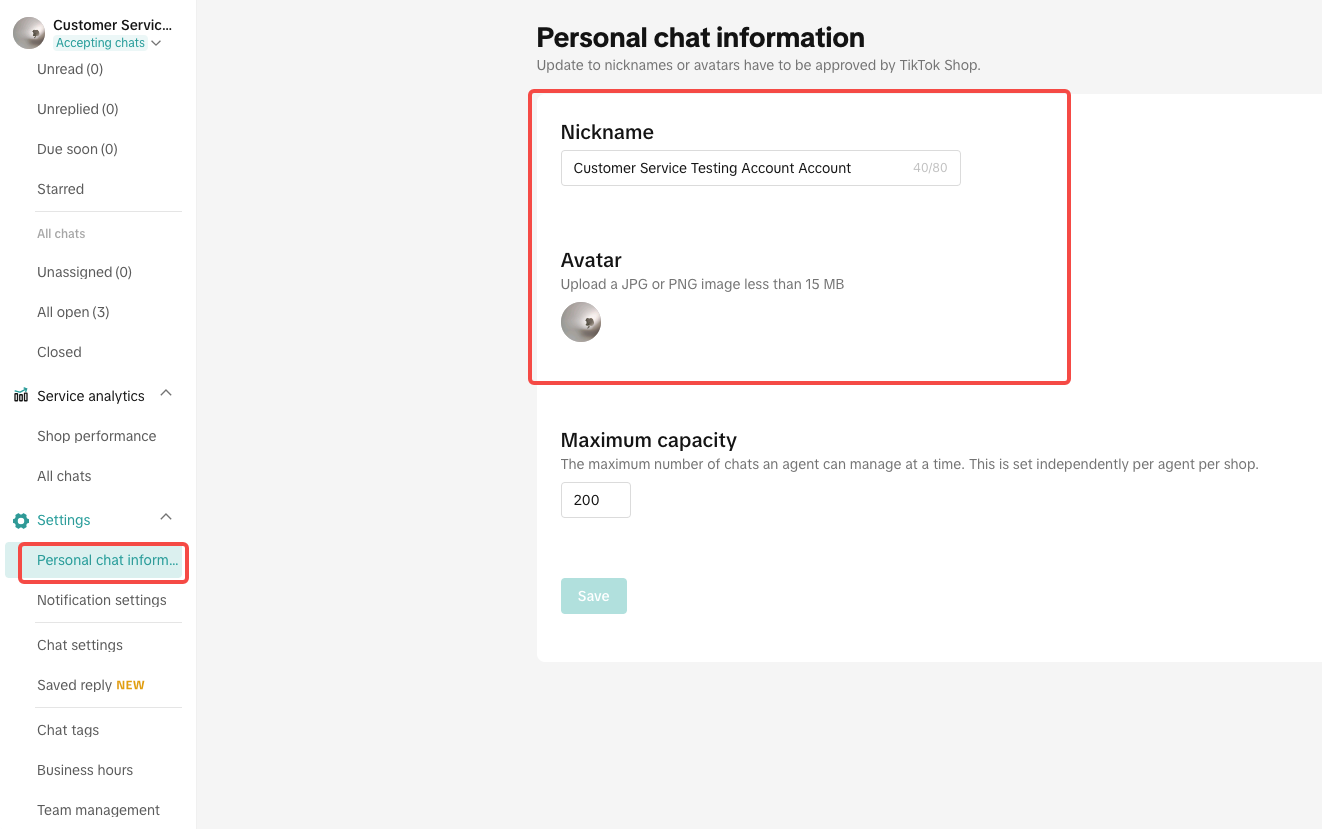
B. Modify avatar and nickname
By clicking on the avatar and nickname in TikTok Chat, you can access the personal information setting page. Here, you can customize your avatar and nickname. Please note that any changes made to your avatar will need to be reviewed by the platform before they take effect.2.2 Function menu
The sidebar currently includes five modules: [Inbox], [Service analytics], [Chatbot], [Setting], and [Feedback]. The usage of [Service analytics], [Chatbot] and [Settings] will be explained in detail in ot2.3 Inbox
A. [New] Chat list
The chat list in TikTok Shop displays the ongoing conversations between customer service agents and customers. Chats are categorized as [My chats] and [All chats].a. My chats
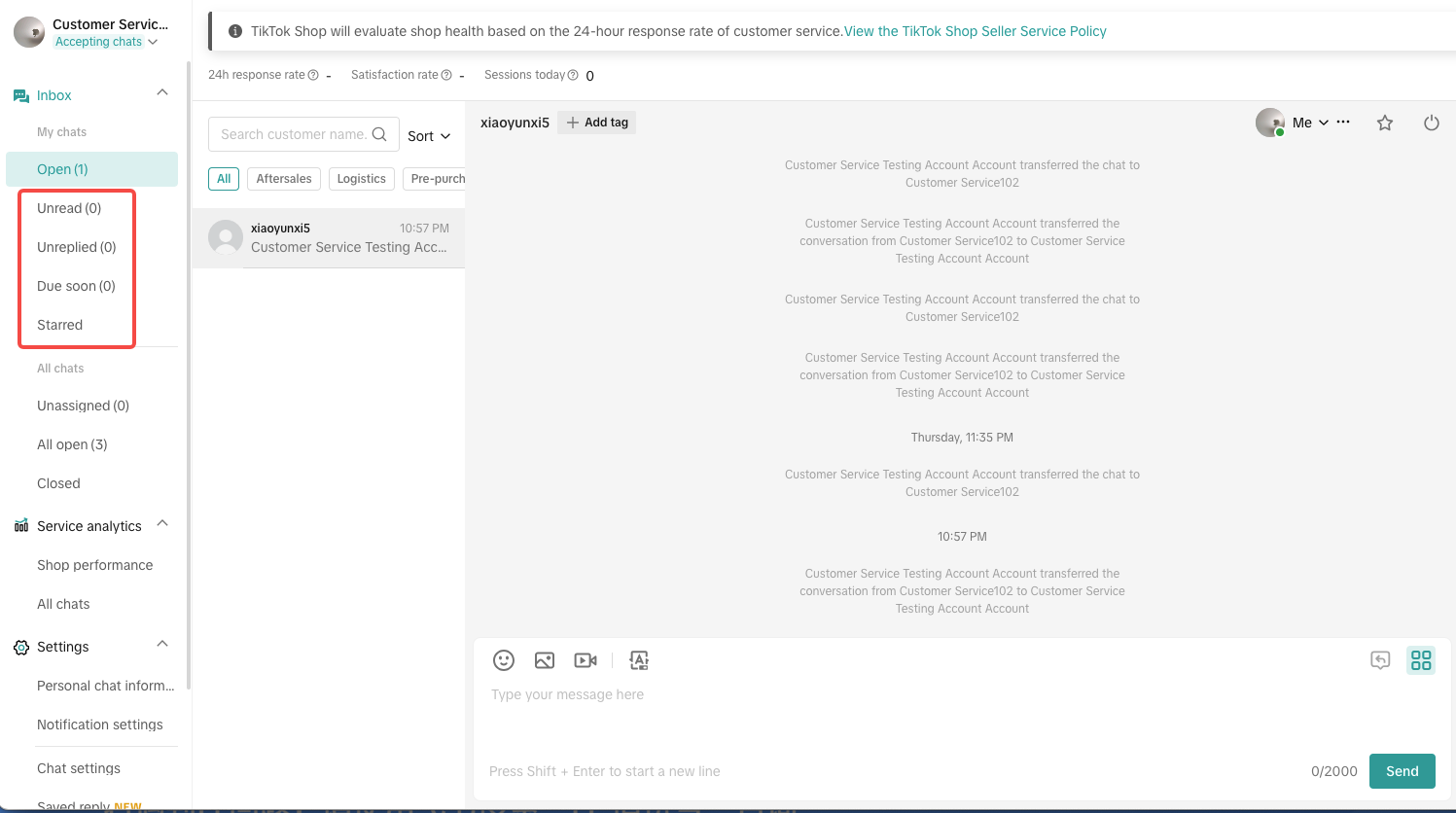
[My chats] includes the chats assigned to this account.- [Open] chats refer to the chats of all buyers that you have received. This includes chats that are automatically assigned to you by the system and chats manually assigned/transferred to you by others.
- [Unread] refers to chats that the agent has not yet viewed.
- [Unreplied] refers to the chats that the agent has not responded to yet.
- [Due soon] refers to chats that have not been replied to for more than 20 hours.
- [Starred] refers to the special chat marked by customer service.
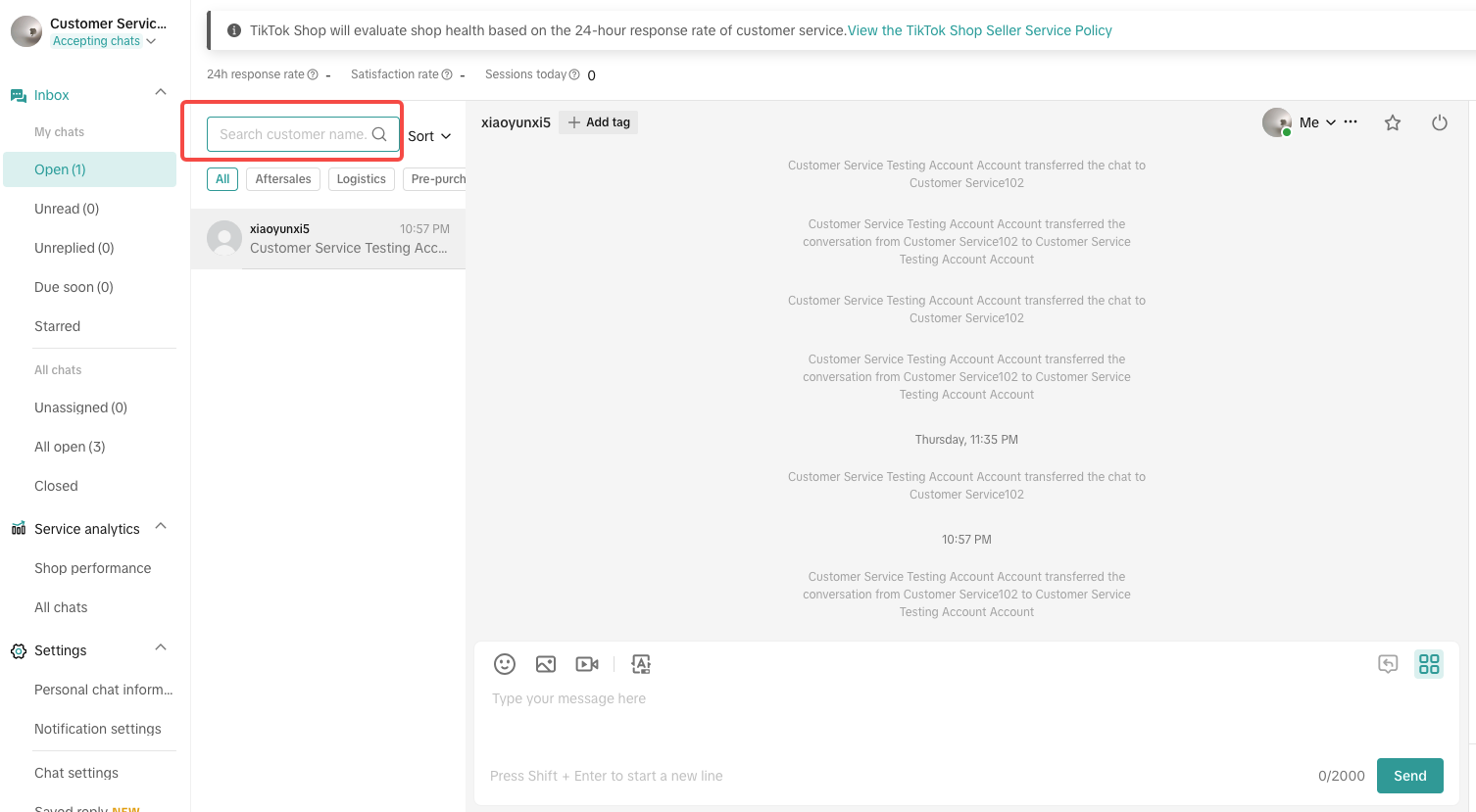
- You can use keywords, customer nicknames and order IDs to search for a specific chat.
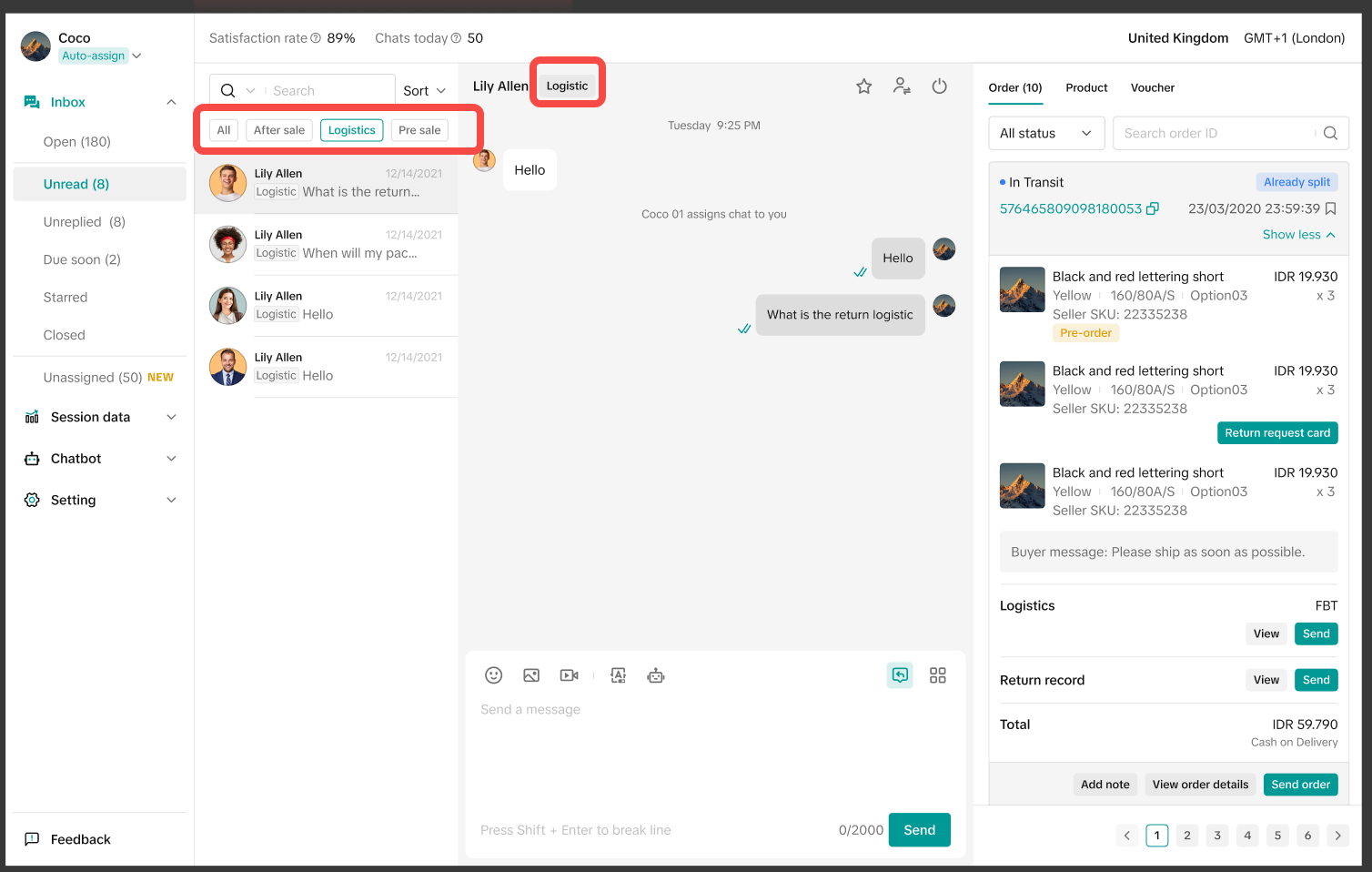
- When a new chat comes in, the system will automatically identify the buyer's messaging intent and mark the corresponding system tag on the chat. You can filter out chats with different tags directly in the chat list, helping you quickly locate and handle high-priority chats. Currently, only three tags are supported: [Pre-sales], [Logistics] and [After-sales]. In the future, we will provide more tag management and custom tag capabilities.
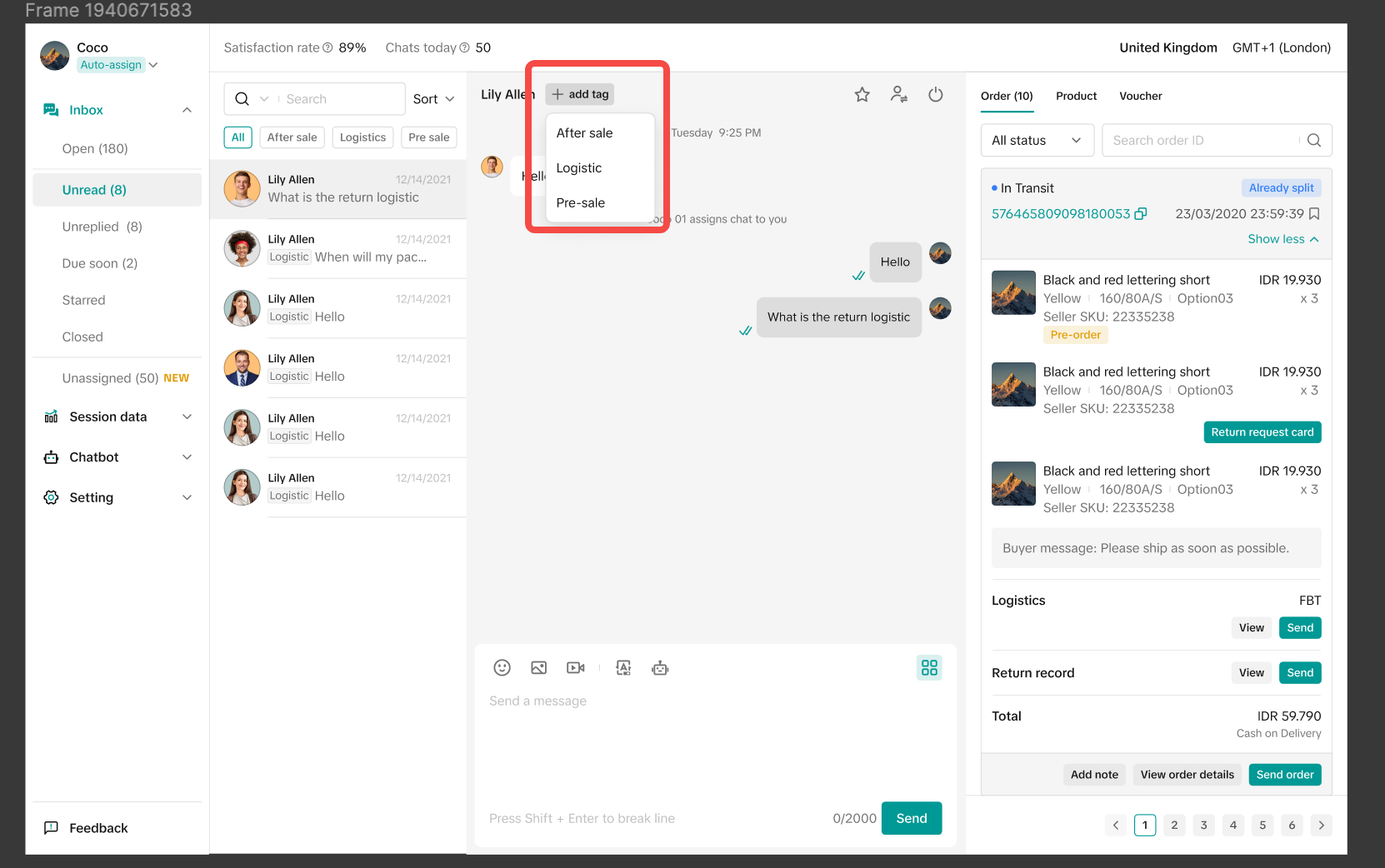
- If you think the tag is inaccurate, you can remove the tag or change it to another one.
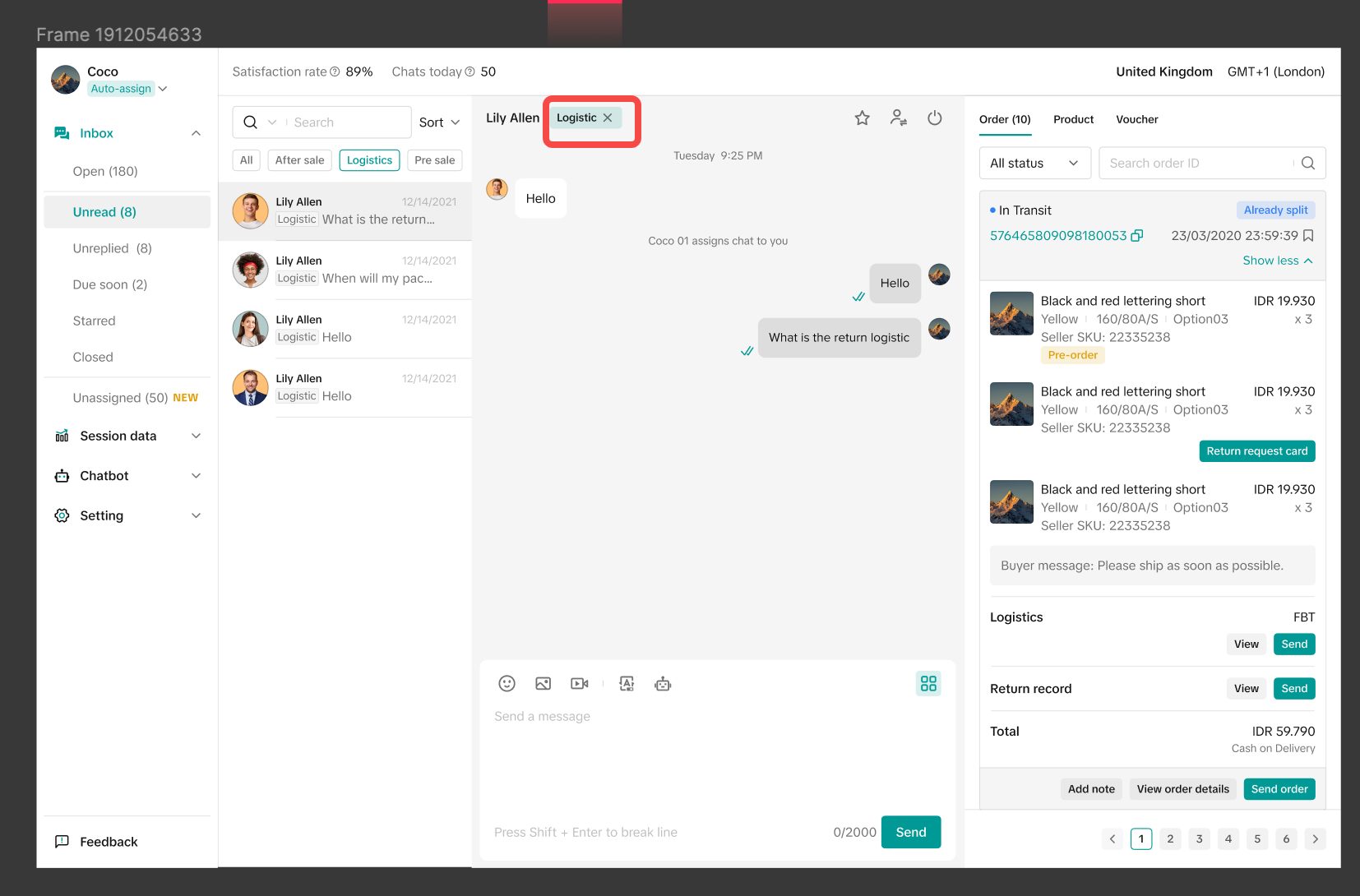
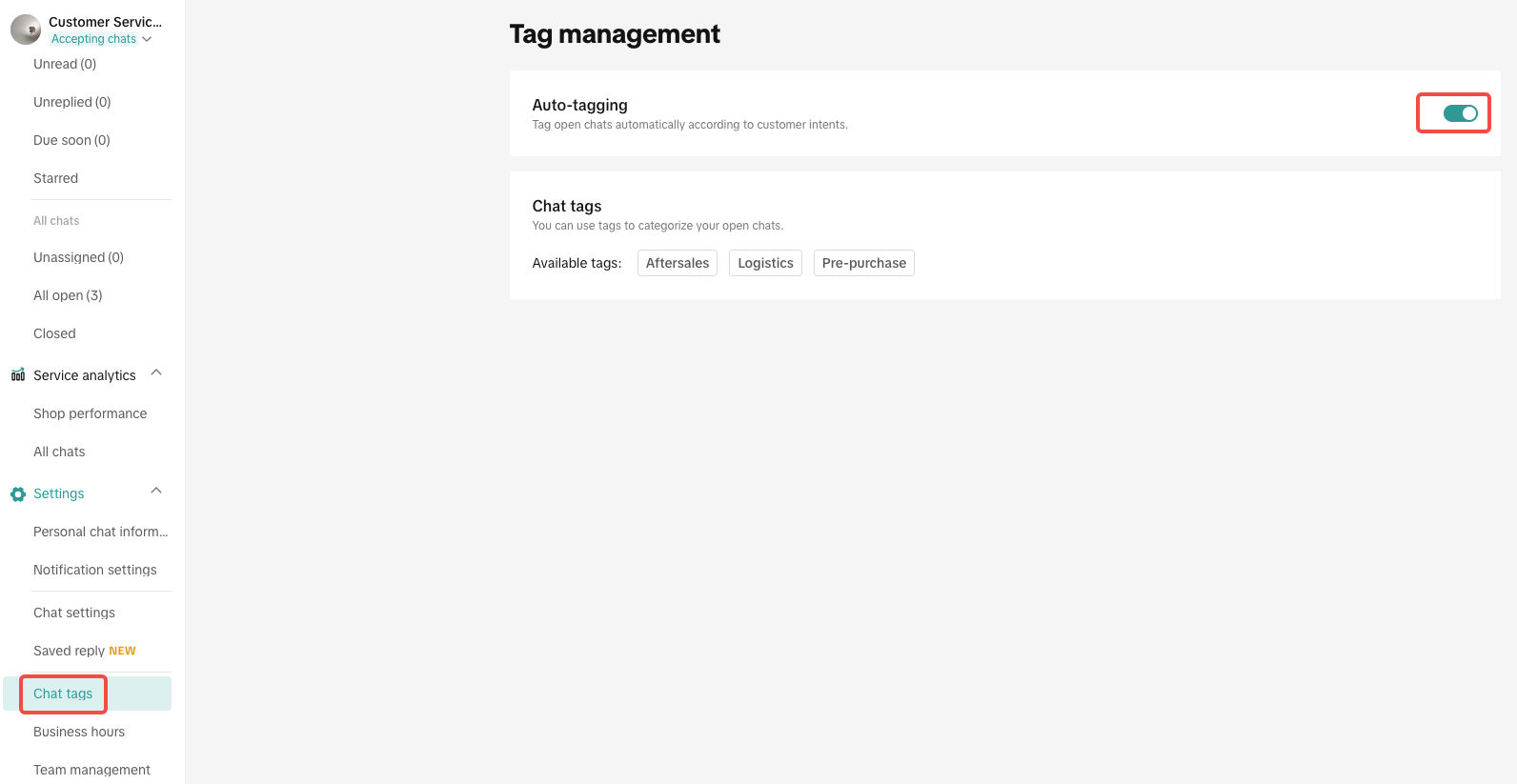
- If you don't want to use auto-tagging, you can disable it in the Settings - Chat tags
b. All chats
[All chats] includes unassigned chats, all open chats and closed chats. If there is only one account with customer service permission, [Unassigned] and [All open] will not be displayed, as all buyer messages will be automatically assigned to this account.(1) Unassigned
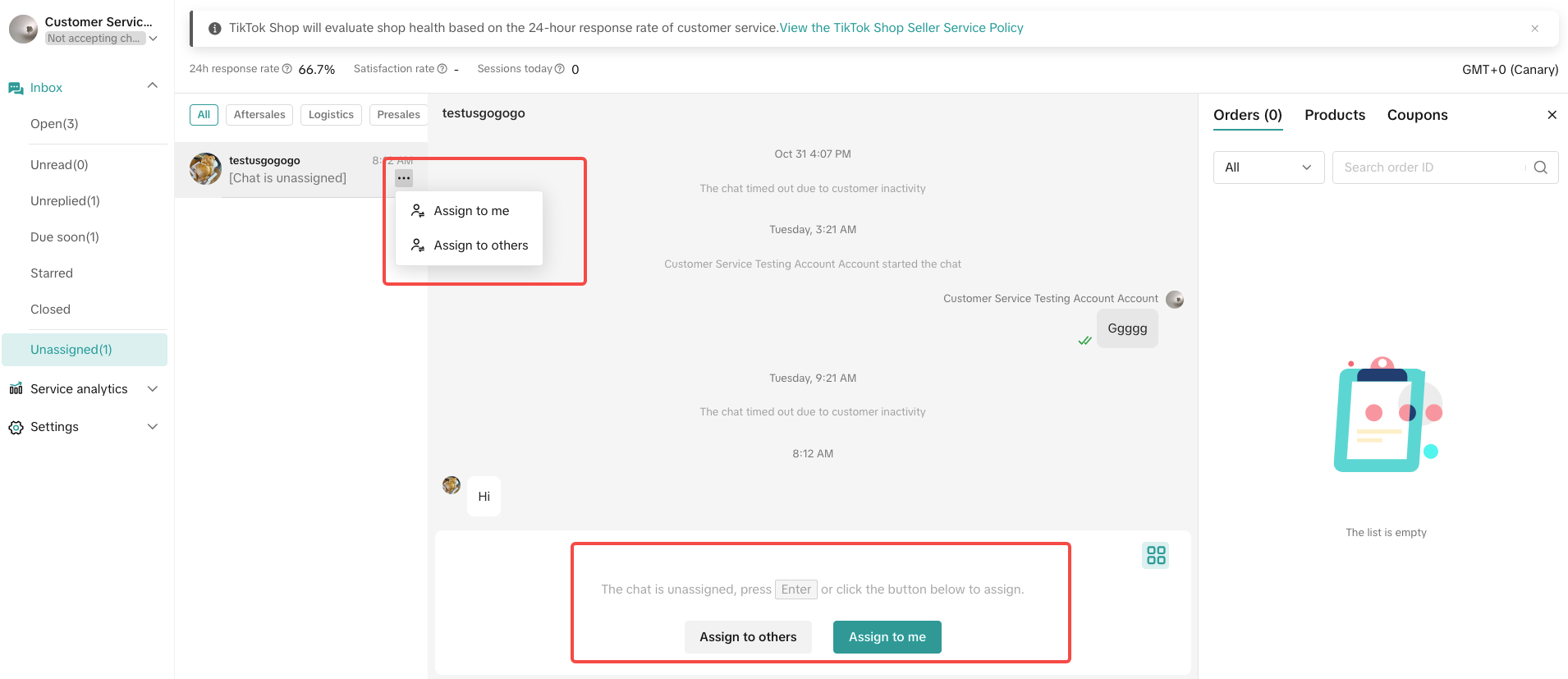
When there are multiple accounts with customer service permissions, if any of the following conditions are met, the new chat will enter the [Unassigned] chat list and can not be automatically assigned to the agent:- No agent is online (that is, no agent has opened the chat tool, or even if it is open, but the status is "not accept chats").
- The current online agent has met the maximum reception capacity.
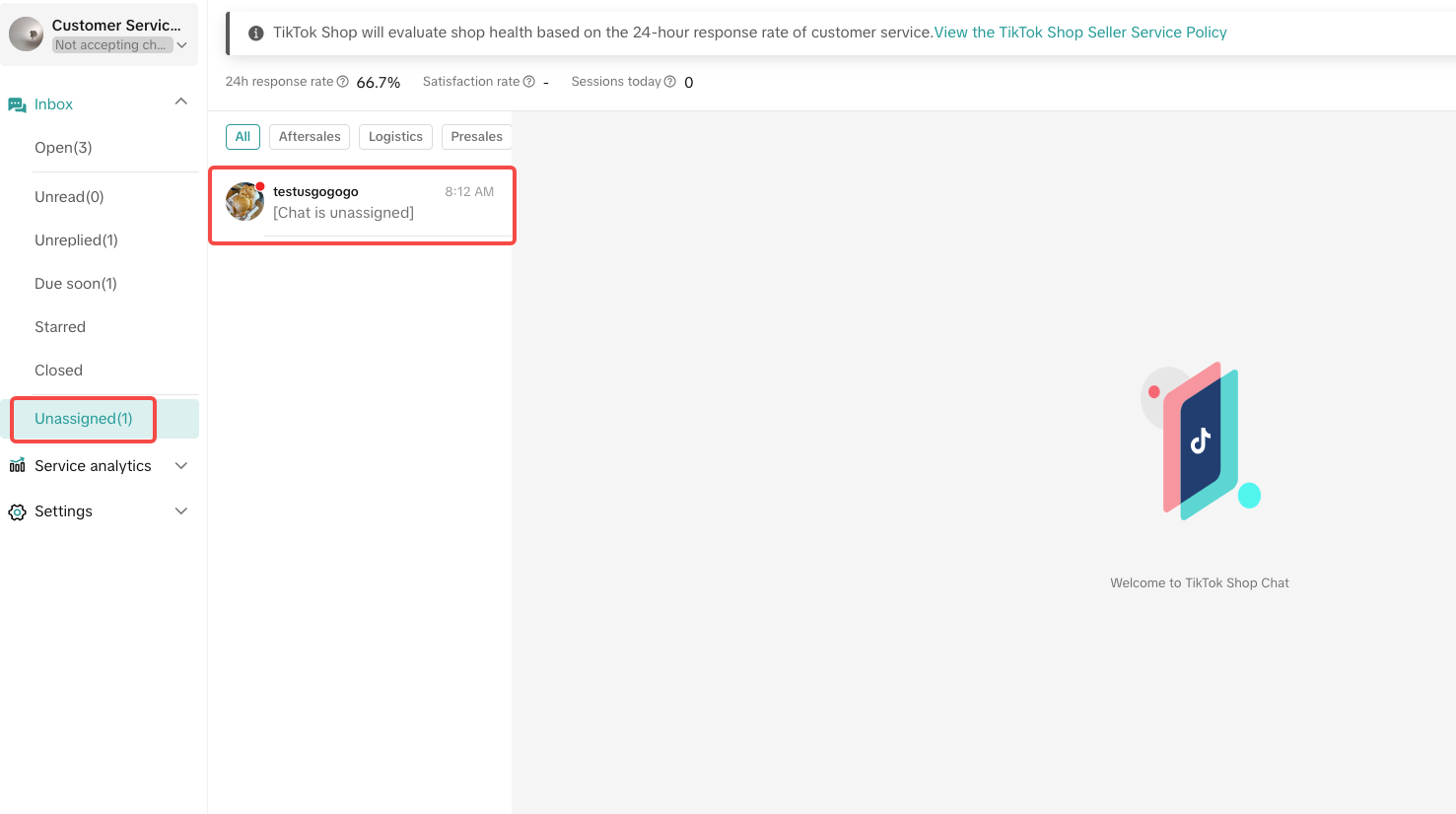
- Assign to me: you can click the 'Assign to me' button or press 'Enter' to assign this chat to yourself directly.
- Assign to others: you can click the 'Assign to others' button and select an agent to assign this chat to him.

(2) All open
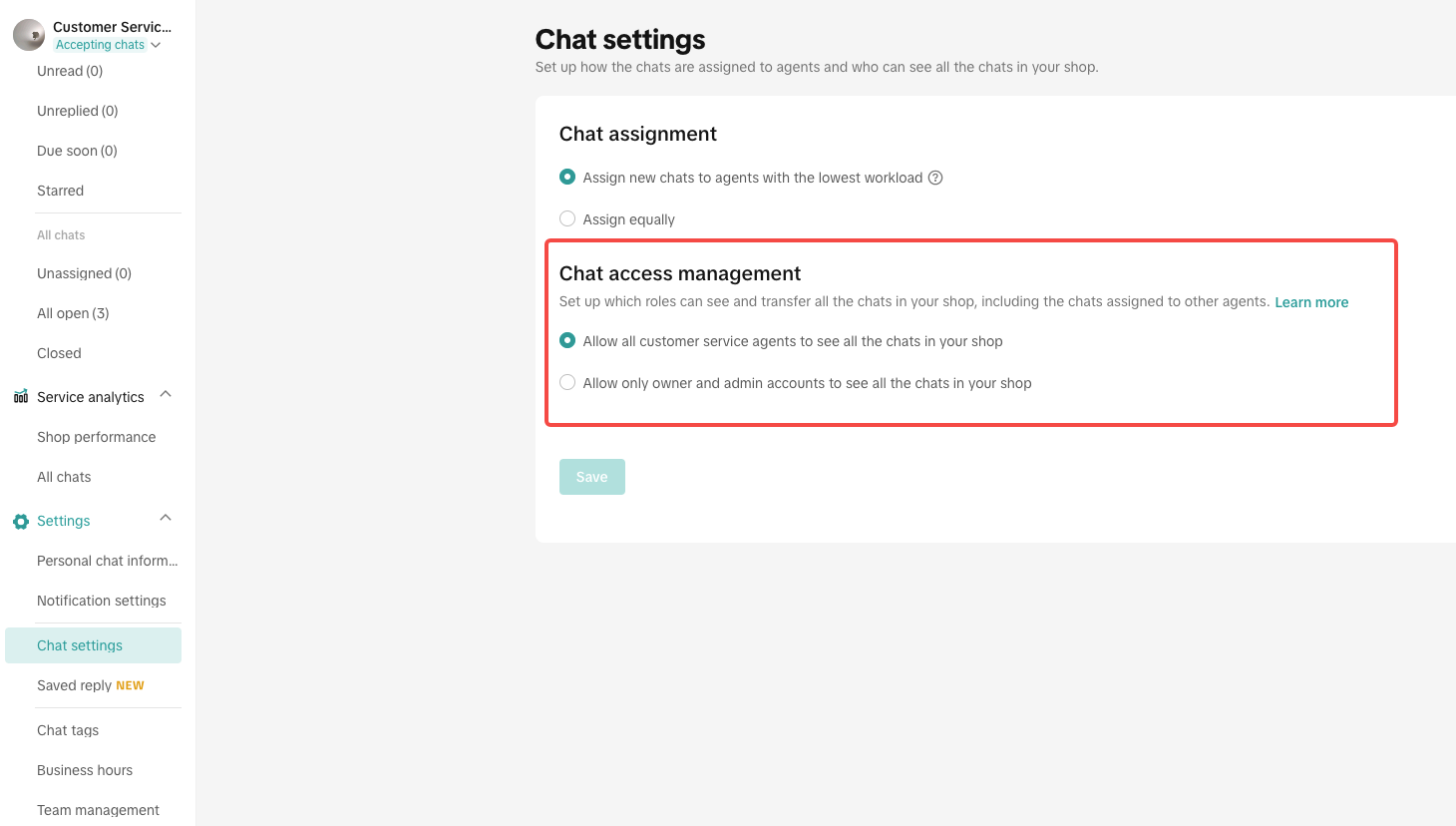
For your shop, you can set up which roles can view and transfer all open and closed chats in the shop in Settings - Chat settings.In all open chats, you can view all open chats in the shop, including the chats assigned to you and the chats assigned to other agents. You can also filter the chat by different agents.For a chat that is being served by another agent, you can choose to transfer it to yourself or to someone else. For example, when customer service agents need to take over a shift, you can transfer the unfinished chats of the previous agent to yourself for processing.(3) Closed
[Closed] refers to the chats that have ended, which will be sorted according to the latest message time, from recent to distant. You can filter closed chats assigned to you and assigned to other agents.B. Chat prompt
- If customers have new messages coming in, it will be prompted by the red dot on the upper right corner of the avatar.
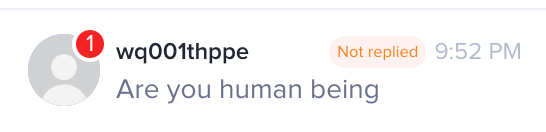
- If the customer's message has not been replied to, it will be prompted by the [Not replied] tag.
C. Chat sorting
You can switch the chat ordering rules in the chat list by yourself.There are two options for sorting chats:- Sort by waiting time: refers to sorting according to the waiting time of consumers. Consumers with long wait times are shown in front.
- Sort by latest: refers to sorting according to the sending time of the last message of the consumer. The latest sent messages are displayed in front.
2.4 Chat window
The chat window refers to the interface where customer service and consumers send messages to each other.- Customer service can send text, emoji, pictures and videos to customers.
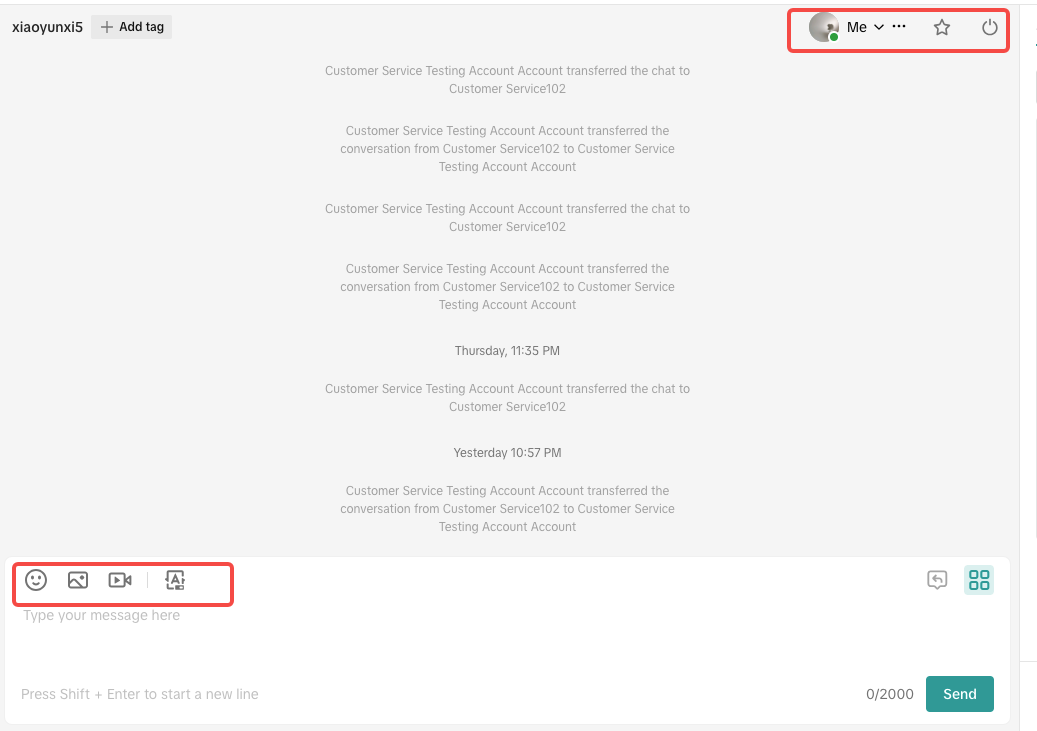
- Customer service can mark the current session for quick follow-up.
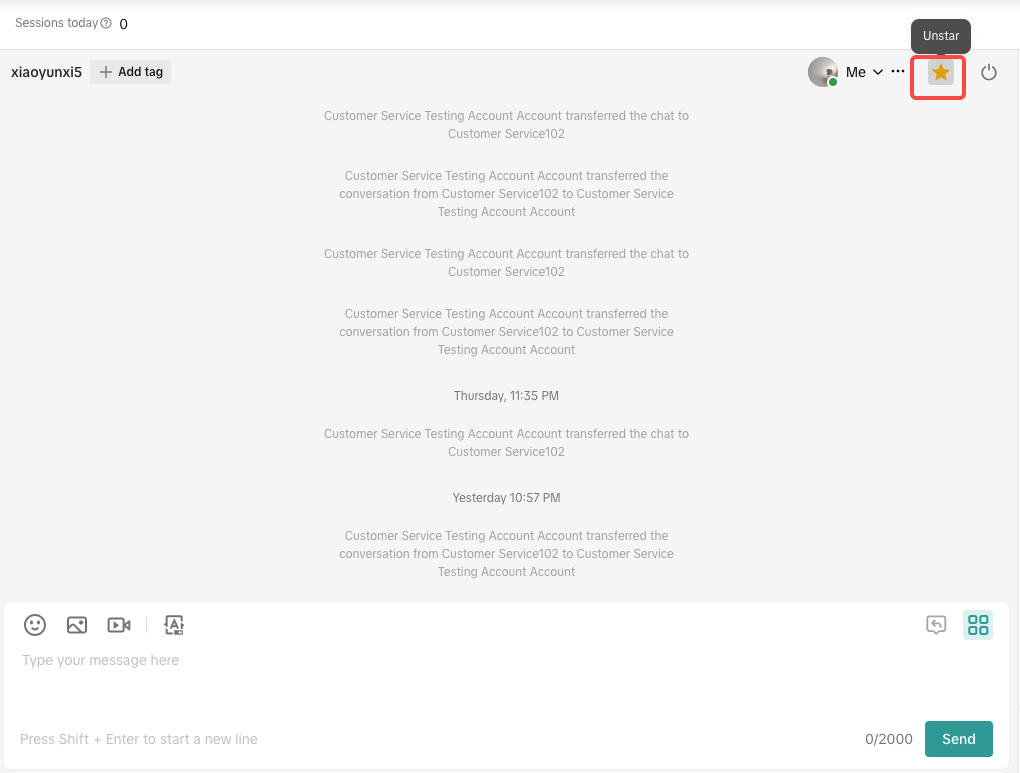
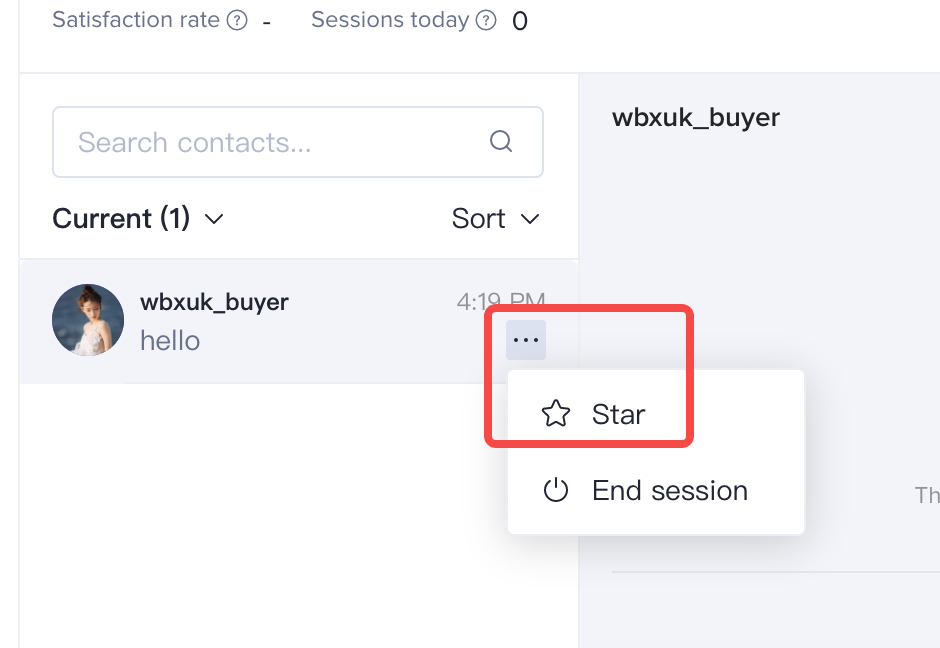
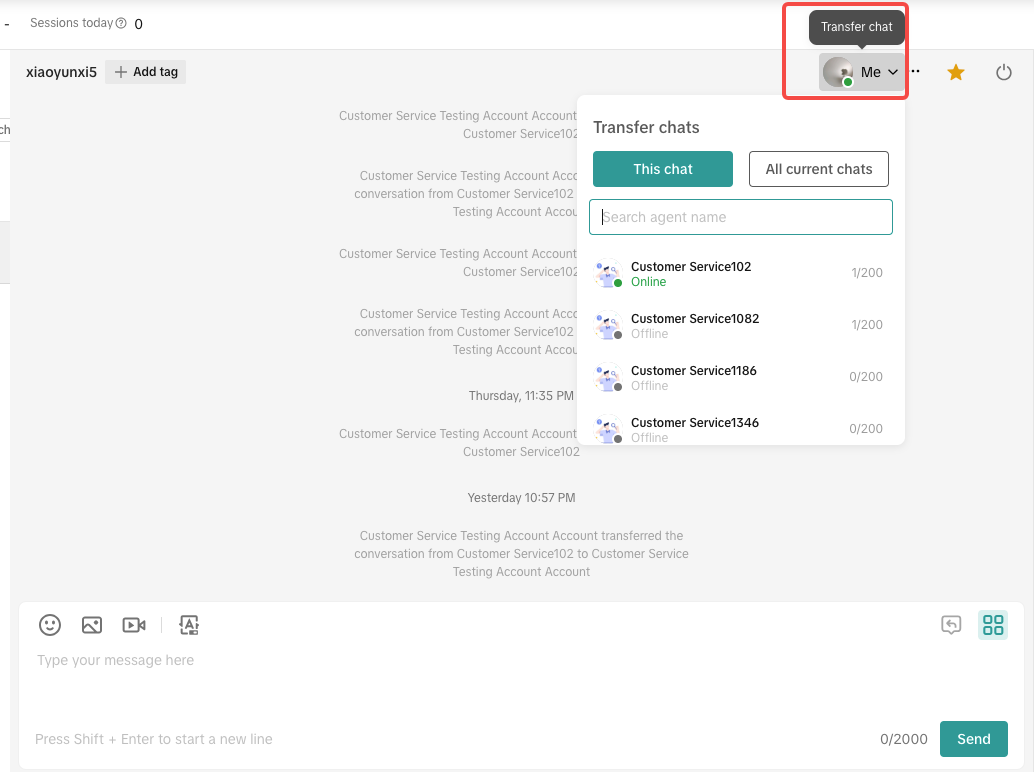
- If customer service is about to leave work, or when another customer service agent needs to handle the current session, you can click the [Transfer Session] button in the upper right corner of the chat window, enter the customer service nickname, and transfer the session to another customer service. You can choose to transfer this chat only or transfer all ongoing chats.
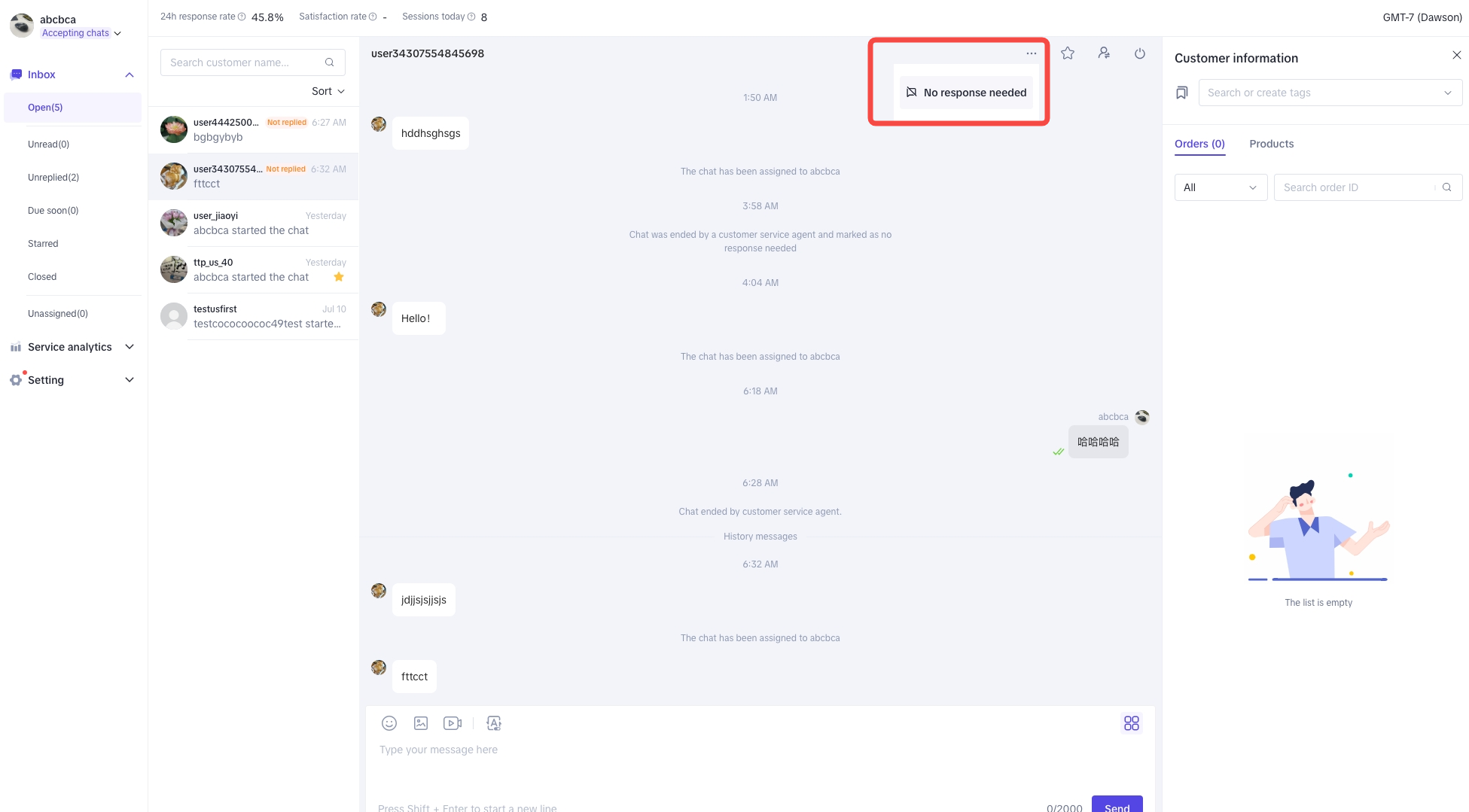
- If you receive unwanted or spam messages, you can mark them as 'No response needed'. These chats will be automatically moved from your Open folder to your Closed folder. Any chats marked as 'No response needed' will be excluded from your response rate calculation.
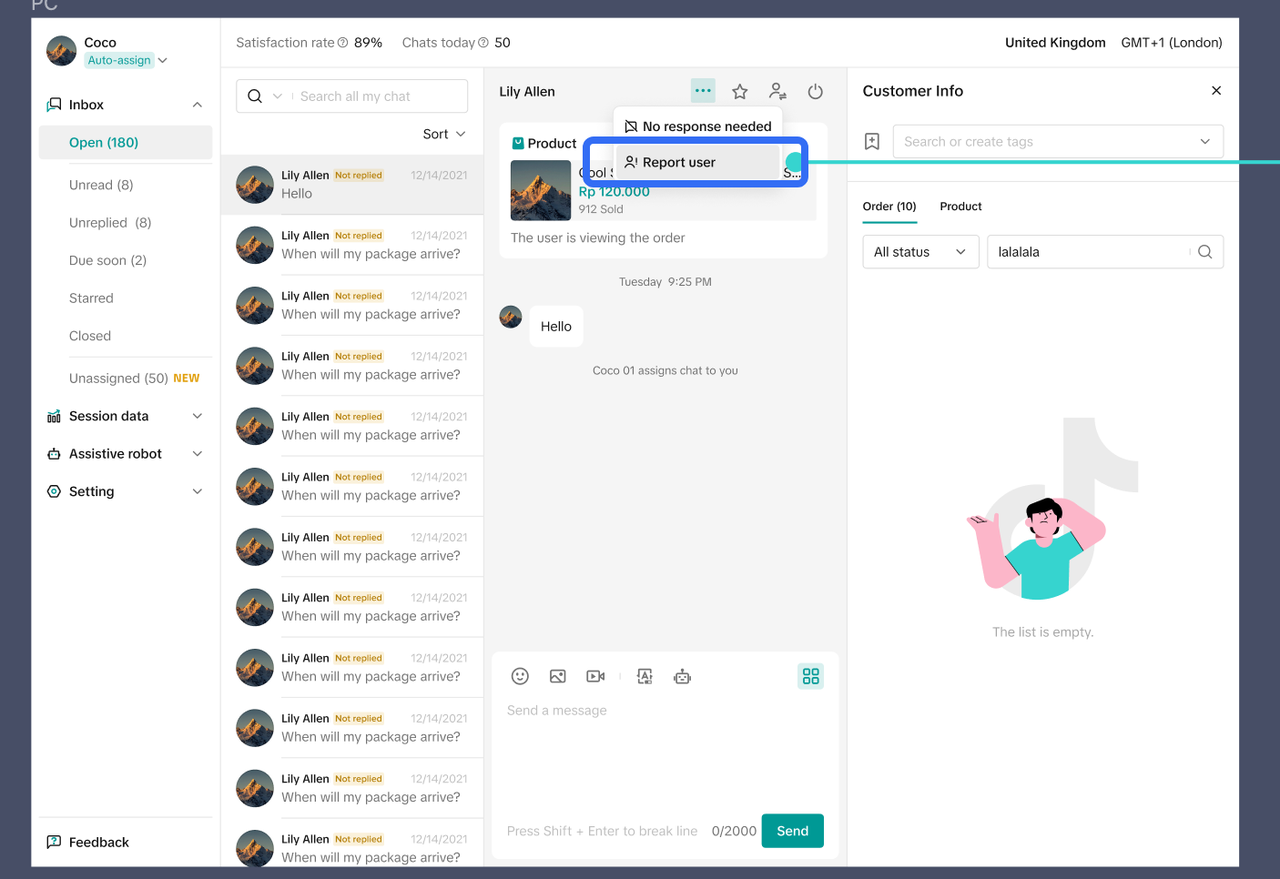
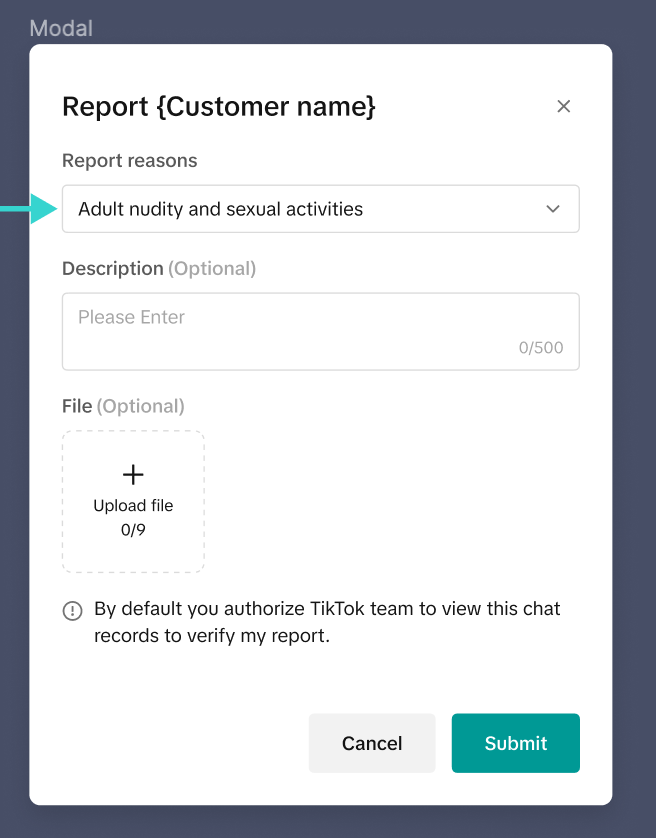
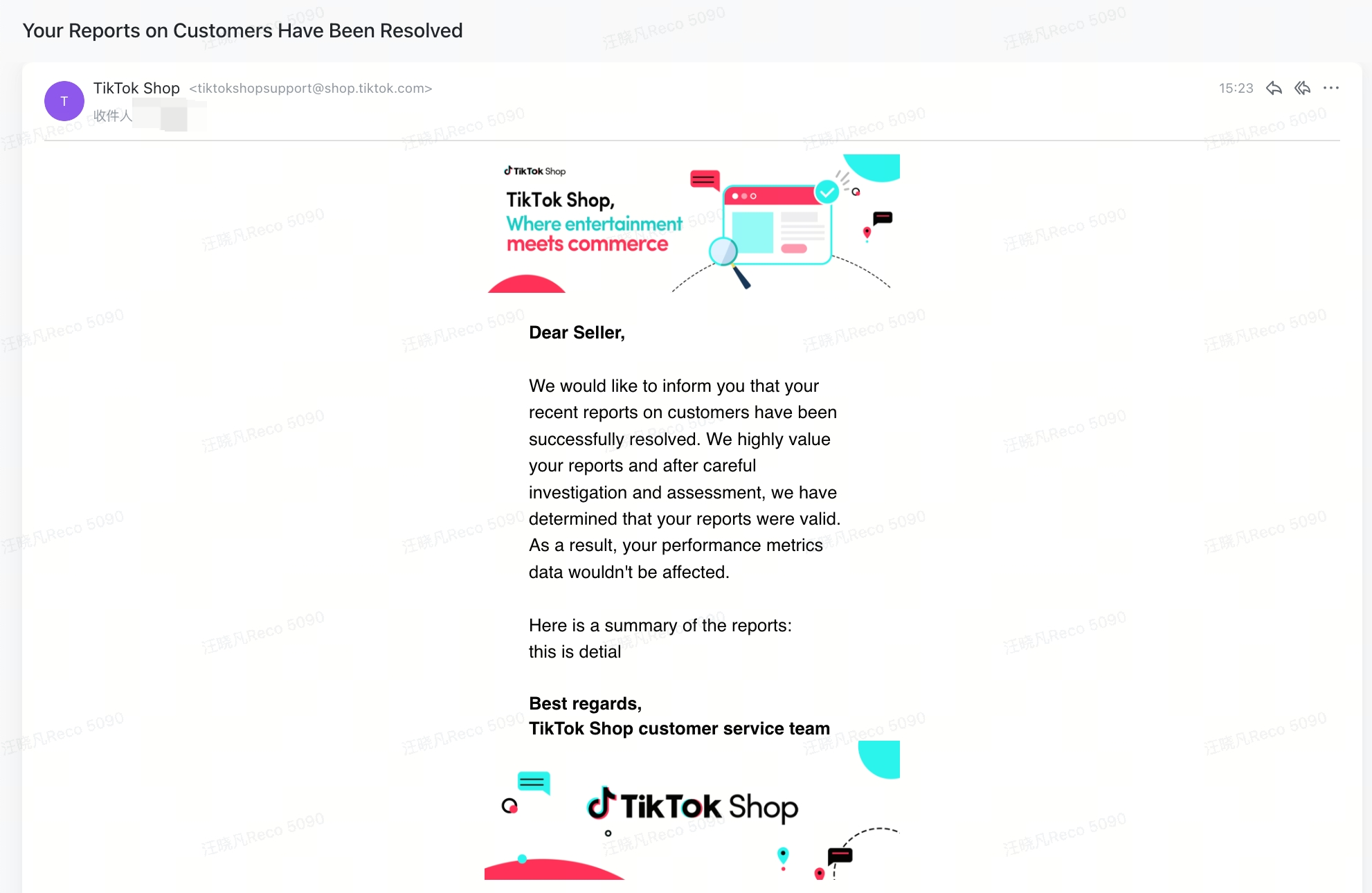
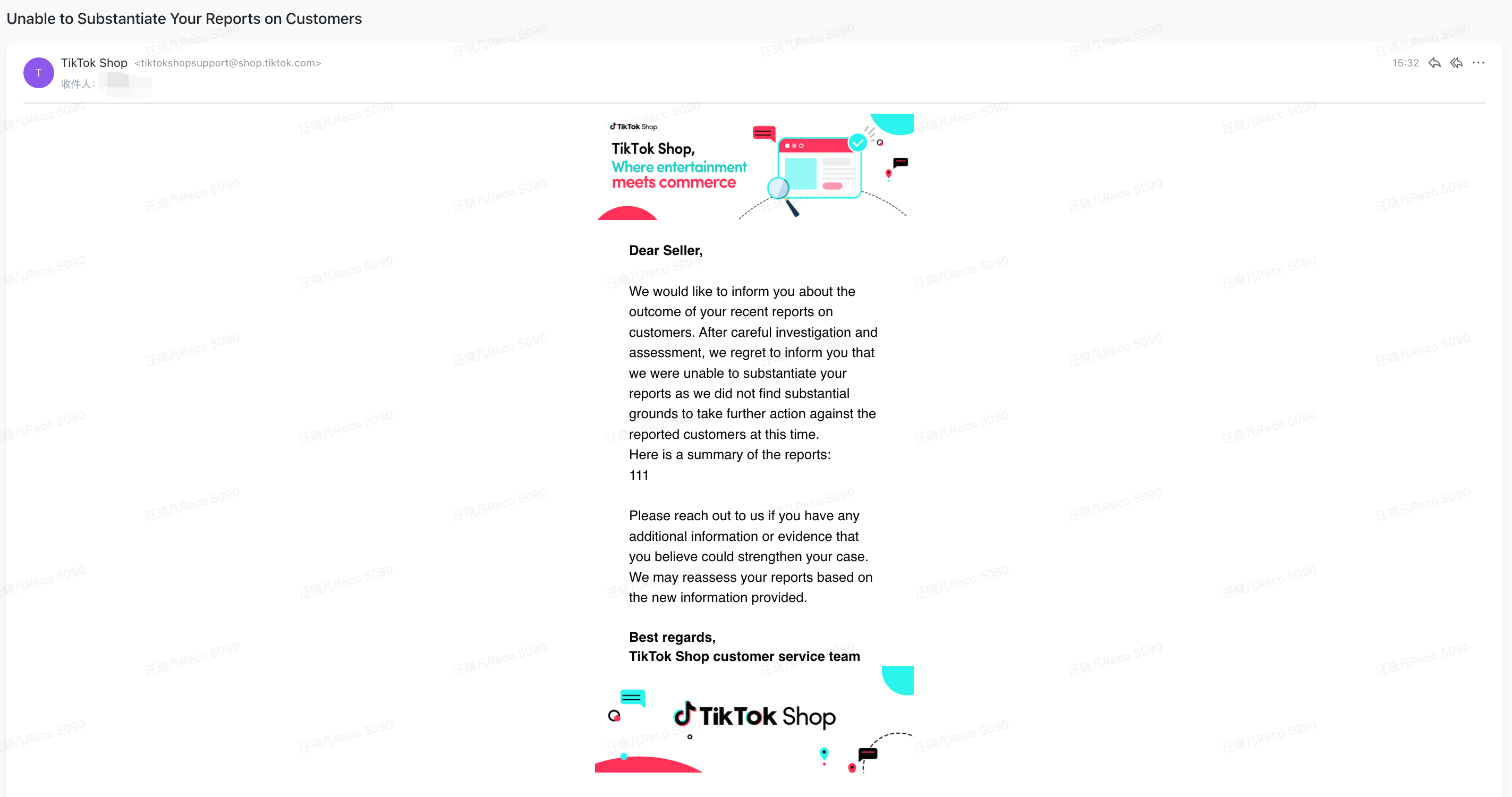
- If you receive abusive messages such as insults, harrassment, or violations of the law, you can report it to the platform. Select the reason and provide additional details to the platform. The platform will review your report and send the results to you via your Seller Center inbox and email. If the report is successful, the chats will be eliminated from your service analytics.
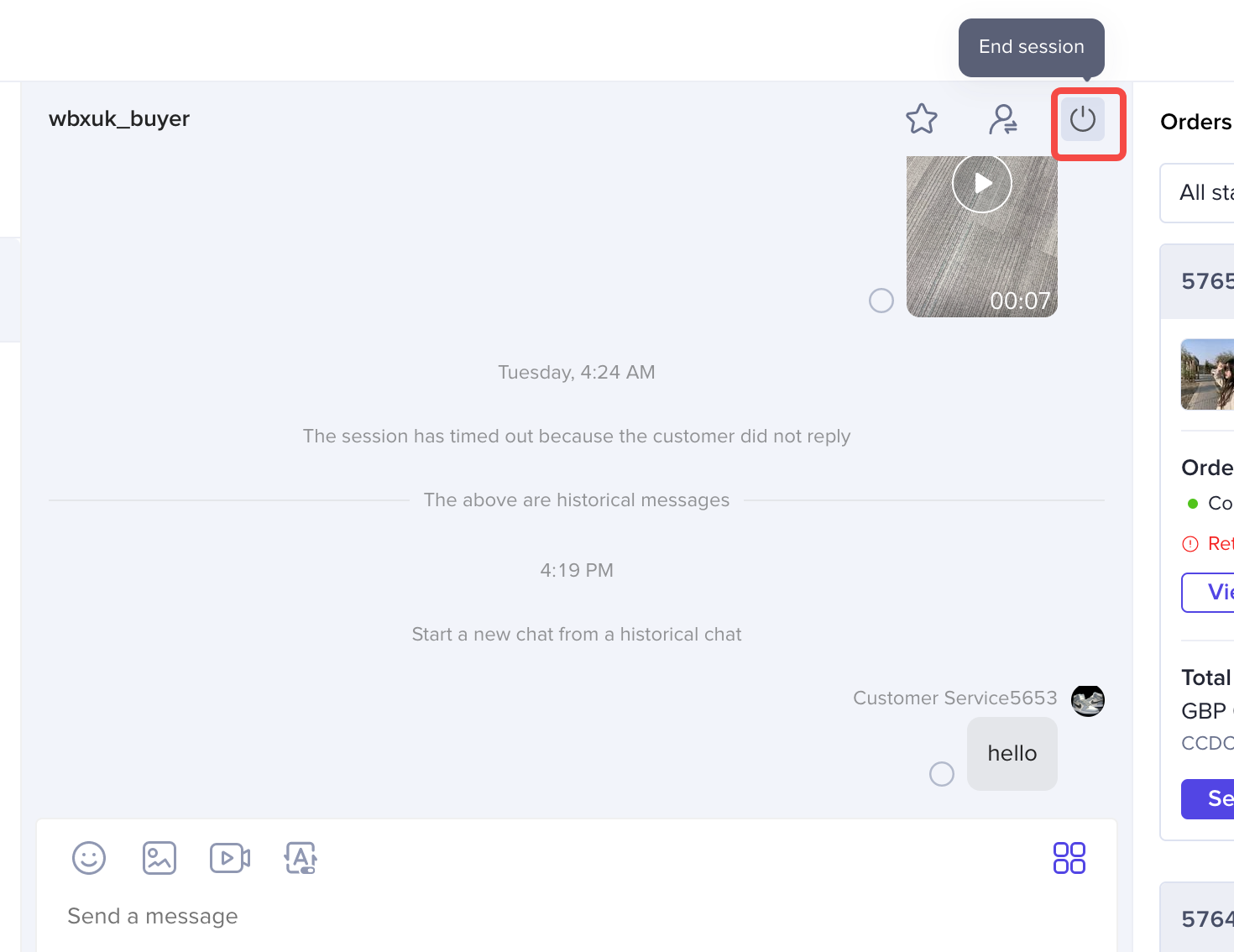
- If the current chat has completed reception and the customer's problem has been resolved, you can click the [End Session] button in the upper right corner of the chat window to end the current reception.

2.5 Workbench
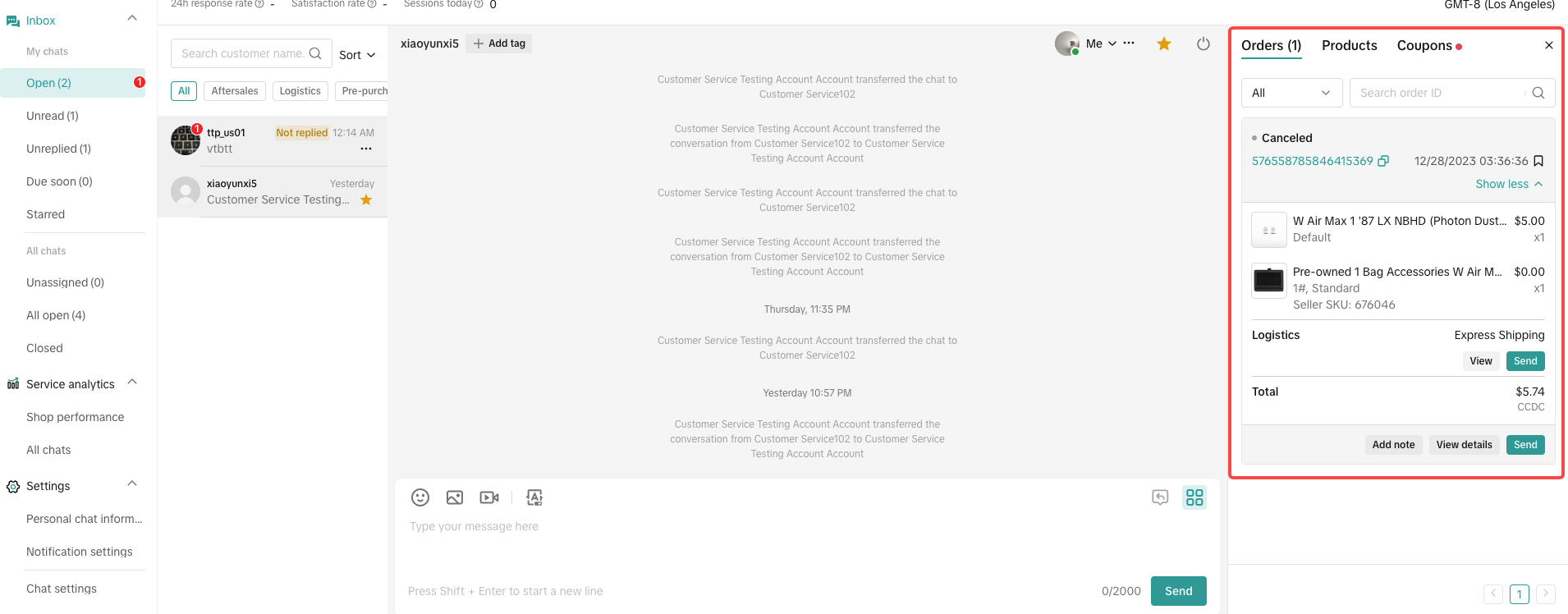
Currently, the workbench includes:- Order workbench: You can view all historical order information from this customer.
- Product workbench: You can view the information of all live products in the shop.
2.6 Service data
Service data refers to the personal data of this customer service agent.- 24h response rate: The number of chats inquired by customers responded within 24 hours divided by the total number of chats inquired by customers within the last 7 days.
- Satisfaction rate: the satisfaction of buyers served by customer service today, the formula = the number of sessions that customers evaluated as 'satisfied' and 'very satisfied' divided by the number of sessions that buyers have evaluated.
- Sessions today: The number of sessions initiated by consumers allocated to this customer service today.