Campaign Price
Getting started:
How and where can I check a campaign product registration status?
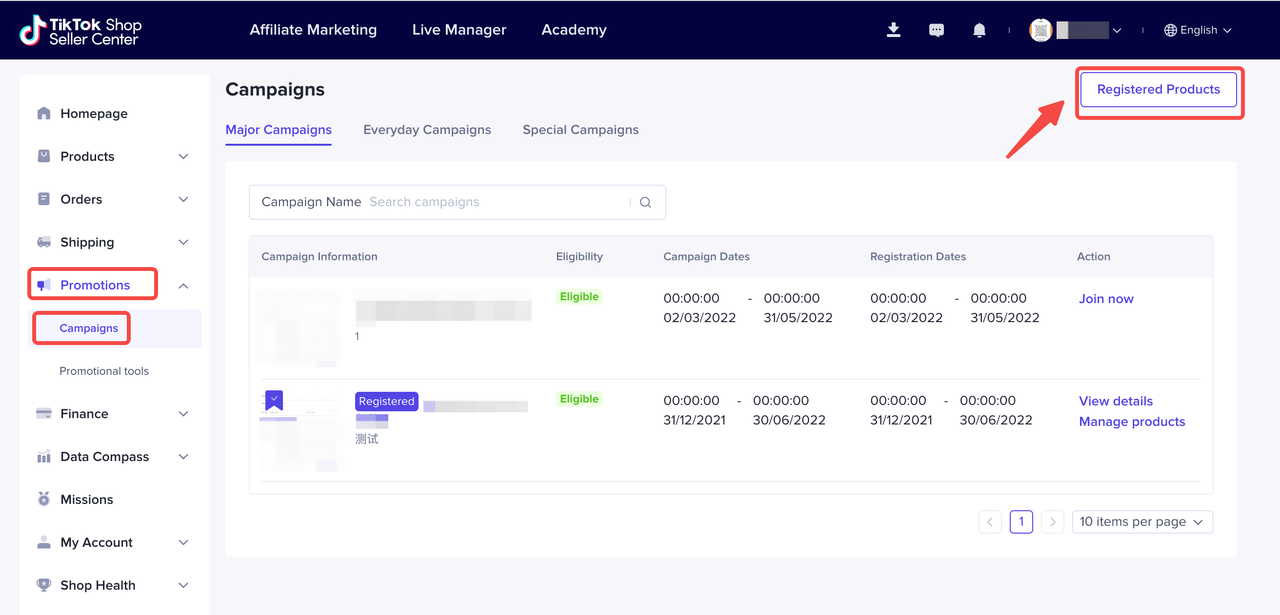
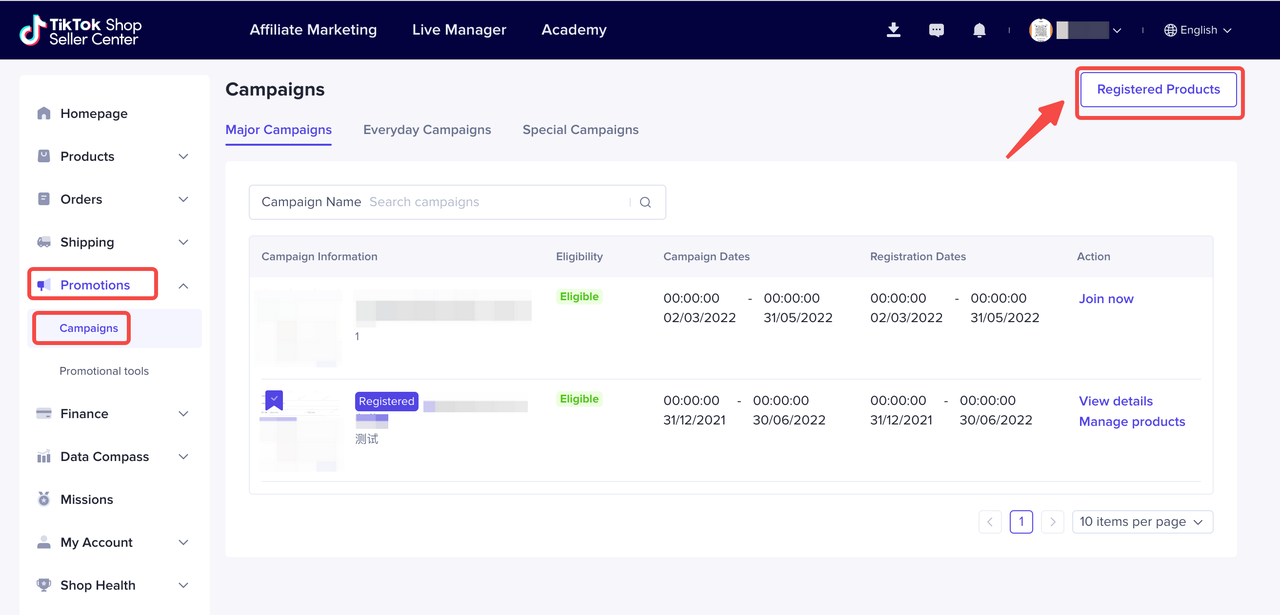
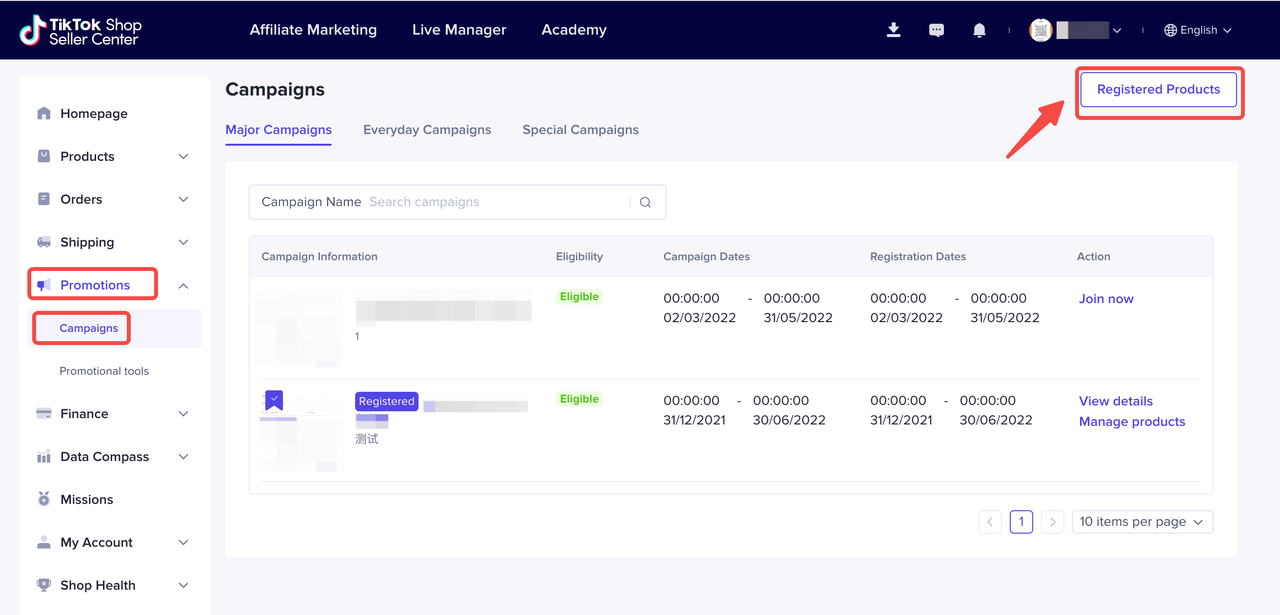
Entry: Seller Center - Promotions - Campaigns - Product campaigns- After entering this page, click "Registered Records" on the upper right corner. Here you can check all the registered campaign products.
Campaign Pricing:
- What is the campaign sale price? What are the restrictions on the registered campaign sale price?
When you are registering, consider the following restrictions:
- Please check for campaign specific rules when registering.
- The product price must be lower than the daily retail price of this product.
- The product price must be lower than the self promotion price set by merchants, or the discount has to be within a certain range according to the requirements of the platform campaign.
- When will the campaign sale price take effect?
Campaign sale price : When the campaign start time arrives, the registered campaign product will start to be sold at the event price, and the campaign sale price will take effect throughout the whole campaign period.
Livestream specific campaign sale price: If your products are associated to a livestream session by the platform, when the livestream starts, the registered campaign product will start to be sold at the livestream event price. This campaign sale price will take effect during the entire livestream period and only within the livestream channel.
- When will the campaign sale price end/expire?
- Sellers delete the product from campaign before it's reviewed;
- During the valid period of this campaign, the product has been removed by the platform;
- The product is governed by platform so it cannot join in this campaign anymore;
- The campaign has ended;
- How do I withdraw a product from the campaign?
- After entering this page, click "Registered Records" on the upper right corner. Here you can check all the registered campaign products;
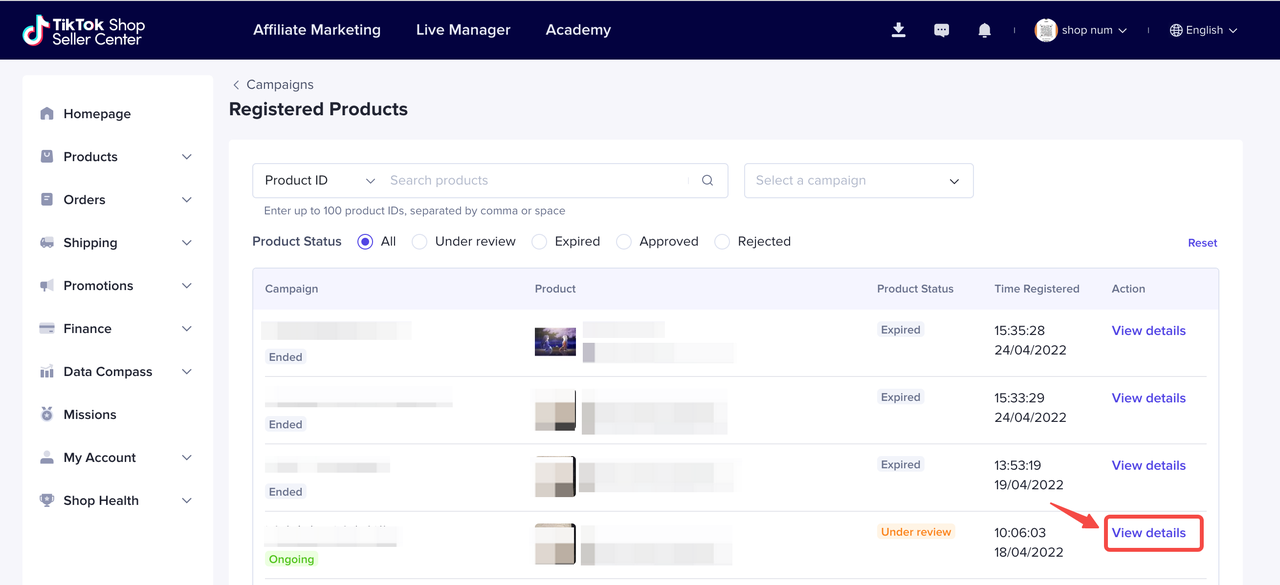
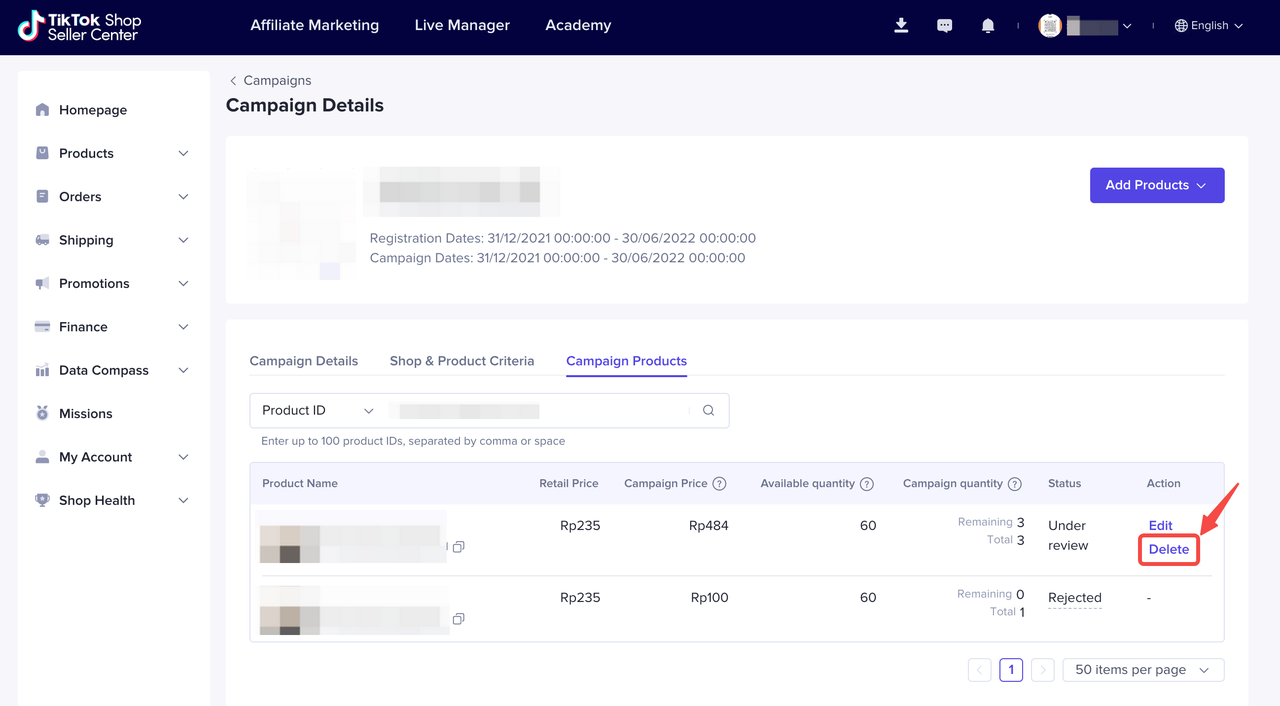
- After finding the product that needs to be withdrawn, click "View Details" on the right side of the product to enter the campaign product management page. Click "Delete" button, and the product will be withdrawn from the campaign.
- When can the campaign sale price be modified?
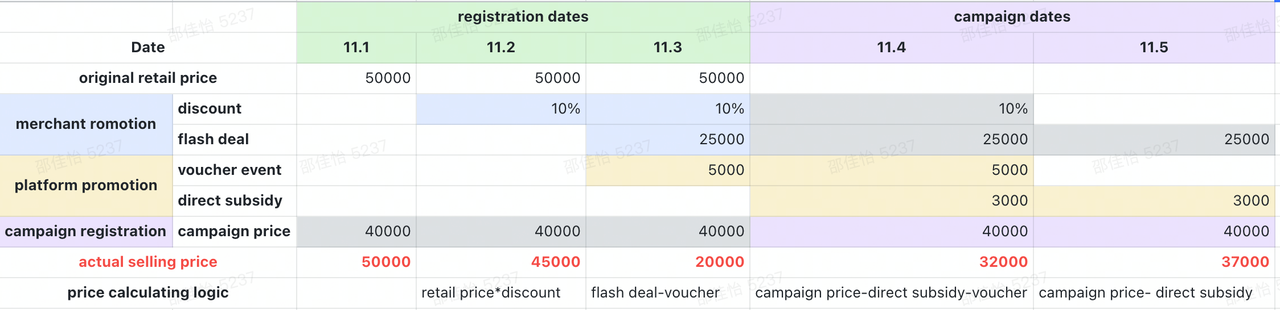
- Campaign sale price calculation logic:
- Lowest Campaign Sale Price: If a product is registered in multiple sub campaigns at different prices, when the campaign valid period is live, only the lowest campaign sale price will take effect.
- If a product participates in multiple/overlapping livestream campaigns, the lowest campaign sale price will also take effect.
- During valid campaign or livestream periods, flash deal and discounts set up by the merchant will not take effect.
- During the campaign period, coupons and free shipping can be layered with product campaign sale prices, so the final selling price will be calculated as follows.
- Final sale price = campaign sale price - coupon amount
face value. - If the merchant modifies the original retail price of the product to be lower than the campaign sale price after registering, even if the campaign sale price is approved by the platform, the lower original retail price will take effect during the campaign dates.
- Why are my discounts and Flash Deals not valid while the campaign sale price is taking effect?
Campaign Inventory:
- What is Campaign quantity?
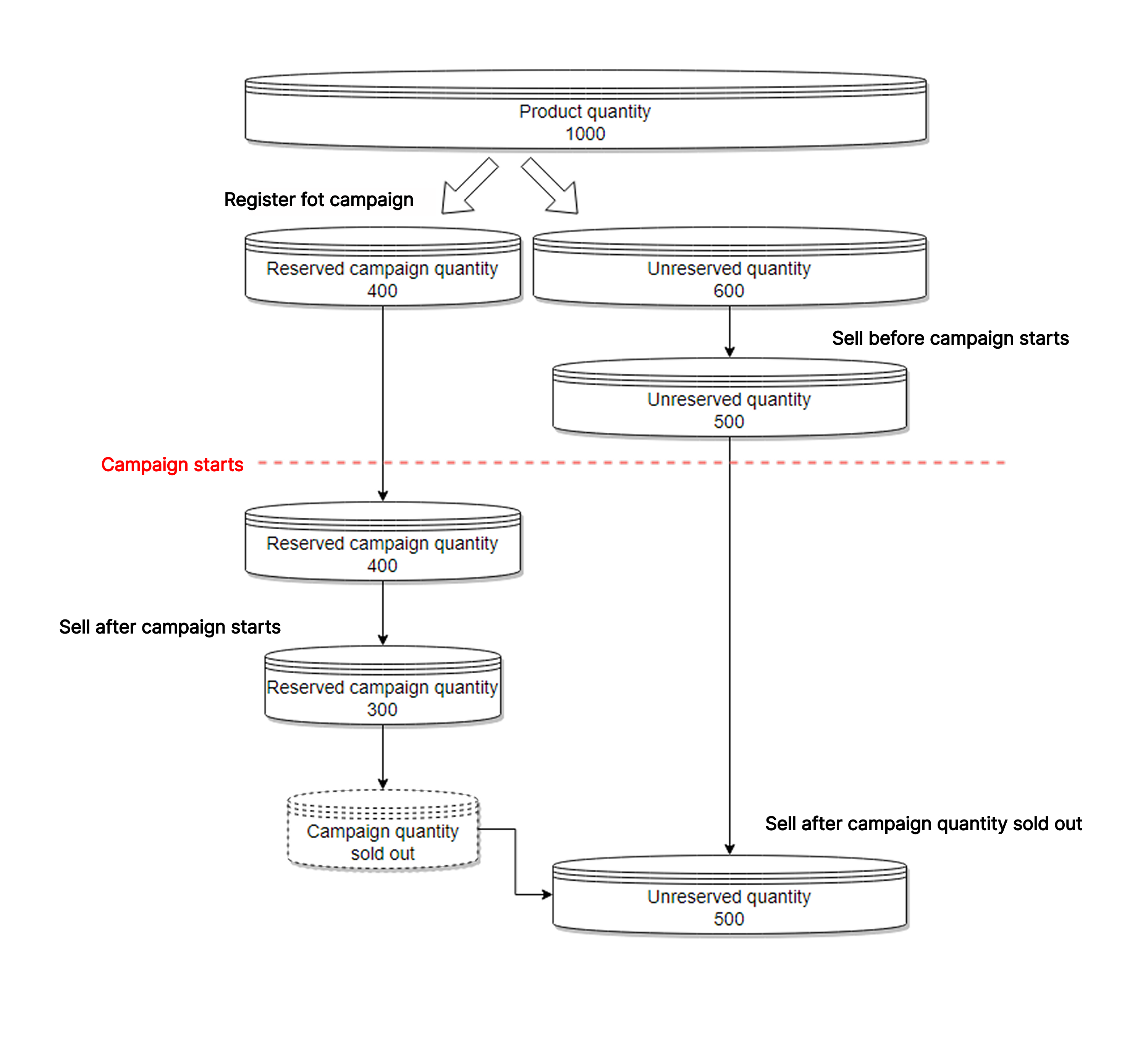
- When is the campaign quantity reserved?
- When does the campaign quantity start to be consumed?
- What is the consumption logic of 'campaign quantity'?
- During the campaign period, the campaign inventory will be sold at the campaign sale price.
- If the campaign period is still valid, but campaign inventory is sold out, the product will be sold at the original retail price.
- Can I reserve all my inventory of a product for a campaign?
- Why does it show no quantity (inventory) left for the products registered in a campaign?
- At what point does the campaign quantity (inventory) expire and release back into unreserved inventory?
- Sellers delete the product from campaign before it's reviewed;
- During the valid period of this campaign, the product has been removed by the platform;
- The product is governed by platform so it cannot join in this campaign anymore;
- The campaign has ended;
- Can I increase or reduce my registered campaign quantity? How and when can I do it?
Entry: Seller Center - Promotions - Campaigns - Product campaigns
- After entering the product campaigns page, click "Registered Records" in the upper right corner. Here you can check all the registered campaign products;
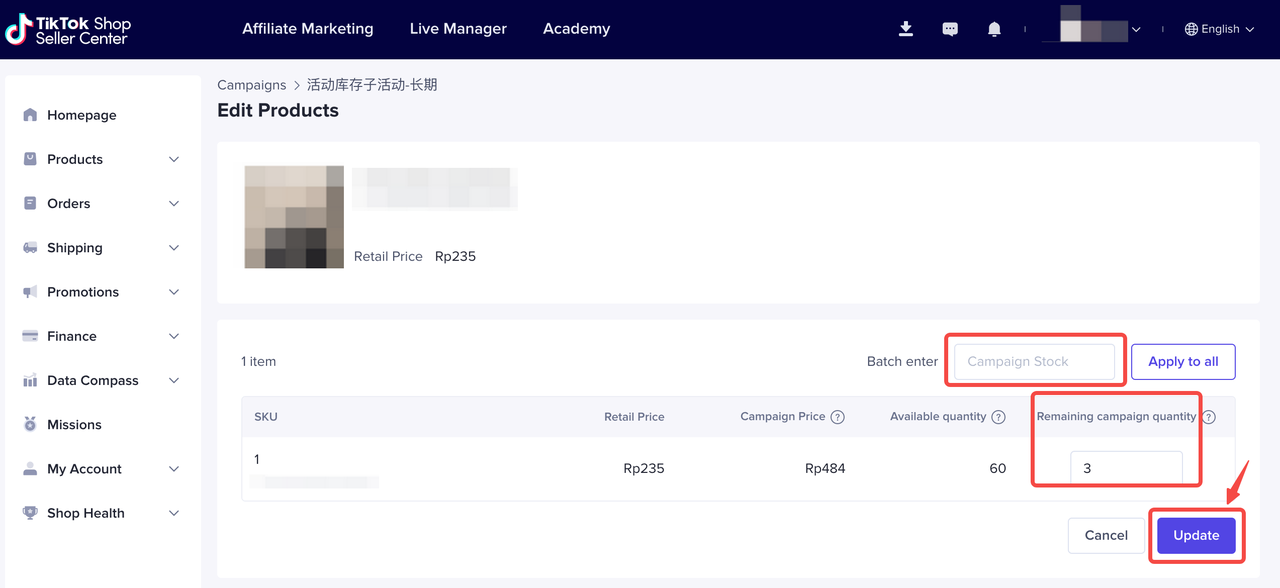
- After finding the product to be withdrawn, click "View Details" on the right side of the product. Then click the "Edit" button to enter the campaign quantity editing page. The Campaign Quantity field in the product list displays the total campaign quantity and the remaining campaign quantity. If the remaining campaign quantity is 0, please replenish it in time.
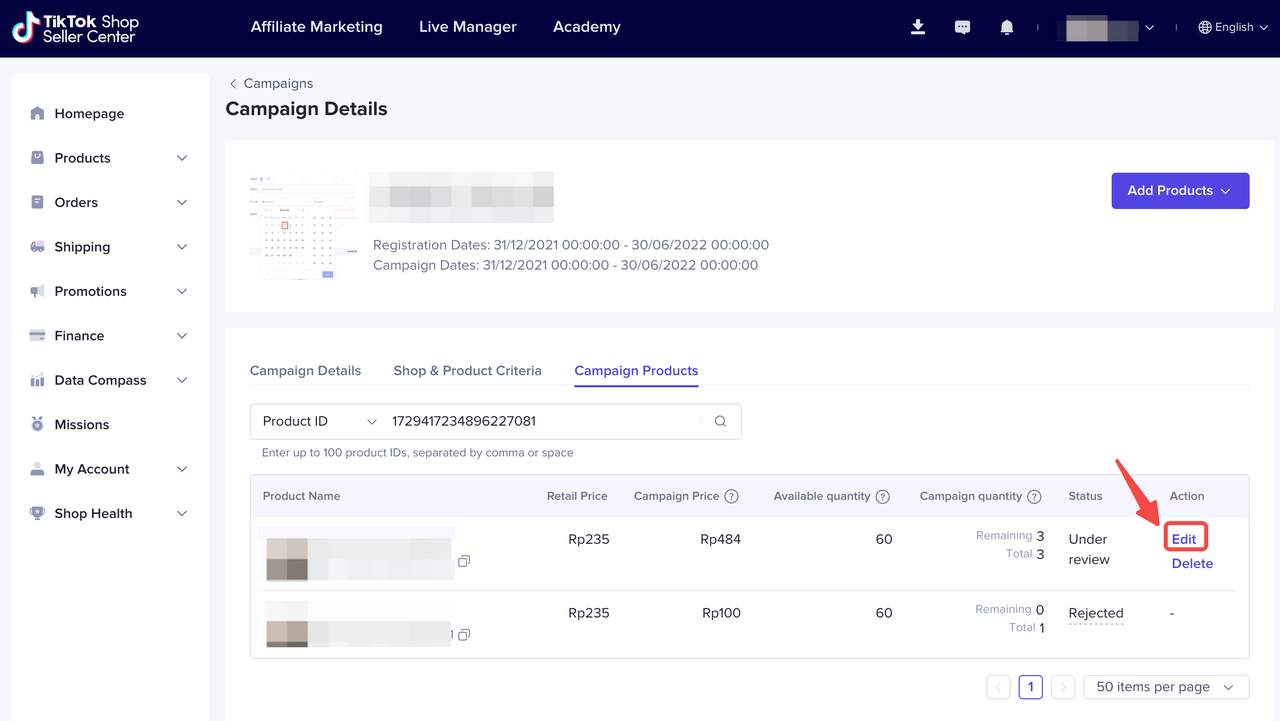
- You can add campaign quantity to the remaining campaign quantity corresponding to each SKU. You can also enter the campaign quantity of all SKU in the batch edit box above, and click "Apply to all" to apply to all SKU. After editing, click "Update" to submit all the edited campaign quantity, and it will take effect during the campaign's valid period after being reviewed by the platform.