

LIVE Manager (For Sellers)
LIVE Manager gives you greater control over how you plan and manage your LIVE shopping streams. It's also a great way for moderators and assistants to plug in so that you can focus on hosting a great live event.
Key features that you'll find here for live streaming include:
Note: OBS is a 3rd party software - we cannot offer support for issues specific to the OBS application.You can click here for a detailed guide on using OBS.
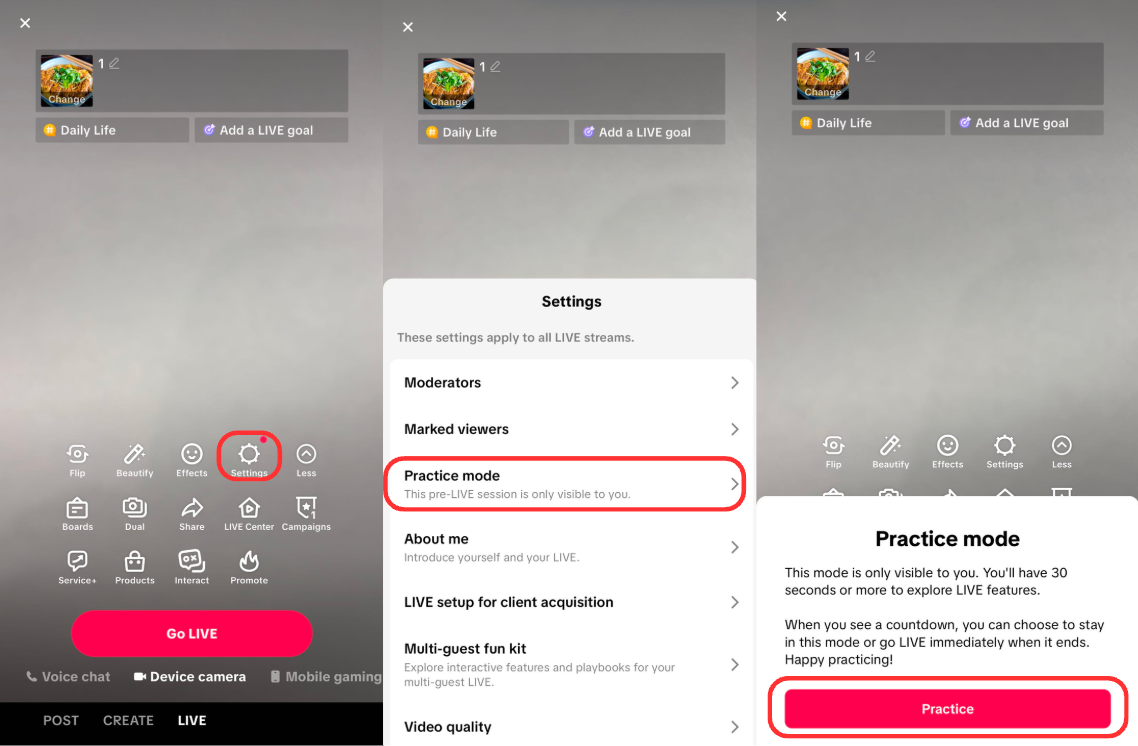
You can also enable Practice Mode to emulate your stream experience without viewers being able to see your stream. In this mode, you can also try out streaming with different video and audio source inputs, such as OBS.
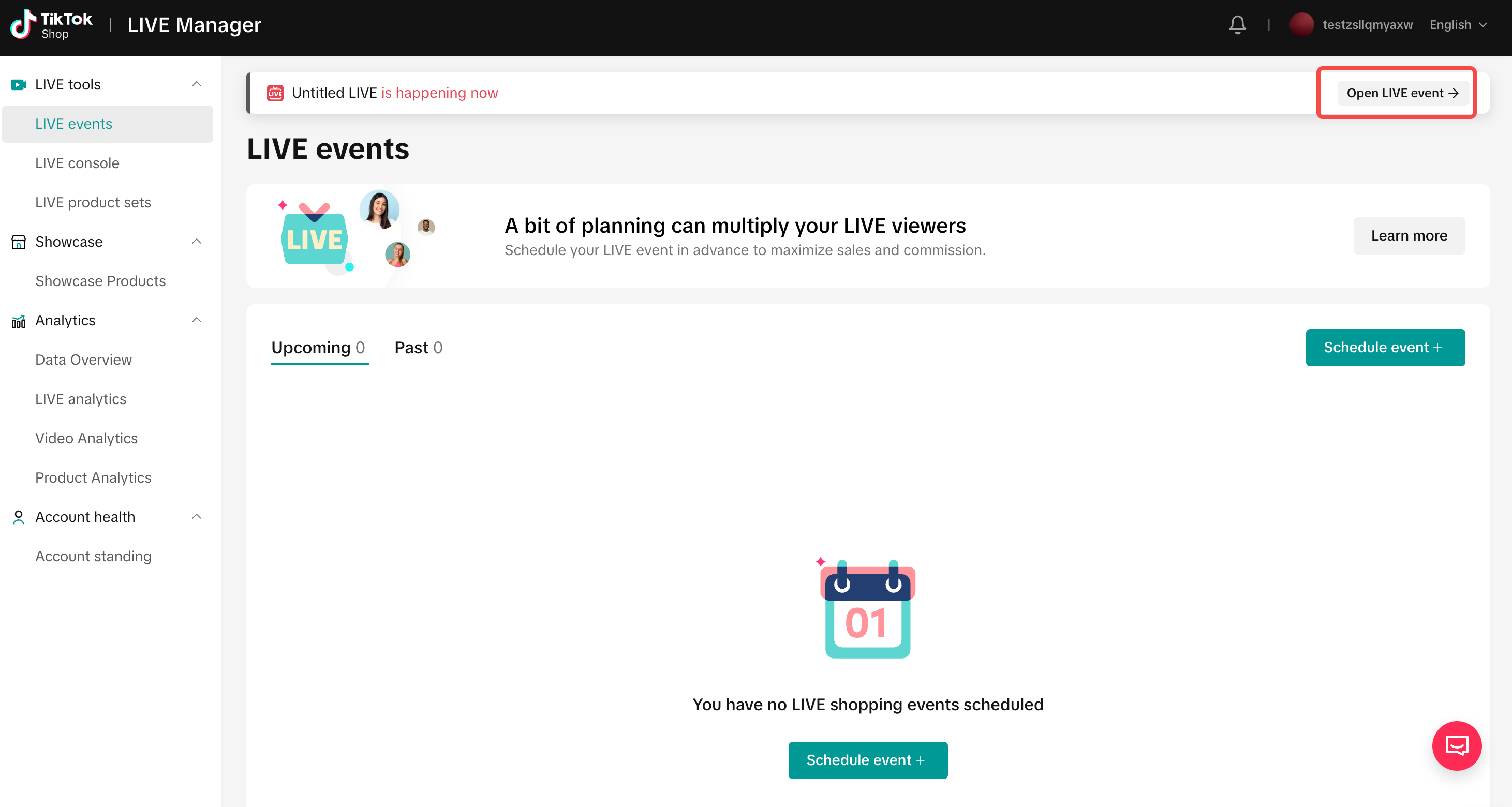


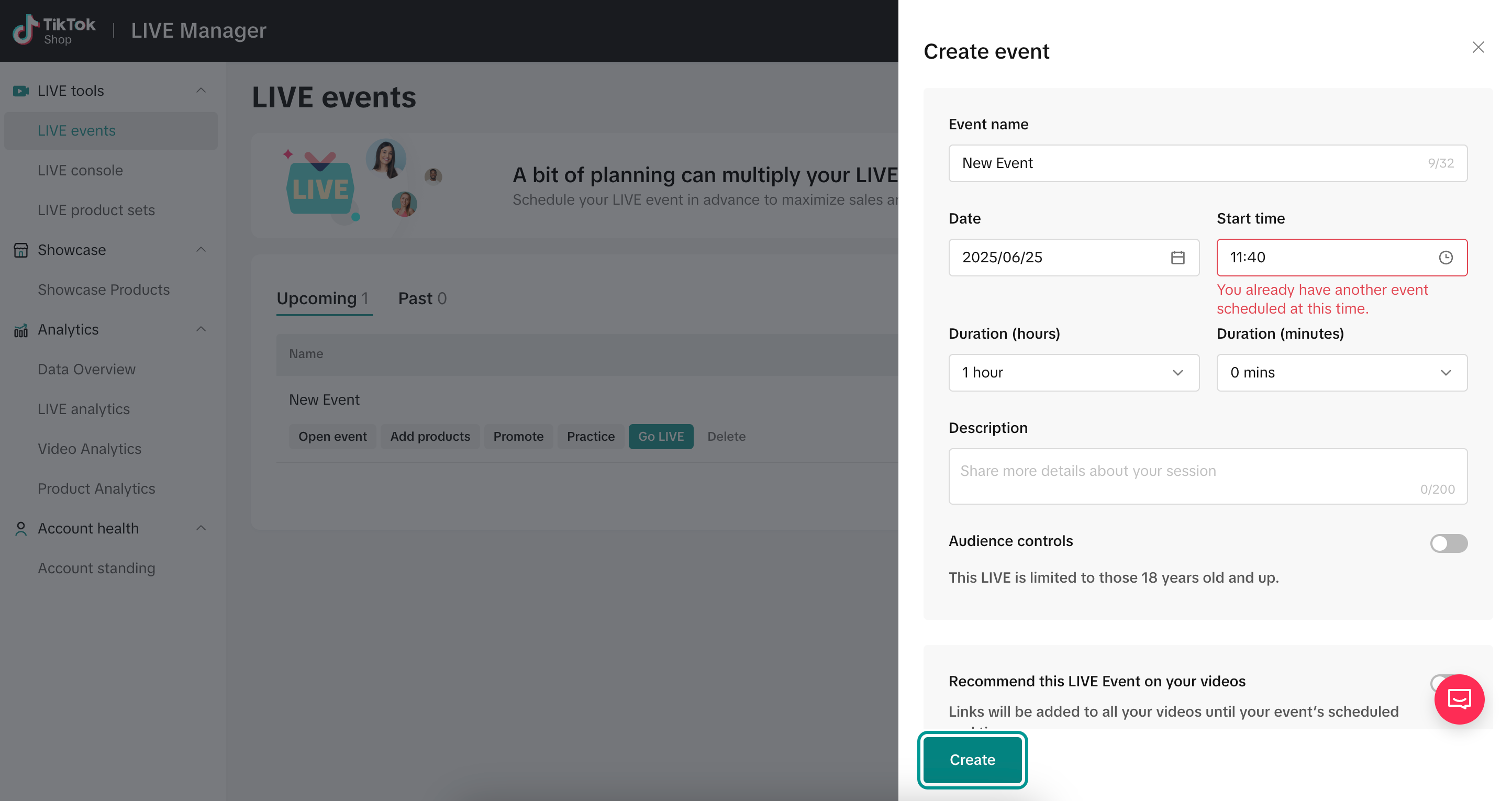 Once you've created your LIVE Event, you can then set up the products, and other features for your upcoming session. You can also delete your LIVE Event here.

 Tip: 2-3 days before your LIVE event, you can Promote your short video to drive awareness ahead of the event.


Key features that you'll find here for live streaming include:
- Schedule an event: Once you've scheduled events, you'll see a list of your upcoming events here as well.
- LIVE console displays all the information about your broadcast, including the ability to add products, manage chat, and violations.
- Analytics helps you view and analyze live broadcast data, providing real-time insights.
- Activity & order management Feed to help you engage with your shoppers in real time as they send gifts and make purchases.

Accessing LIVE Manager
Mobile device
You can start LIVE on your mobile device. For step-by-step instructions, you can click here.To enhance the visual quality and content presentation of your live stream, you can use a variety of camera and audio sources, including the OBS virtual camera.Note: OBS is a 3rd party software - we cannot offer support for issues specific to the OBS application.You can click here for a detailed guide on using OBS.
You can also enable Practice Mode to emulate your stream experience without viewers being able to see your stream. In this mode, you can also try out streaming with different video and audio source inputs, such as OBS.
Desktop
You can navigate to LIVE Manager and log in with your TikTok Shop account. Alternatively, log in from Tiktok.com by heading to Creator Tools and LIVE Shopping.LIVE console
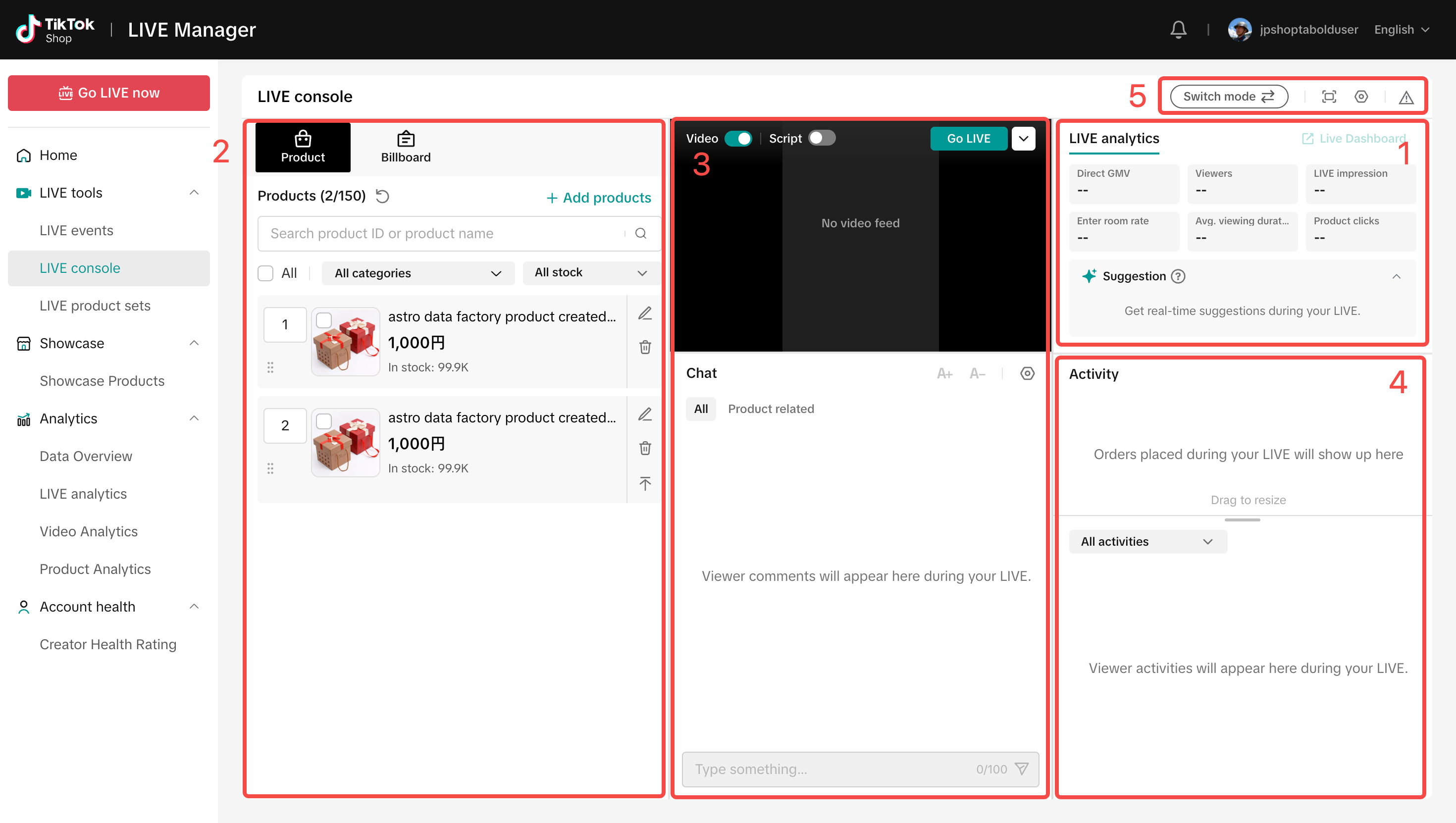
The LIVE console is the main interface that you will use to manage your stream from a desktop environment. It has five main components:- Metrics panel: Allows you to track the viewers and GMV during a livestream.
- Product panel: Allows you to add products to your Shopping Bag, and sort products and pin them
- LIVE feed panel: Allows you to see your livestream.
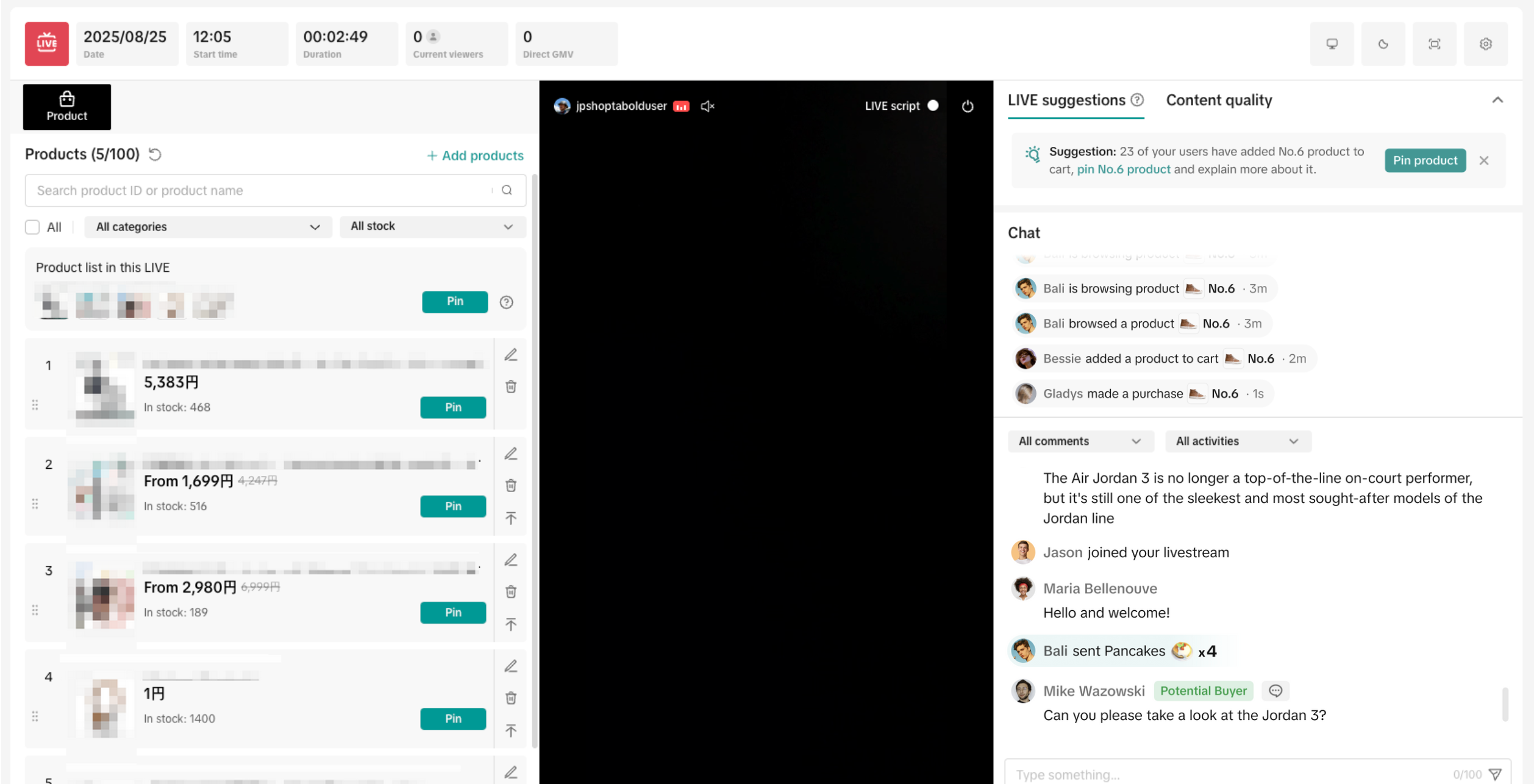
- Activity panel: Allows you to see viewers' comments, activities such as gifting and orders, suggestions on how to increase your stream's performance, and information on violations.
- Advanced view and settings: Enter the advanced view of LIVE Board and toggle between Chat focus mode and Video focus mode.
| Adding Products to your Shopping BagClick the plus button to add products to your LIVE. Once you've added products, they'll appear on the left panel. | 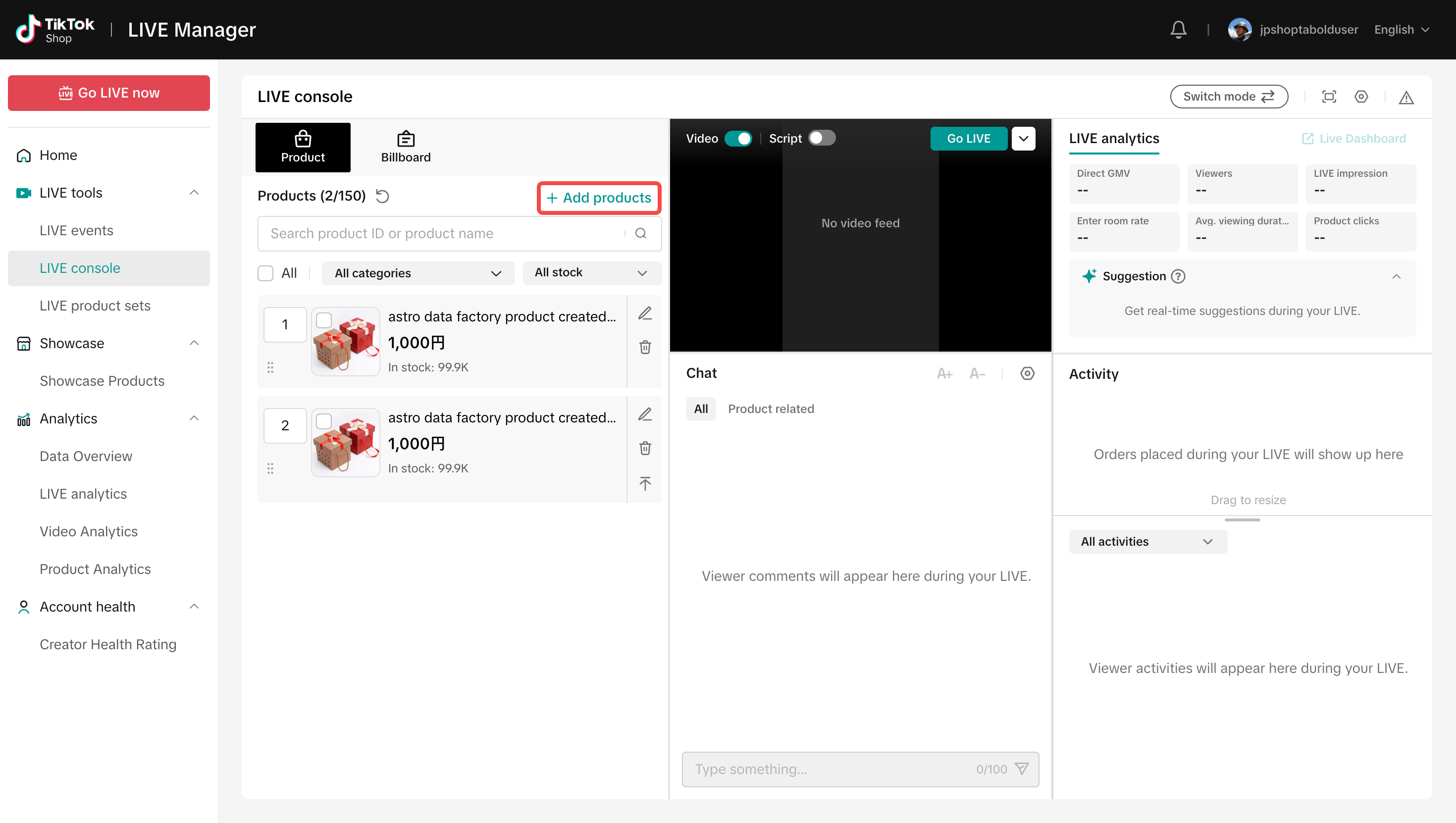 |
There are a few ways you can manage products, including:
| 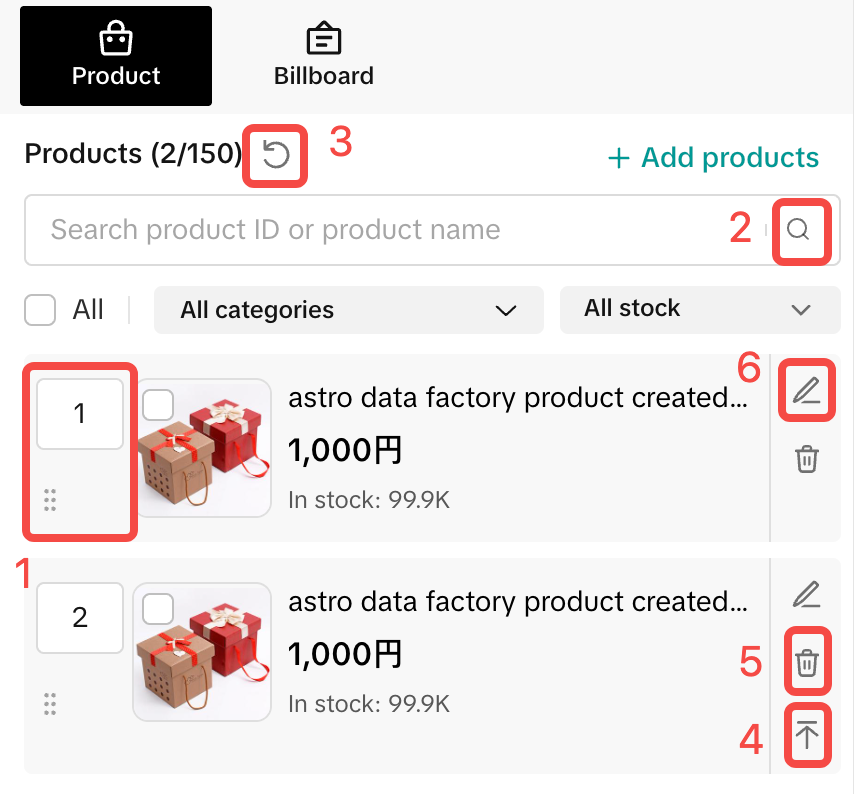 |
| Once you go LIVE, you will see the Pin button, which allows you to pin the product and make it visible to your viewers. | 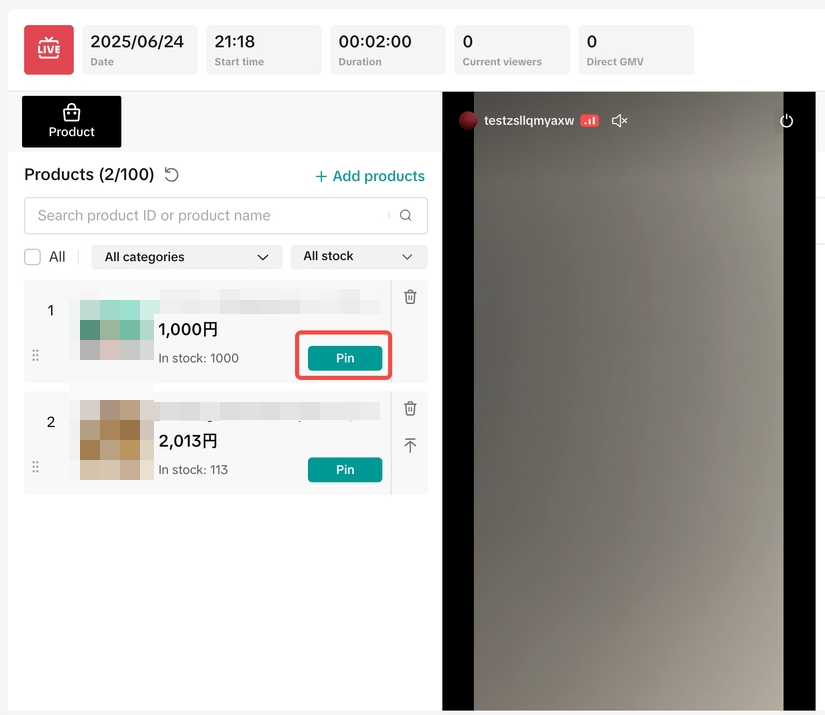 |
Initiating LIVE from Desktop
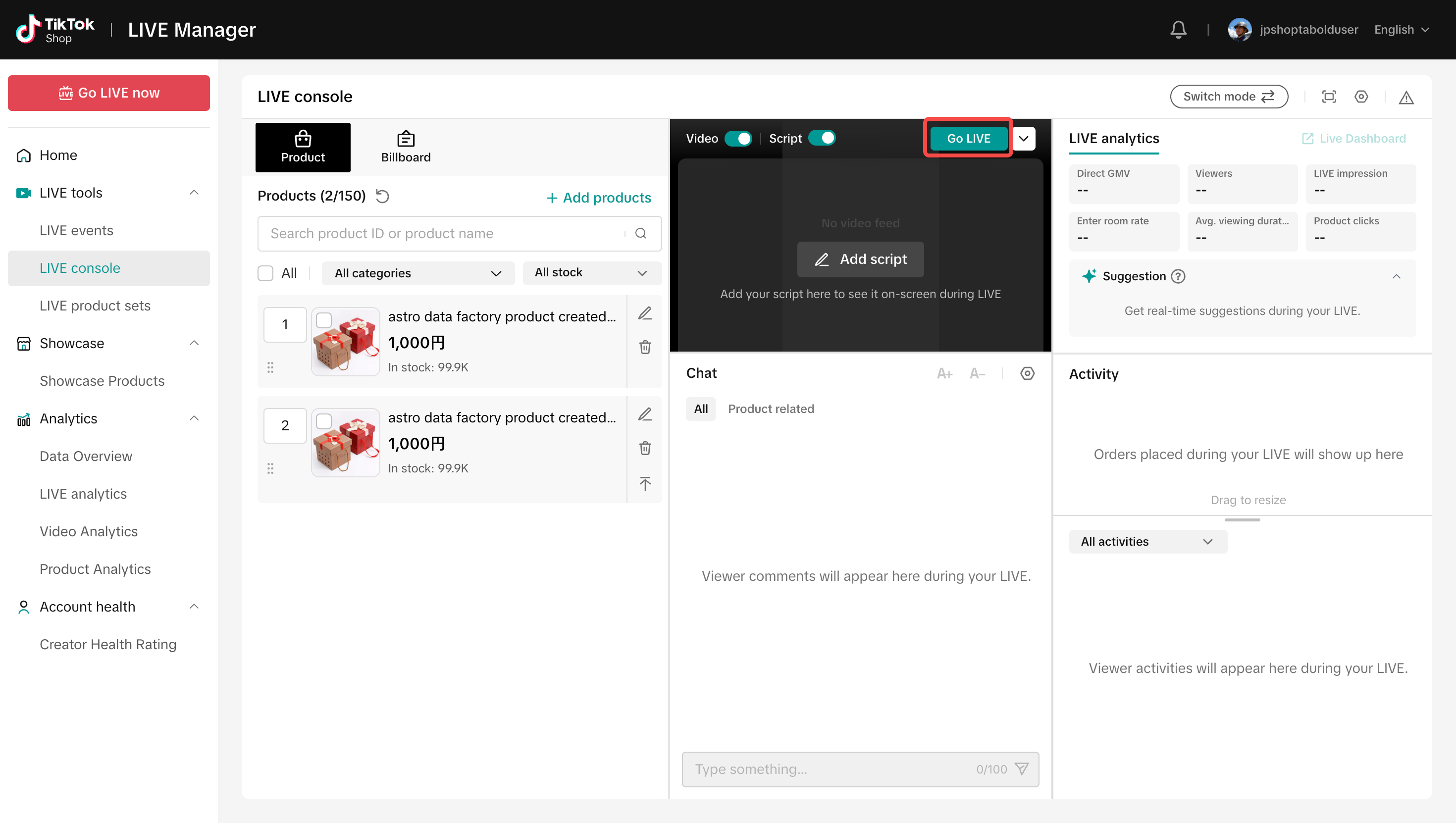
- Navigate to LIVE console and click Go LIVE. If you're starting a scheduled event, navigate to the event in LIVE Events tab and click Open event for the selected event.
- Select the video source and audio sources from your computer for the stream. Click Go LIVE
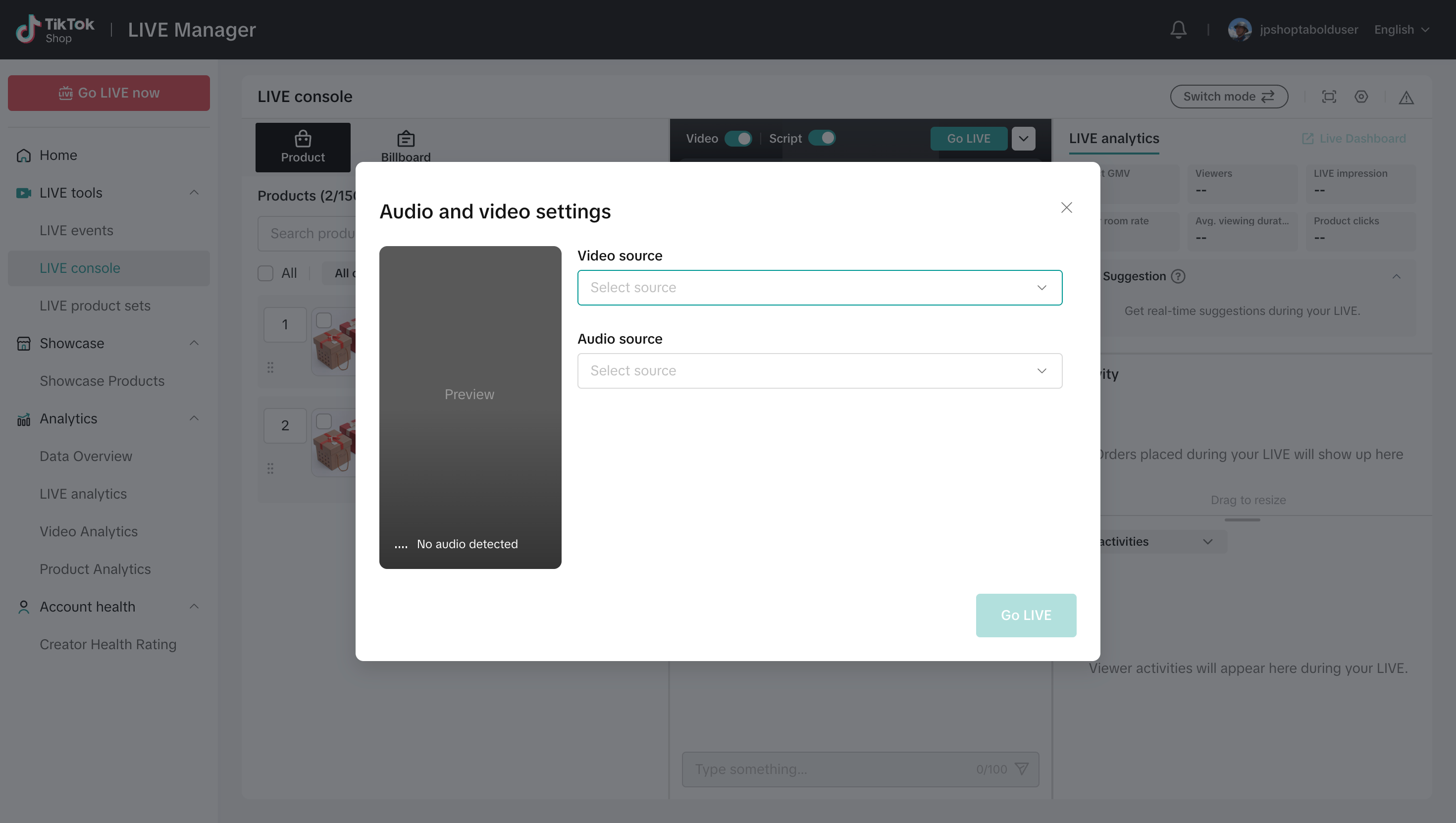
- If OBS is detected running in the background, OBS Virtual Camera will be the default option for the camera source. You can also manually select OBS Virtual Camera as the Video source in the Audio & Video settings. When the user clicks start, the stream will begin and pull the video feed from OBS
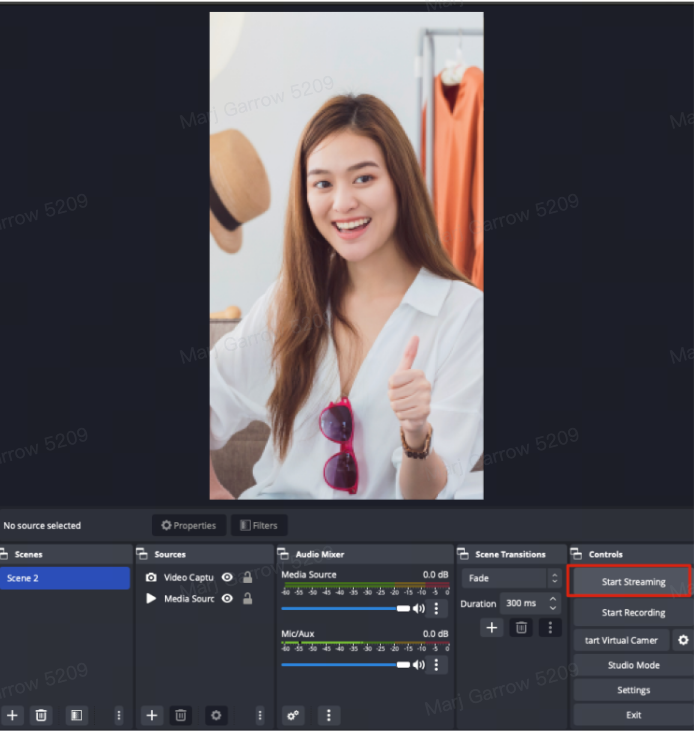
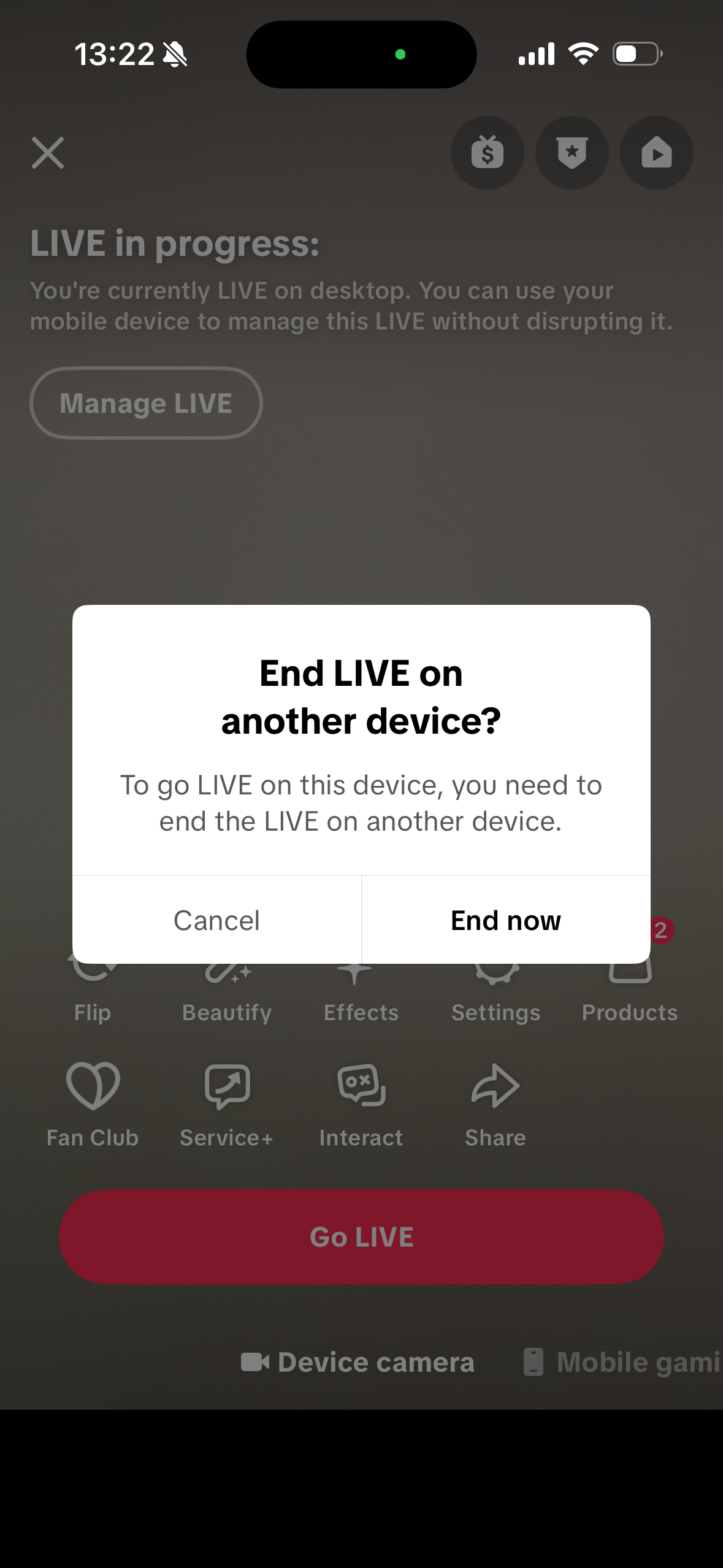
- Once LIVE, you can manage the stream via the Mobile app by selecting Manage LIVE. This allows you to manage and pin products and deploy promotions on your phone.
- If you select Go LIVE on your phone, you will be reminded that you are streaming on another device and that you need to end your LIVE on desktop to begin a stream via the TikTok App.
 |  |
Desktop Practice Mode
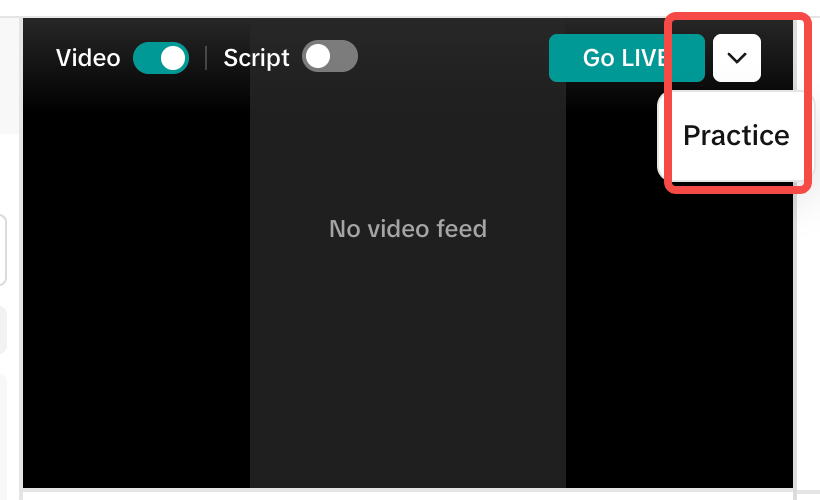
You can also enable Practice Mode to emulate your stream experience without viewers being able to see your stream. Practice Mode can be enabled from LIVE Manager or from a specific event ahead of its scheduled time, and you can engage Practice Mode to try out streaming with different video and audio source inputs, such as OBS.- In the center screen, click on the down arrow and select Practice. Select the video source and audio source.
- Once Practice Mode has been enabled and you click Practice, a practice stream will begin that no viewers will be able to see or join. You'll see a label in the left column indicating that Practice Mode has been engaged.
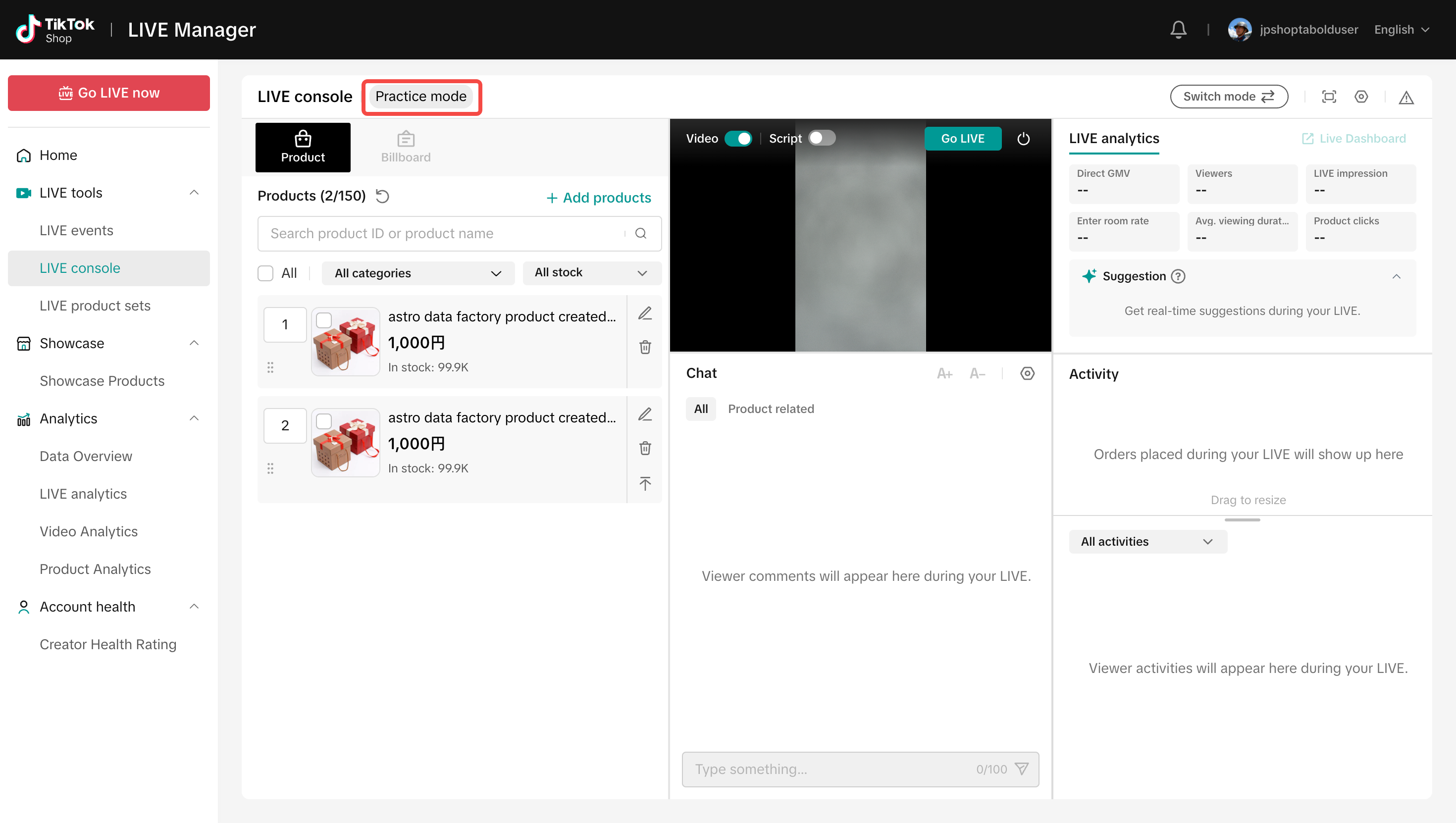
- To end Practice Mode, click the power button in the top right corner of the center screen. Alternatively, click Go LIVE to begin an actual LIVE.
| Adding Products to your Shopping BagClick the plus button to add products to your LIVE. Once you've added products, they'll appear on the left panel. |  |
There are a few ways you can manage products, including:
|  |
| Once you go LIVE, you will see the Pin button, which allows you to pin the product and make it visible to your viewers. | 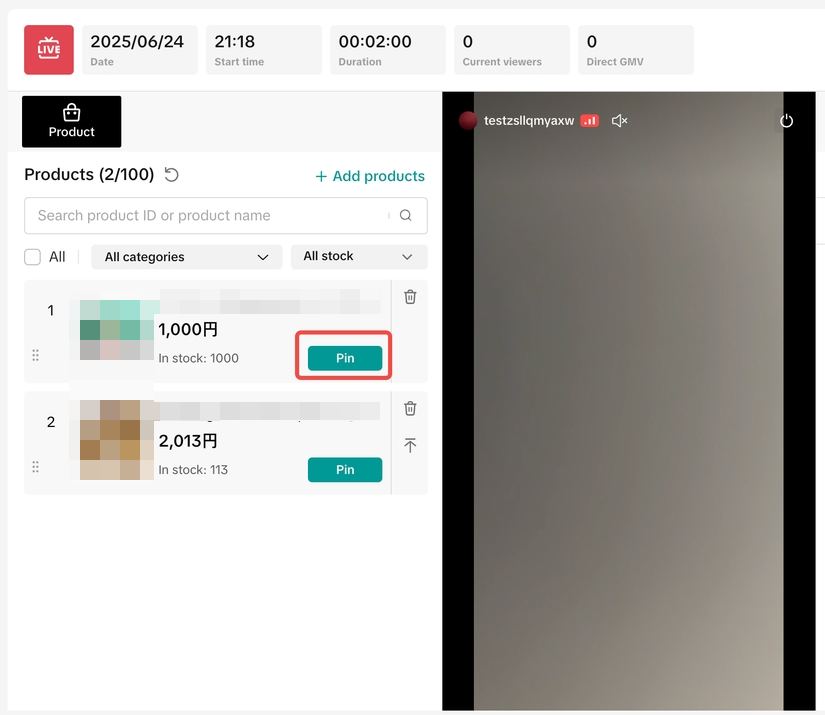 |
Operating your stream
Once you have set up your products and promotions, when you start your LIVE, the stream will sync with the center screen, showing you the livestream here as well.Activity Feed
- Suggestions: Get real-time tips every 2 minutes to boost your LIVE performance.
- Chat: Show the following user activity
- Comments and activities support filtering, and only the corresponding types will be displayed after filtering.
- By default, all types are checked.
- comments can be selected as all comments/product related
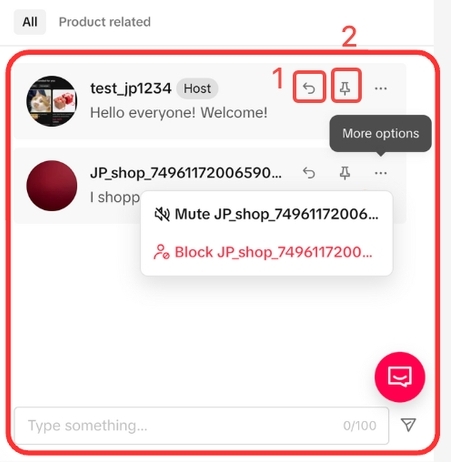
- To reply, click the arrow and type your response. All viewers can see it.
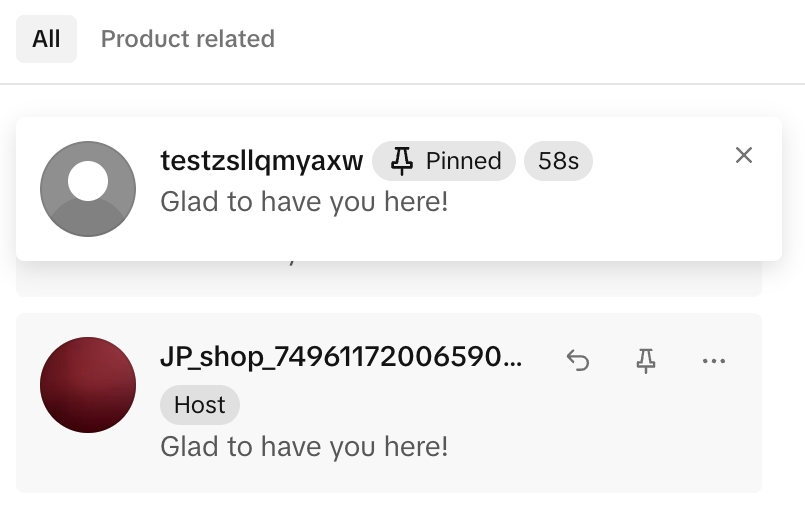
- Select Pin Comment to place it at the top of the feed (pinned comments last only 58 seconds). On desktop, it also appears pinned on mobile.
- activities can be selected as ask to show/ add to cart/ product views/ viewers/ followers/ giveaway/ gifts/ subscribers/ system messages
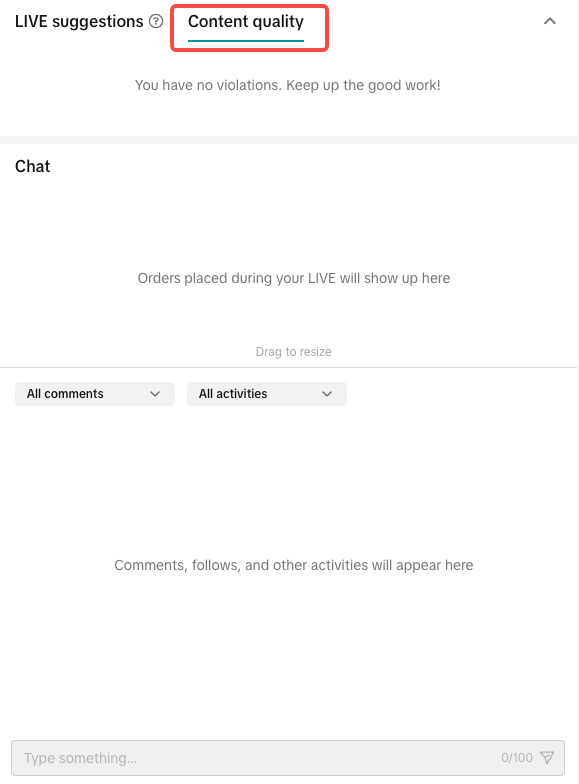
- Content quality: Track any livestream violations.
Suggestion / Chat / Comment (For display only) | Managing Comments | Content quality | |
 |  |  |  |
*The account and data on display are for demonstration purposes only.
LIVE events
Scheduling your event
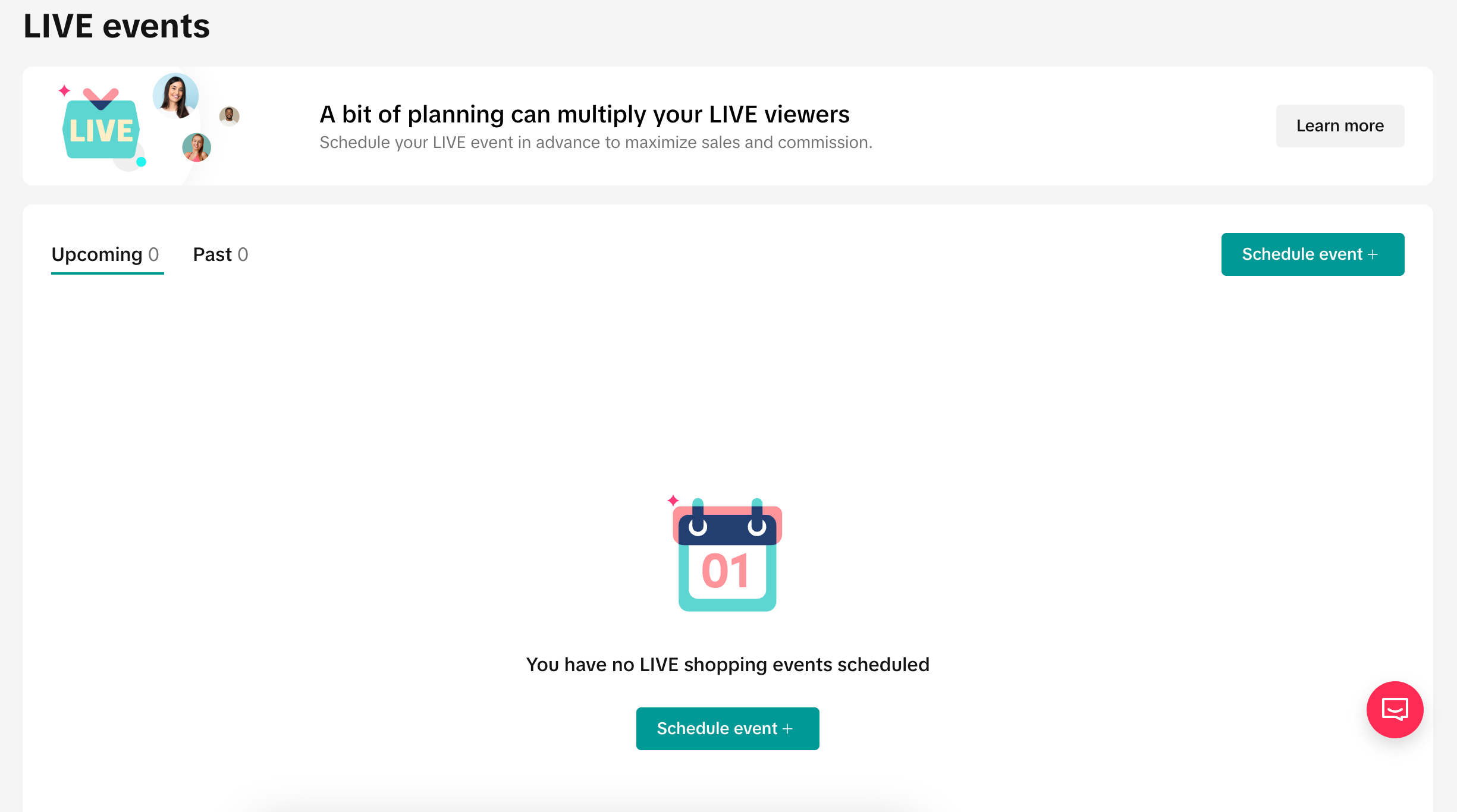
- On the home page, under LIVE tools, select LIVE events. Here, you can view upcoming and past events, as well as schedule future events.
- Click New LIVE event and add in the details of your upcoming LIVE event.
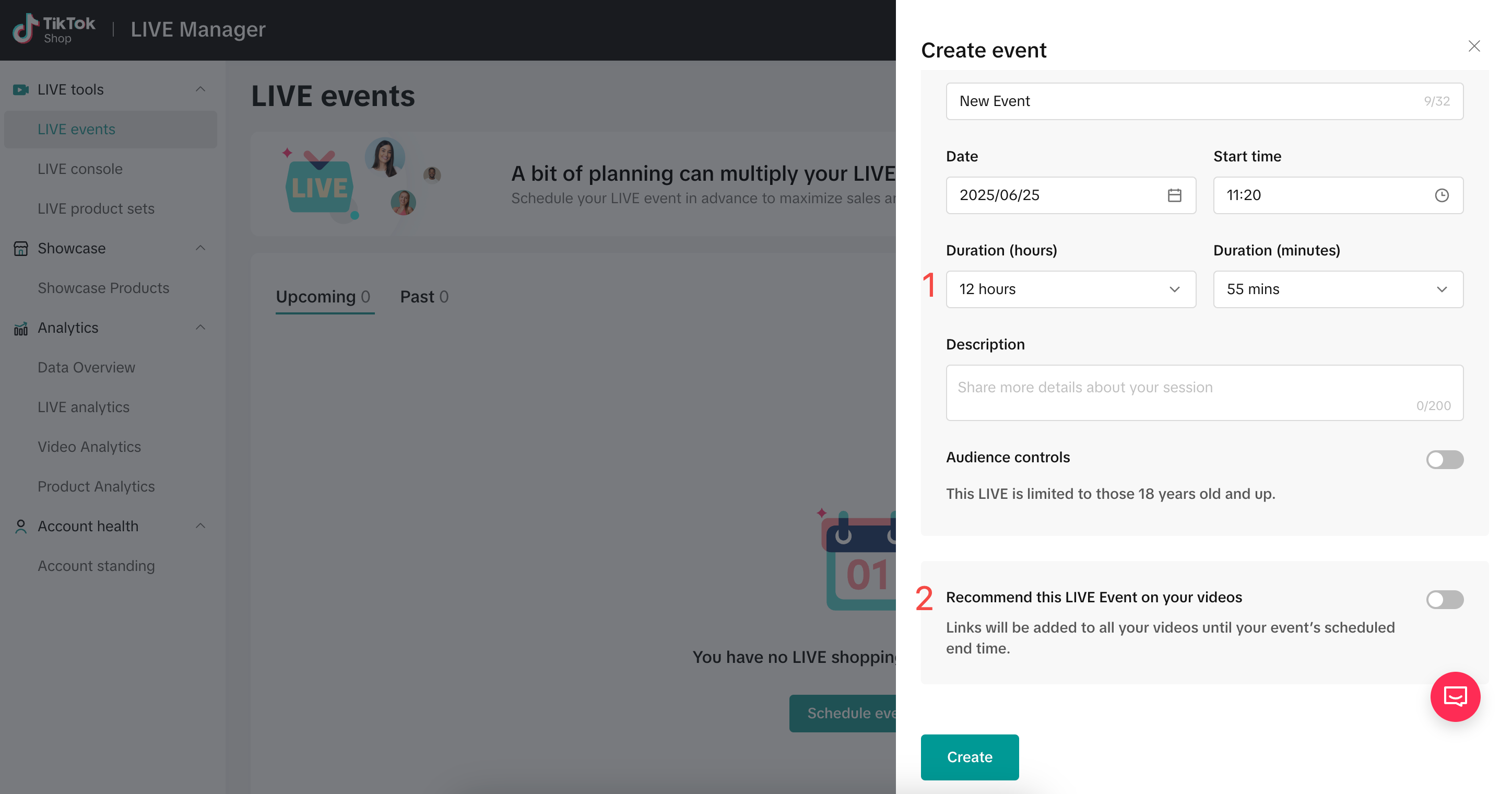
- Duration: Once you've selected your start time, specify the duration, which must be 30 minutes minimum and maximum 13 hours.
- Recommend this LIVE event on your videos: If you toggle this setting on, events links to your LIVE are added to all videos until the scheduled end time of your event.
Promoting your event
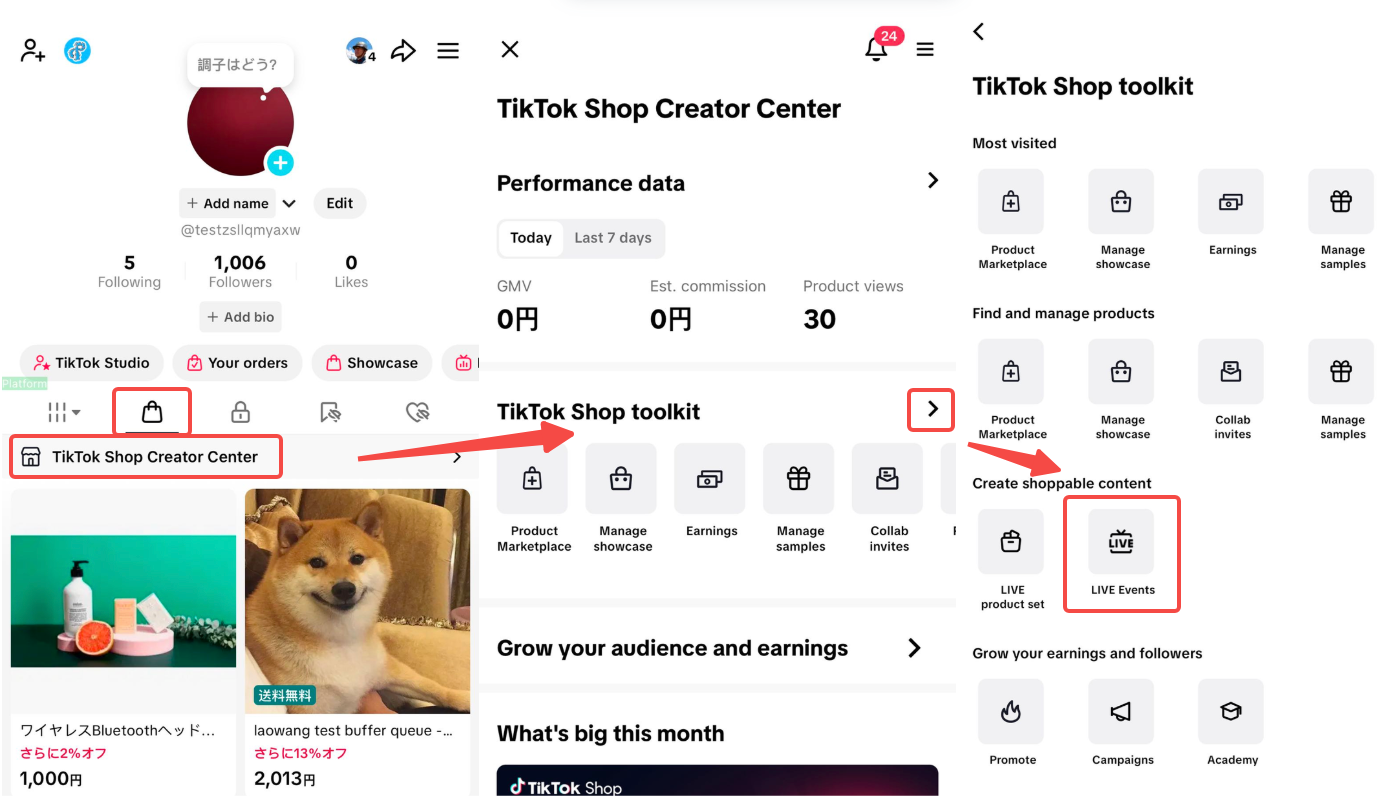
Now that you’ve set everything up, it’s time to promote your LIVE event. A well-promoted event draws more viewers, increasing engagement, traffic, and sales.- On TikTok, go to your profile and tap the shop icon → “TikTok Shop Creator Center.” Click through each step, you’ll find the event you scheduled on desktop.
- On the event page, tap the + icon under Related videos. Create a short video that teases the products you’ll be featuring, and other key selling points of your upcoming shopping session. Once recorded, this video will be shown on the For You Page, helping spread the word about your event.
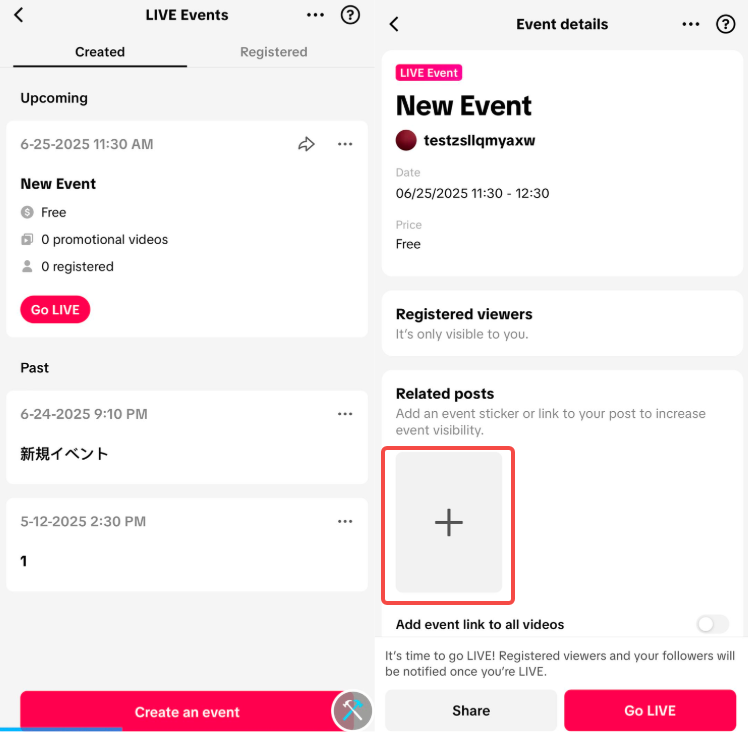
- Make sure to toggle on ‘Recommend event on your videos’ to add the event link to your past videos, inviting viewers to subscribe to your event
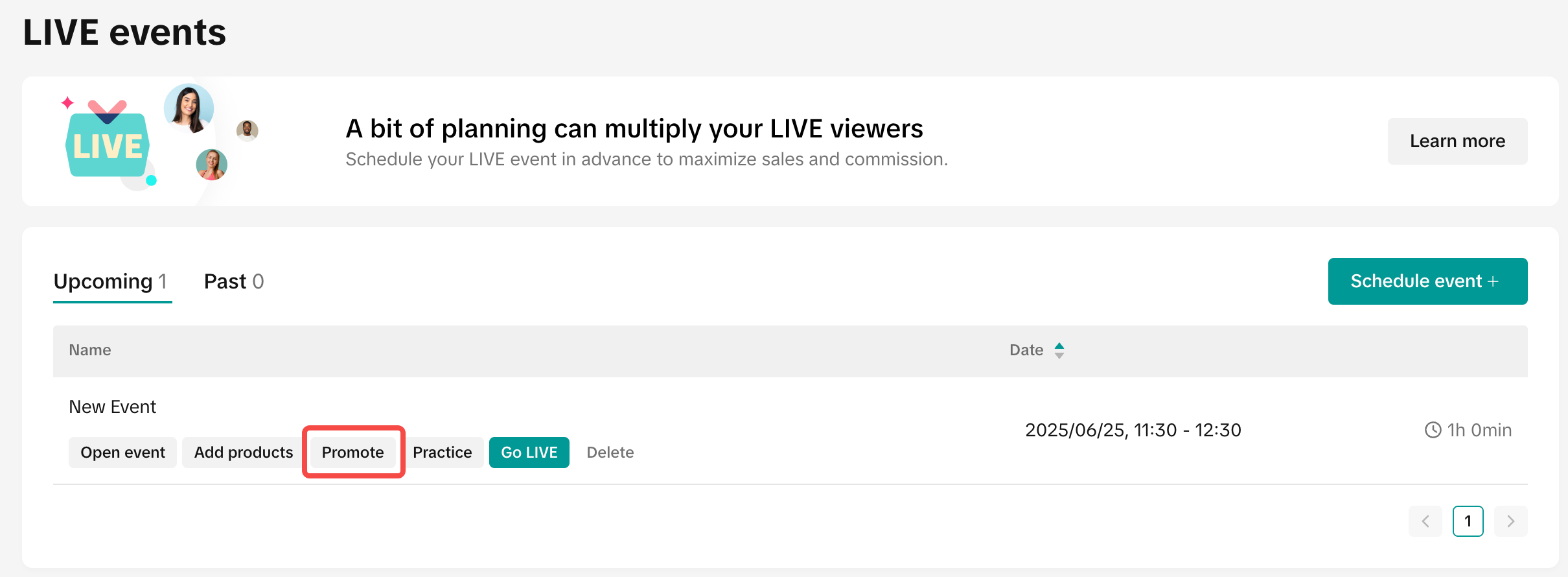
- Alternatively, within LIVE events on desktop, click Promote next to your scheduled event. From here, you can create a short promotional video that includes a link to the event, or copy the event URL to share and post on and off TikTok.
- Scan the QR code from your phone to open the scheduled event on mobile. From there, create a short video and toggle on add event link to make sure that viewers see and RSVP to the event.
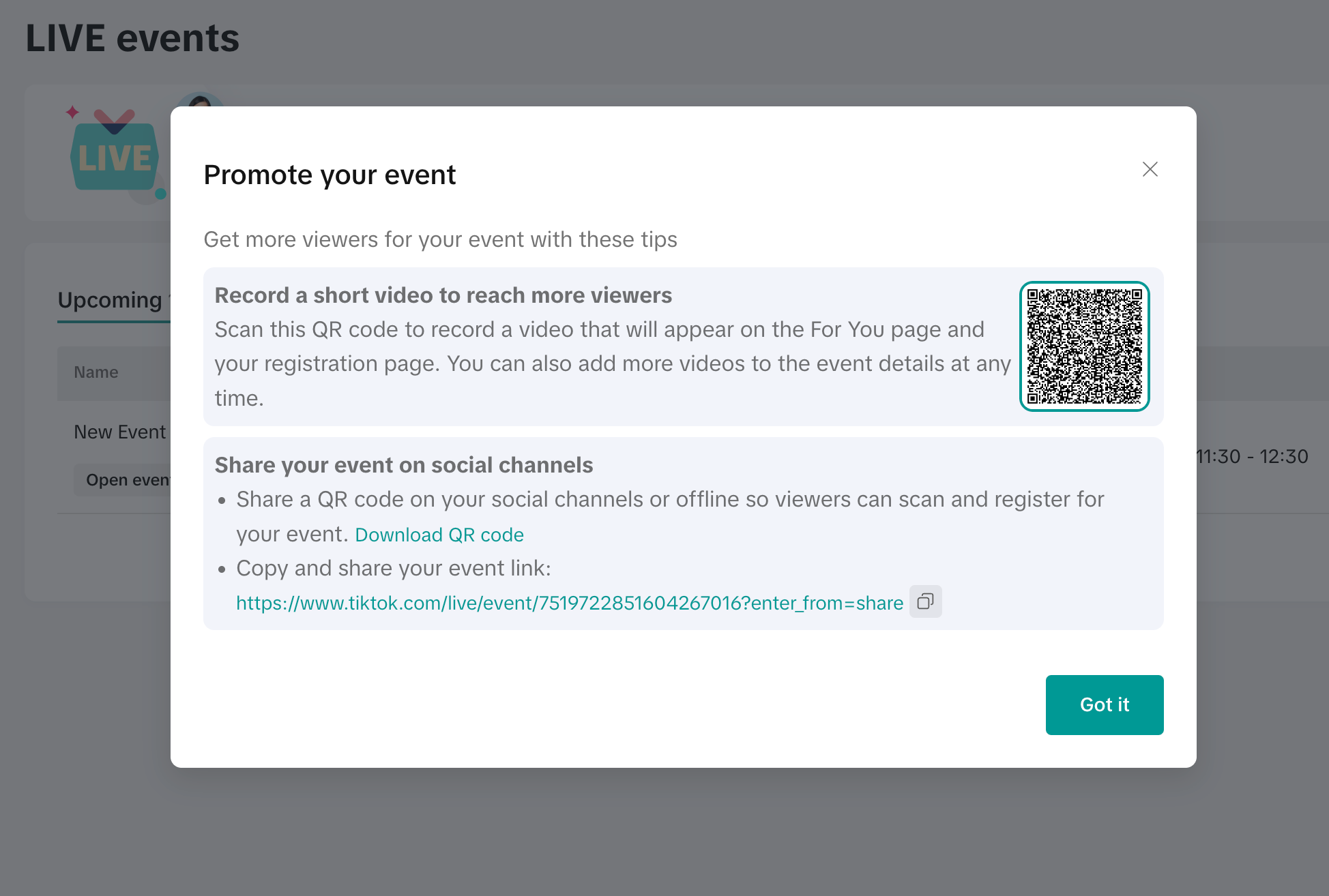
- You can also download the event QR code to repost on and off TikTok, or copy the Event URL for on and offplatform and offline sharing.
- When viewers scan the event QR code, they will be taken to the event registration page, where they can sign up to attend in advance.
Ending your event
When it's time to finish your event, you can either end your stream on mobile or from desktop. Click End Live on the center screen or tap the power button on mobile.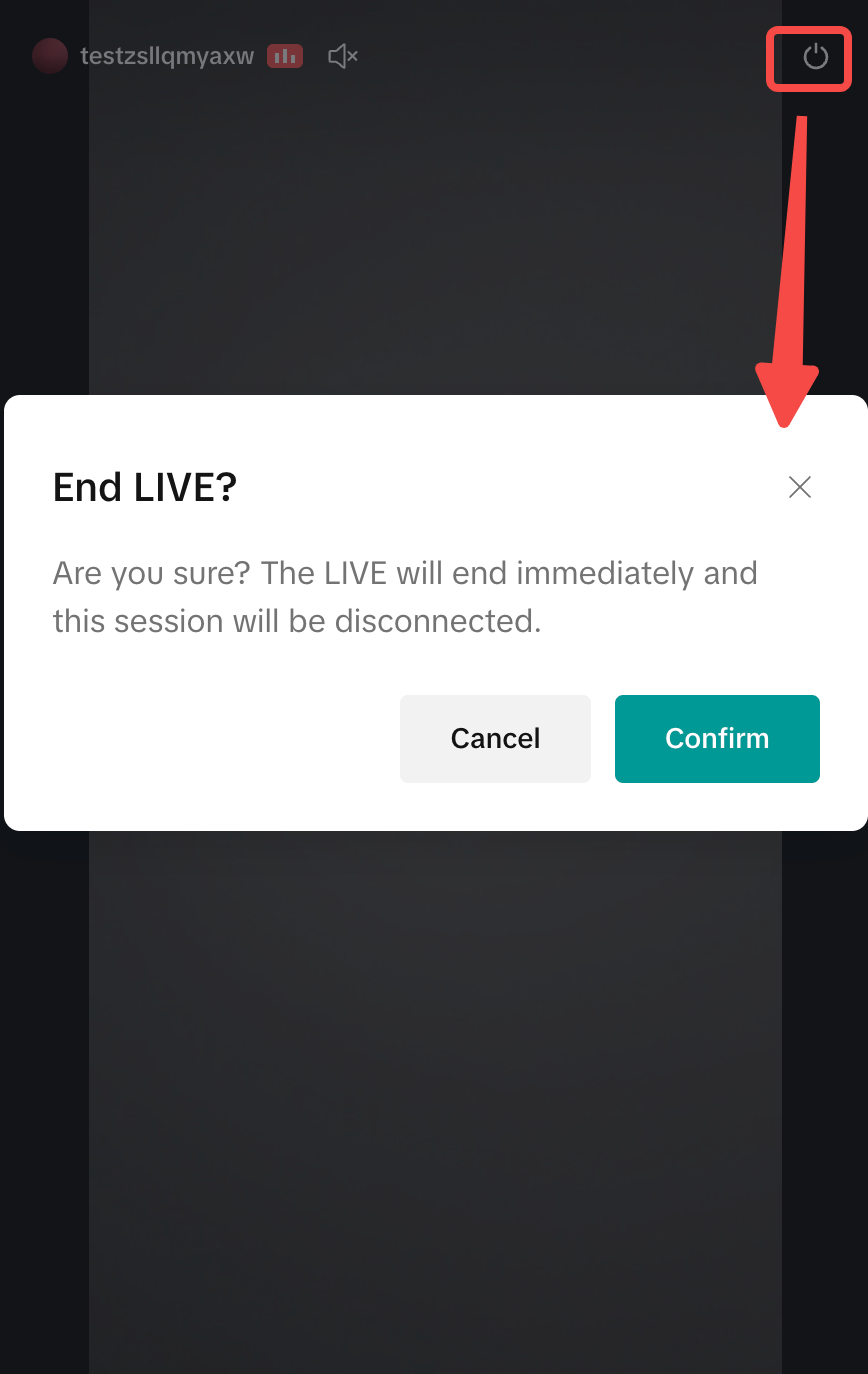 | 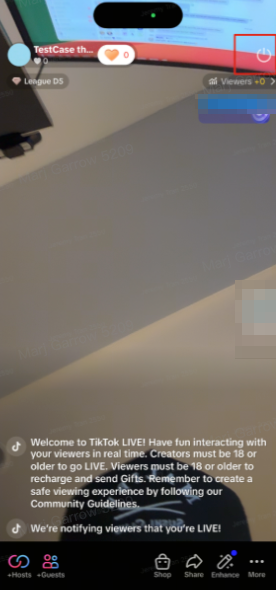 |
After your event
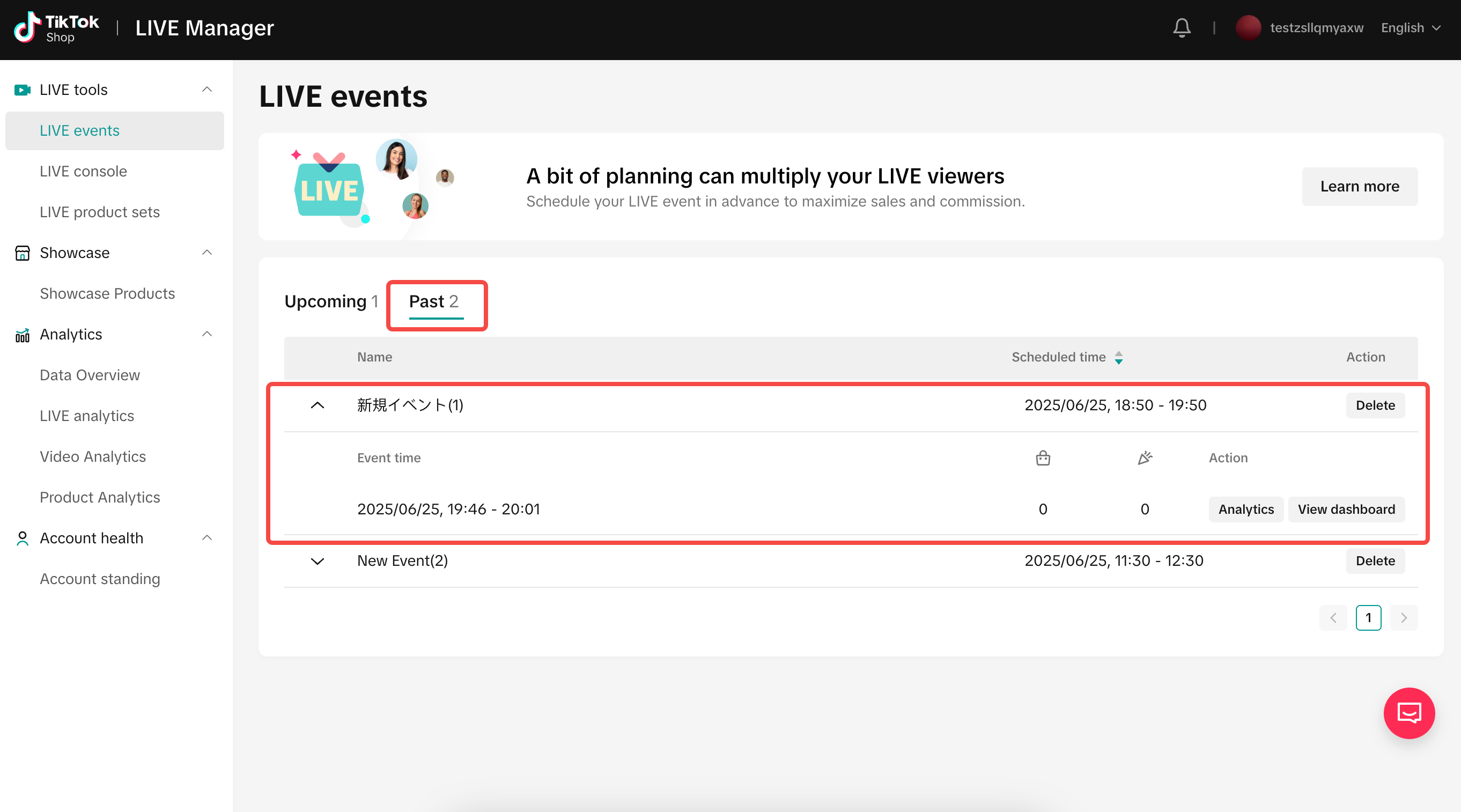
You can access Past events within the LIVE events tab for a list of all events. If your event had multiple sessions over the course of the event, each session will be broken out beneath the main event. You can view granular details for each session, including:- Number of products featured in the session
- Analytics: Clicking Analytics will take you to the Livestream Analytics for that session to view detailed performance
- View console: Clicking View console will open up that session's specific console, and replay or download the session and session comments. Note that you can't make any edits to a past session or its settings.
Analyze performance
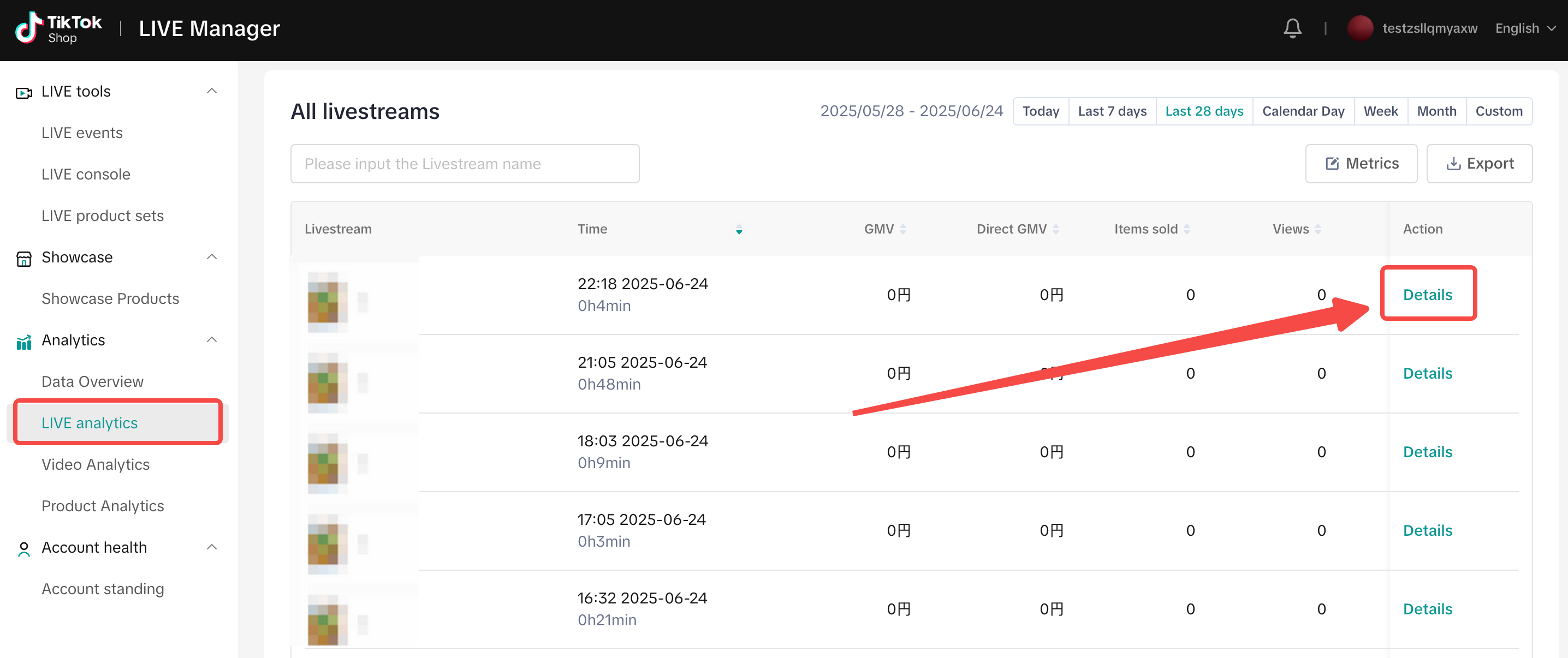
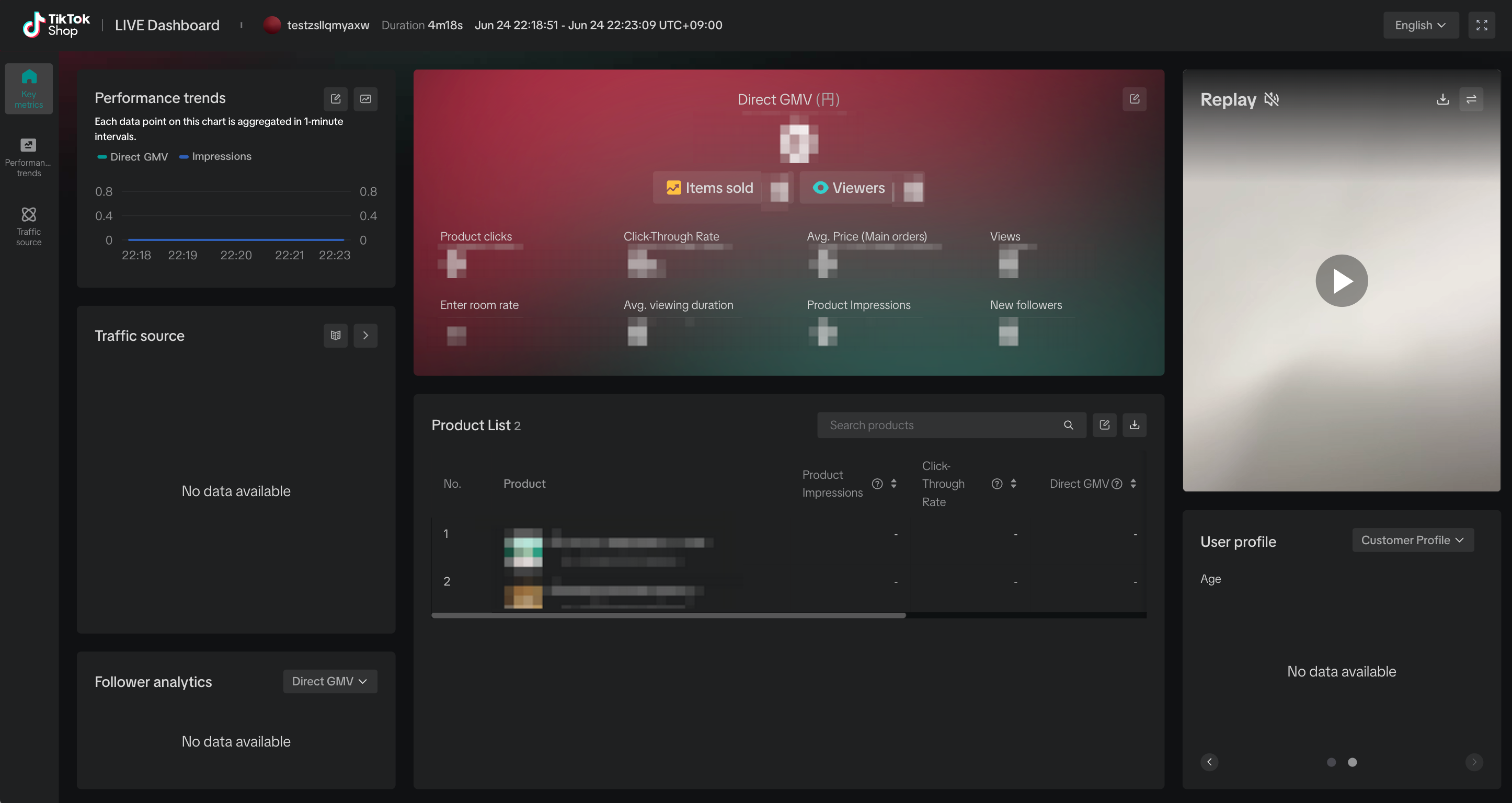
After your LIVE is complete, navigate to Analytics > LIVE analytics. Click on Details of the livestream that you want to recap. In the detail page, click on Live Dashboard to be directed to the LIVE Recap dashboard. For more detailed information, check out this dedicated feature guide.FAQs
Questions | Answers |
| Yes - you can access LIVE Manager from tablet devices via your tablet's browser at https://business.tiktokshop.com/us/creator |
| No - unlike LIVE Studio, stream keys are not necessary for using OBS Virtual Camera as the video input source |
| If you are using virtual camera software as your video source, we recommend the following settings: Output Settings: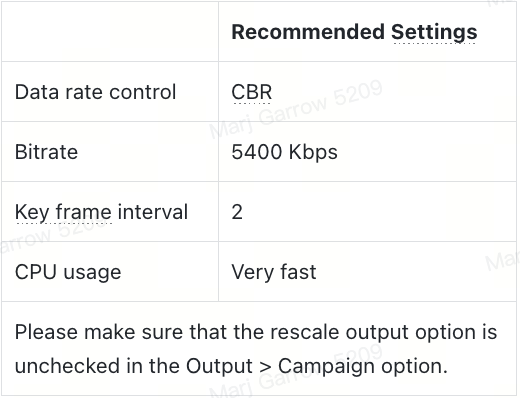 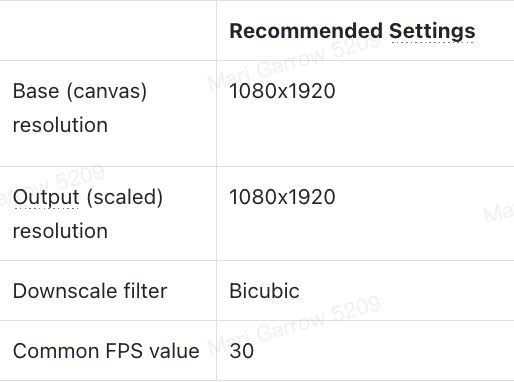
|