How Creator LIVE Auction Works
Creator LIVE Auctions
Creator LIVE Auctions allow sellers to partner with TikTok creators to promote real-time bidding events directly during a creator’s LIVE session. By tapping into a creator’s audience, sellers can accelerate inventory sell-through, improve average selling price, and reach new buyer communities.How does it work?
To set up a Creator LIVE Auction, first select the products you want to create or reserve as auction products.You can opt for target collaborations (for exclusive invites) or open collaborations (invite a wider pool) and offer creators tiered commission rates based on the winning bid amount of each LIVE Auction product.
You can use Target Collaboration to invite specific creators and reserve inventory for them. The main difference is that Open Collaboration helps your auction products reach a broader creator pool, while Target Collaboration gives you more control over selected creator partnerships. Below you will learn how to set up, edit, and settle tiered commissions for LIVE Auction products.
Step 1: Configure Auction Products for Creators
| In Seller Centre, select the products you want to configure as Auction Products for Creators: Log in to the Seller Centre. Click "Products" > "Manage Products".Under the Sales Information section> Select "Fixed Price and Auction" to let the listing sell through both the standard listing and the auction listing. The Fixed Price only option is the default setting for standard listings. In this dual sales setting you will see a starting bid price field, where you can enter an initial value that can be edited later. You can also set separate starting bid prices for different types of affiliate for Target Collaboration and Open Collaboration. | Enable auction items by converting a regular product into an Auction product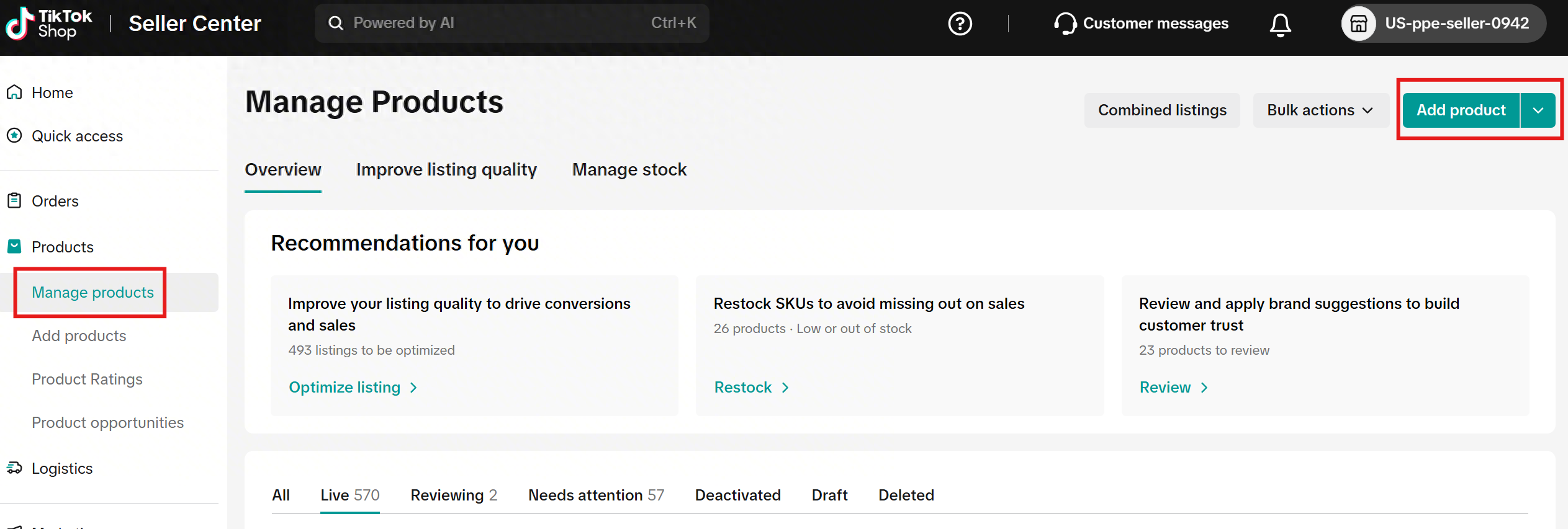 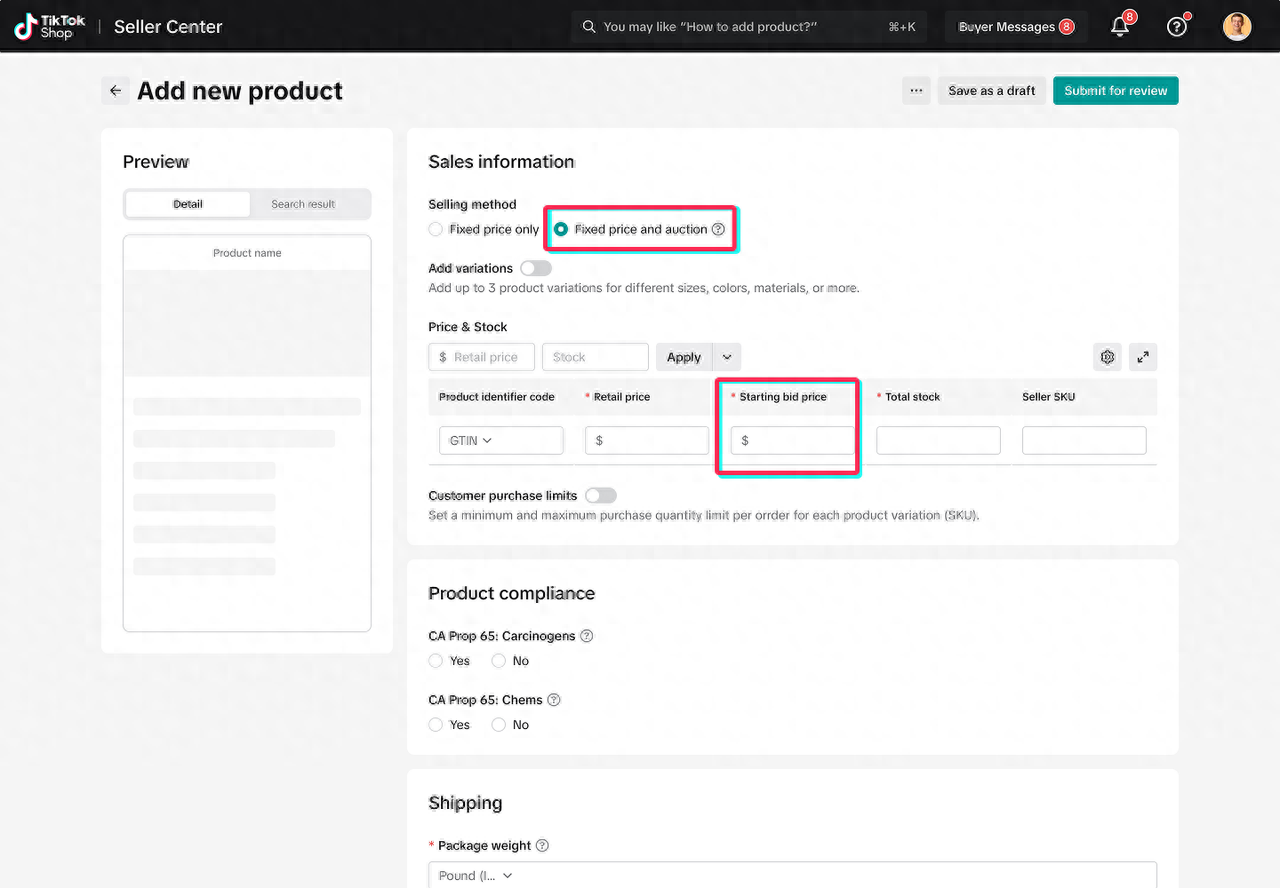 |
Step 2: Configure your collaboration settings
You have the flexibility of choosing two different formats of collaboration: Open collaboration or Targeted Collaboration. These are some rules that apply to both types of auction commissions:- Creators can update the starting bid price, but can only increase from this value.
- The starting bid can be set differently from the one you set in Seller Center for your own listing; the creator value configured for creators will not affect that.
- Sellers can currently only set starting bid price at the SPU level, not SKU level.
When you add an eligible auction product to Open Collaboration, creators can discover your product in the Product Marketplace, Product Detail Page, and the Showcase management page without a direct invitation. Creators can also filter for products that support auction commissions.
Open collaboration products allow creators to promote the product via different selling content types. For example, a product may have regular commissions for short videos or showcase promotion, and a separate auction commission for LIVE auctions.
Step 1. Open Collaboration Product SelectionGo to Affiliate Centre > Collaboration > Open Collaboration Products.In the Product Info column, select the products that are eligible for LIVE Auctions.You will be able to set up 2 types of commission:
| 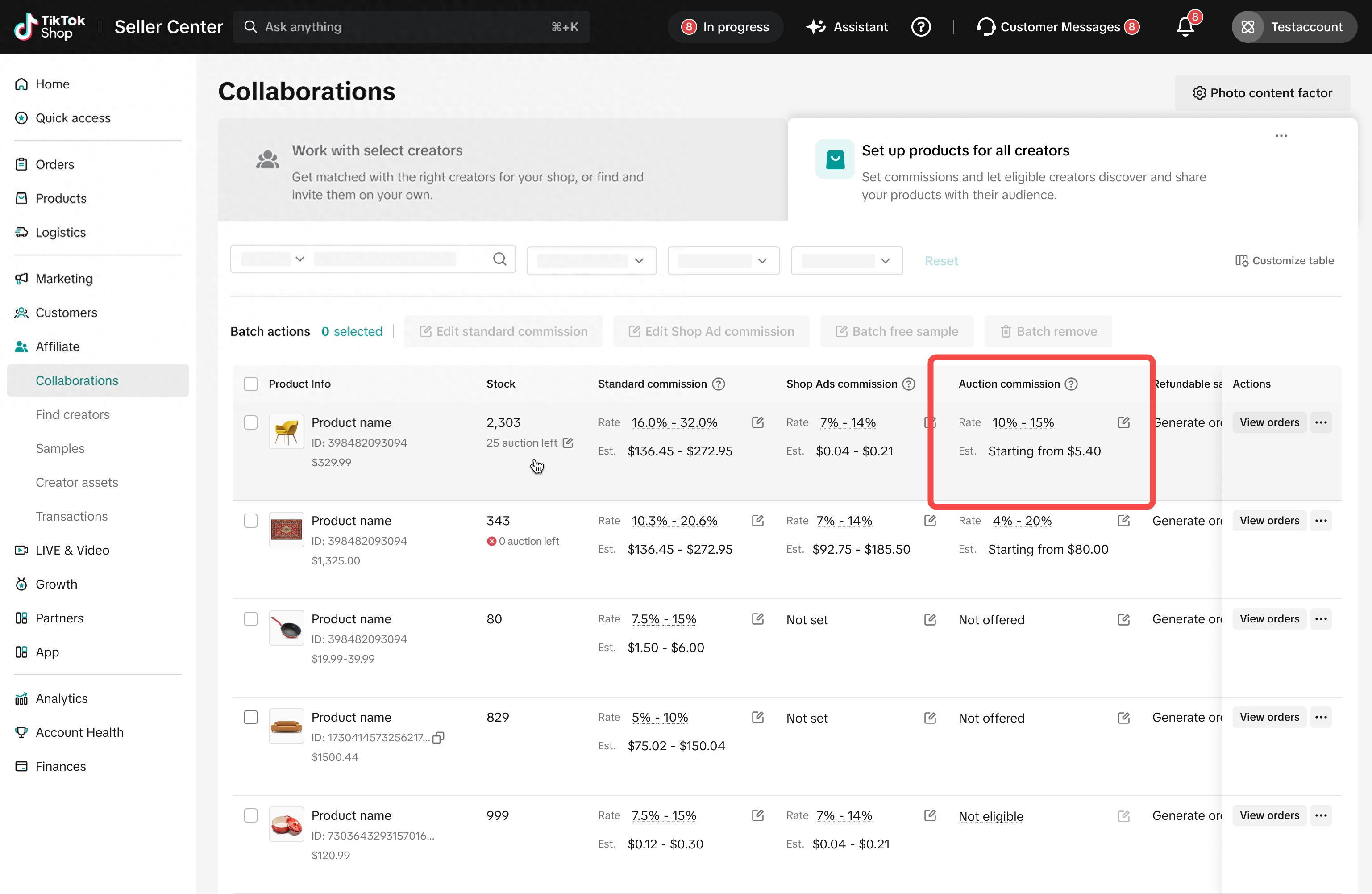 |
| Step 2. Turn on Auction SettingsTurn the Auction switch button on and define the auction commission tiers (up to 3 tiers). The starting bid price must be at least 1 and should match your expected auction selling strategy.Select the SKUs by switching them on and Set the auction inventory quota by SKU.Important: Once the invite is sent, commissions can be edited, but they can only be adjusted upward or increased.Review the product, commission, starting bid price, and inventory settings, then click Submit.Once configured, eligible creators can discover and add the product independently, without a seller-initiated invitation. | 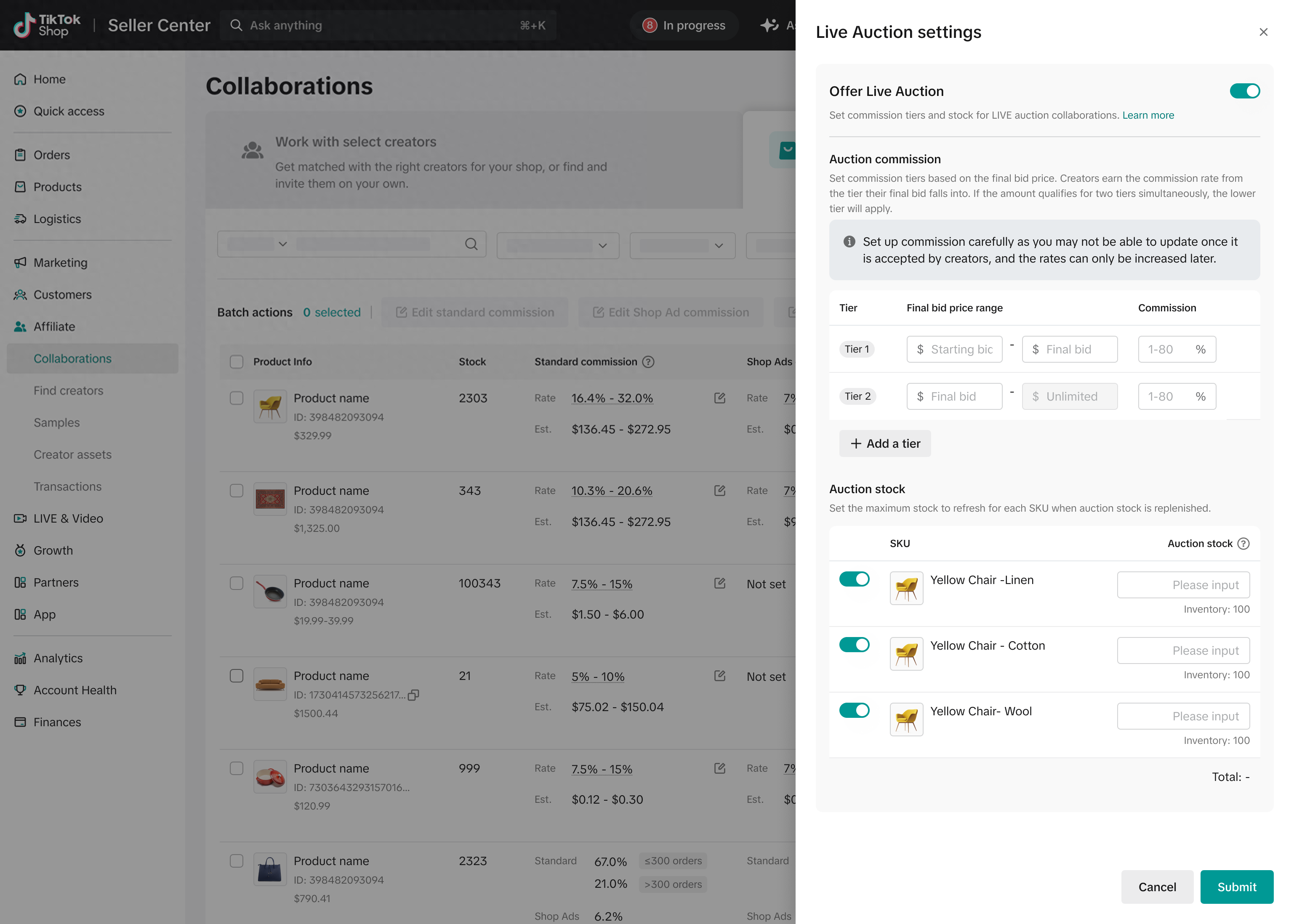 |
| Step 5. Manage your Auction ProductsTrack Auction Stock Inventory under the Stock ColumnEdit Auction Settings by clicking on the Edit Auction Commission buttonThe inventory is shared across all eligible creators.If you want to increase the inventory, you can simply update the product inventory in the Seller Centre. |  |
When a creator starts selling an auction product in a LIVE session, the system pre-reserves one unit of inventory at each auction start point so that consumers can place orders if the item sells. If the item does not sell, that single unit is released automatically.
Target Collaboration
When you set up an auction product for Target Collaboration, you reserve LIVE Auction inventory for a specific pool of creators. Configure your creator LIVE Auction with tiered commission following these rules:
- The product is registered as a LIVE Auction product (a dedicated Product ID is created at the time the product is added to the catalog).
- The shop must invite an eligible creator to a Target Collaboration that includes at least one LIVE Auction product.
Target collaboration vs. Open collaboration: When a creator qualifies for both Target and Open Collaboration terms on the same product, Target Collaboration terms take priority, meaning its commission rate, starting bid, and inventory allocation apply first. Once Target Collaboration inventory is exhausted, the system automatically switches to the Open Collaboration terms.
| Step 1. Visit the Affiliate Centre> Collaboration> Target Collaboration and Click on Invite to Collaborate to create the invitation.Only select the following content type for auction collaborations: Select Shoppable LIVE, then check LIVE Auction only.To choose and set up products for targeted collaboration: your previous configuration in the seller centre needs to be selected as (Fixed Price and Auction).Important: The content type cannot be changed after the invite is sent. | 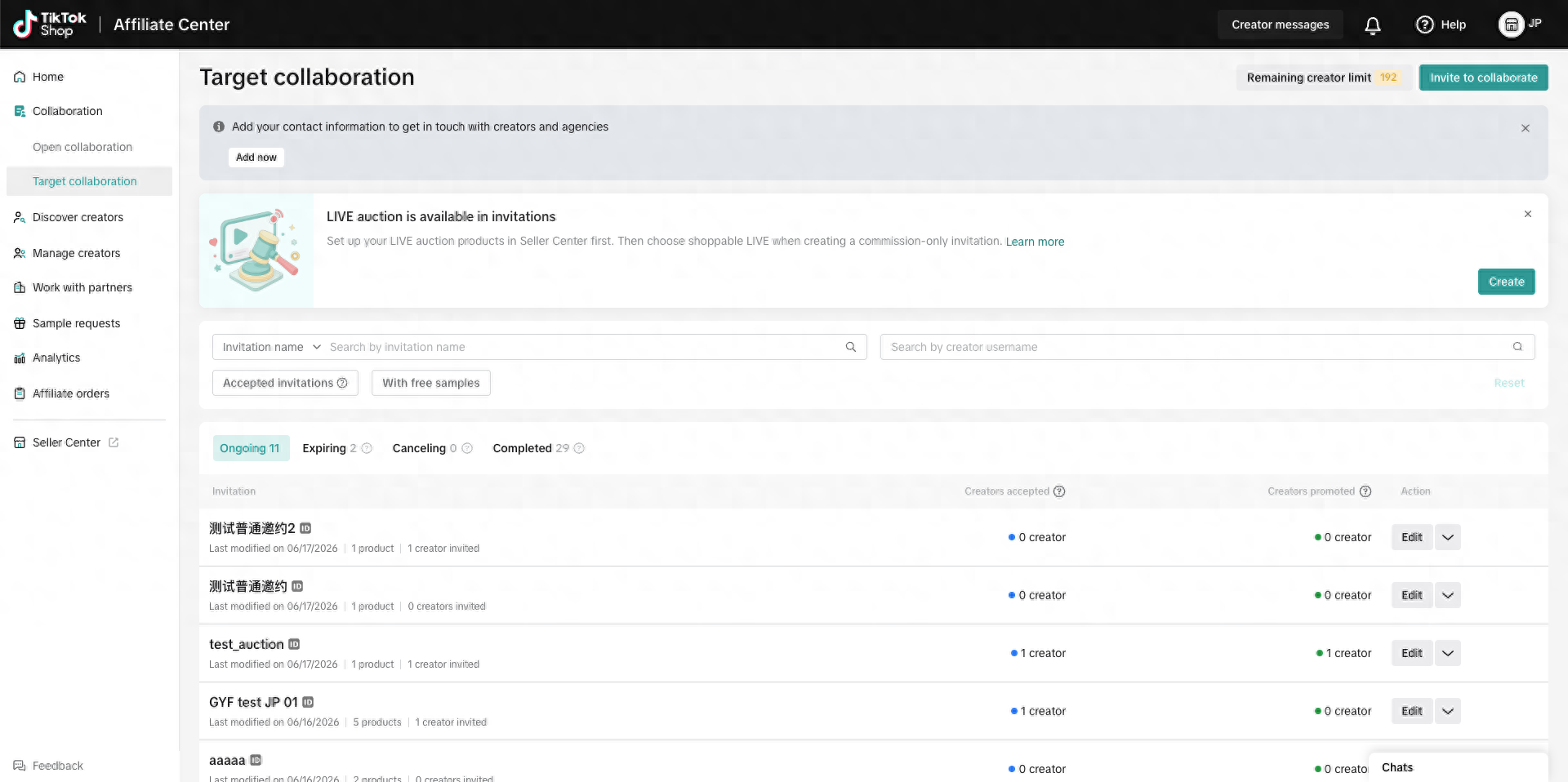  |
| Step 2. Choose productsAdd products from your pre-created auction product list. Important: Auction products created through a temporary listing cannot be added to a creator collaboration invite. If a creator is eligible for both targeted auction commission and open auction commission on the same product, the system uses the targeted auction settings first. When the targeted inventory is used up, the system can switch to the Open Collaboration auction inventory. When that switch happens, the starting bid price and commission also switch to the Open Collaboration settings. Review both plan settings carefully if you use open and targeted auction collaboration for the same product. | 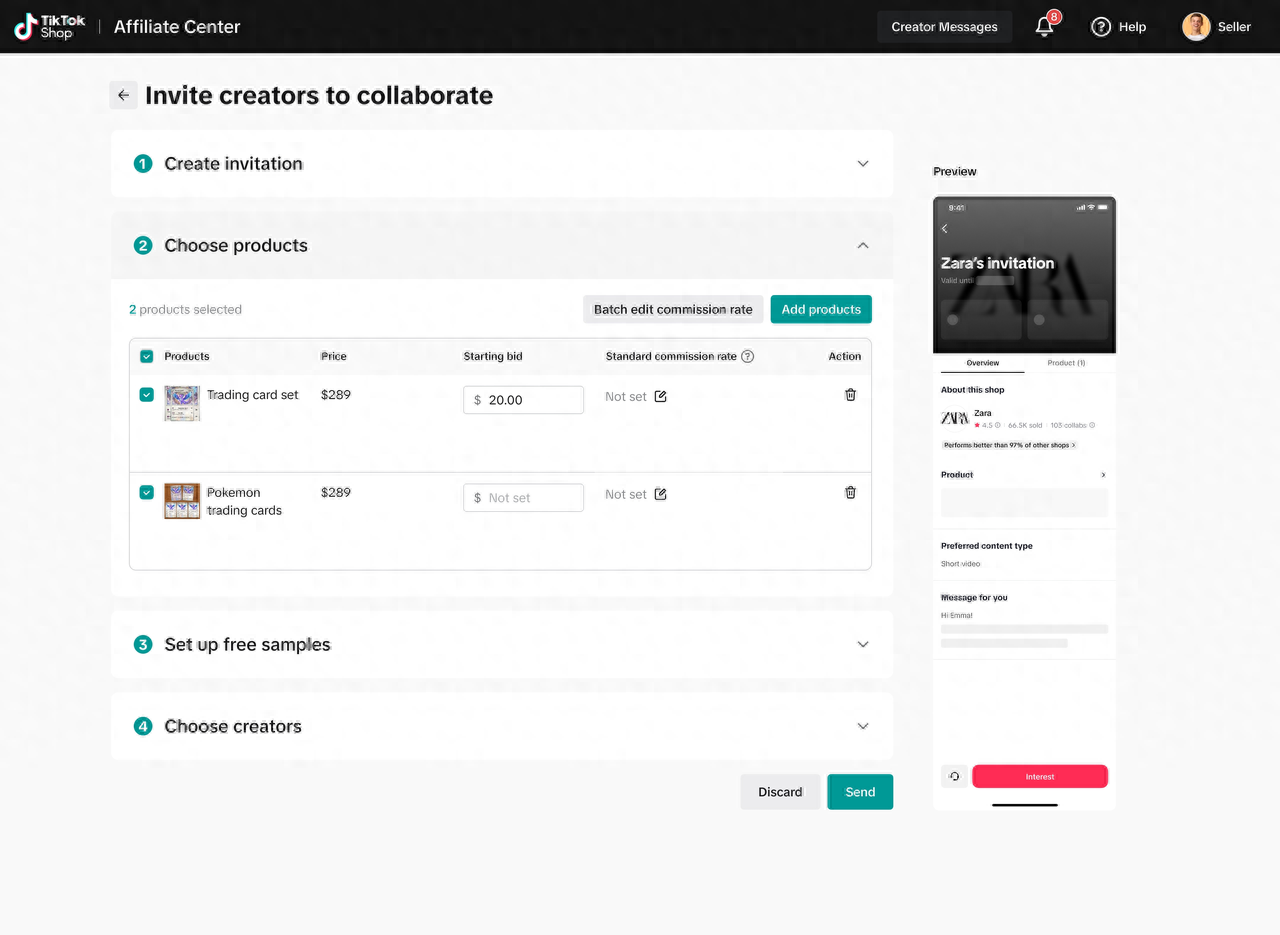 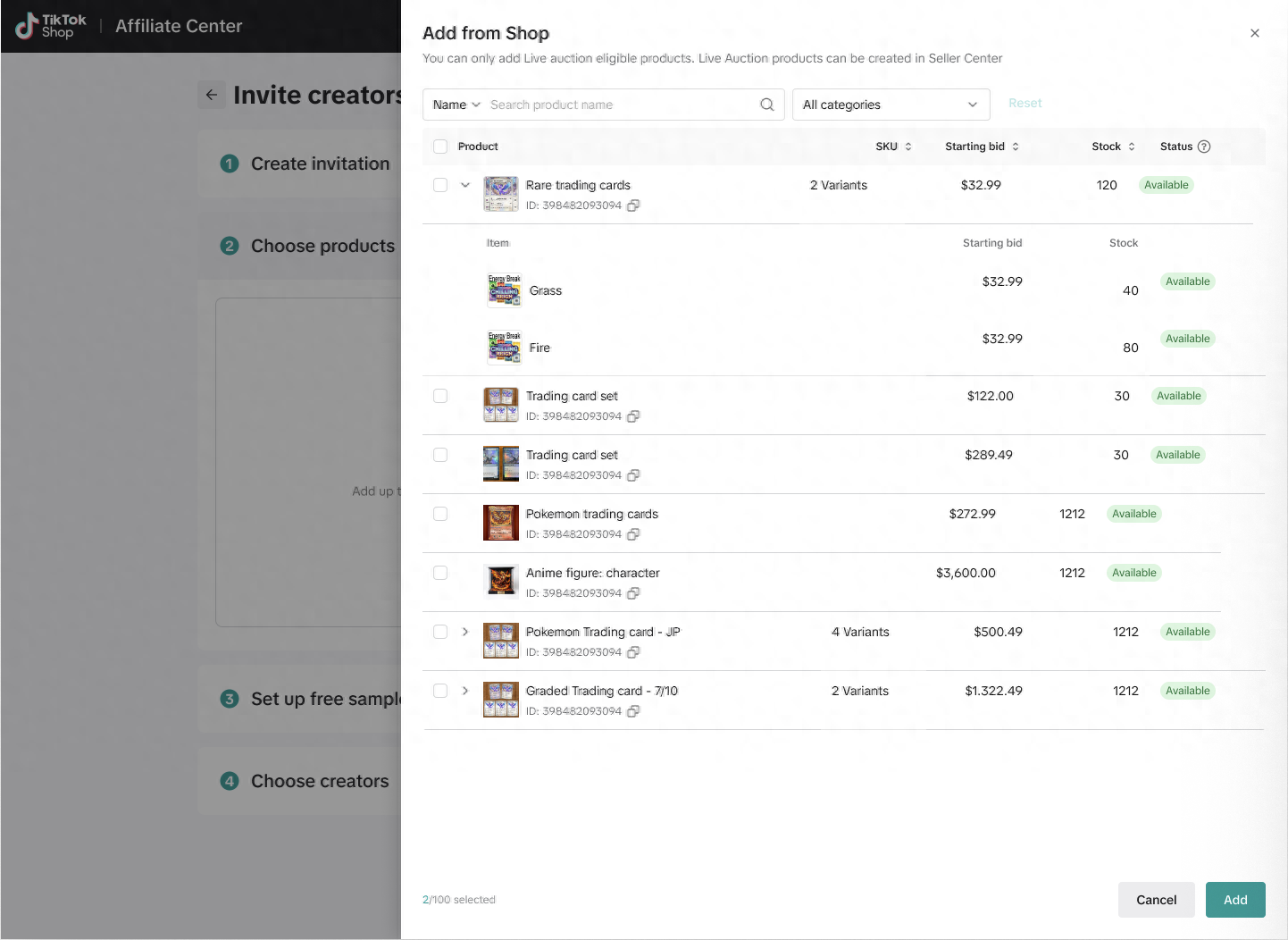 |
| Step 3. Set commissionSet the tiered commission rate for each selected auction product. Add a minimum of 2 tiers and a maximum of 3 tiers. Bid range thresholds are locked once the Target Collaboration is active.Important: Once the invite is sent, commissions can be edited, but they can only be adjusted upward or increased.Review Affiliate Commissions rules. | 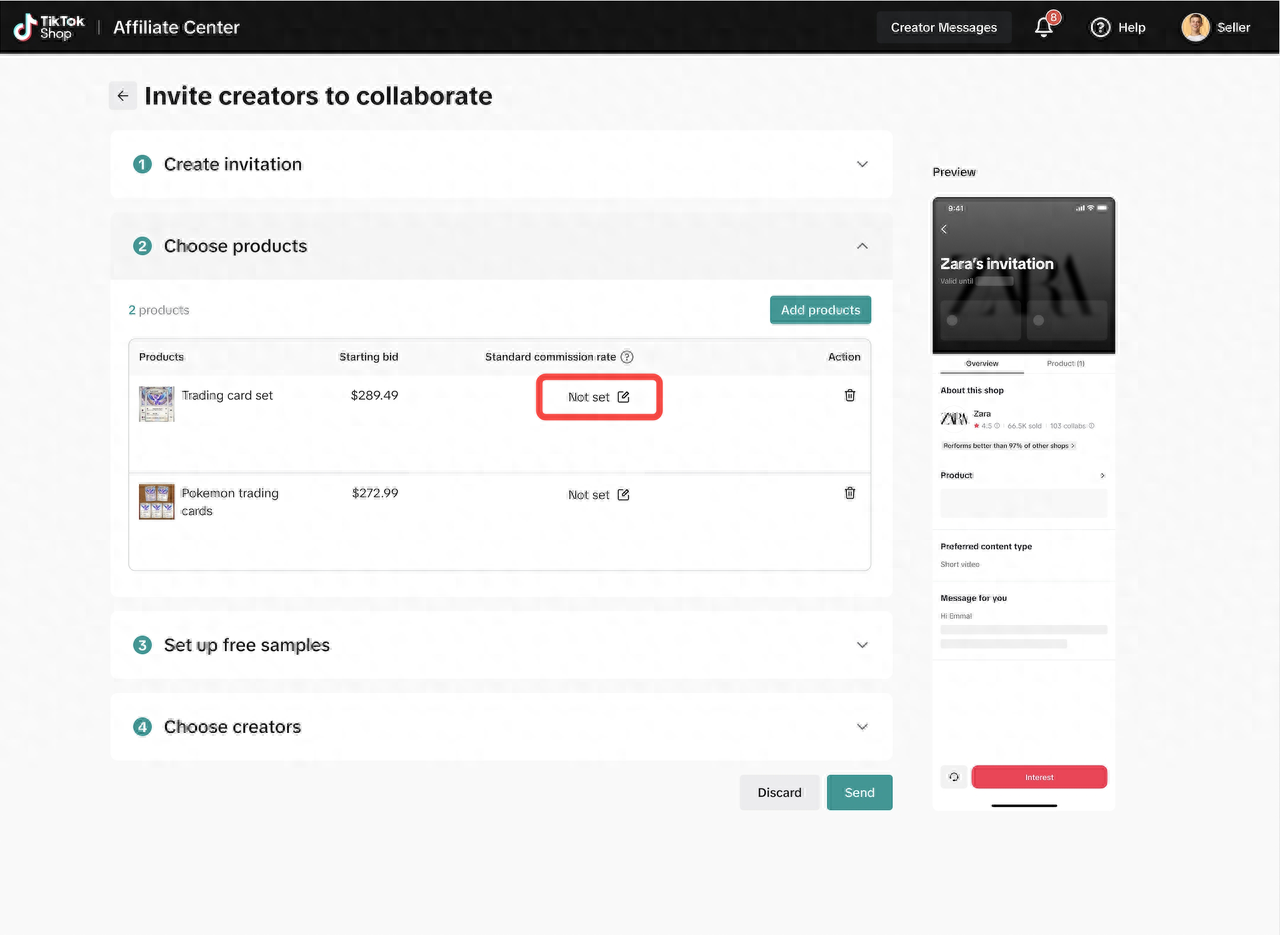 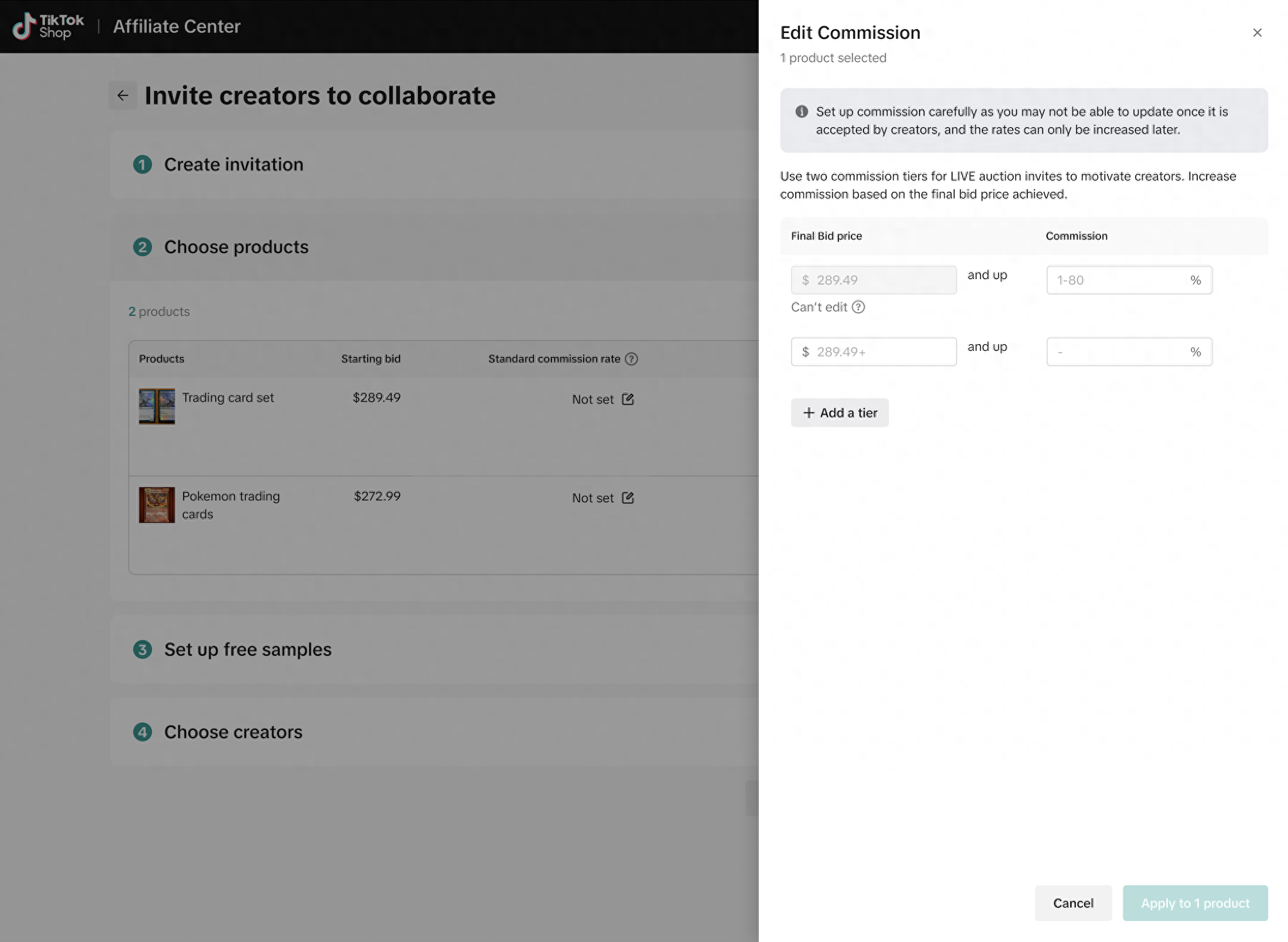  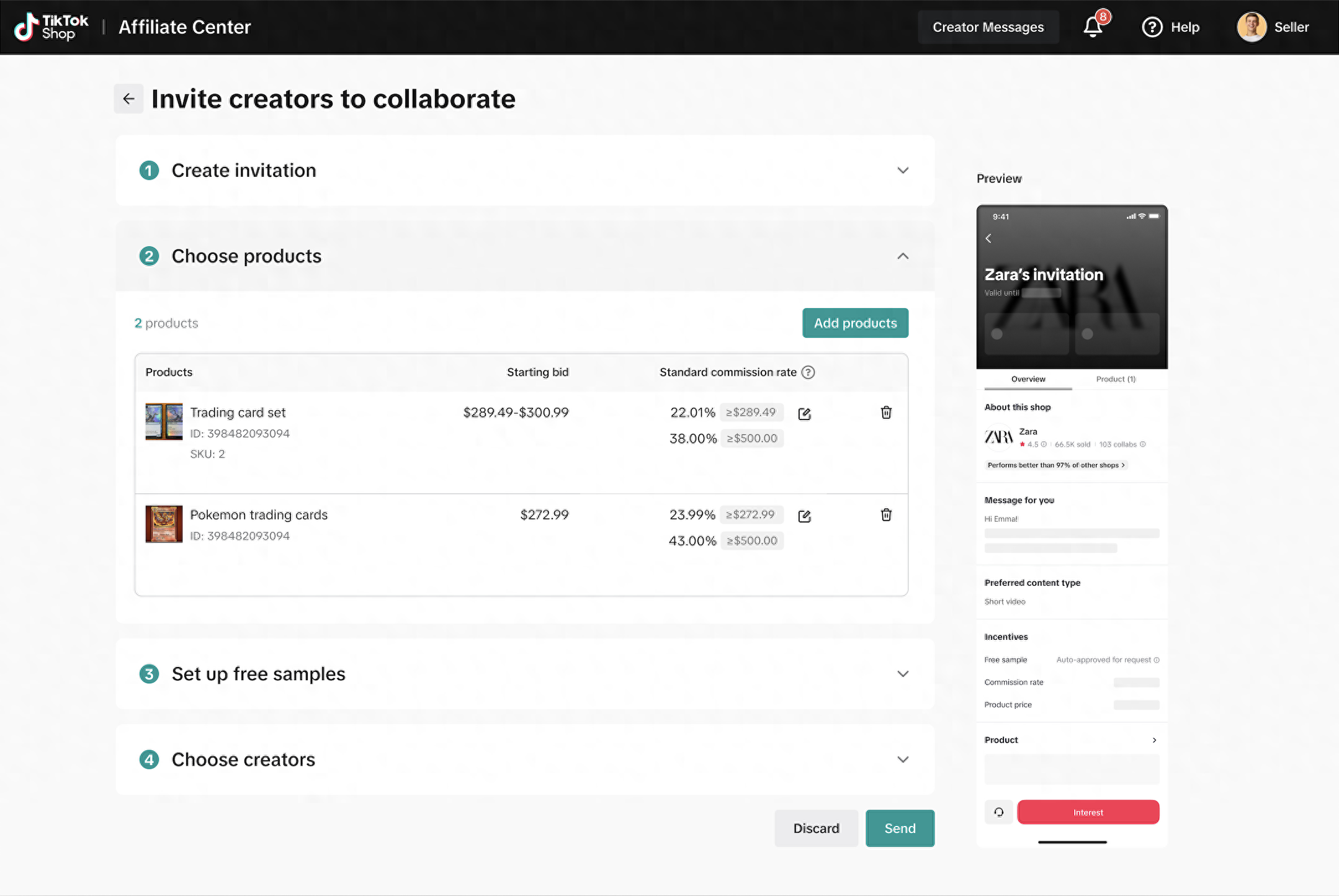 |
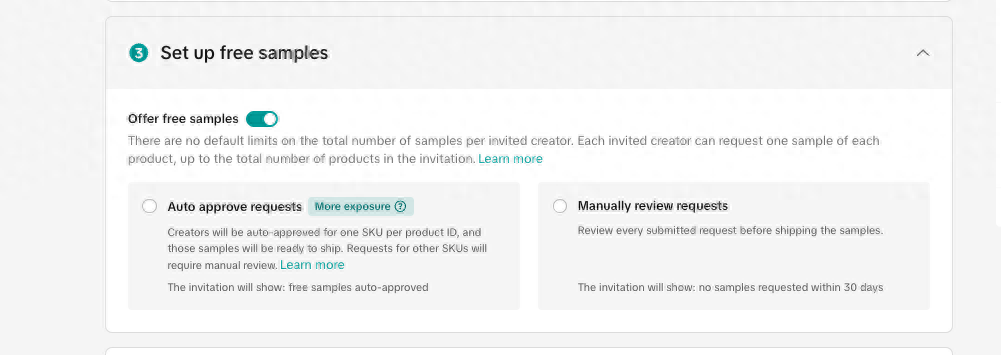
Step 4 (optional). Set up free samples if this works for your category. Choose to auto approve requests or manually review requests.Sample requests and approvals for auction products use the existing sample configuration. No separate setup is required.
|  |
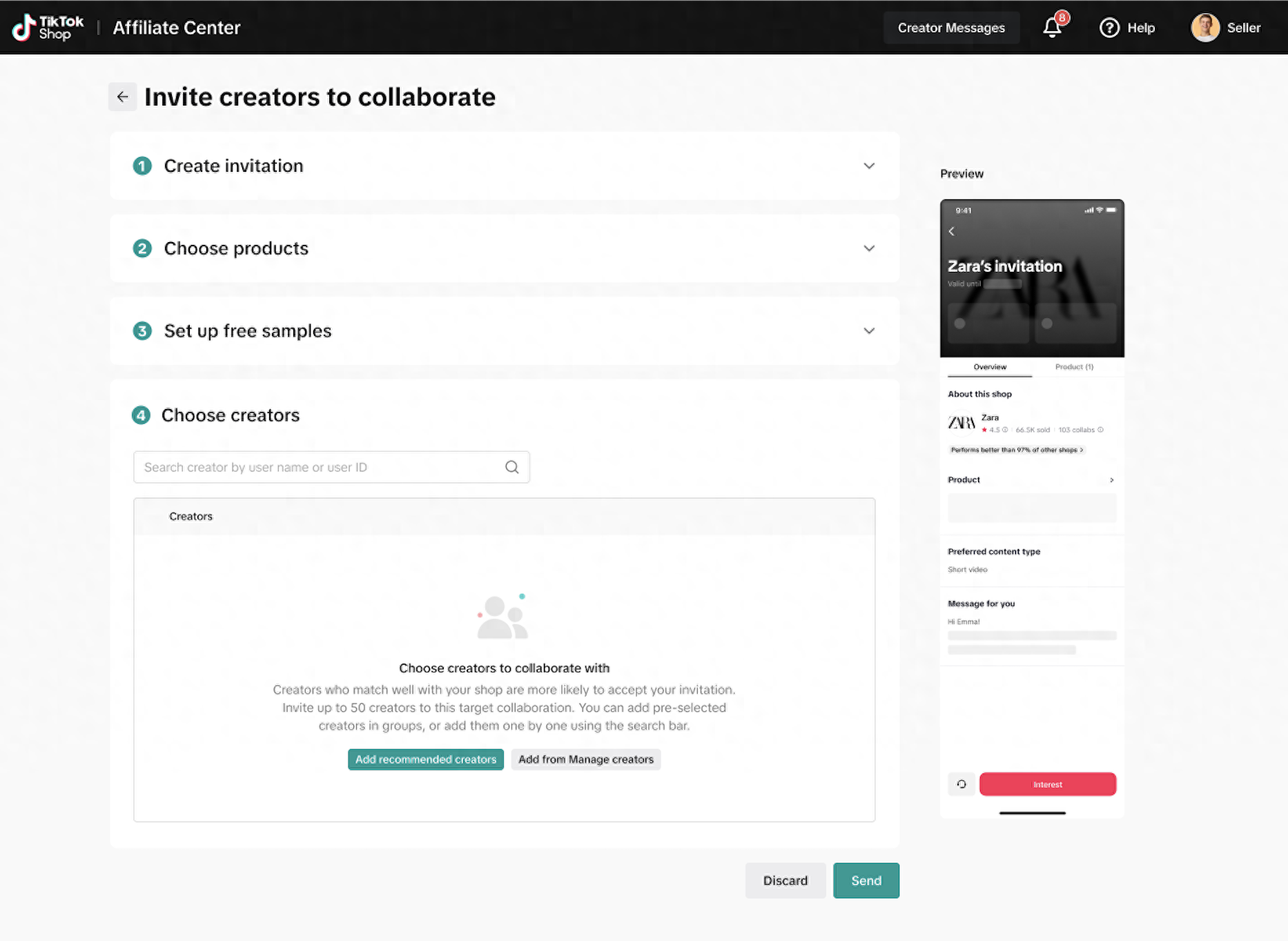
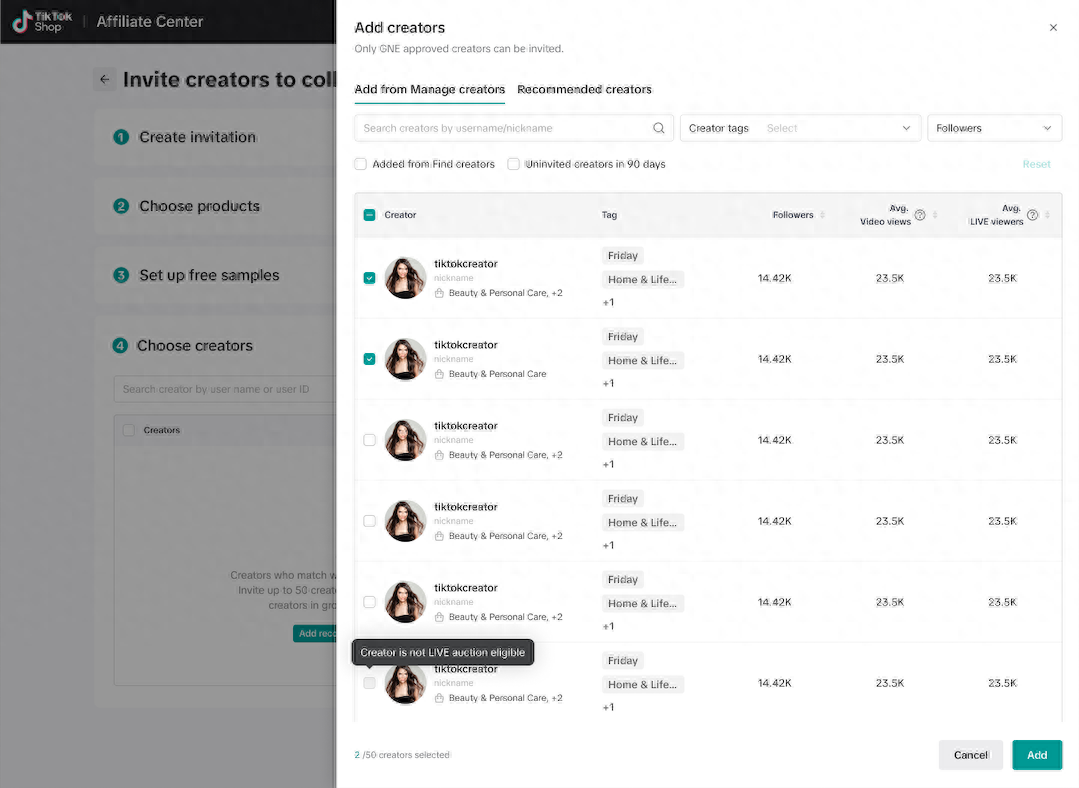
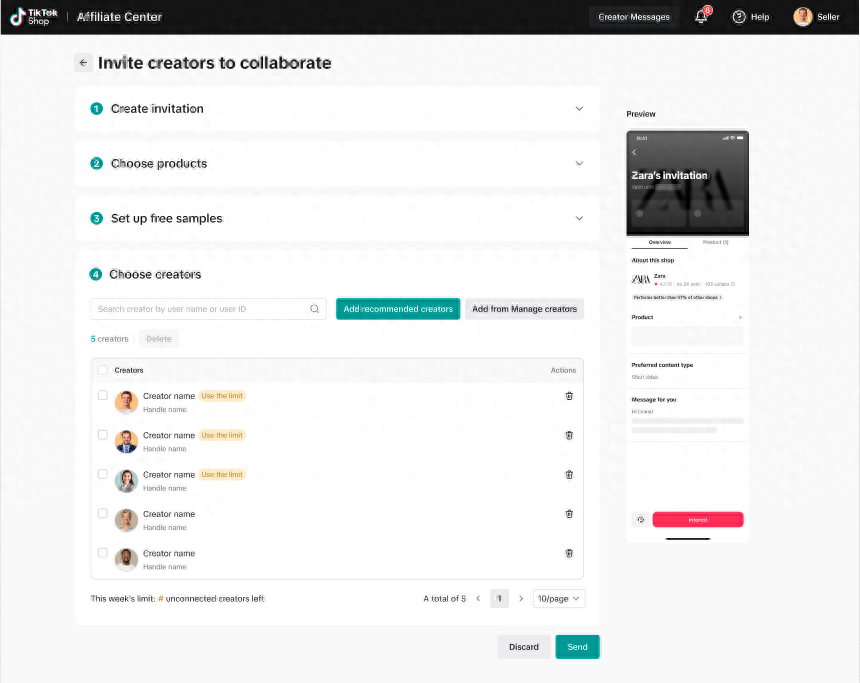
Step 5. Choose Creators. Note that:
|    |
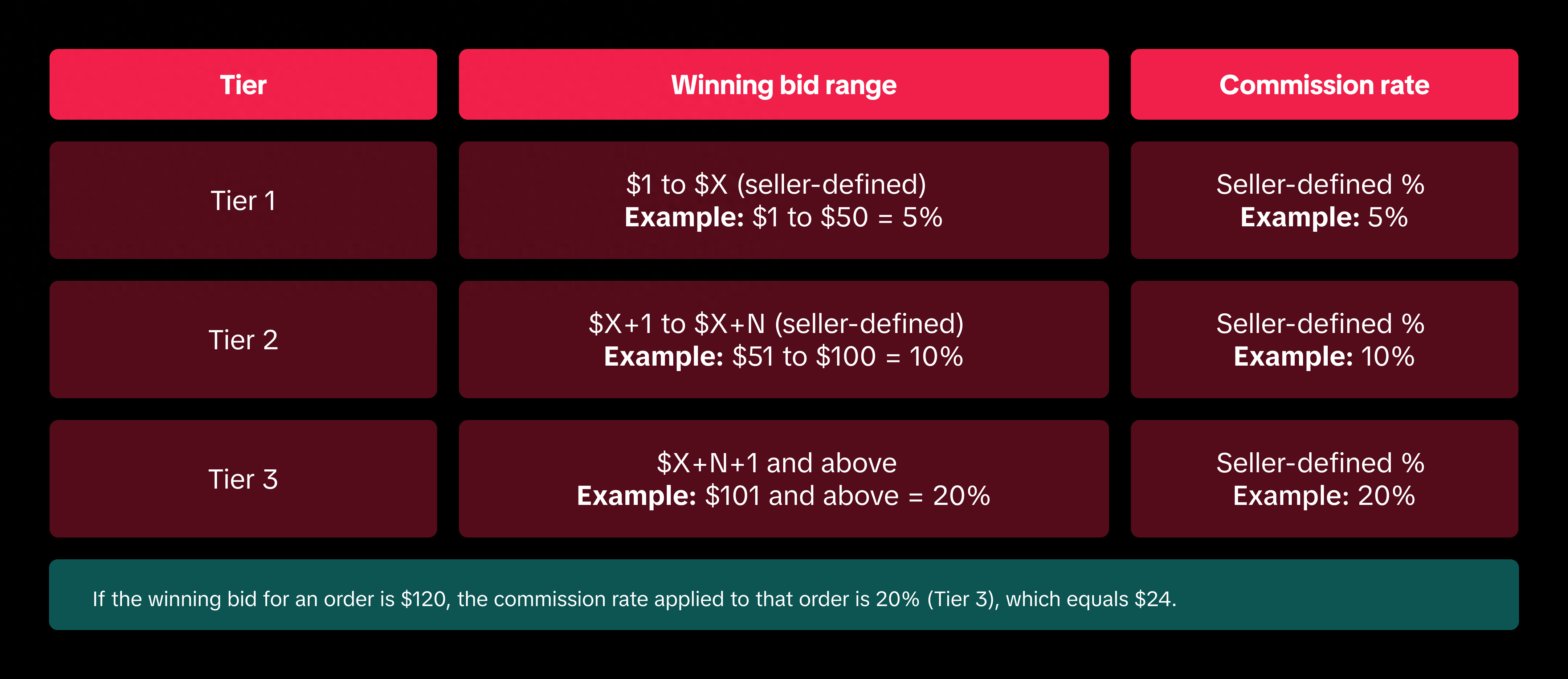
Tiered commission structure
Each LIVE Auction product supports up to three commission tiers, with the rate determined by the winning bid amount (the final payment amount of the order):
Sample fulfillment
If a creator requests a sample for a product with multiple eligible content types, sample fulfillment can be completed through any eligible content type. The creator experience will still guide creators toward auction fulfillment where auction selling is the intended use case.
Auction products under target collaboration will not be available for short video or photo-text product binding, only via LIVE content format.
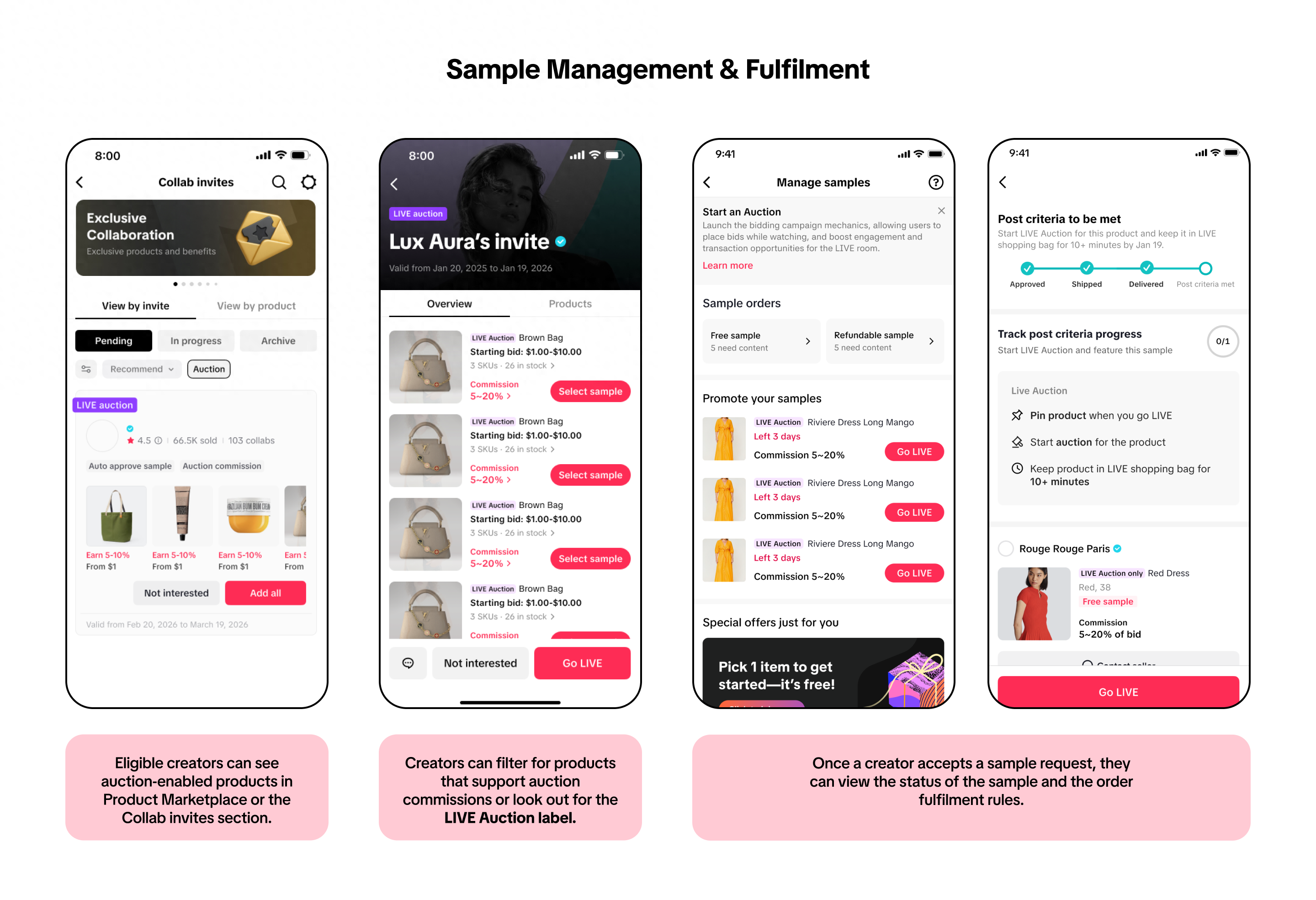
For products that only have target collaboration auction commissions, non-auction content posting entry points may be restricted depending on the product setup and creator type.
FAQs
Q: Can I offer the same LIVE Auction product through both Target Collaborations and an Open Collaboration?
Yes. LIVE Auction products are now available through both Target Collaborations and Open Collaborations.
How to set it up:- Go to Seller Centre and select the Fixed Price & LIVE Auction checkbox.
- Navigate to Affiliate Centre and choose the collaboration type you want to configure.
Q: What happens if I want to lower a tier rate after the Target Collaboration is active?
Tier rates cannot be lowered once the Target Collaboration is active. You can only increase a rate. If you need to fundamentally change the structure, end the current Target Collaboration and create a new one.
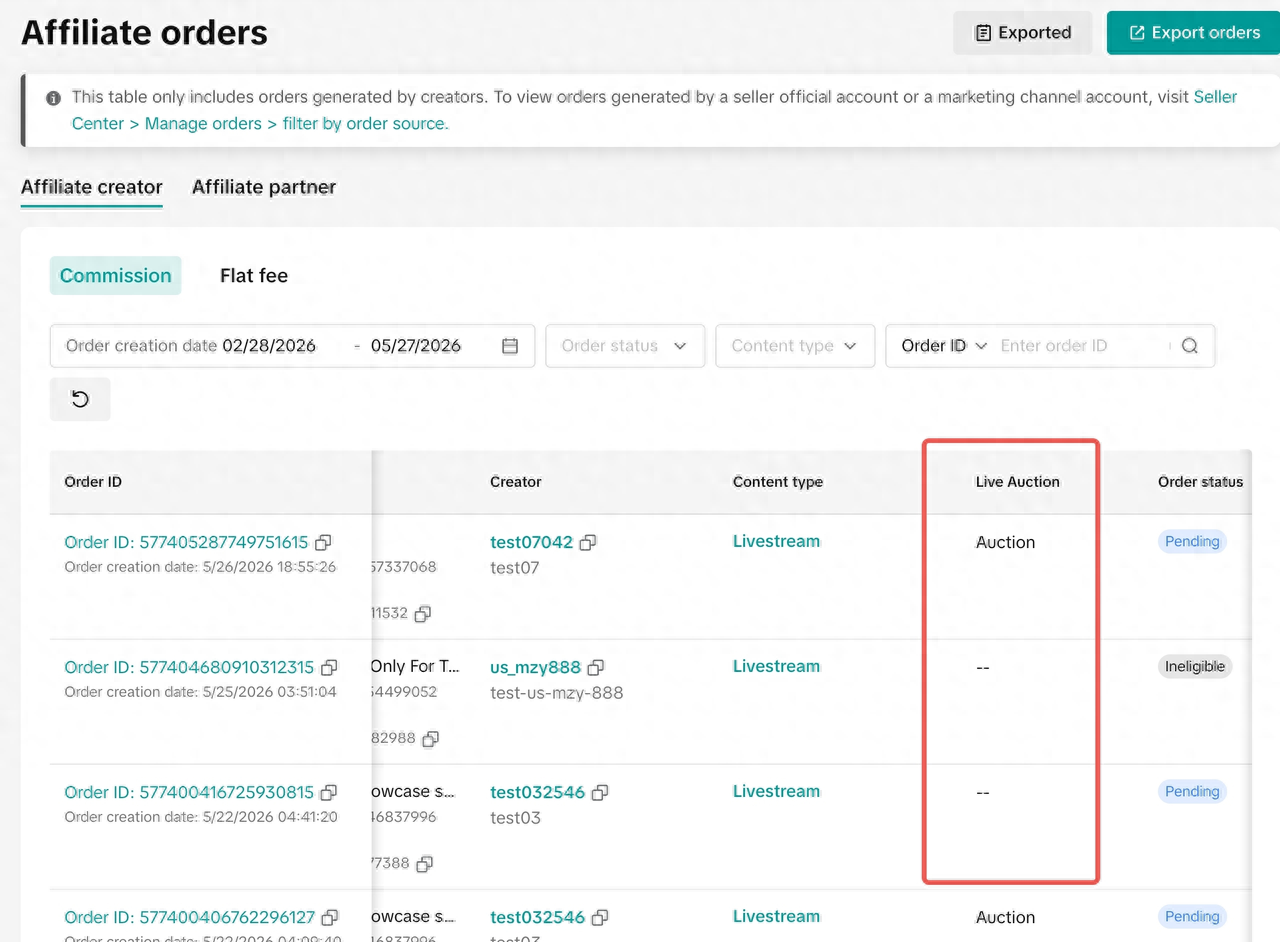
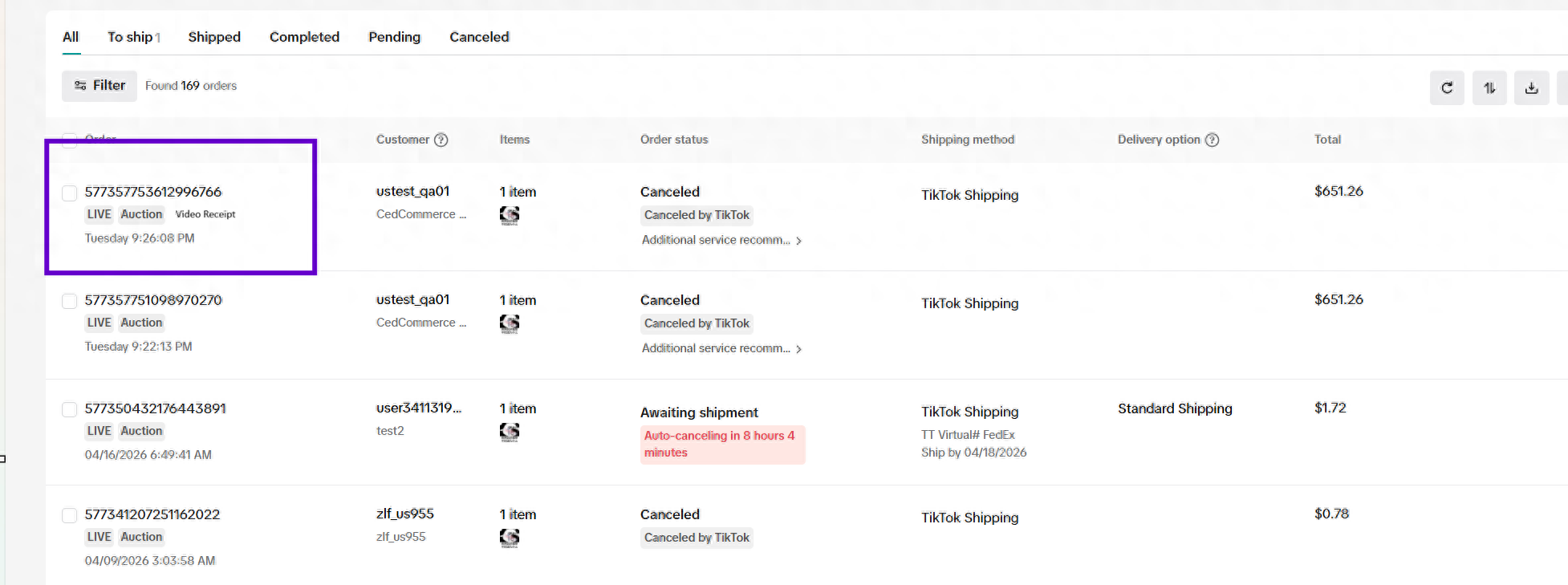
For standard affiliate commission (flat rate), see How Standard Affiliate Commission Works. Q: How does this type of LIVE Auction orders work?The LIVE Auction creator tiered commission only applies to orders attributed to a LIVE session. Short videos, showcase pages, and other content types do not qualify as Creator LIVE Auction orders. Indirect attribution (orders placed after a shopper leaves the LIVE and returns later through another touchpoint) does not qualify for tiered commission. Orders are visible in your existing affiliate reports with a tag identifying them as tiered LIVE Auction commission orders.Q: Can the same product have regular commission and auction commission at the same time?
Yes. The same product can support regular commission for non-auction content types and auction commission for Creator LIVE Auction.Q: What happens if I set both Open Collaboration and Target Collaboration for the same creator?
If the creator is eligible for both, the targeted auction settings are used first. After the targeted inventory is used up, the system can switch to the Open Collaboration settings.
Q: Why do I need to set auction inventory?
Auction inventory helps you control how many units can be consumed through creator auction selling. This is important when the same SKU is also sold through regular shop sales, seller LIVE, or other creator content types.
Q: Will all creators be able to see my auction products?
No. Currently only eligible creators with the required auction GNE permissions can discover and use auction-enabled products.
Q: What should I do if the auction setup option is missing?
Check whether your seller account, product, and market are eligible for Creator LIVE Auction. If you believe you should have access, contact your account manager or platform support.
Q: Can creators fulfill a sample through non-auction content?
For products with multiple eligible content types, a creator may complete sample fulfillment through any eligible content type. The exact fulfillment options depend on the product's commission and collaboration setup.
Q: What can the seller edit or adjust for a LIVE Auction commission?| What you can edit | Rule |
| Increase a commission rate | Allowed. The new rate takes effect immediately for all creators on the Target Collaboration. |
| Decrease a commission rate | Not allowed. Tiered commission rates for LIVE Auction cannot be decreased once the Target Collaboration is active. |
| Change the winning bid range for a tier | Not allowed. Bid range thresholds are locked once the Target Collaboration is active. |
| Extend the Target Collaboration end date | Allowed. |
Q: Where can I find the Creator Auction orders?
The order is tagged in attribution as a tiered LIVE Auction commission order, so you can filter for it in your reports.Affiliate Centre> Affiliate Orders: