Welcome to the world of LIVE Shopping! In this session, we’ll walk you through the essential basics of going LIVE.
Prepare your LIVE room
To deliver the best possible LIVE video experience, it's important to prepare your setup in advance. Below are a few practical tips to help ensure your broadcast is high-quality and engaging: Preparation Checklist:
Ensure your space is well-lit with bright, even lighting to avoid dark or uneven shadows.
Pro Tip: Test your lighting setup beforehand to prevent overexposure.
Prepare two fully charged devices—one for streaming your LIVE and another for monitoring viewer comments and interactions.
Use an adjustable tripod to keep your camera stable and allow for flexible positioning during filming.
Enhance your presentation with digital stickers to highlight product features, discounts, and special promotions.
Incorporate multiple camera angles to keep the broadcast visually dynamic and engaging.
Clearly display key product details such as brand logo, weight, dimensions, and size to help viewers better understand your offerings.
Start your LIVE
Starting a LIVE stream is just as simple as recording a short video.
Step 1
Step 2
Step 3
Step 4
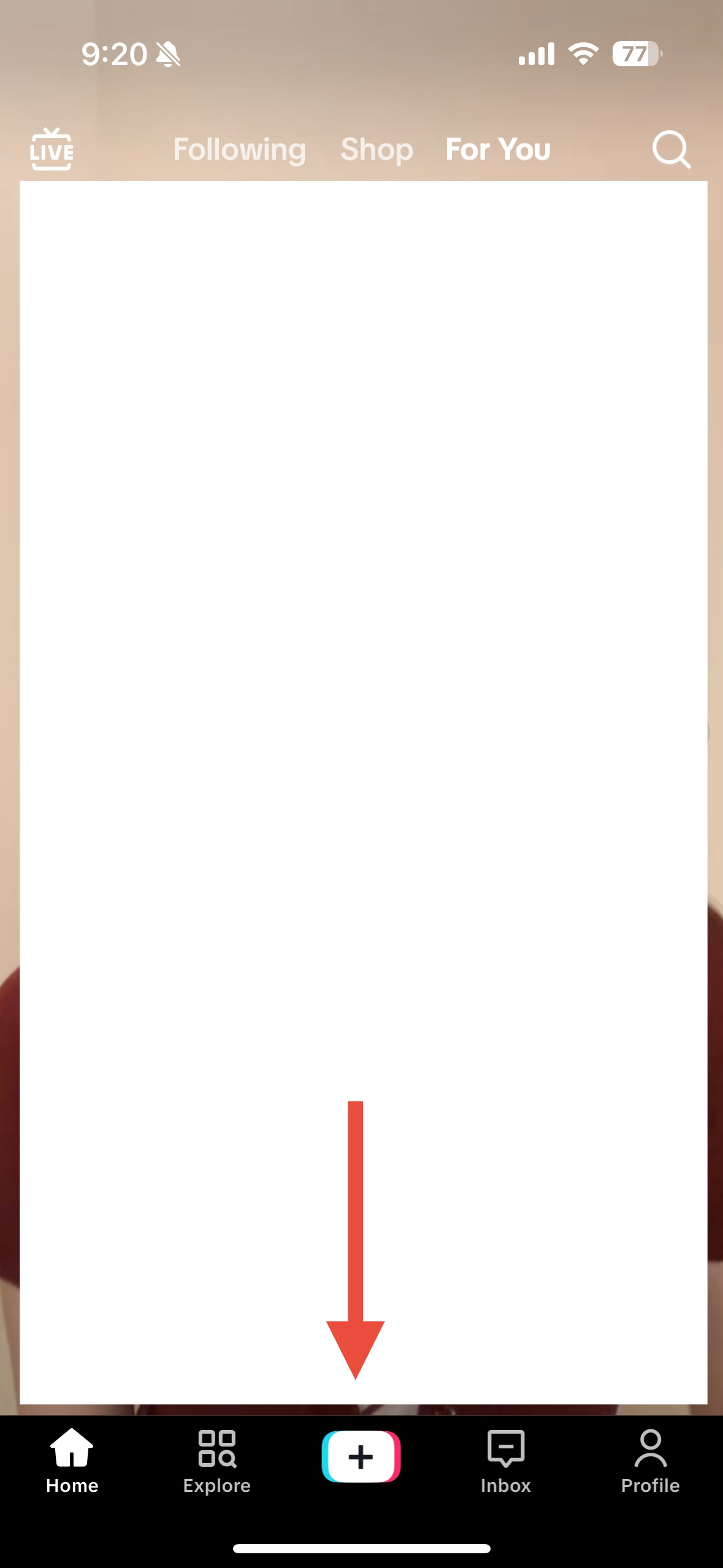
Open the TikTok app and tap the "+" button in the center of the bottom menu.
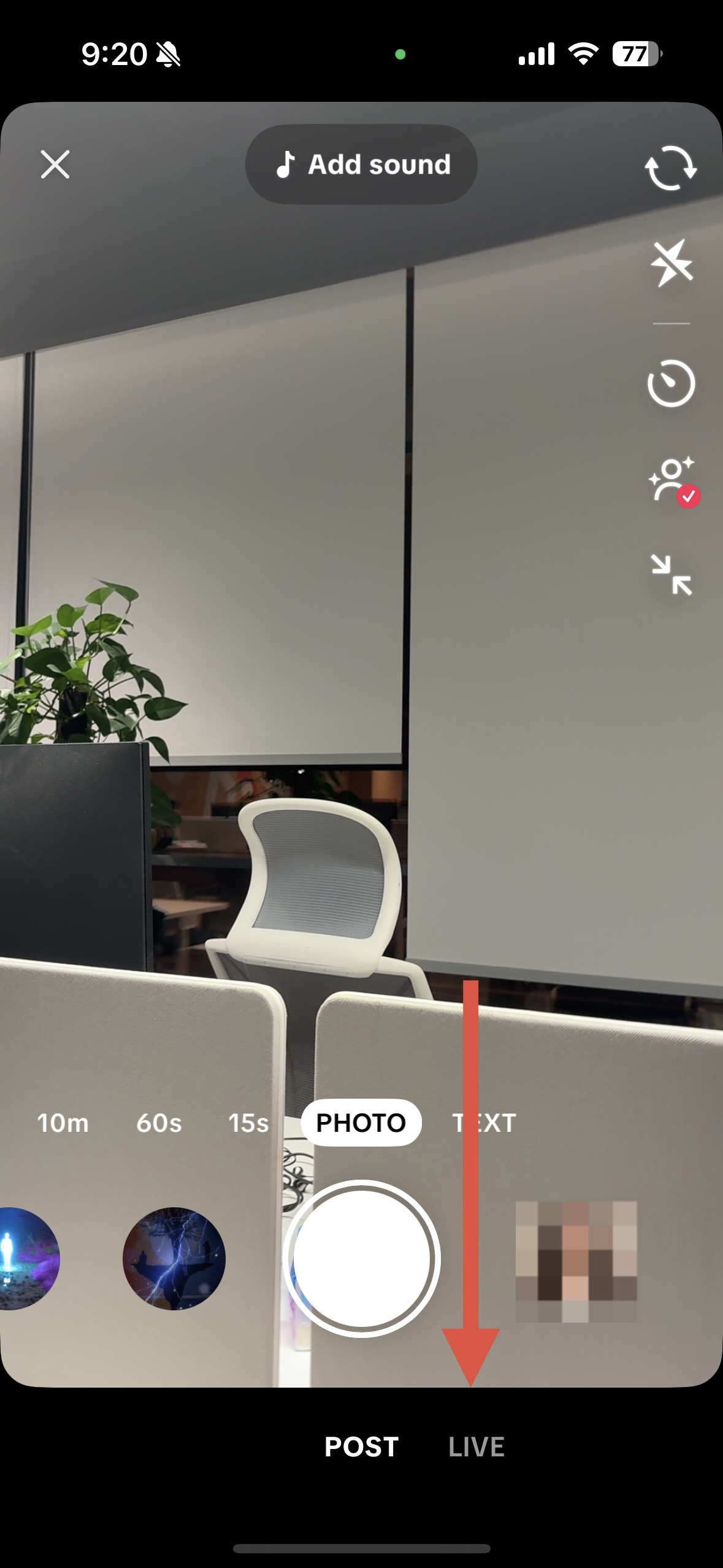
From the options at the bottom, select "LIVE".
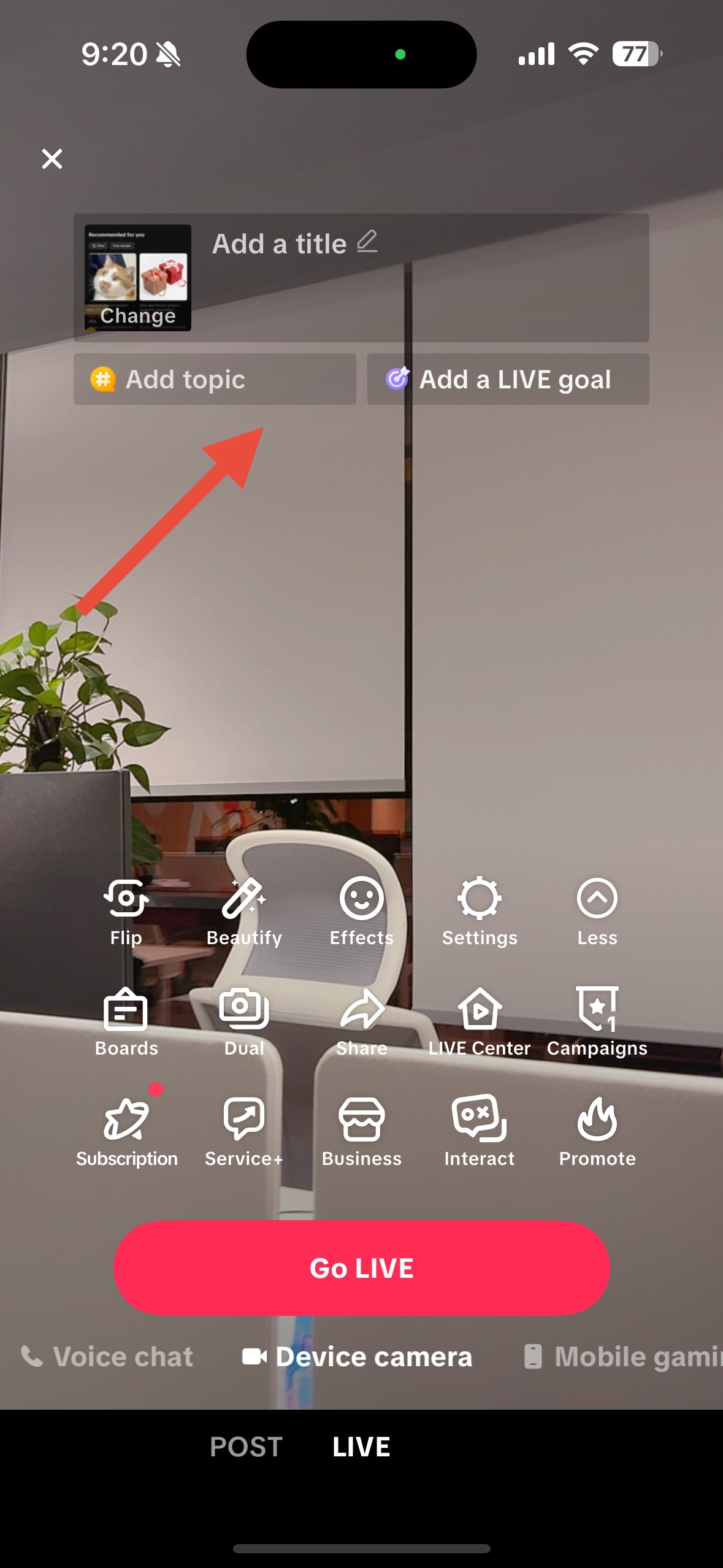
Enter a title for your LIVE, add a cover image, and include relevant topics or hashtags on the pre-LIVE screen. This helps attract more of your target audience. If you wish to add products, please refer to the tutorial below.
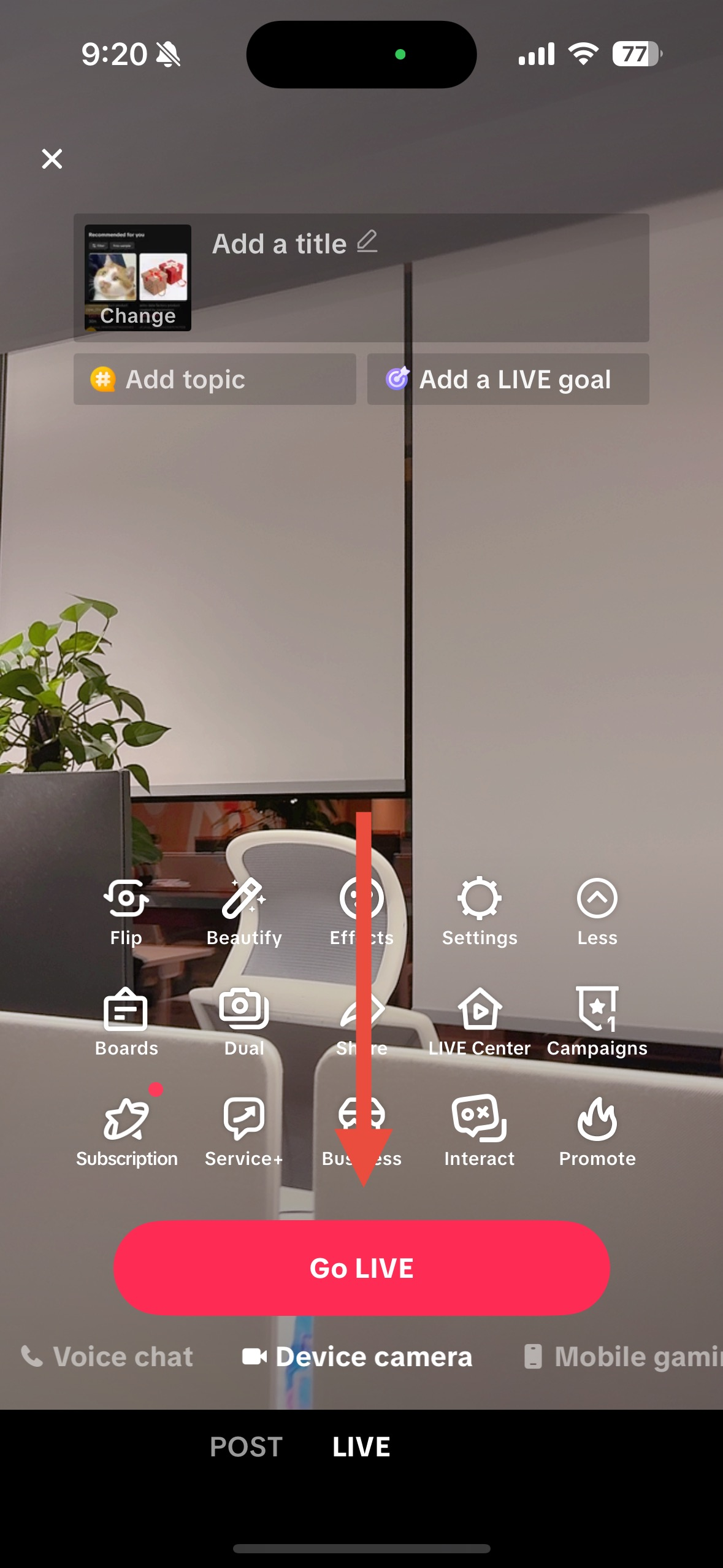
Tap "Go LIVE"—your broadcast will begin after a 3-second countdown.
Add products to your LIVE
Products must be added to your LIVE on the pre-LIVE screen before they can be featured in your livestream. Steps:
Open the TikTok app and tap the “+” button in the center of the bottom menu.
From the options at the bottom, select “LIVE”.
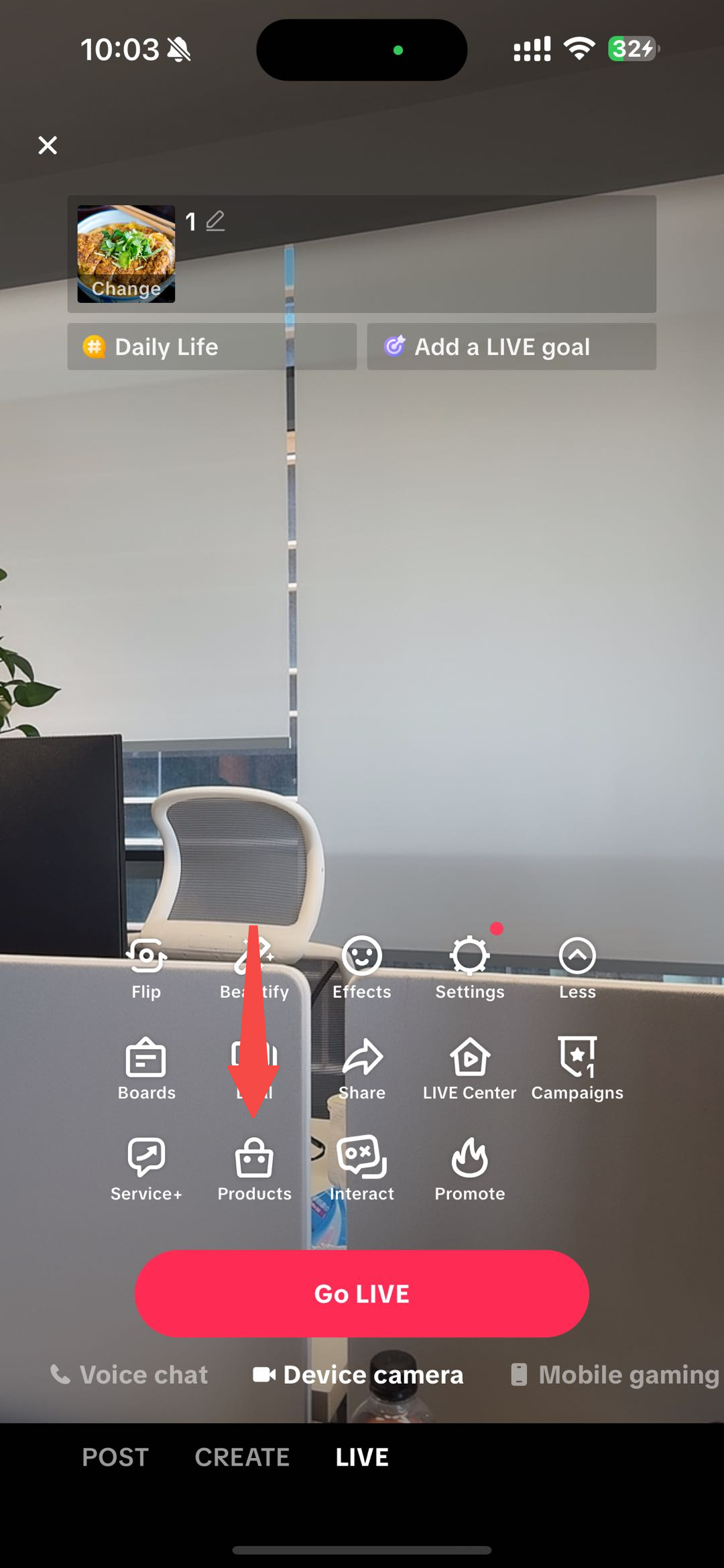
On the pre-LIVE screen, tap "Products" to add your products.
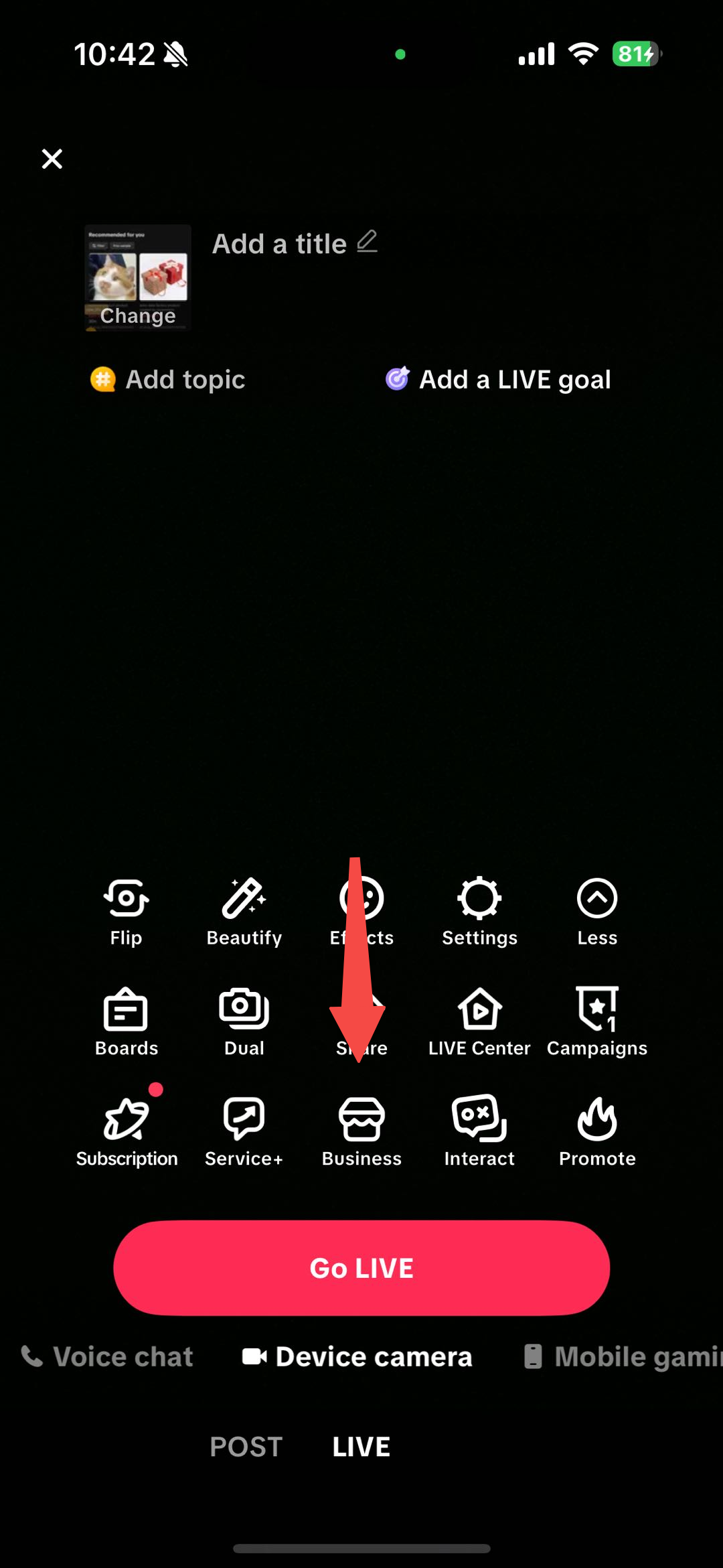
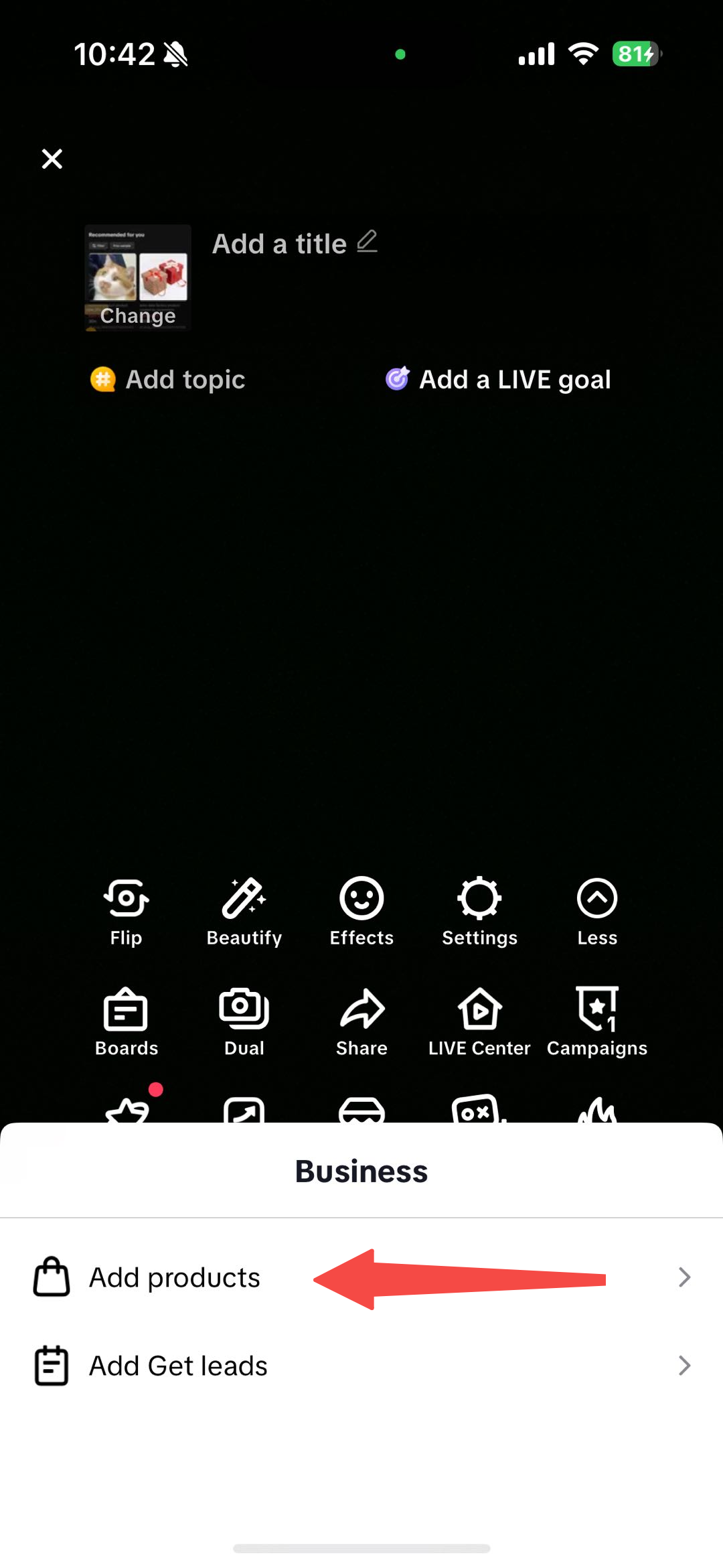
If you don't find "Products" on the pre-LIVE screen, tap "Business"-"Add products" to add your products. Up to 100 units of the product can be added. (Please note that the icons displayed on your screen may vary depending on your app version or device settings. We appreciate your understanding.)
Products
Business
Step 1
Step 2
During your LIVE stream
We’ve prepared a few helpful tips to help you host a smooth and engaging LIVE session. Since LIVE video happens in real-time, your enthusiasm can make a big difference. Steps:
Begin with a warm and energetic greeting to set a welcoming and engaging tone for your audience.
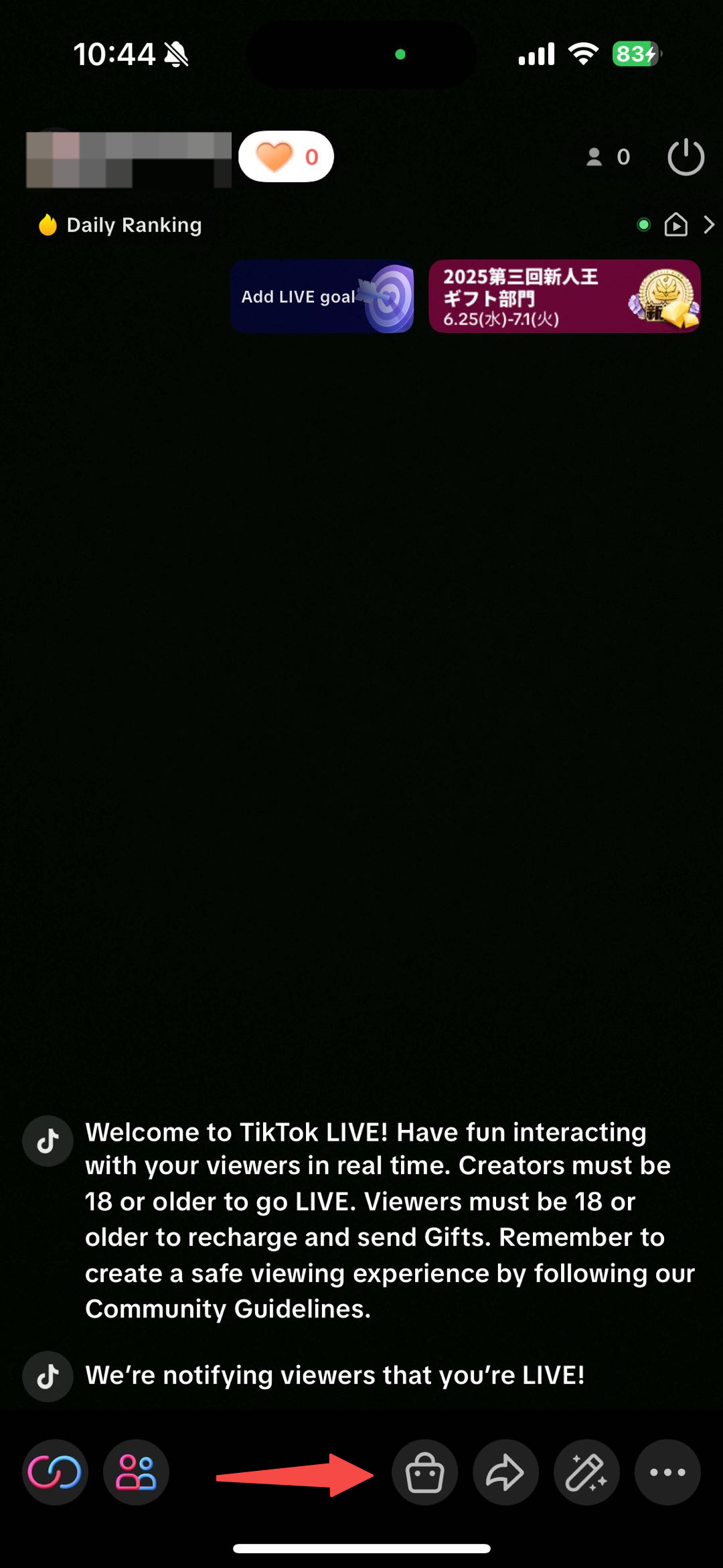
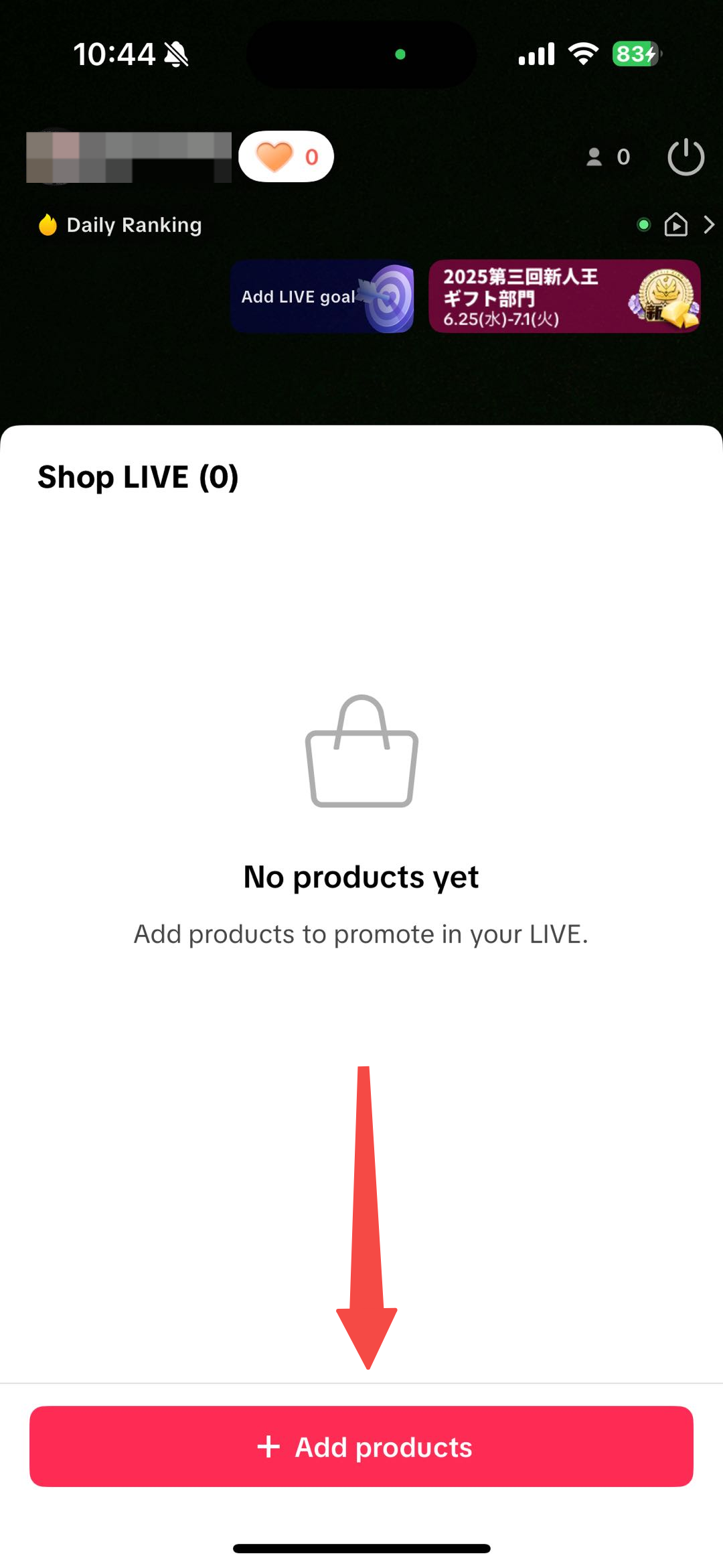
During your livestream, you can click the shopping bag icon on the right at the bottom to show the "Shop LIVE" list. Tap "+ Add products" button at the bottom to add more products.
Step 1
Step 2
Introduce your featured products and highlight their key benefits or unique selling points.
Keep in mind that viewers may join or leave at different times, so be sure to periodically repeat your greeting and key product information to keep everyone informed.
Close your session with a memorable call-to-action, such as a special offer, teaser for the next LIVE, or a reminder to follow your shop—this encourages viewers to return for future broadcasts.