

AI Voice Dub: Create Multi‑Language Shoppable Videos Faster
Overview
AI Voice Dub helps you turn a short sample video and a selected product into a localized shoppable video with clear voiceover and natural lip‑sync. You can create market‑ready content quickly, post it to your store, and manage everything in one place.What is AI Voice Dub
AI Voice Dub is an AI tool in Shoppable Videos that generates a target‑language script, dubs your video with natural text‑to‑speech, and aligns lip movements when applicable. You start with a short sample video and one product, review and lightly edit the script, preview the dubbed result, then post and manage your videos end‑to‑end.Key benefits
- Simple, guided flow. Start with a short sample video, pick your product and language, and let AI handle script generation and dubbing.
- Polished results with low effort. Clear audio, natural pacing, and helpful options like captions make your video feel professional.
- Integrated posting and management. Review, post, duplicate, and manage generated and posted videos from one dashboard.
Typical use cases
You want to quickly localize a product intro video for Japan (JP). Record a short sample video, select a product from your shop, choose a target language, review and tweak the script, then publish a dubbed shoppable video for the right market.Quick start tip: Use a short sample video with clear audio (simple words are fine). Pick one product and one target language to keep the flow fast and focused.
Where to find AI Voice Dub
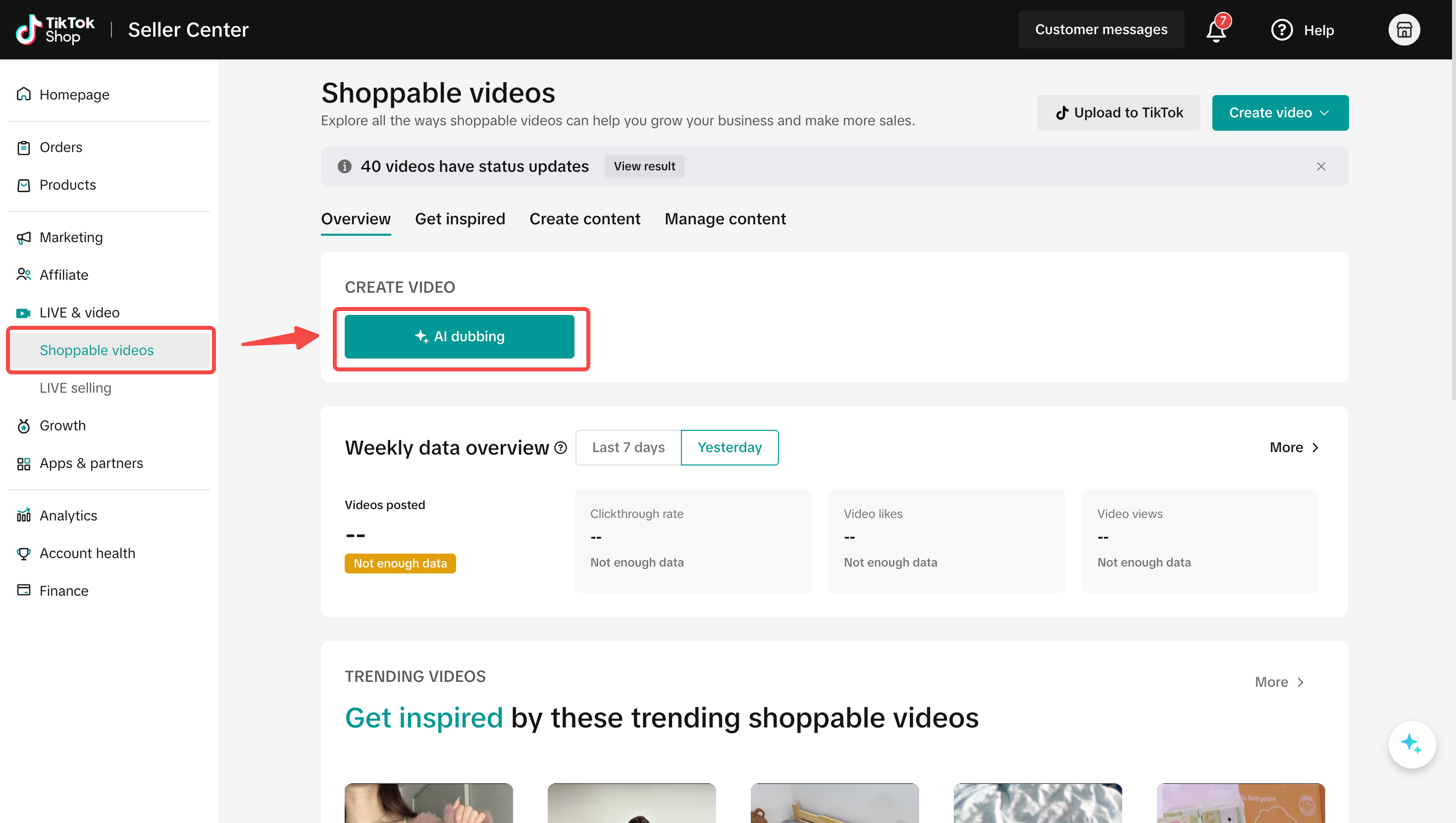
You can access the feature from the Shoppable Videos hub in Seller Center.- Go to Seller Center > Shoppable Videos > Overview.
- On the hub home, click the AI Voice Dub button to start.
Operating steps
- On Seller Center > Shoppable Videos > Overview, click AI Voice Dub to open the flow.
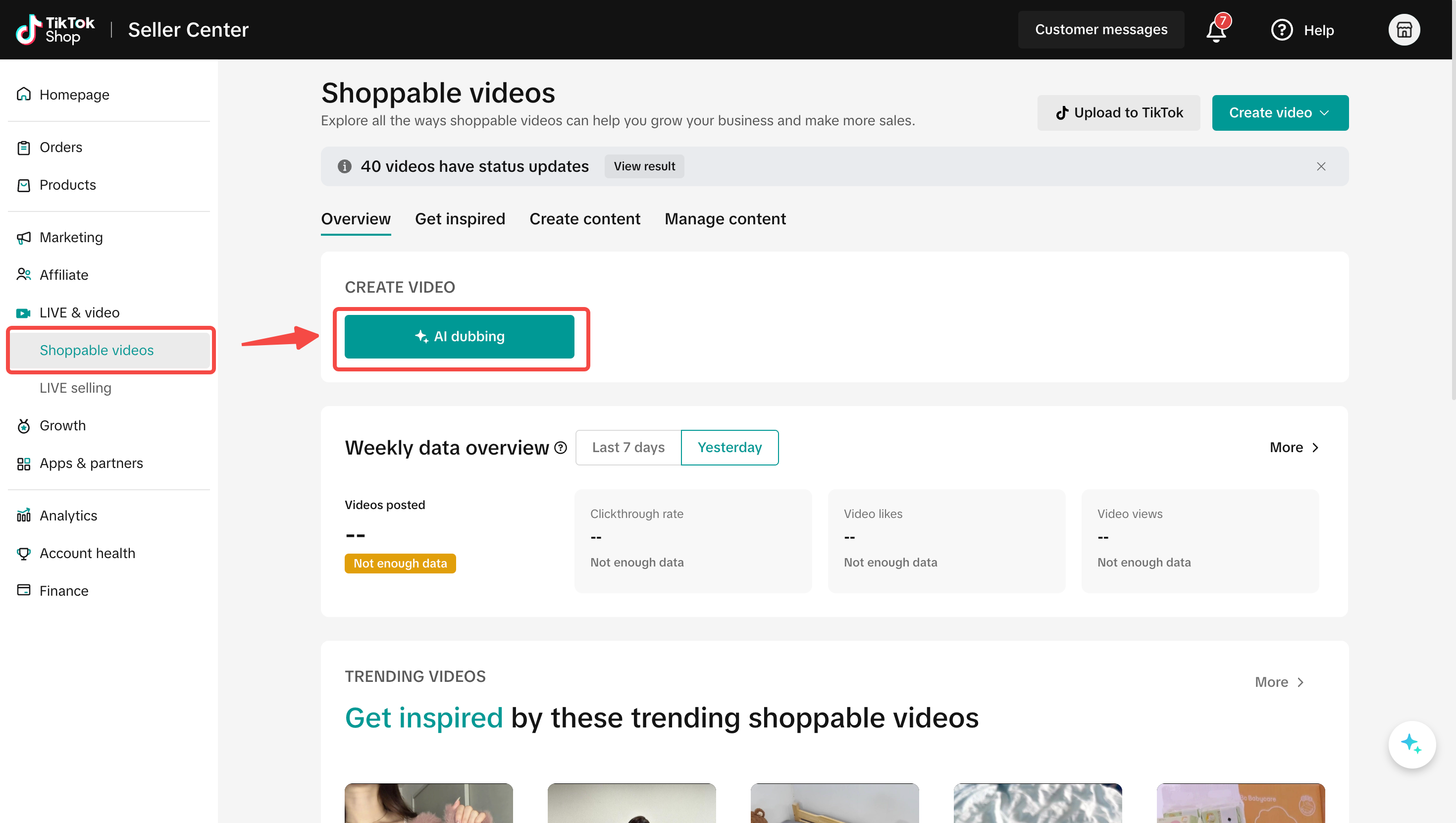
- Under the AI dubbing sections, sellers will see the [Generate video] button.

- Upload a sample video. Click Upload and add a short clip. Use your real voice and keep the audio clear. After upload, you can preview, re‑upload, or delete.
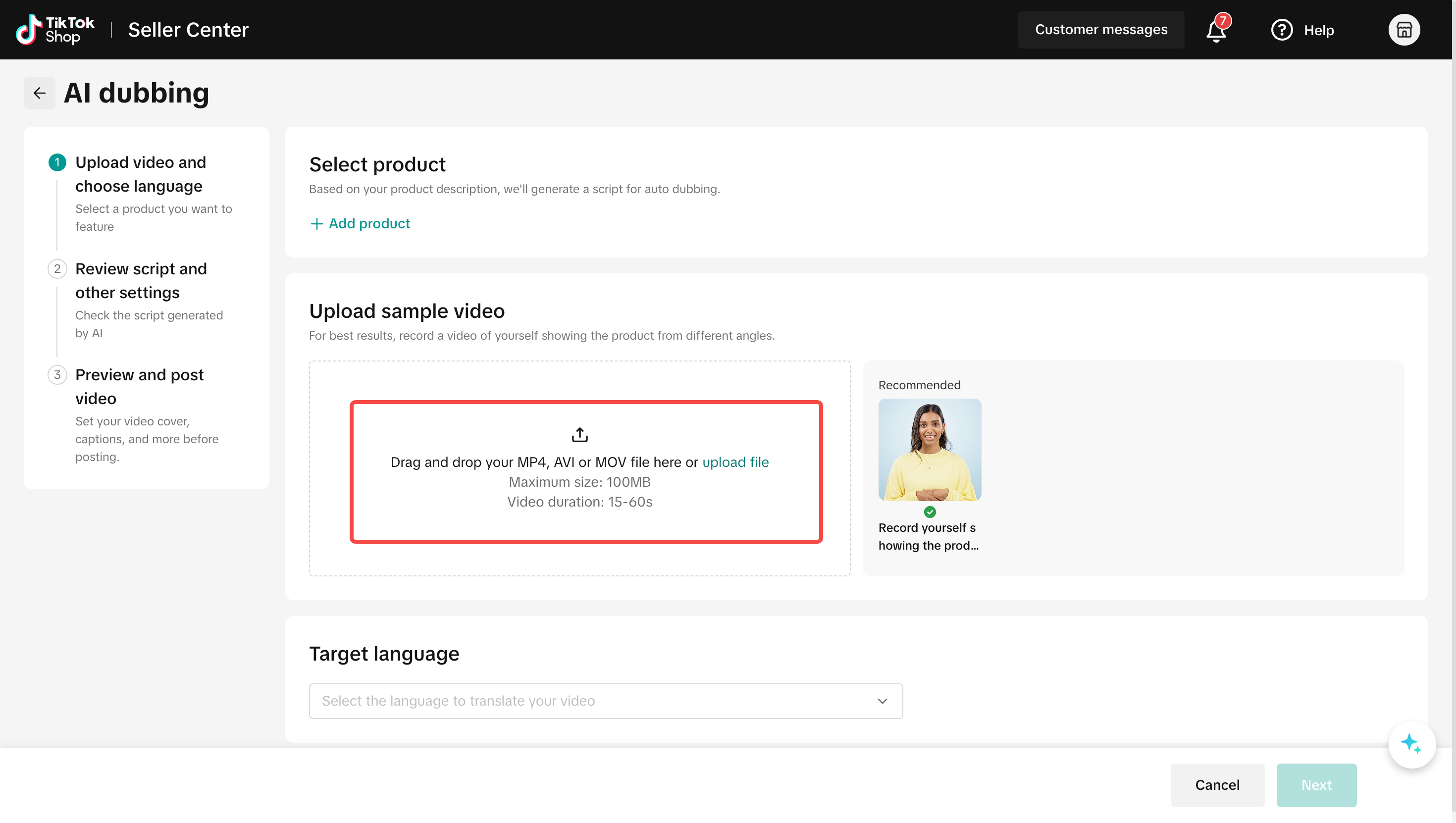
- Select your product. Choose one active, in‑stock product from your TikTok Shop. Search by name or ID and confirm the selection.
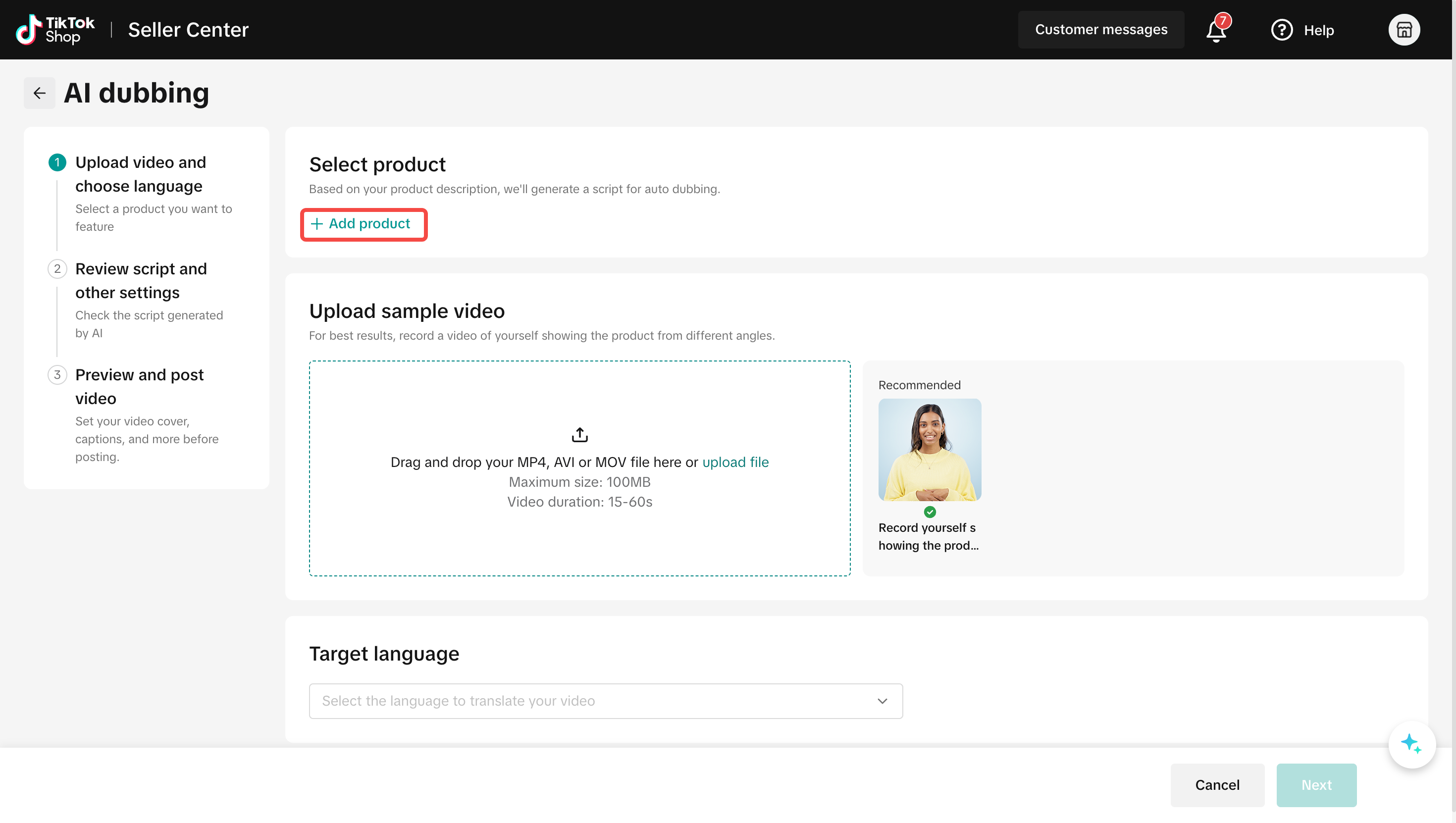
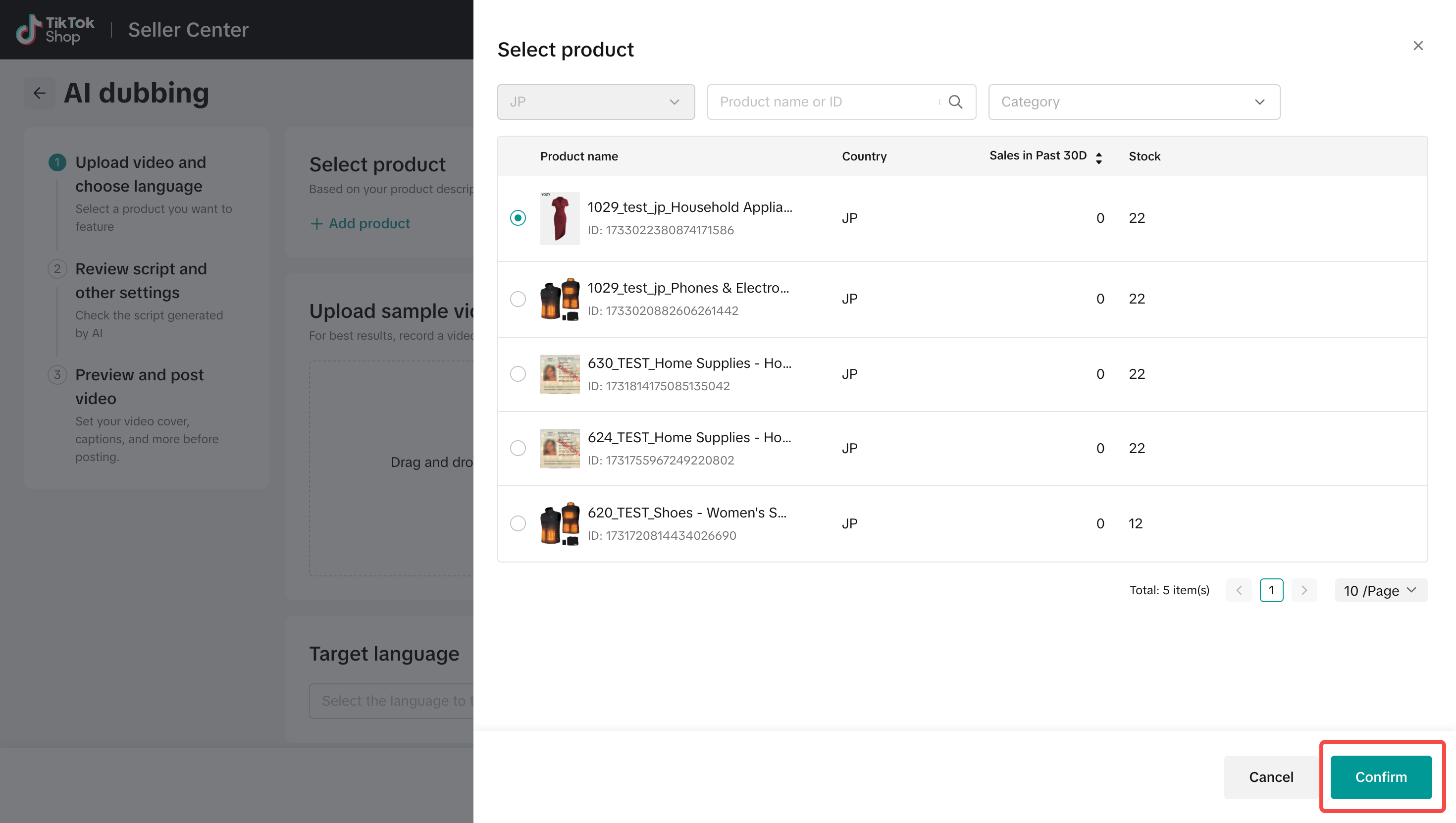
- Choose the target language. Open the dropdown and select the language that fits your market.

- Review the generated script. AI creates a script in your chosen language. Click Edit to make simple wording adjustments, then Save.
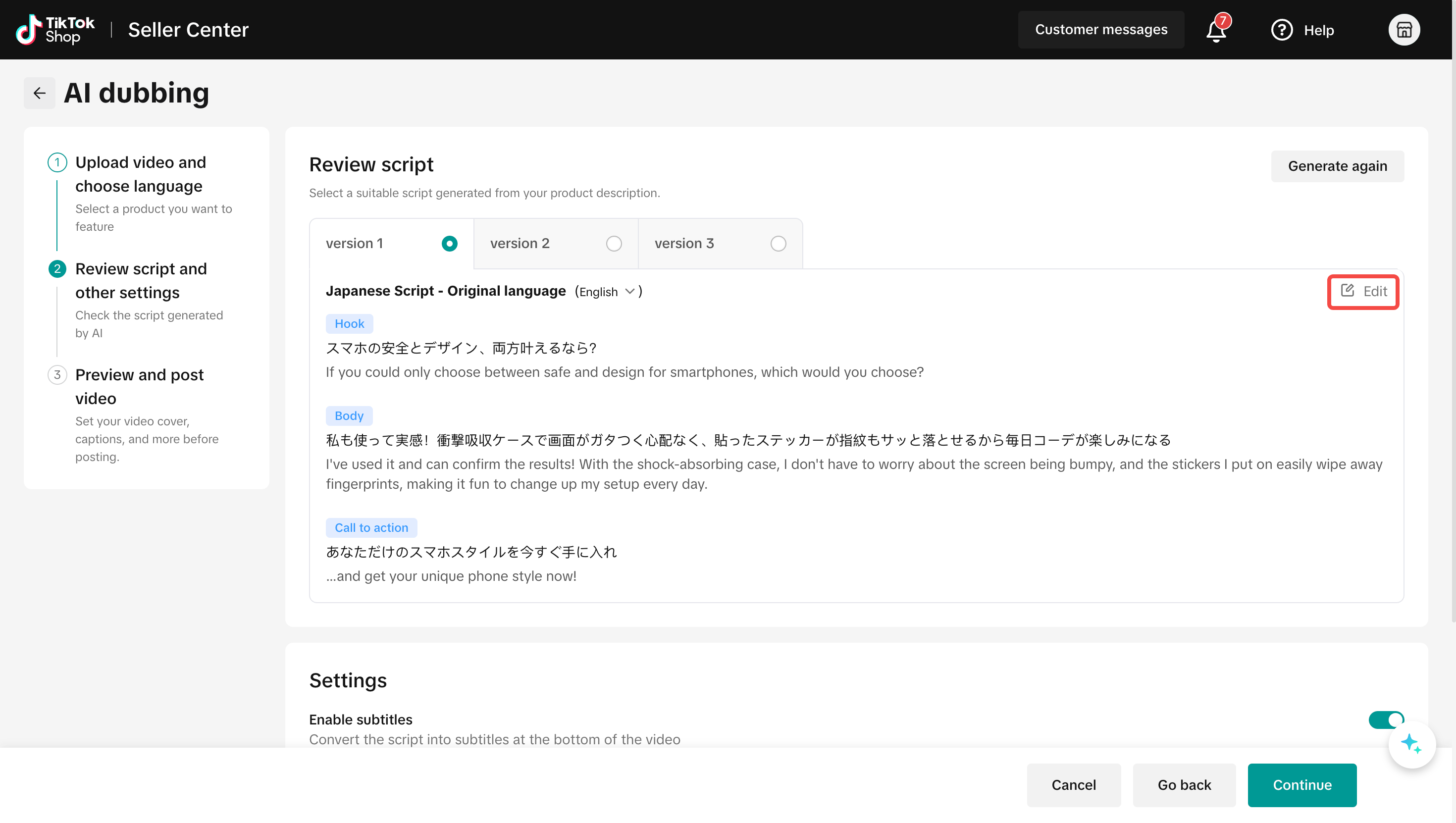
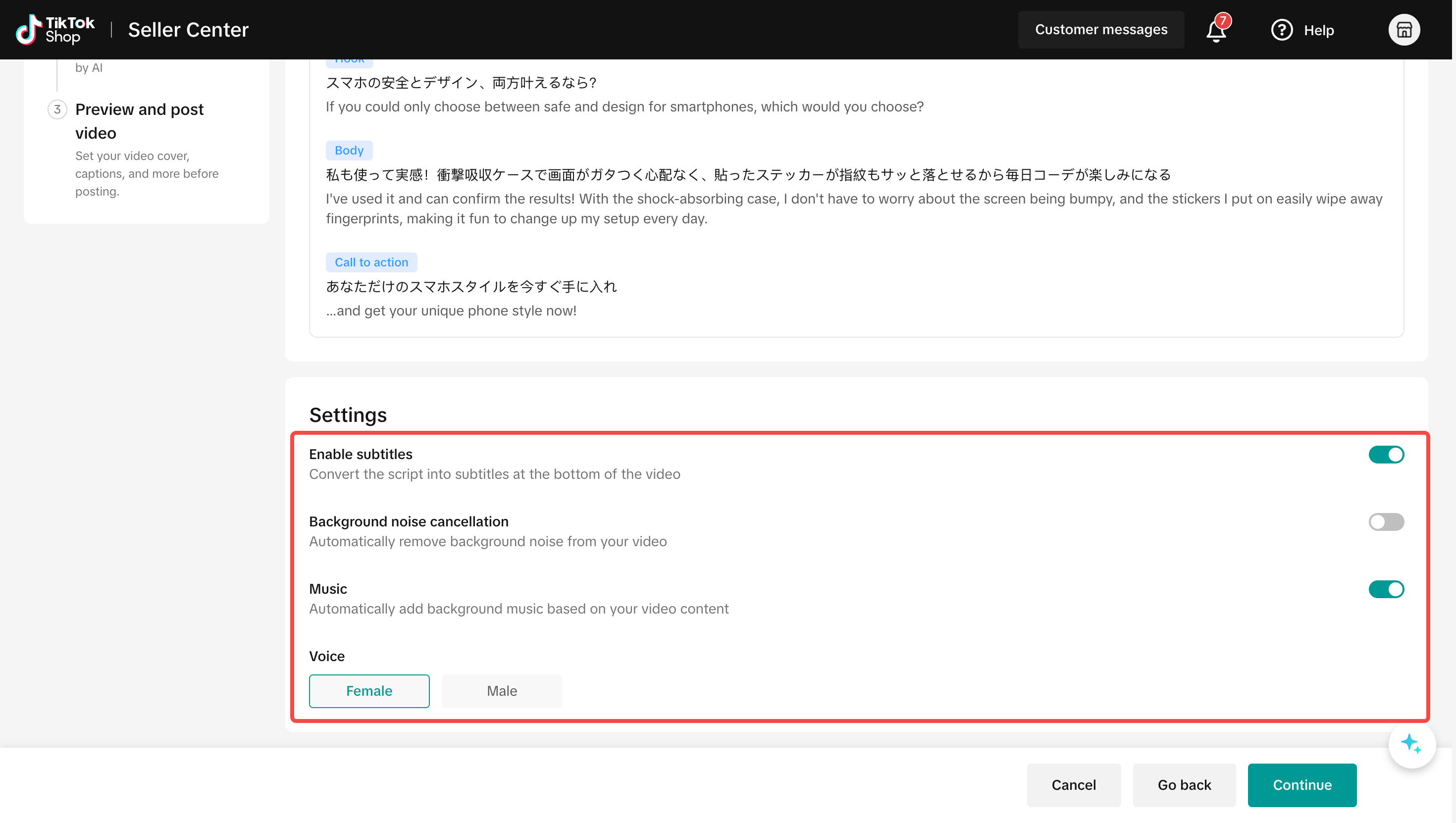
- Preview and render. Start rendering to see your dubbed video with natural lip‑sync where applicable. You can leave the page; rendering continues in the background.

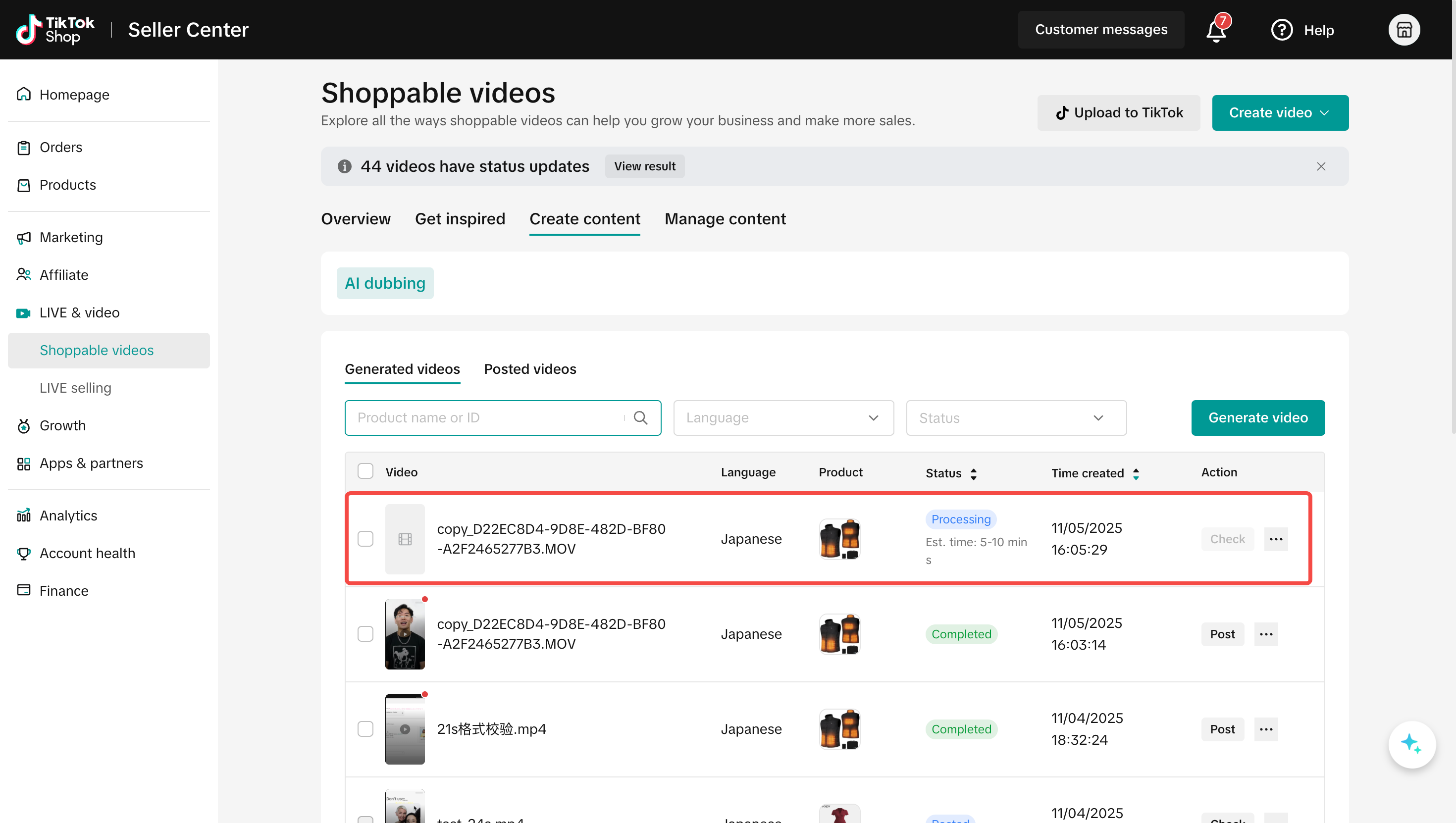
- Post your video. Click Post to enter the publishing flow, confirm account/product if needed, and publish.
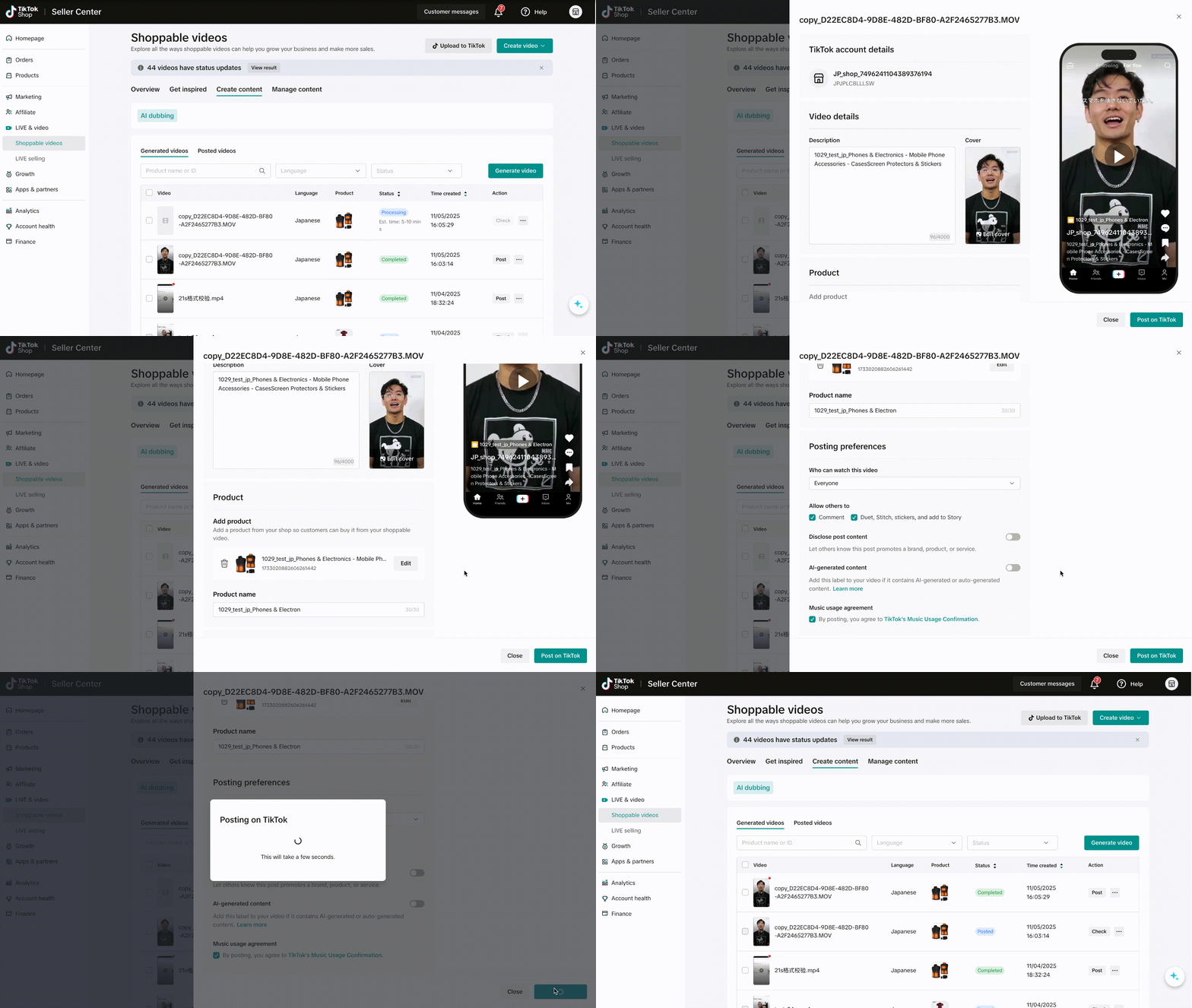
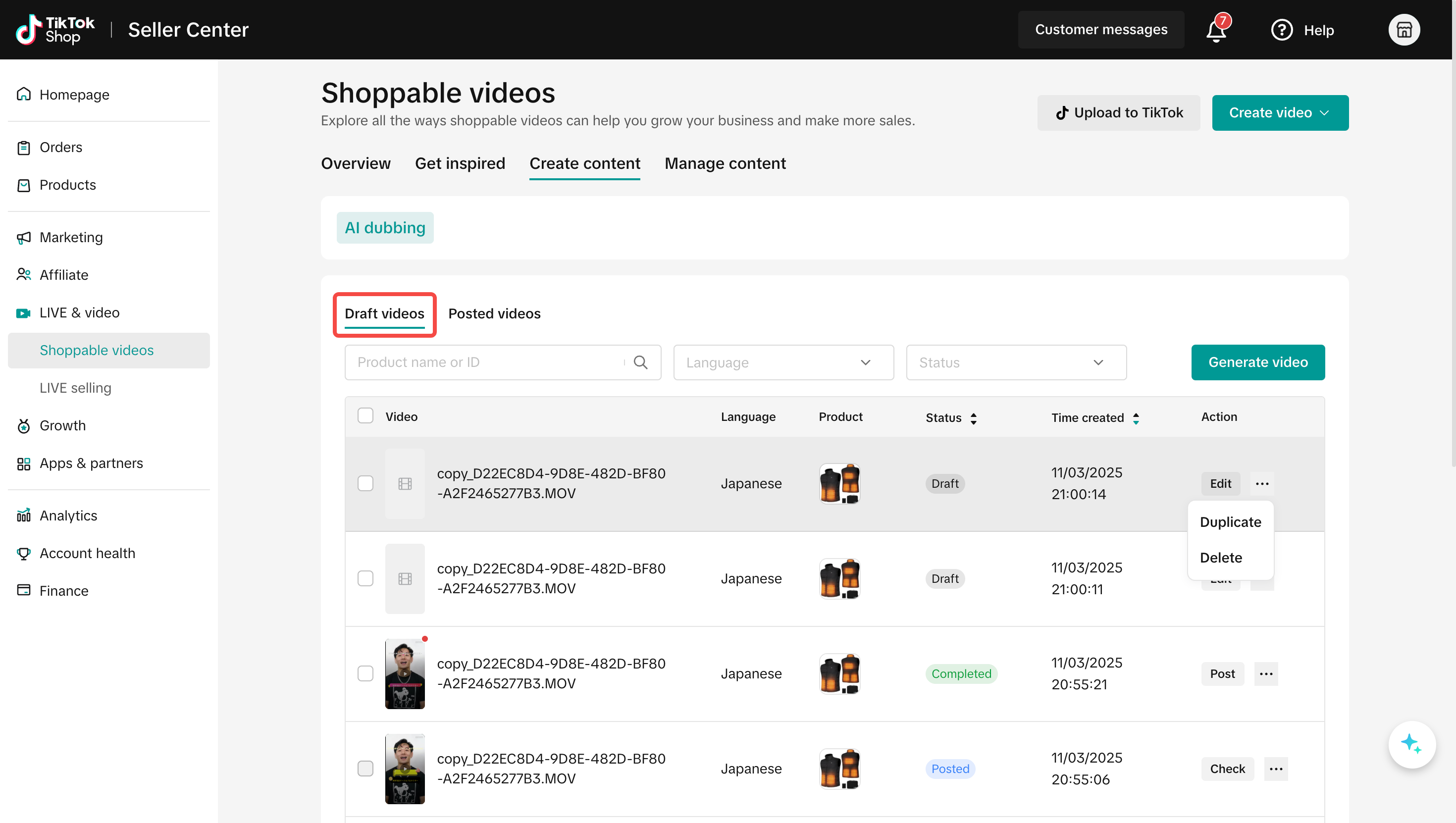
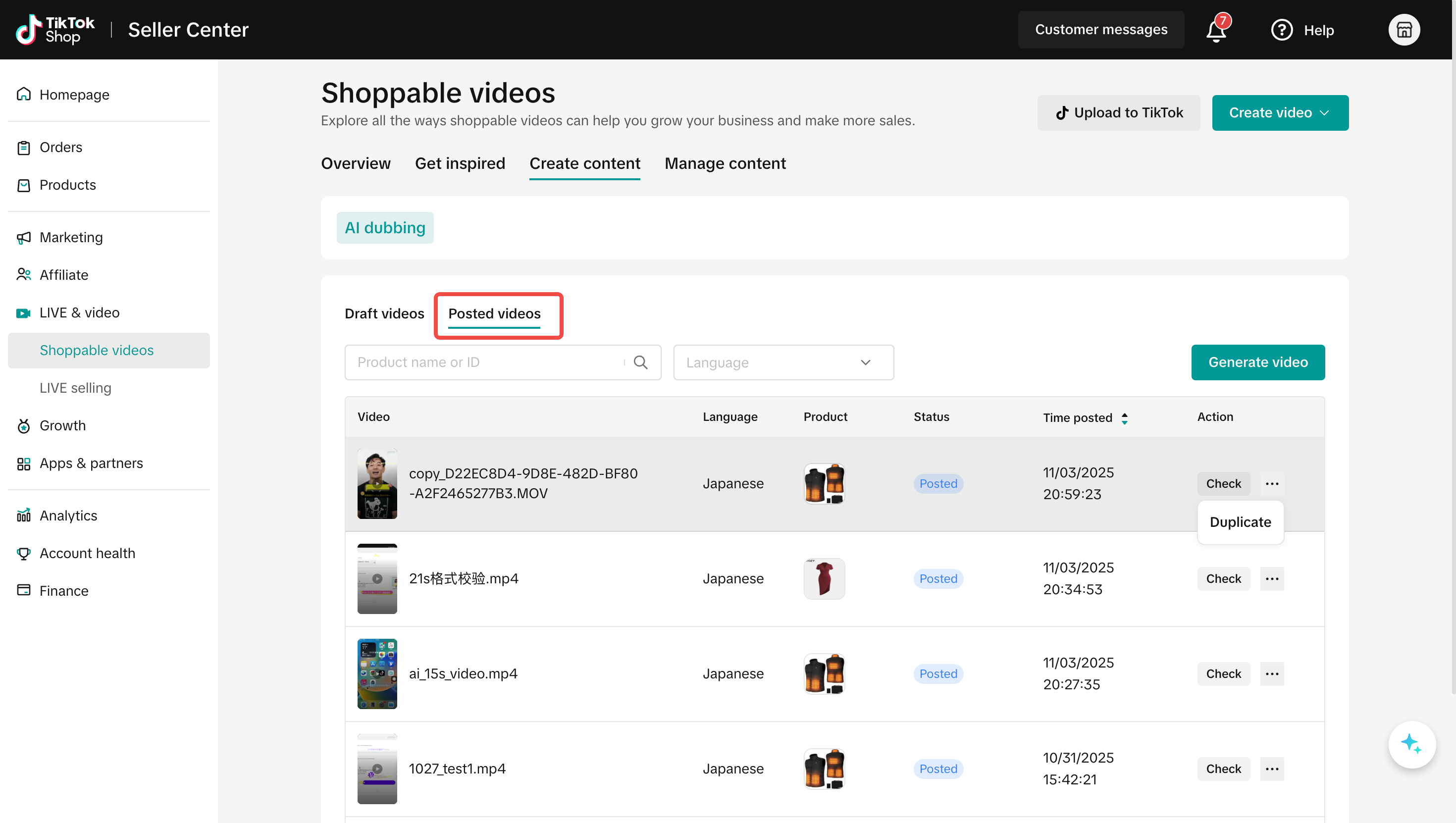
- Manage your videos. In Video Management, use the Generated video and Posted video tabs to review status, duplicate drafts, and track published videos.
- Use clear audio in your sample video; avoid noisy environments.
- Pick one strong product and one language per video for faster results.
- Keep edits small and natural; aim for simple, conversational lines.
- Preview before posting to catch any awkward phrasing.
- Blurry visuals or muffled audio can reduce dubbing quality.
- Long or complex scripts may sound unnatural—simplify.
- Missing product selection or language choice blocks the Next step.
- If rendering takes time, you can navigate away; it continues in the background.
FAQ
Q1: Can I regenerate the video after editing the script?Yes. From the preview page, select Edit script to regenerate. Your confirmed script stays saved, and the regenerated video appears in your list.Q2: How do I post my dubbed video?From the preview page, click Post to enter the publishing flow. Confirm account and product, then follow the prompts to publish.