This article teaches you how to use Product Campaigns to increase sales in your store. You will learn how to register for and manage Product Campaigns on your Seller Center on PC and on the Seller Center App
What are Product Campaigns?
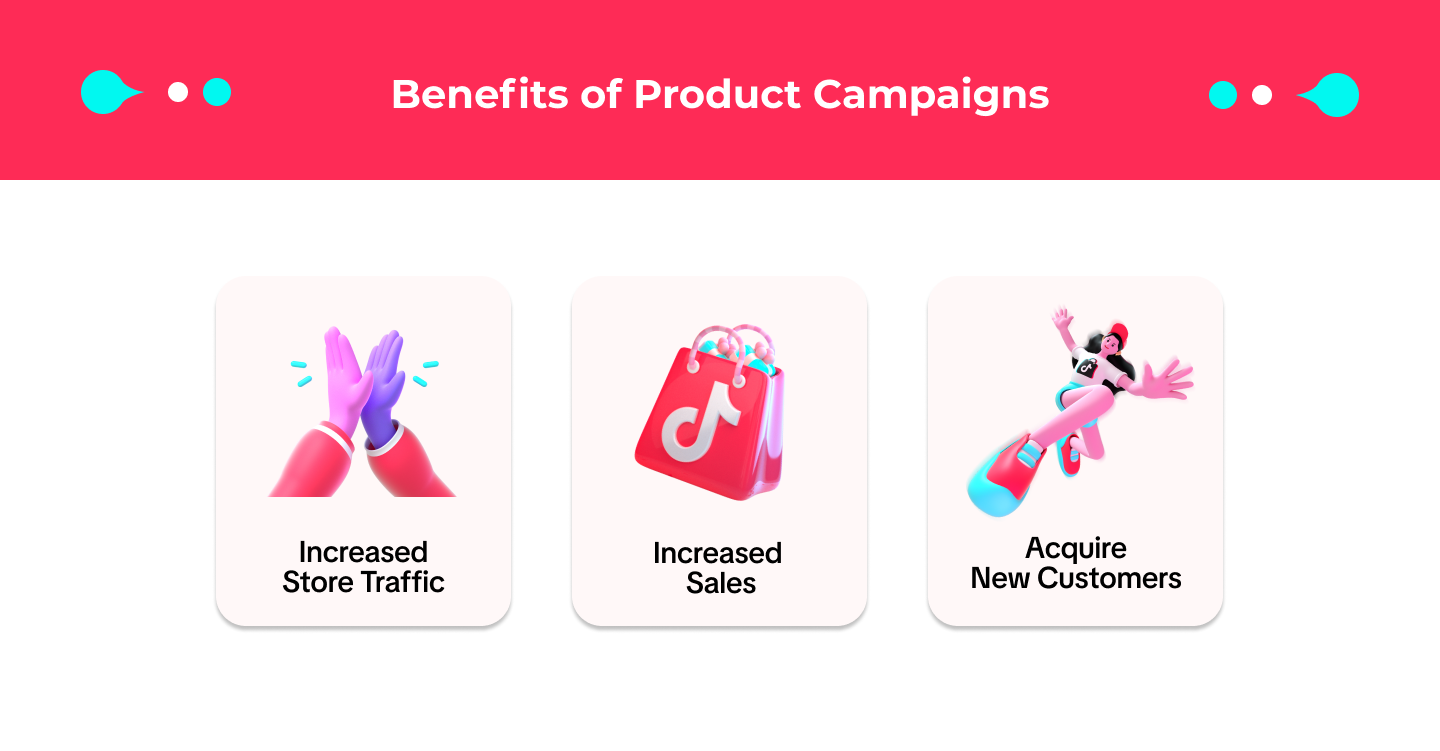
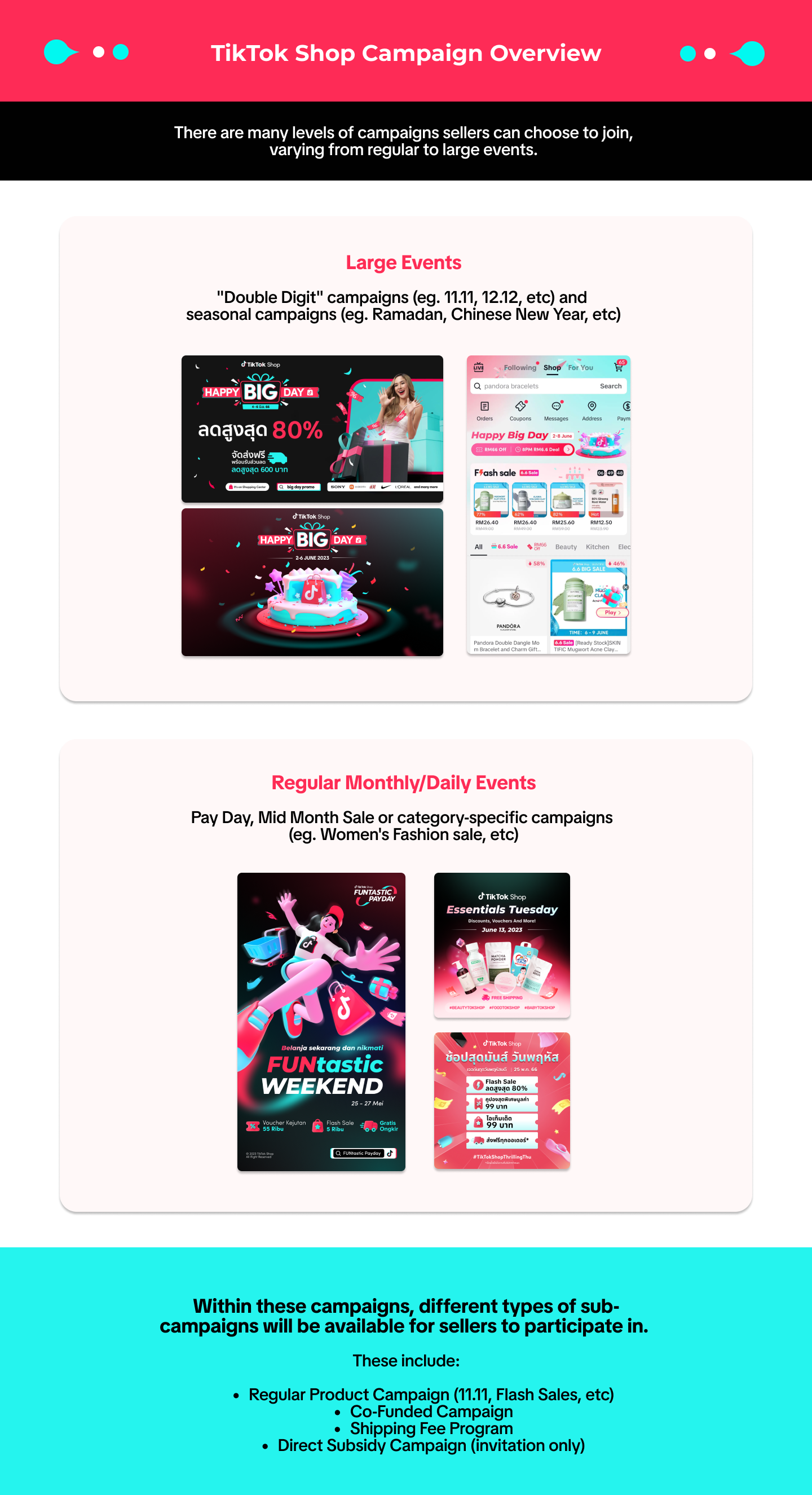
Product Campaigns are promotional events, organised by TikTok Shop, that help sellers to effectively promote products in your store.
Campaigns are designed to offer great deals to buyers and are promoted across the TikTok Shop platform, to excite, engage and entice buyers to shop.
This article will teach you how to participate and join in a
regular product campaign. This guide will also apply to a
direct subsidy campaign.
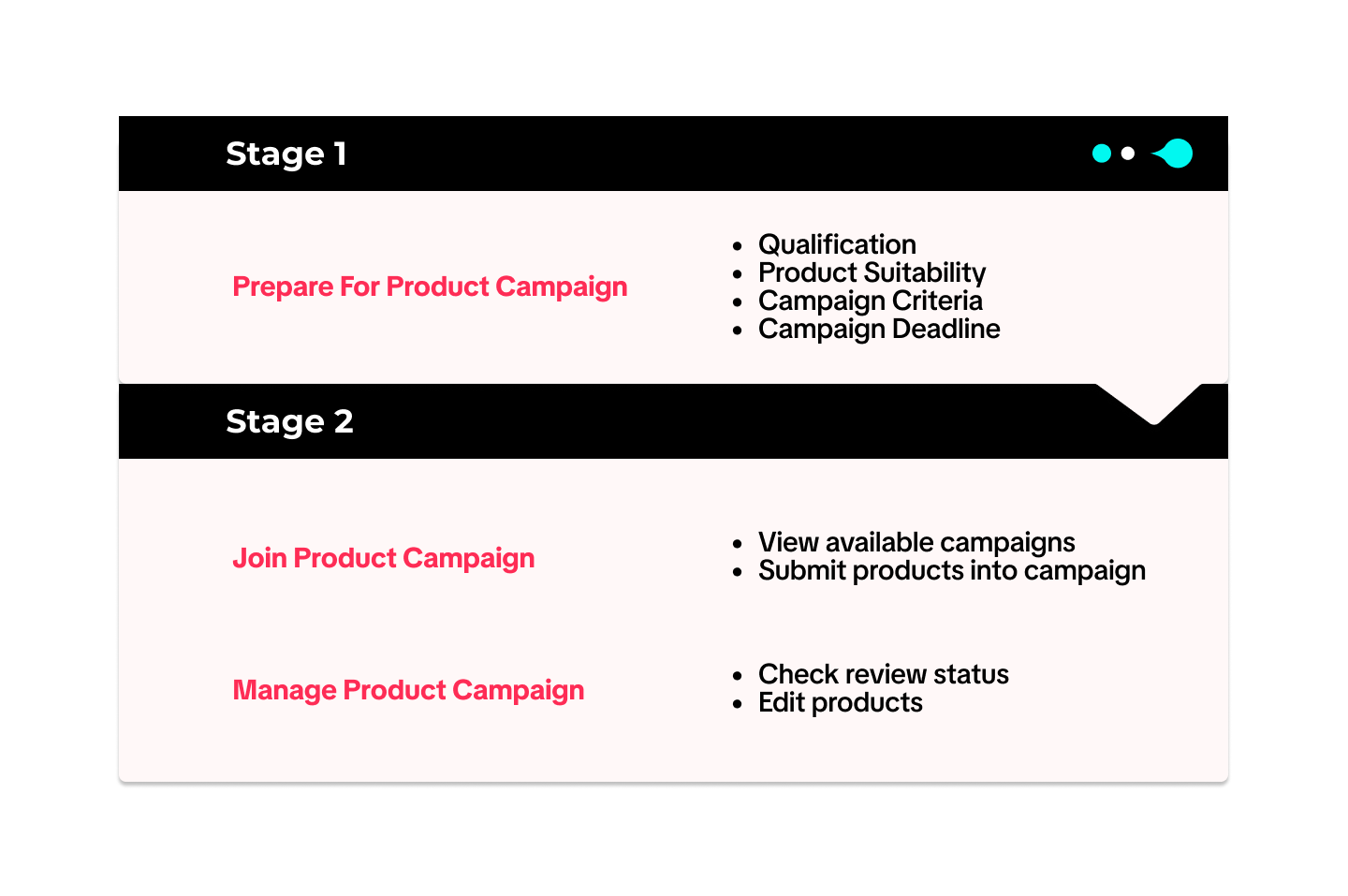
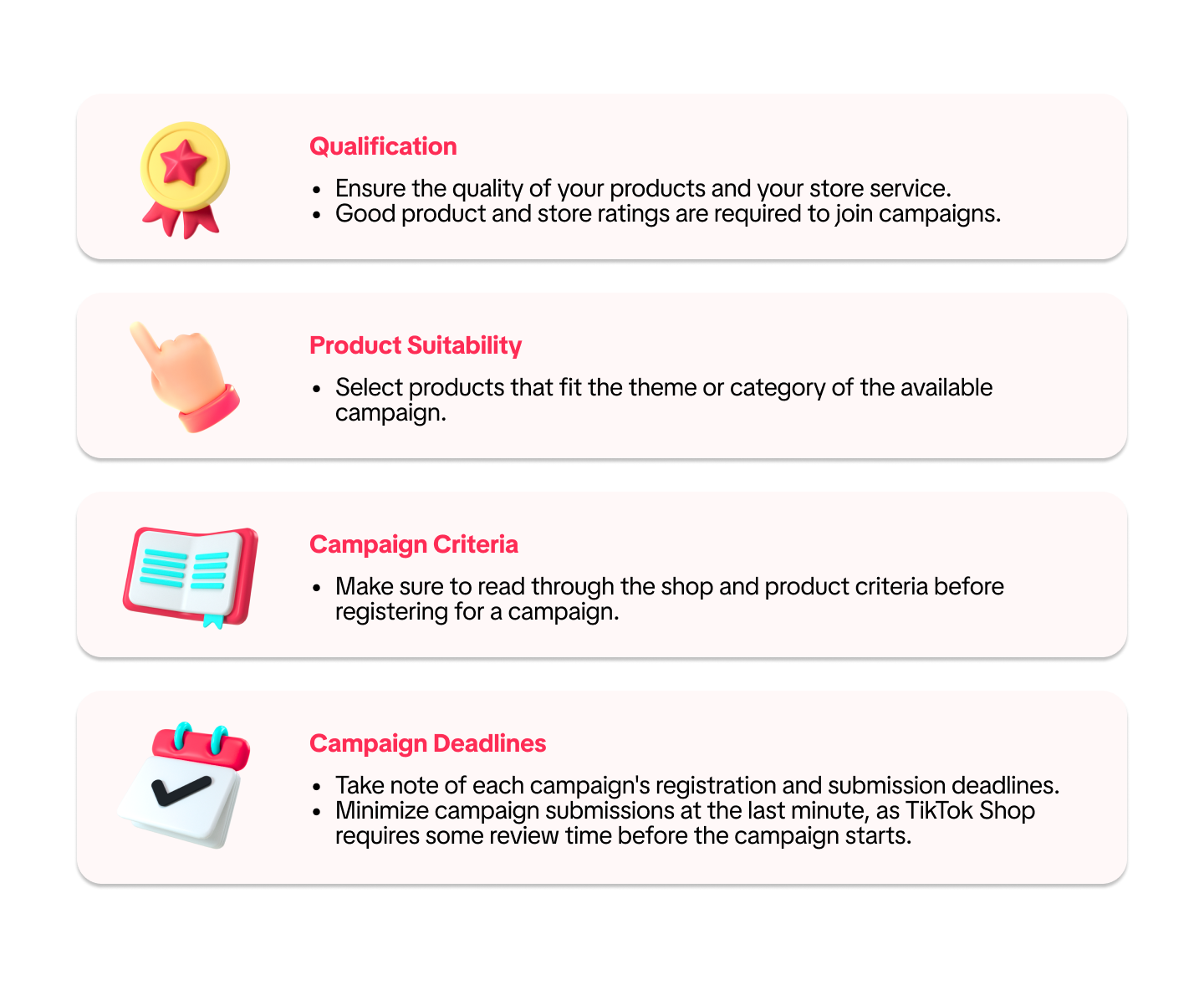
How to Prepare for Product Campaigns
How to Join Product Campaigns
- View Available Campaigns
- Submit Products into the Campaign
Click on
Register and Add Products.
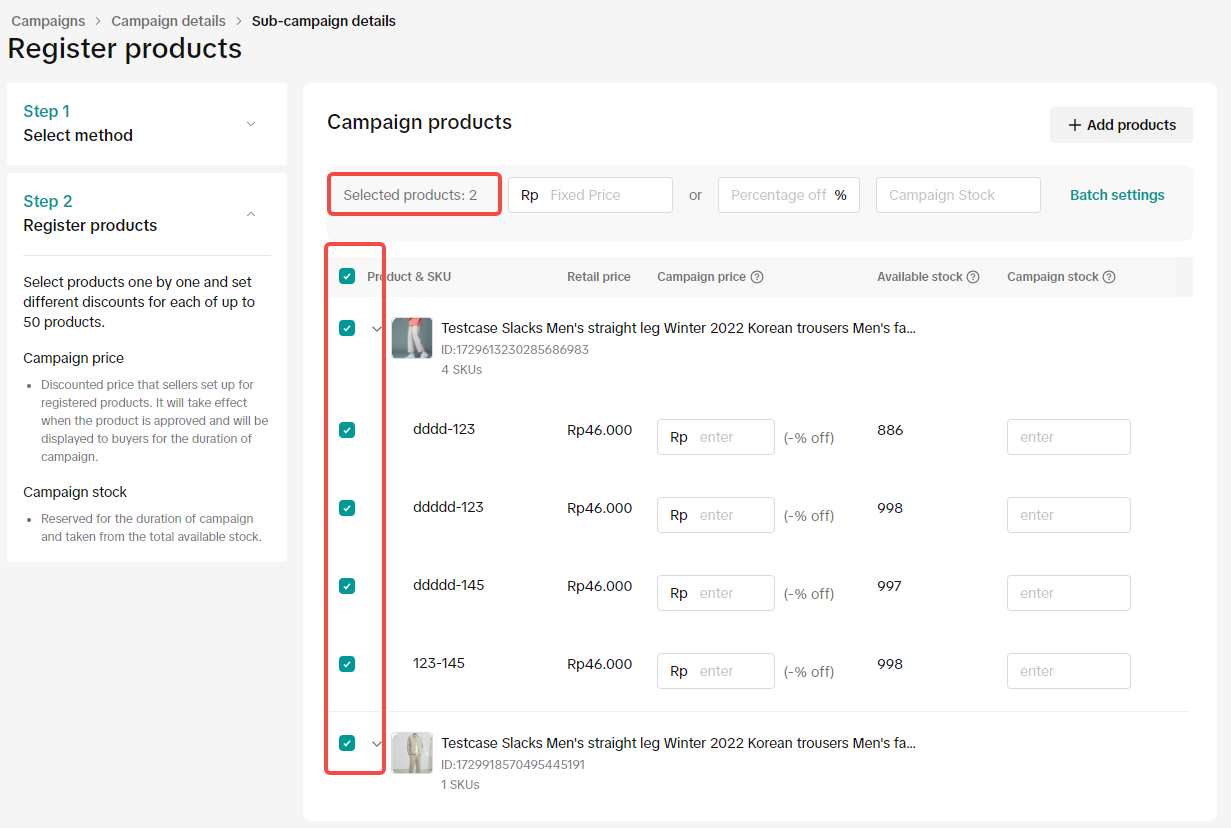
Select the products and variations you want to submit into this campaign, either via selecting products in Seller Center or via importing from Excel
(please refer to the "Bulk Import Your Products" section below).
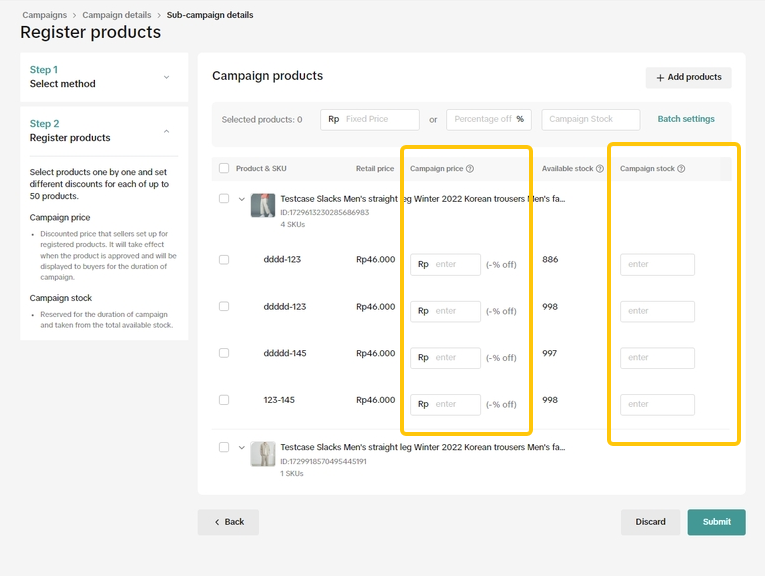
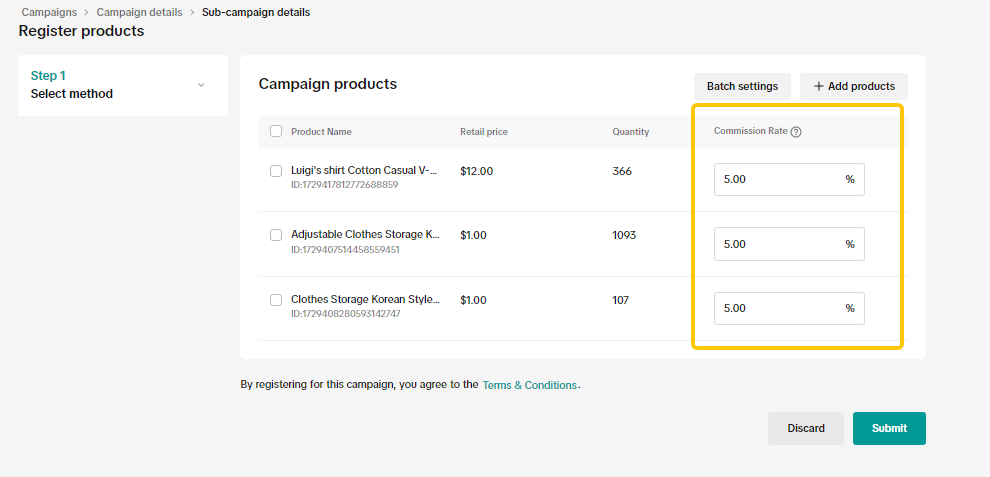
Depending on the campaign type, you will be required to fill some or all of the following fields:
- Campaign Price
- Campaign Quantity
- Campaign Commission Rate
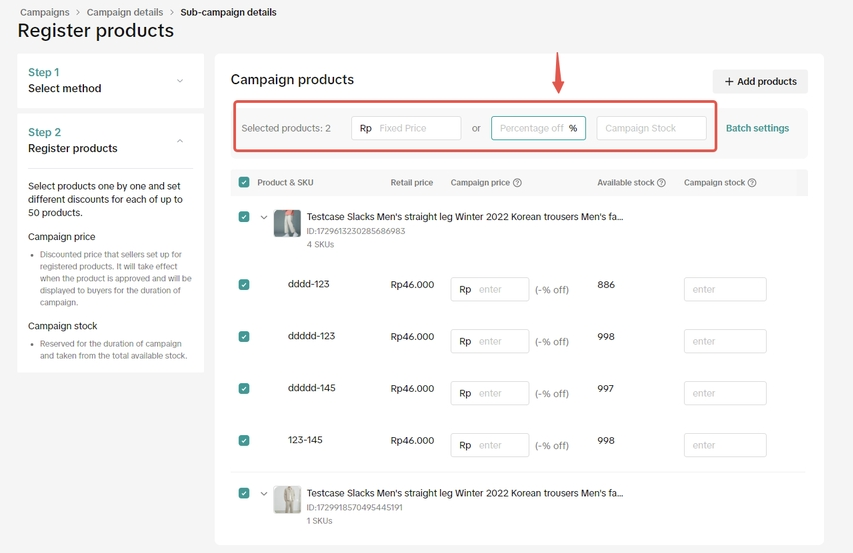
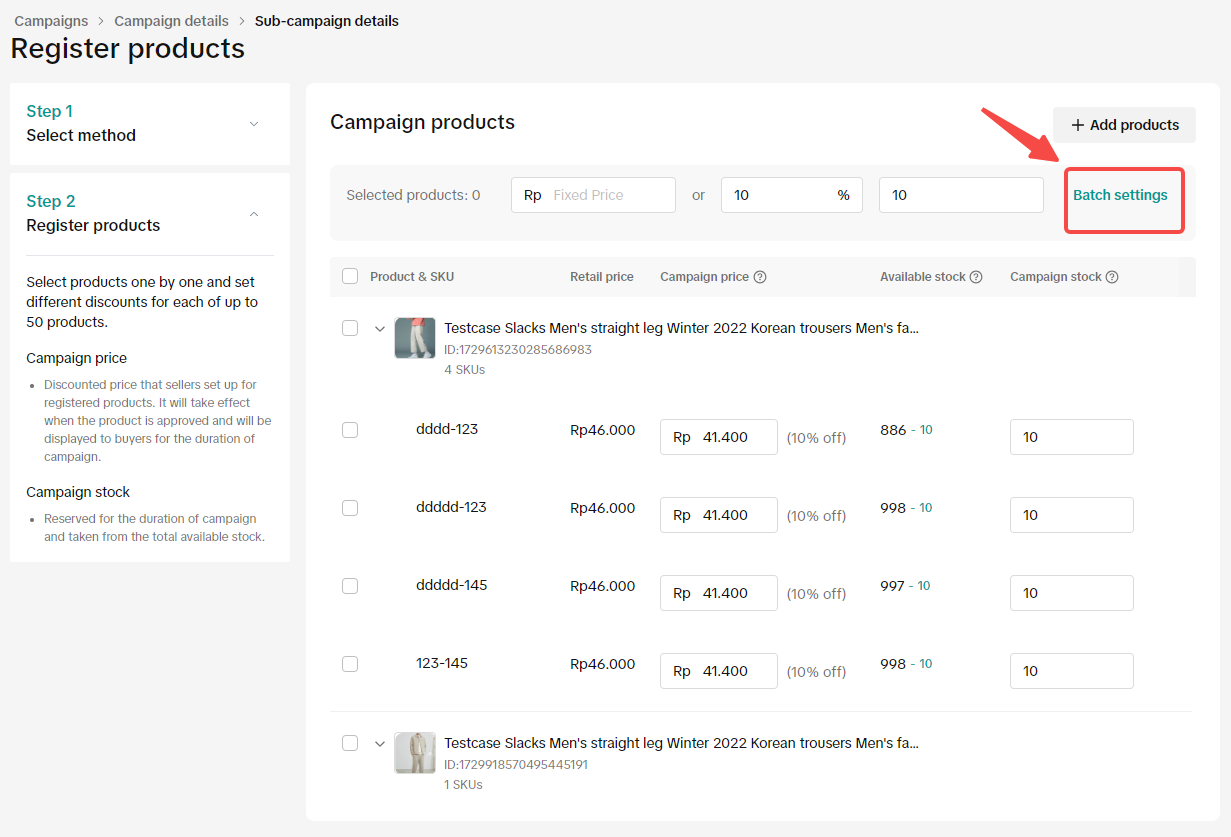
You may use the
Batch Setting Tool on the top bar to help you.
How to use the
Batch Setting Tool:You may also be required to fill in the campaign commission rate, especially for affiliate campaigns.
After selecting the products, fill in the campaign price and campaign quantity.
❗ Please take extra caution when submitting campaign price and campaign quantity.
- Campaign Price:
- TikTok Shop will record all sellers' submitted campaign prices. Depending on conditions of each campaign, sellers may be required to lower or match this campaign price in order to participate in future campaigns.
- Campaign prices will be shown to buyers throughout the entire campaign period. If there are different prices configured in other promotions, such as Flash Deal or Product Discount, these will not be shown.
- Campaign Quantity:
- TikTok Shop will lock sellers' campaign quantity immediately after your campaign submission has been reviewed and approved. After this review, you may not be able to adjust campaign quantity easily.
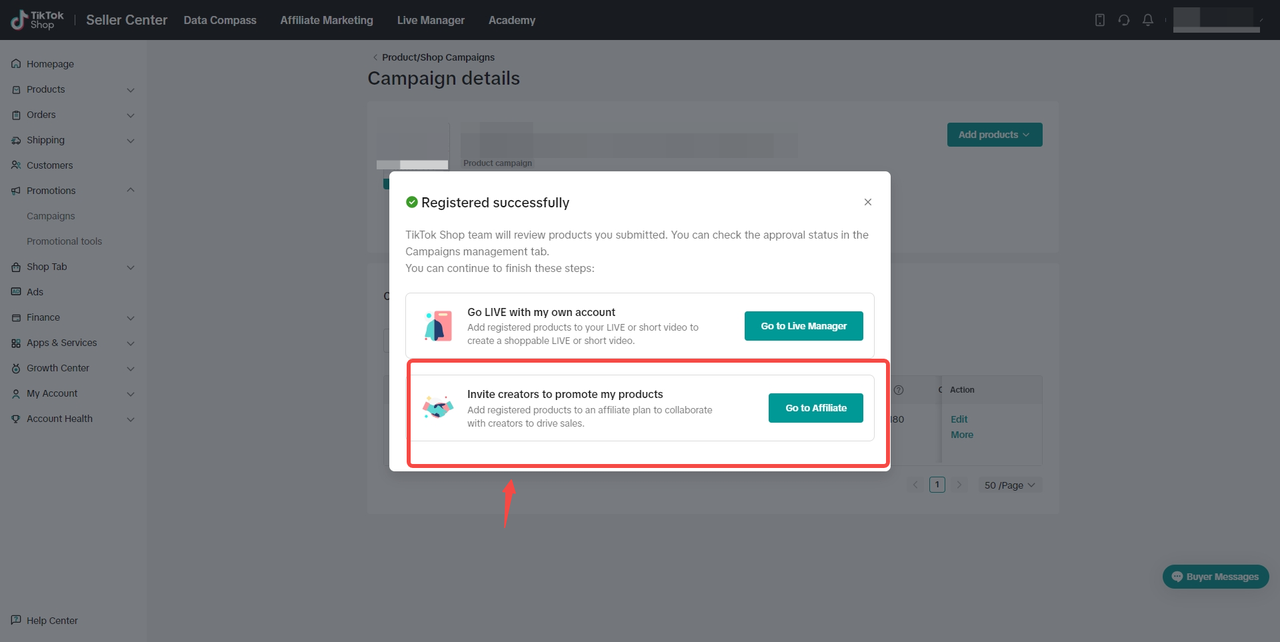
- Add registered products to LIVE or collaborate with creators
- After you have completed product registration for approval (by clicking "Submit & Next), you will be directed to add your registered products:
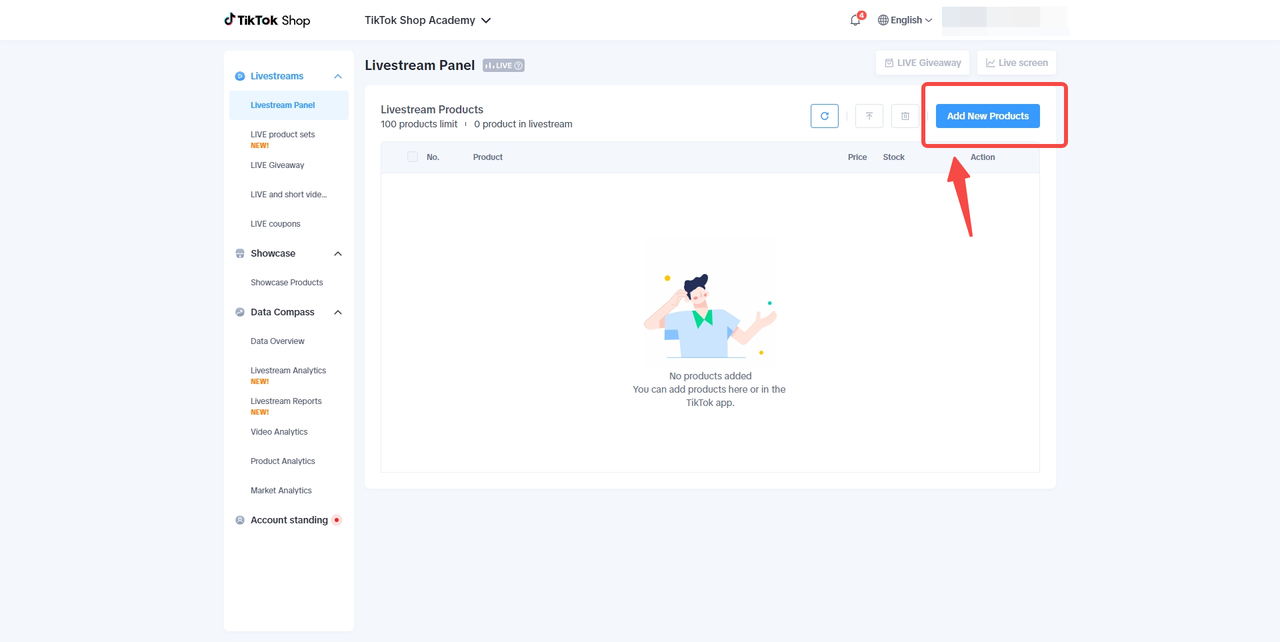
- Go to Live Manager: leads you to the Livestream Panel
- Add your campaign products to LIVE on either shoppable LIVE or short video
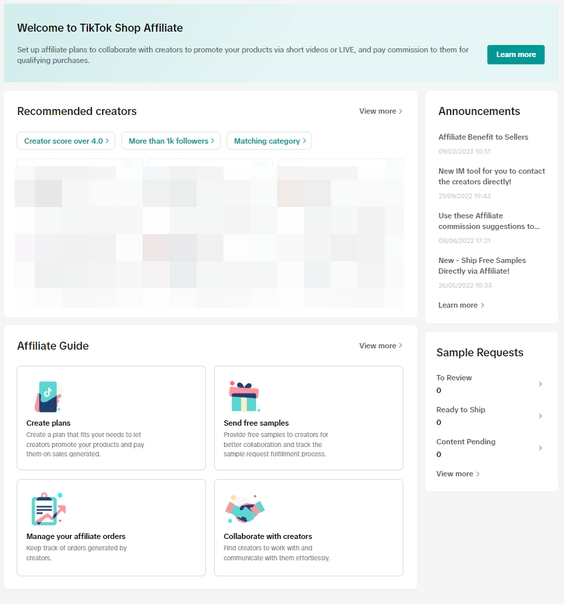
- Go to Affiliate will lead you to the Affiliate Platform
- Select the products you want to promote by affiliate and set the commission for creators
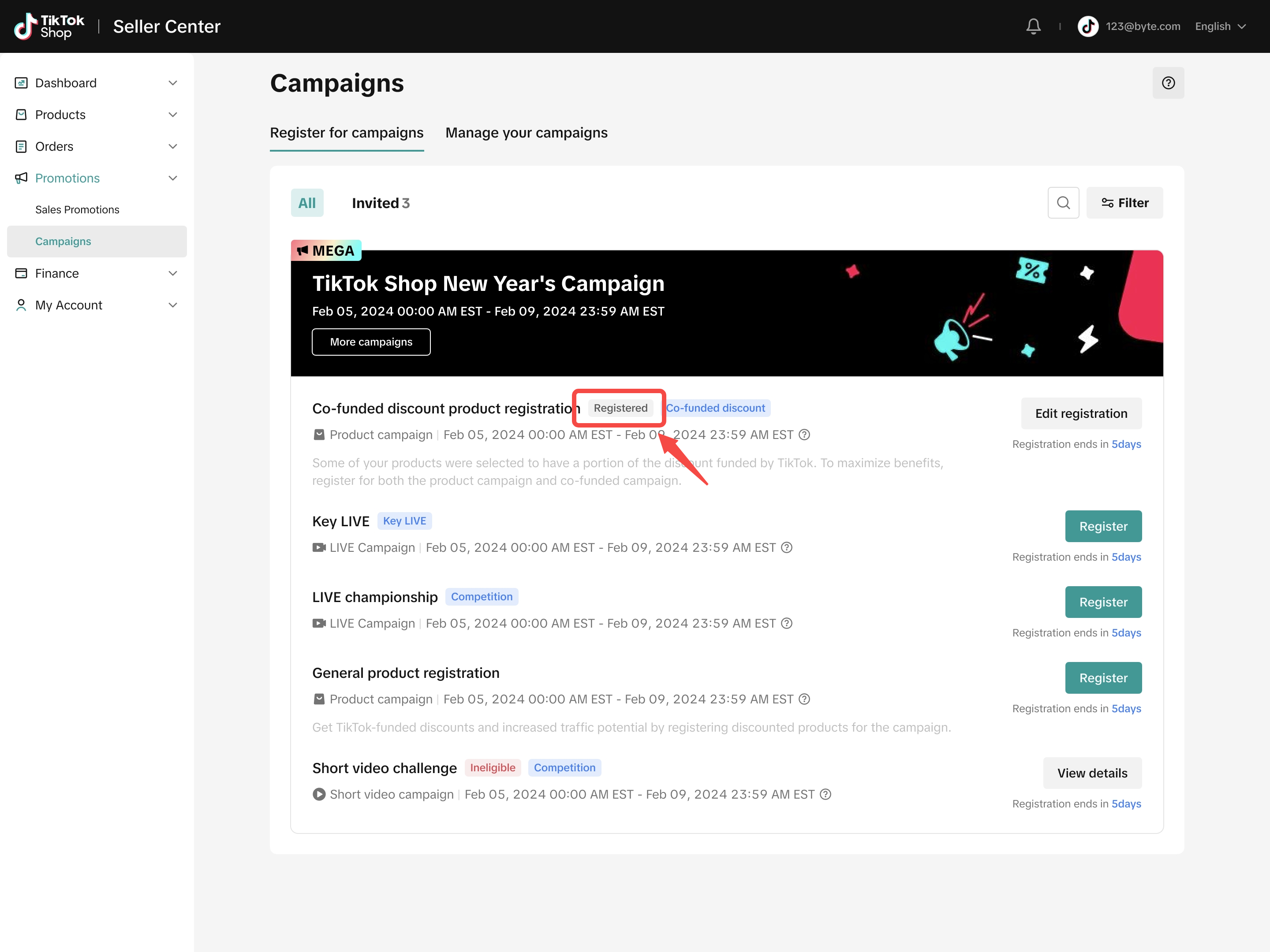
- After you have completed campaign registration, there will be a ‘Registered’ tab on the Campaigns page.
How to View Products in Product Campaigns on PC
After submitting your products into a campaign, you can visit
Product/Shop Campaigns page to keep track of your campaign application(s).
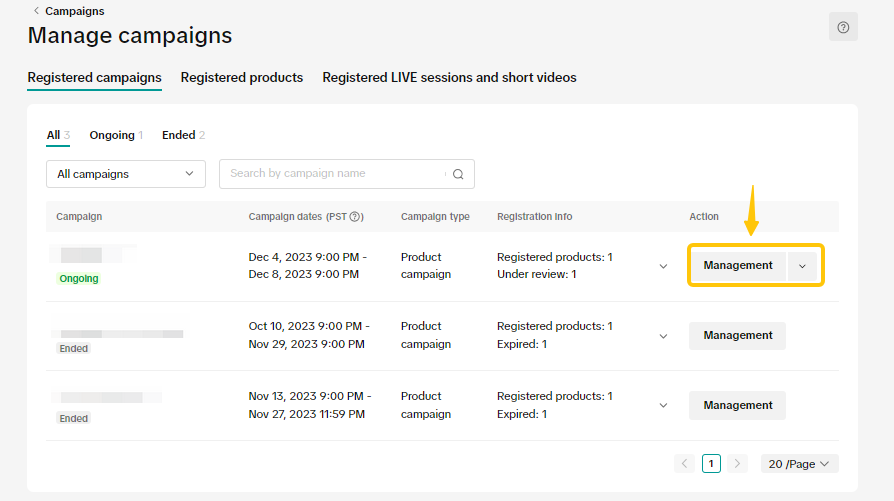
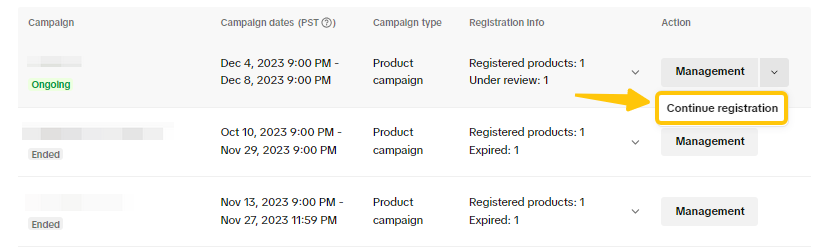
In the
Registered Campaigns tab, click on
Management for the relevant campaign.
You can also click
Continue registration if the campaign is still ongoing.
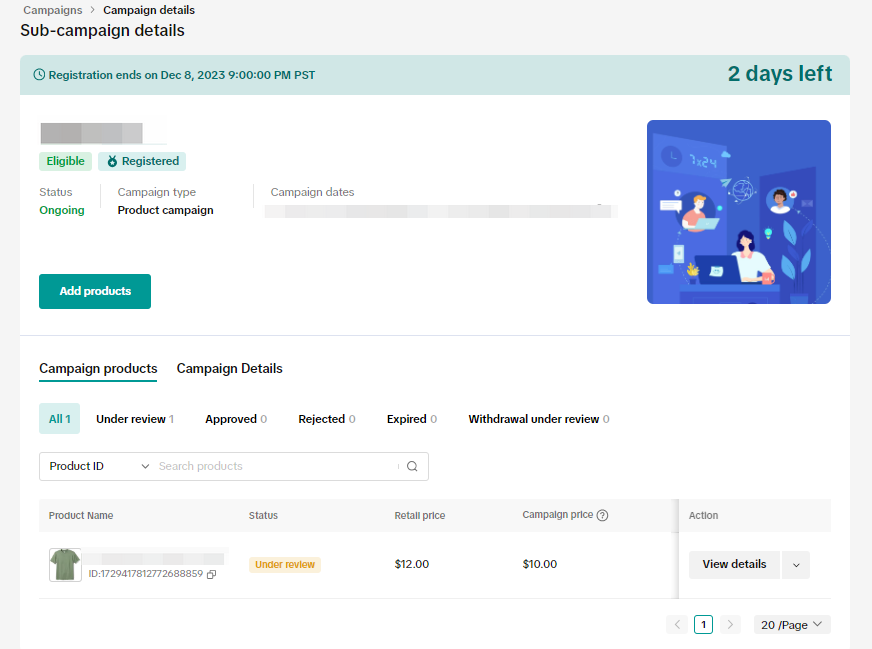
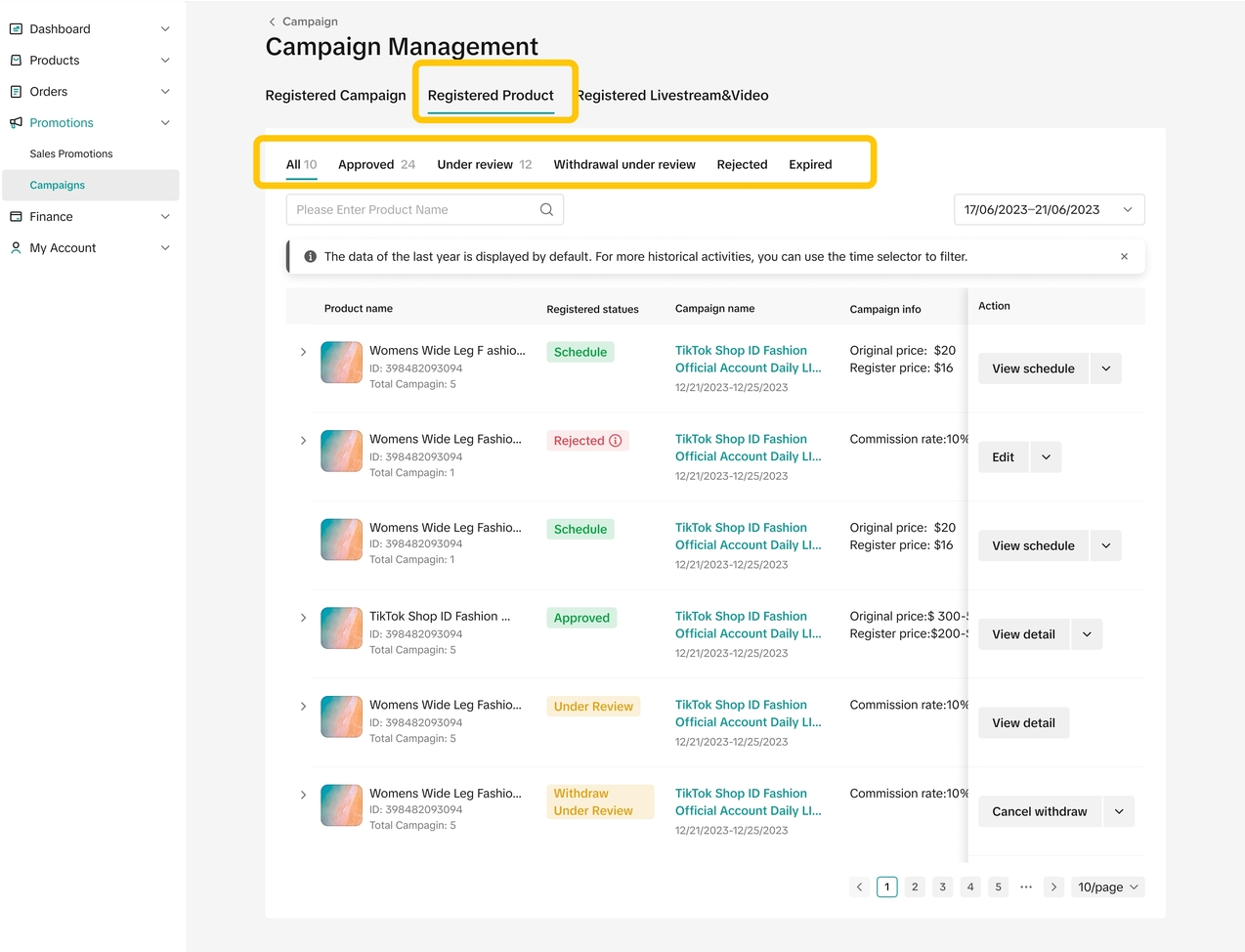
Select the
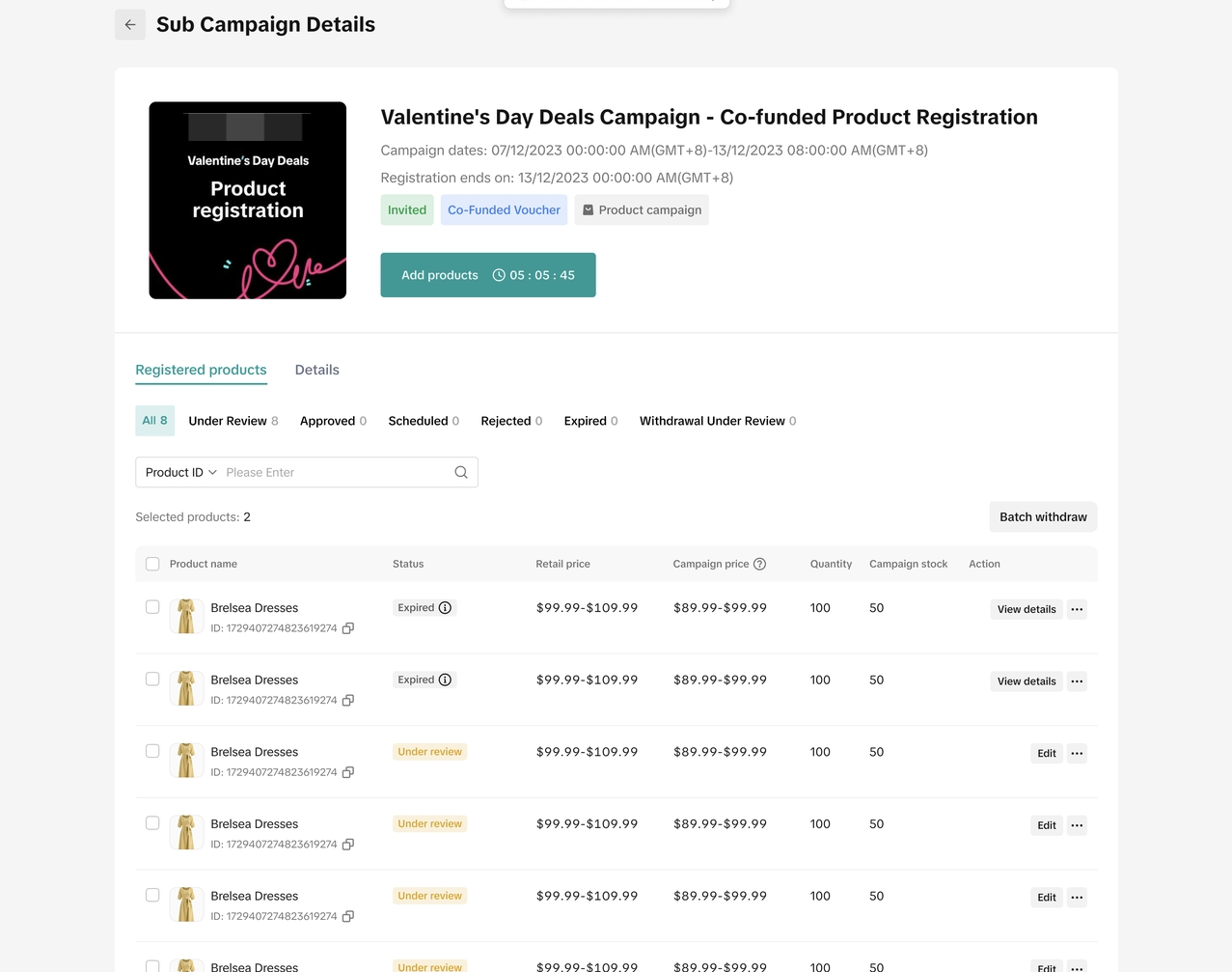
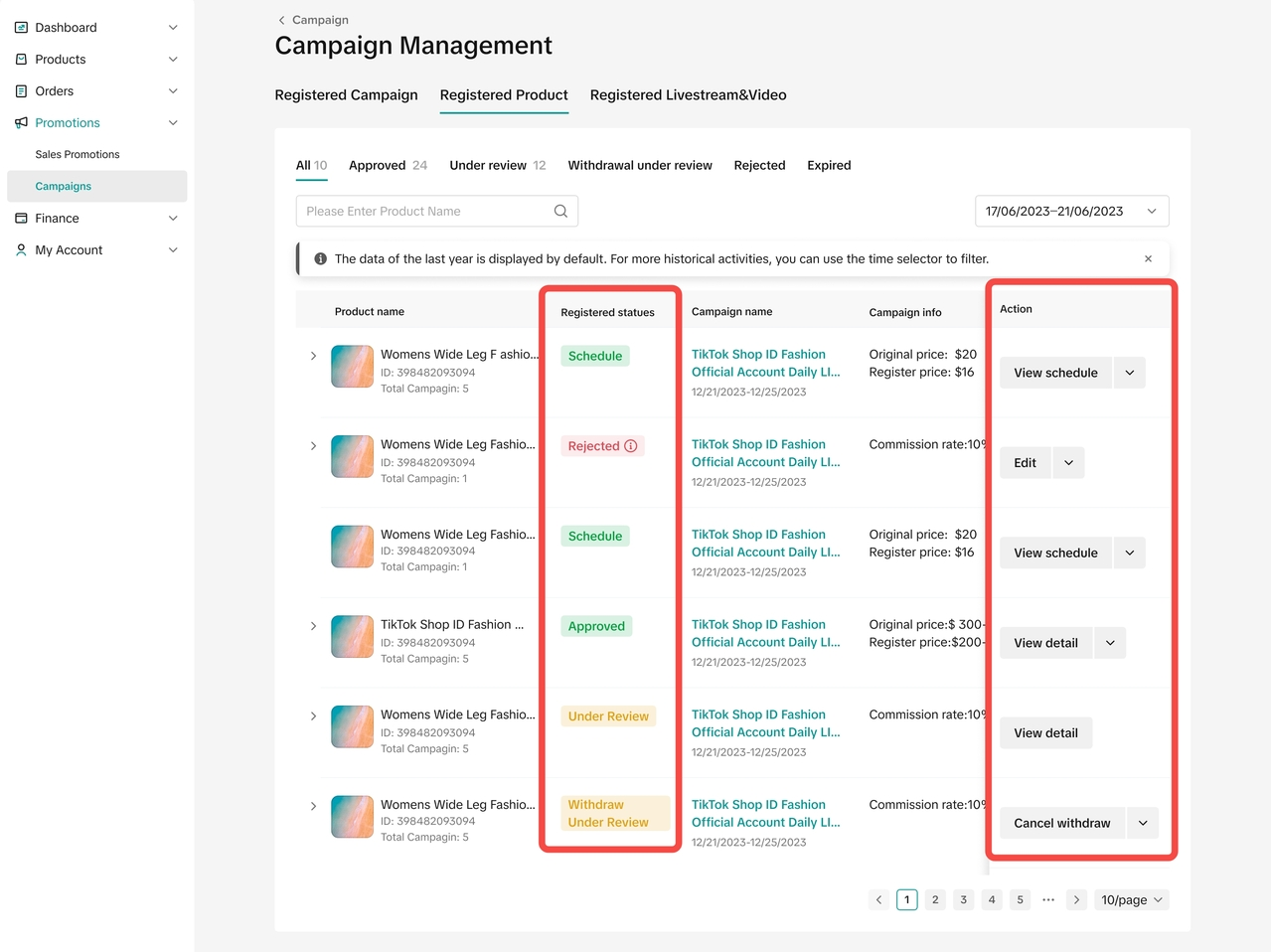
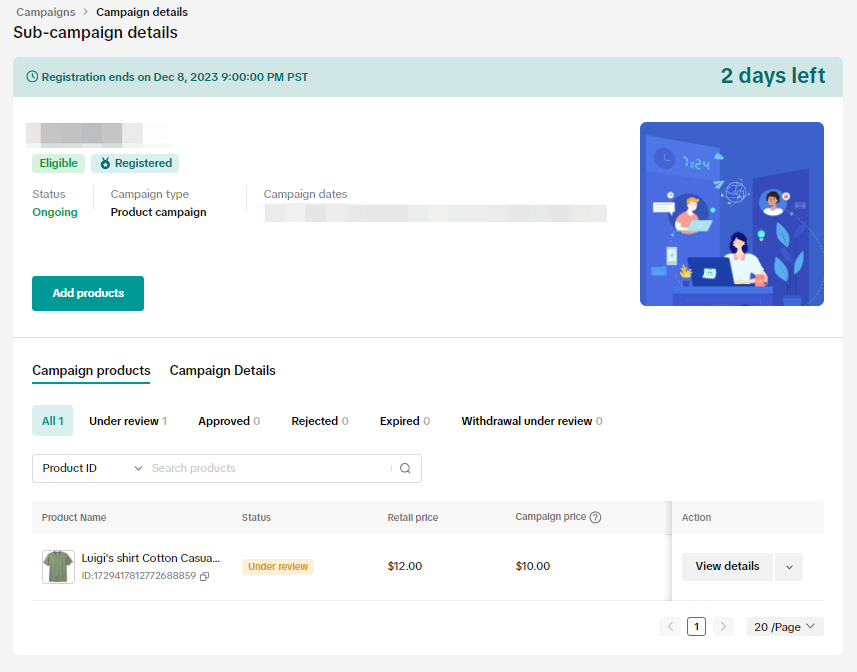
Registered Product tab to see your submitted products and the review status.
You can filter for products submitted by Product ID/Name.
Based on different registered status, you can select different actions for the products under the drop-down menu.
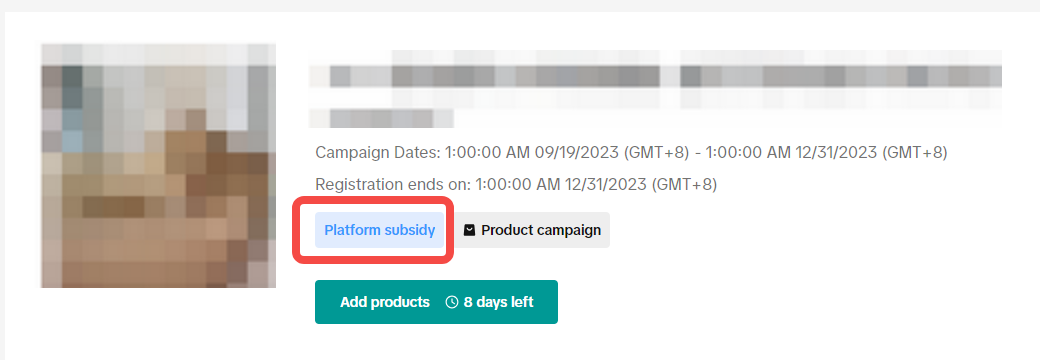
Some campaigns are also eligible for platform subsidies.
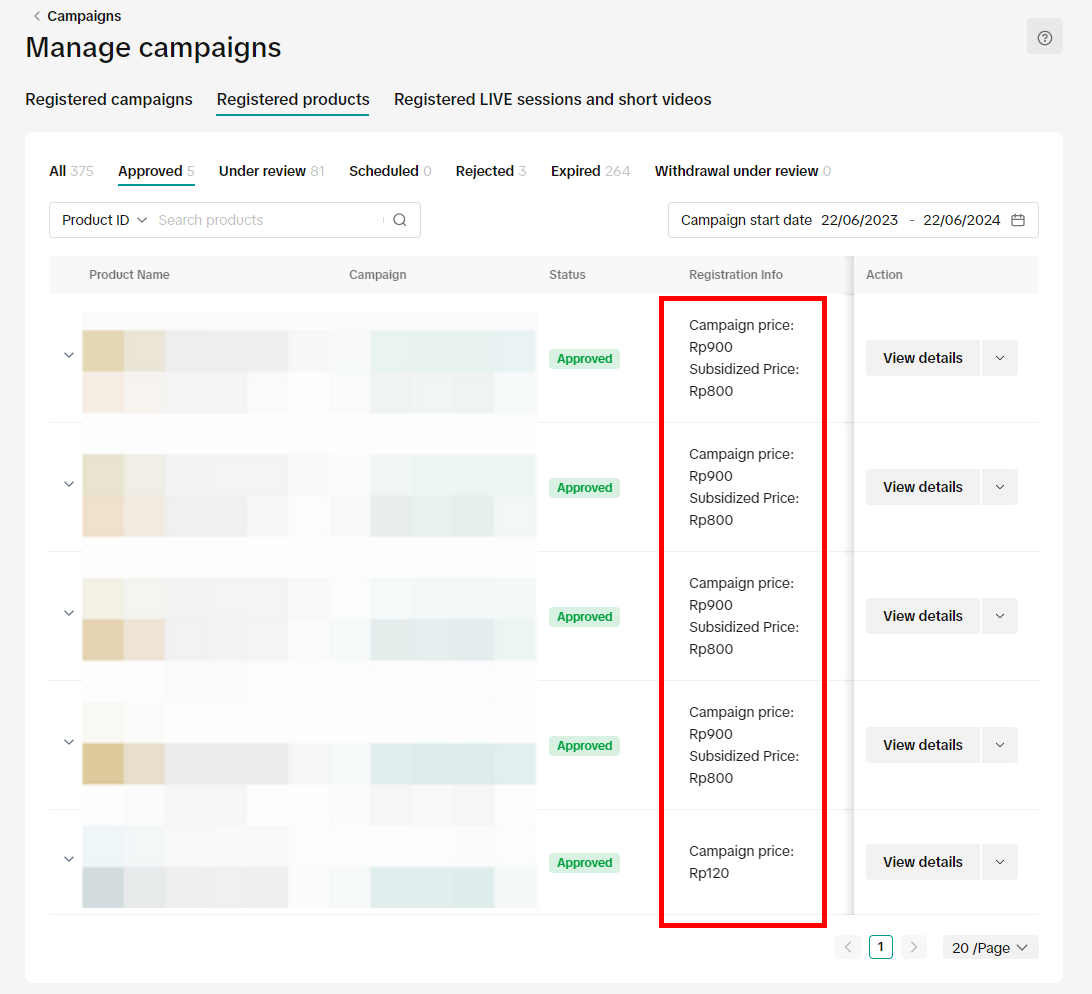
Where platform subsidies are provided, you can view the direct subsidy amount per product on the
Registered Products page.
How to Edit Products in Product Campaigns
We will only allow sellers to edit product information during a certain "status" after the campaign submission. The status and editing conditions are as follows:
When your status is
Under Review or
Approved/Scheduled:
- You are allowed to increase campaign quantity or commission rate by clicking the "Edit" button. Changes are updated immediately and do not require TikTok Shop approval.
- You are not allowed to adjust campaign price or decrease campaign quantity or commission rate.
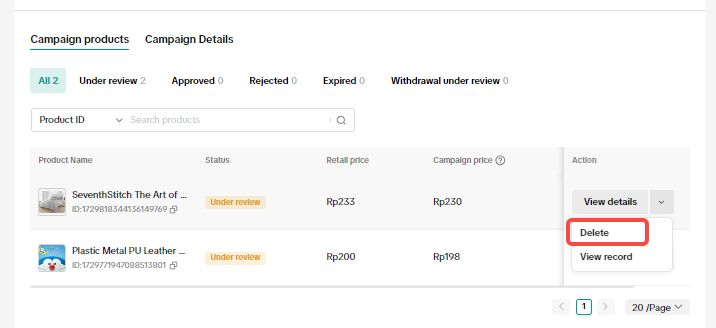
When your status is
Under Review, you can still remove products from the campaign by clicking
Delete.
When your status is
Approved/Scheduled, you can remove products from the campaign by clicking
Withdraw.
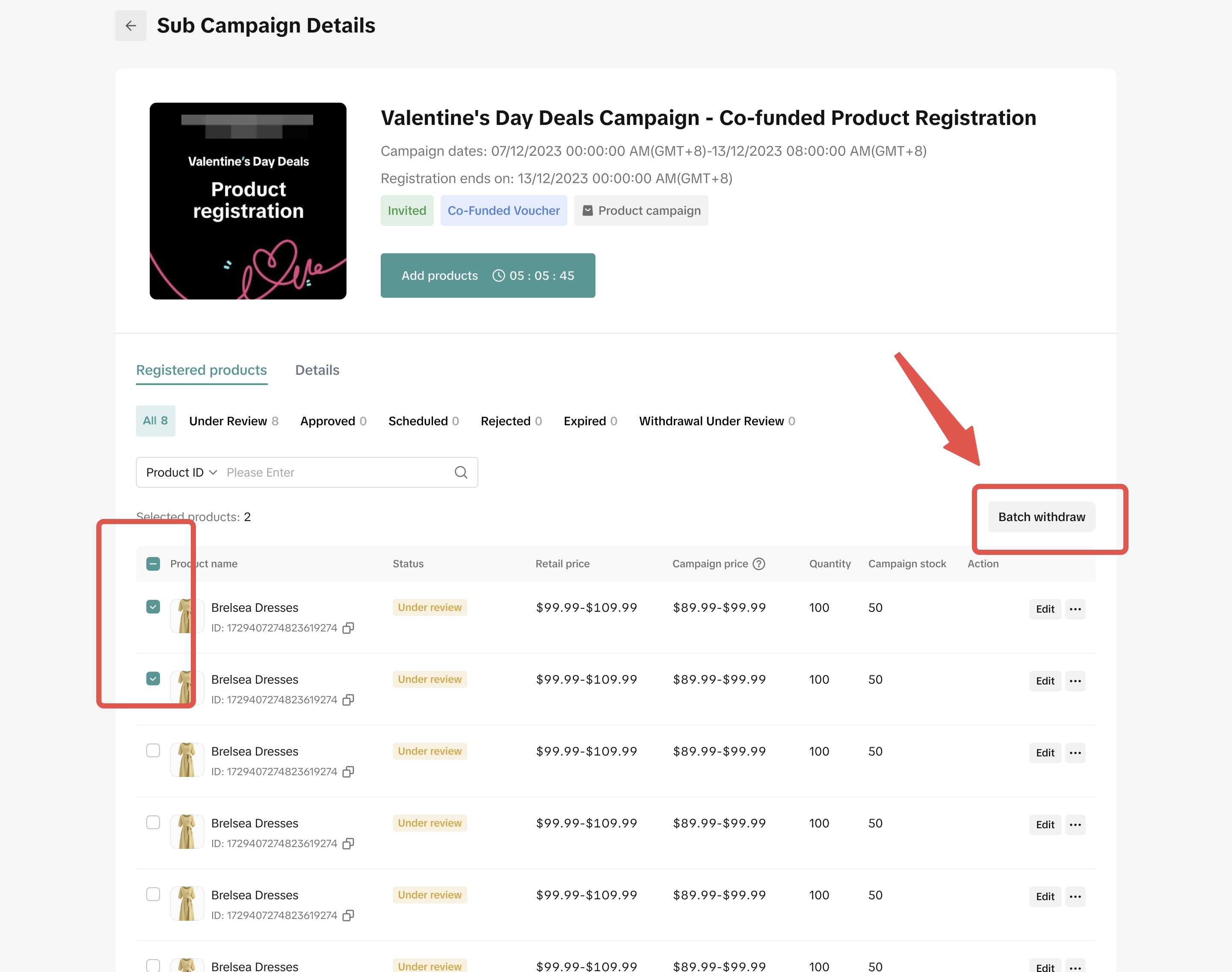
You can also
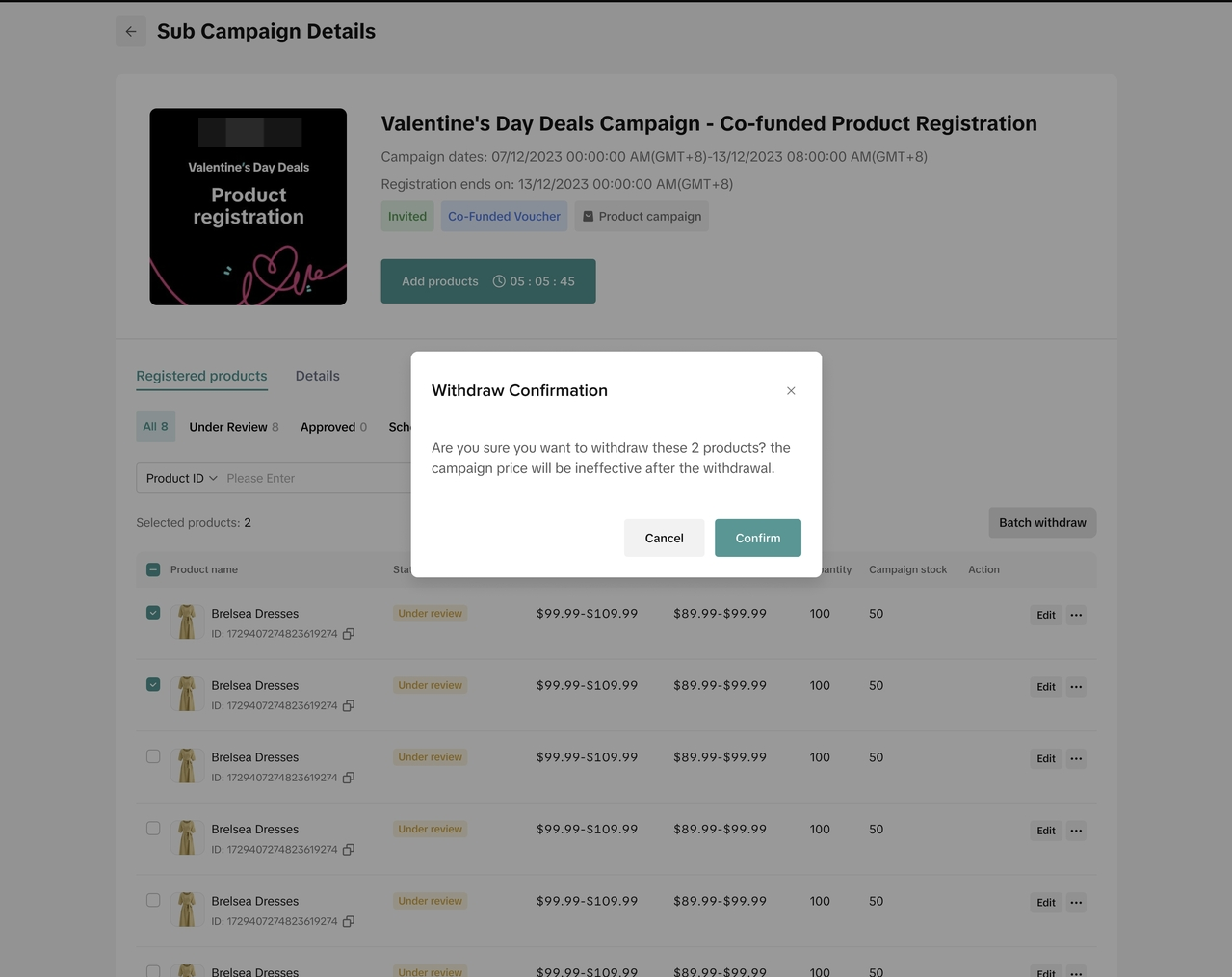
Batch Withdraw the products by following the steps shown below (maximum 500 SPU each time)
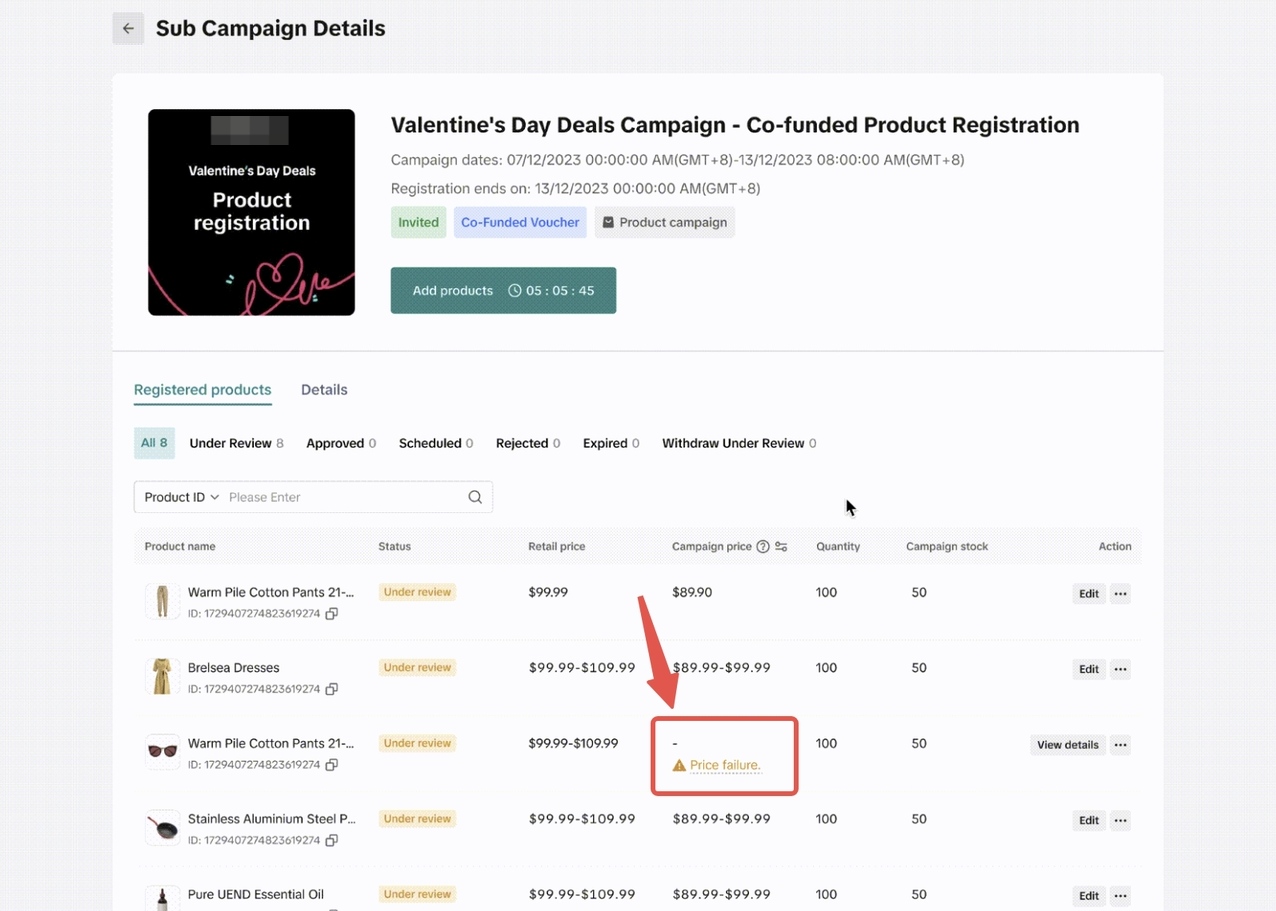
When you edit the SKU information (ie. add a new colour / size for a product), the existing SKU ID will become unavailable, resulting in a "
Price Failure" for your entered product. Simply withdraw the product and enter it again with the new SKU ID to resolve the issue.
Please note that the
Withdraw option may not be available for all campaigns.
If the request to delete your product from a campaign is approved, the status will change to
Expired. If the exit request is rejected, the status will return to
Approved.
How to Review Recommended Products
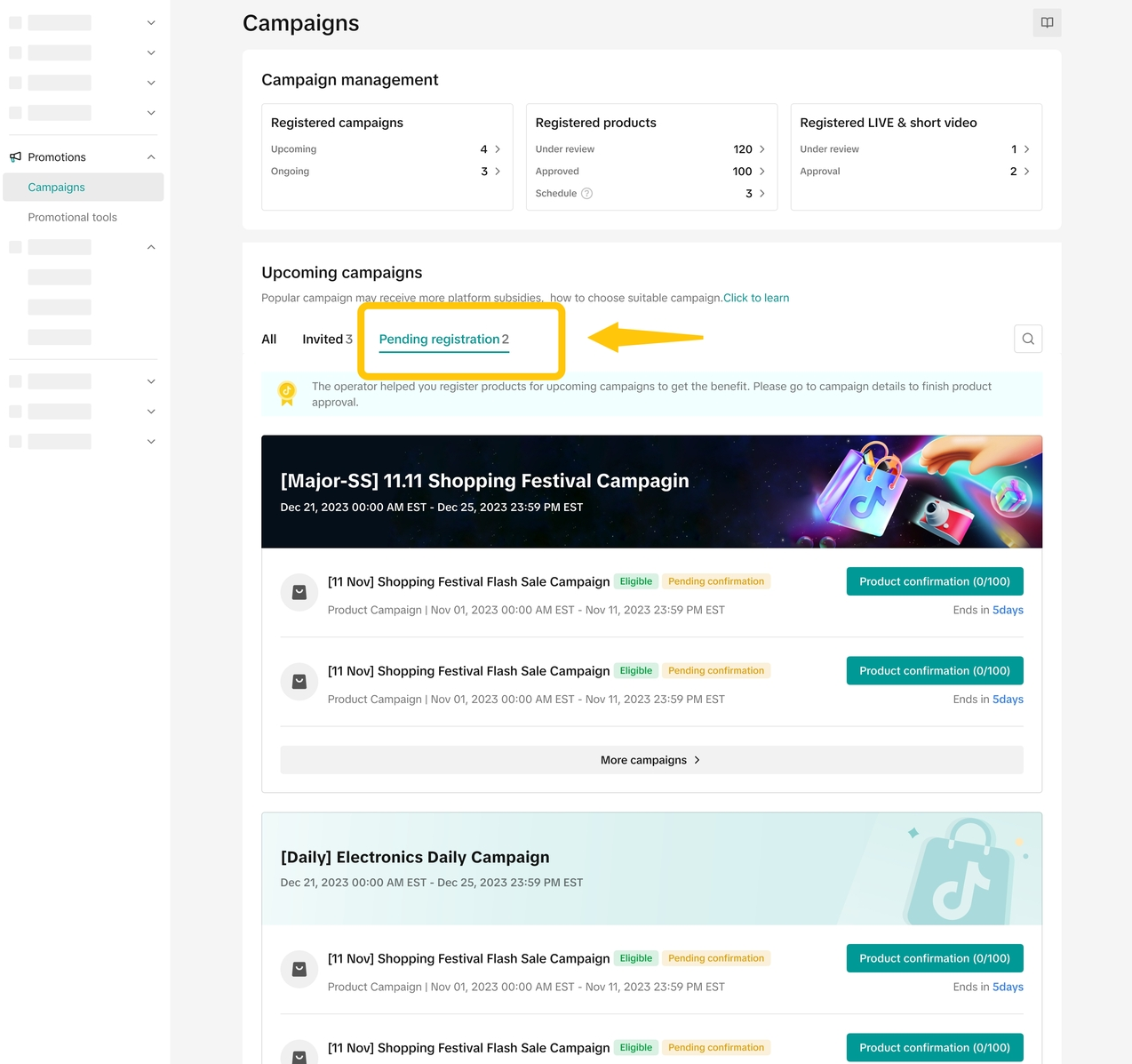
TikTok Shop's operations team may also register products on your behalf for product campaigns. This means you can now participate in campaigns with ease and save time on the registration process. Product registrations are subject to your approval.
To review recommended products for a campaign on the Seller Center on PC, visit the
Campaigns tab. Click
Product/Shop Campaigns.In the
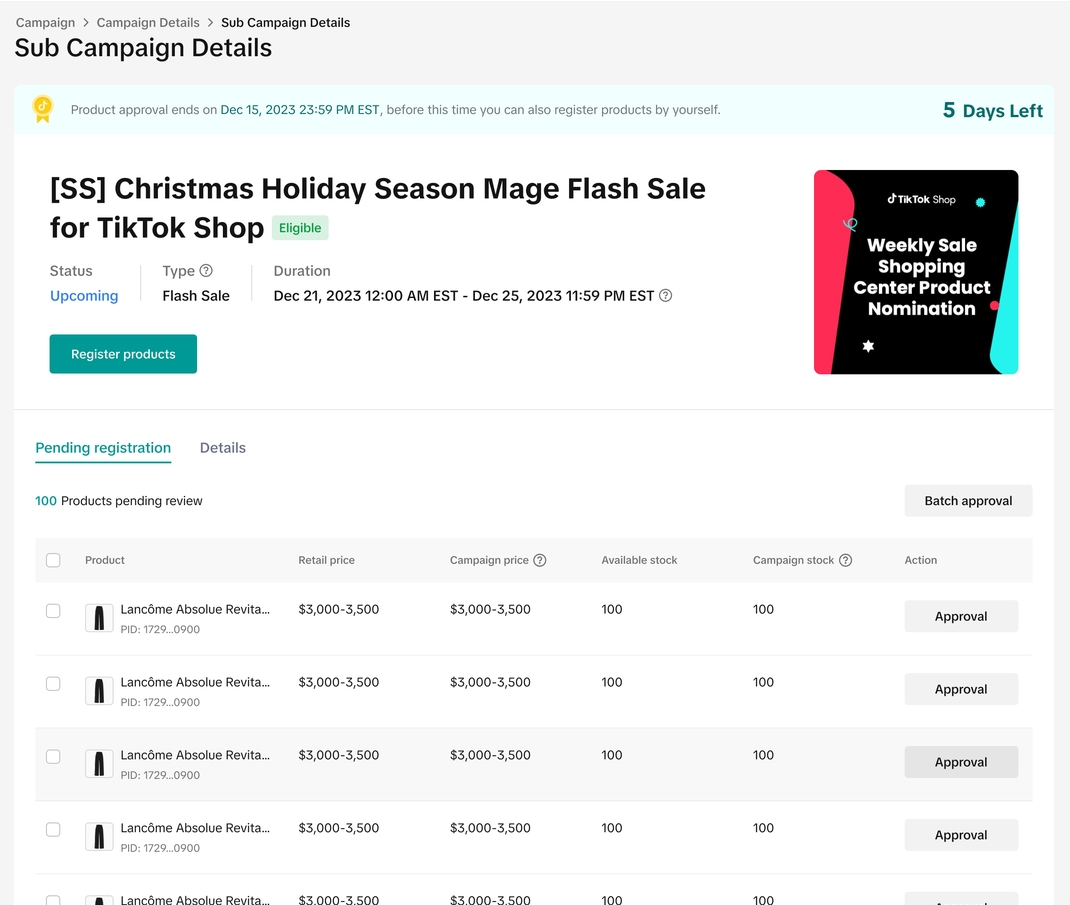
Pending Registration tab, you will see the campaigns where we have recommended your products to join.
Click
Product confirmation to review recommended products registered by our platform.
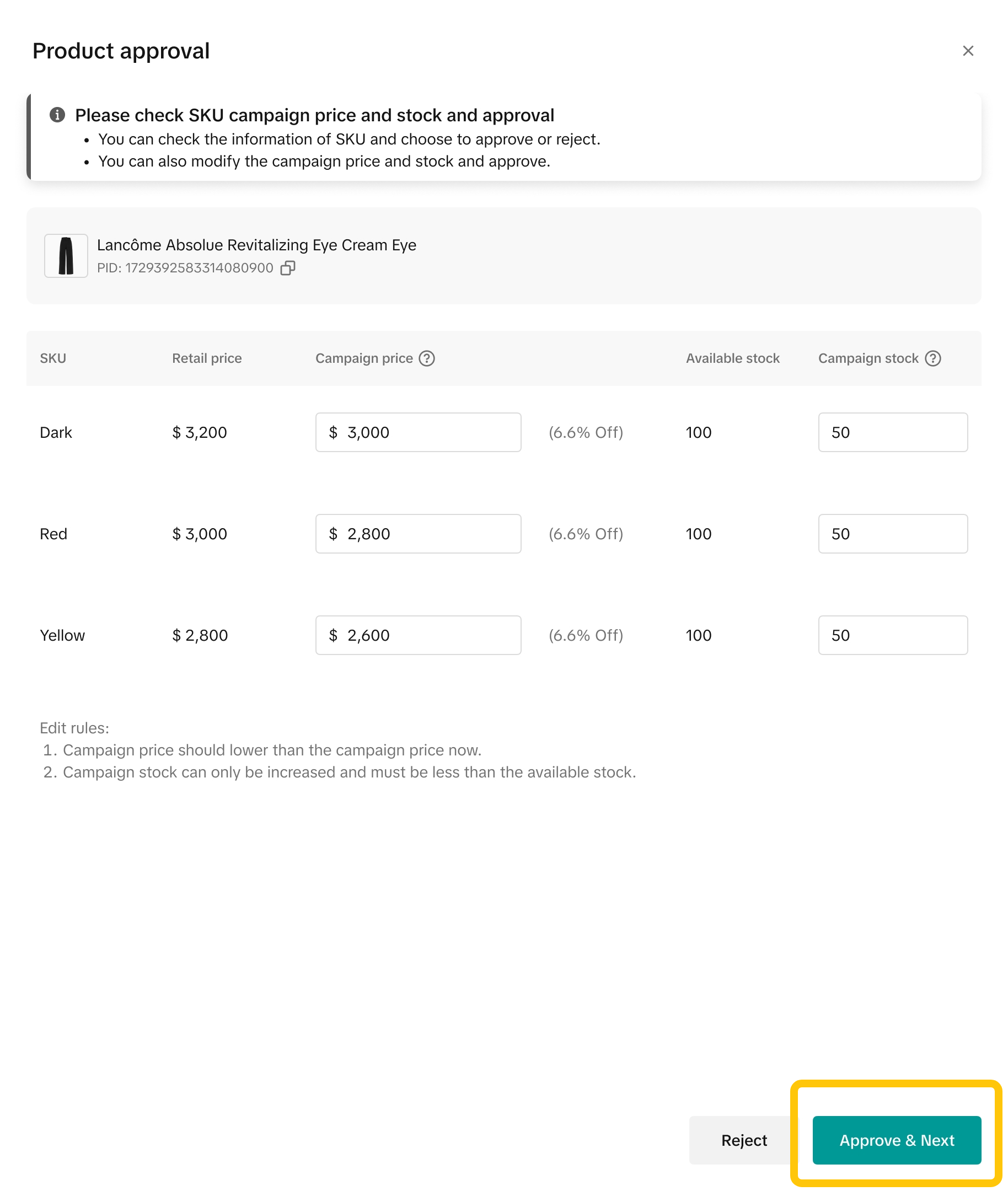
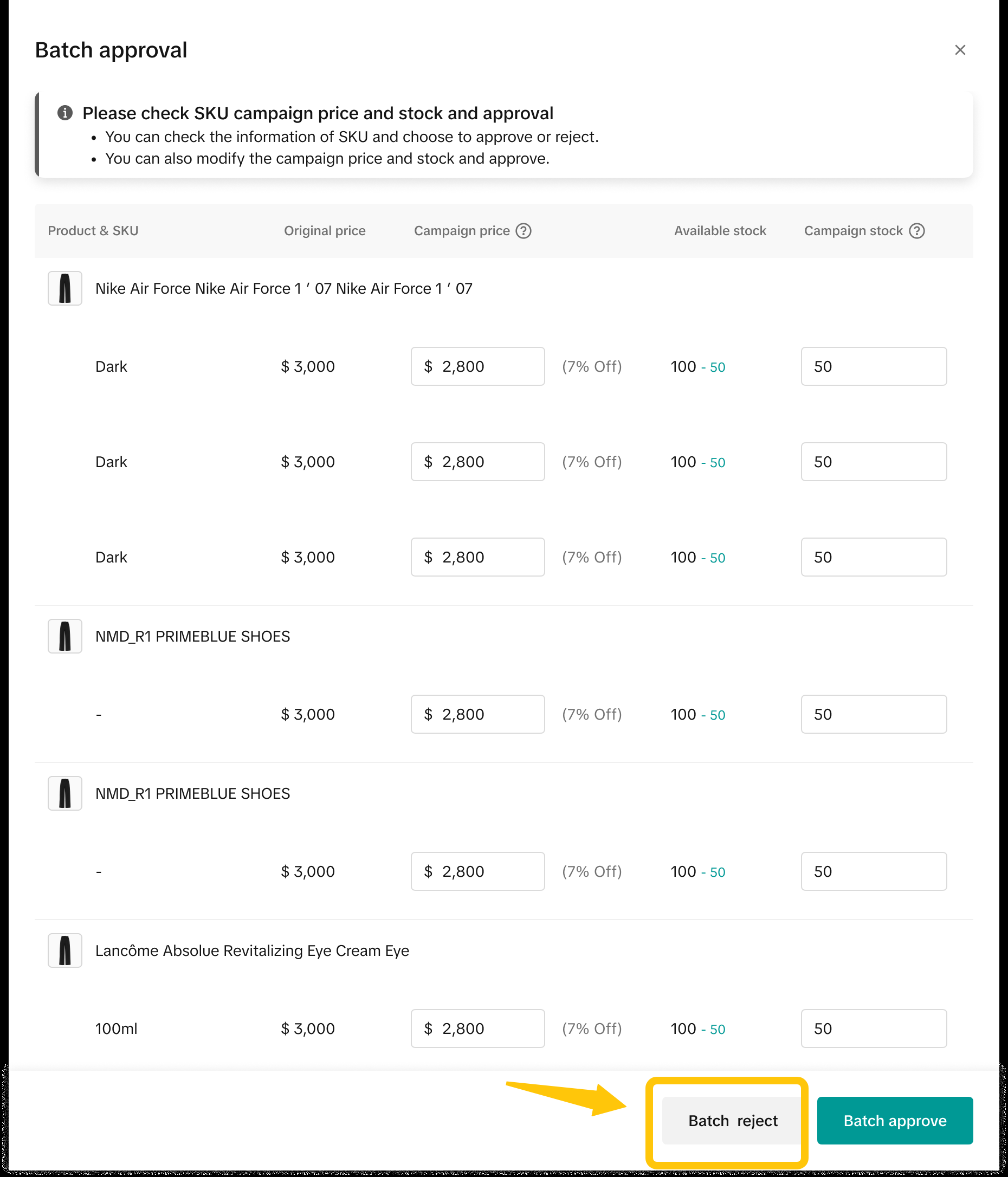
Please double-check the following information for each product:
- Product Name / Product ID
- Retail Price / Campaign Price
- Available Stock / Campaign Stock
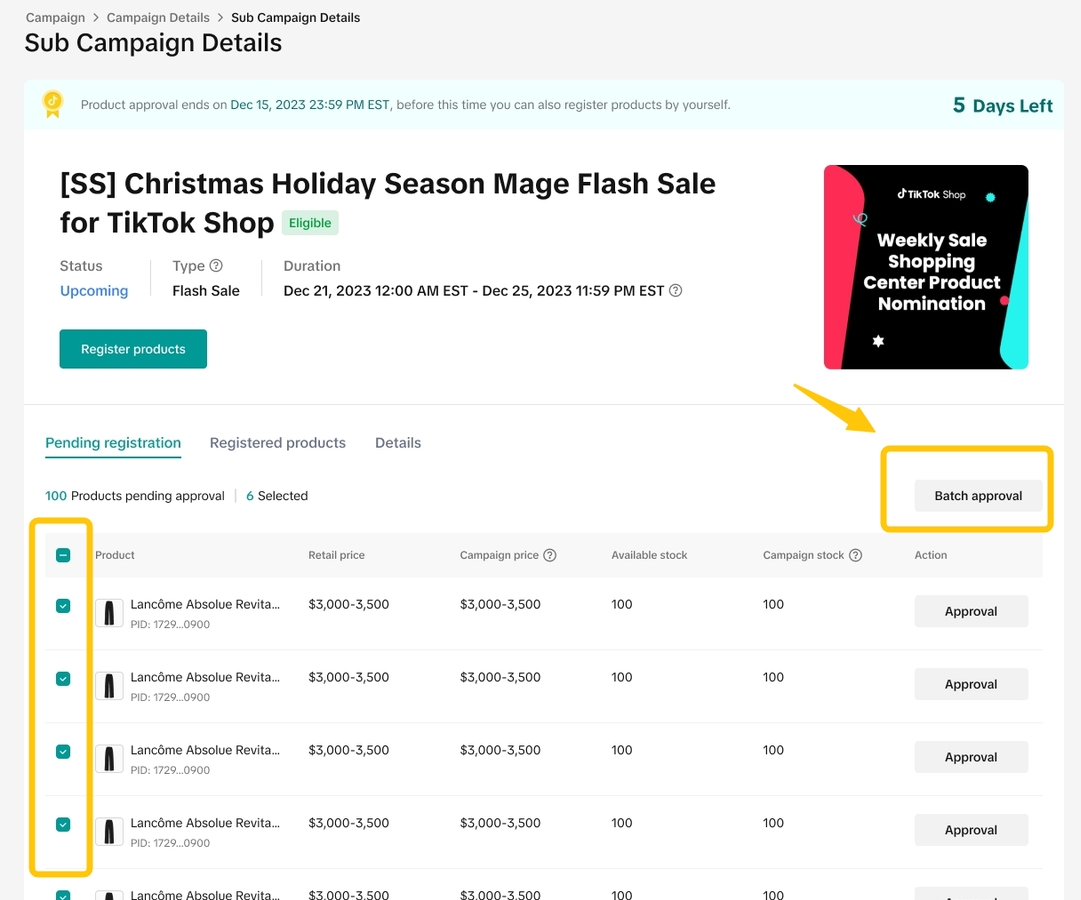
If you are interested in participating, you have 2 options:
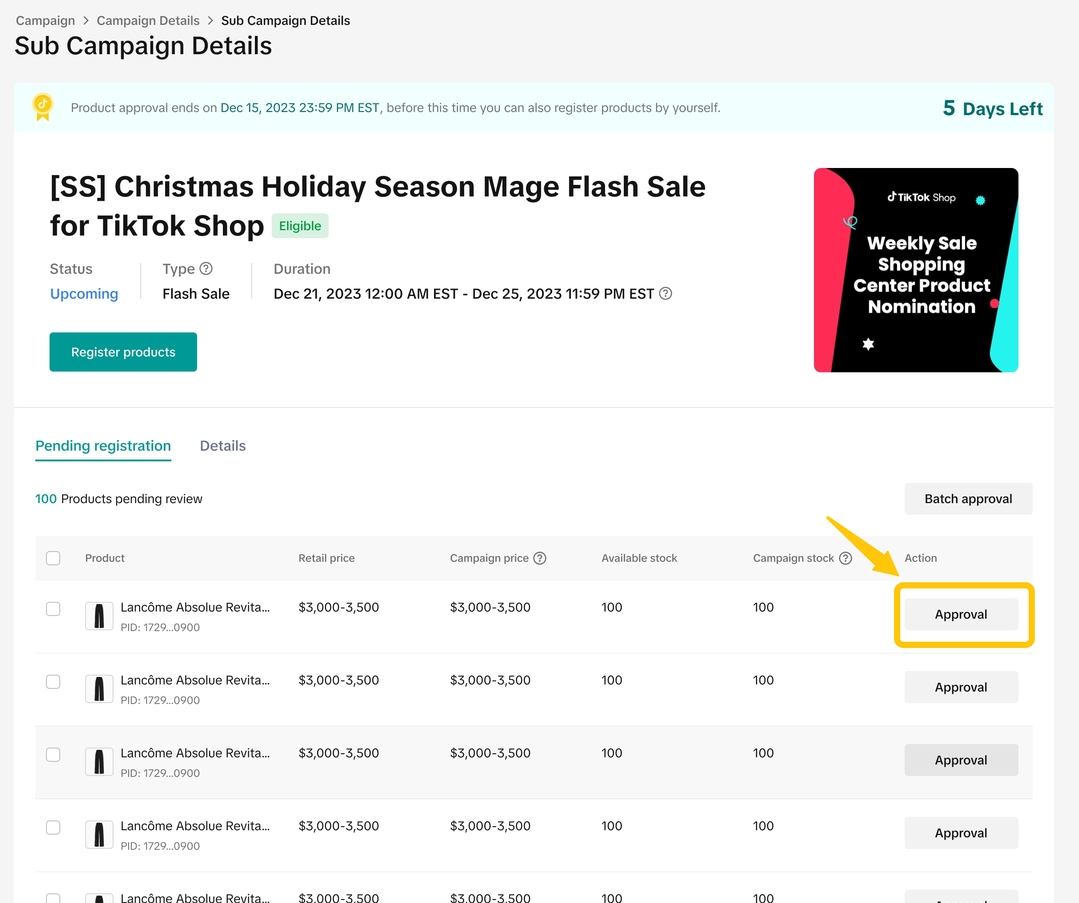
- Option A: Agree to the request for an individual product
- Click Approve to agree with the product registration.
- If needed, you can click View to check the detailed SKU information of the product.
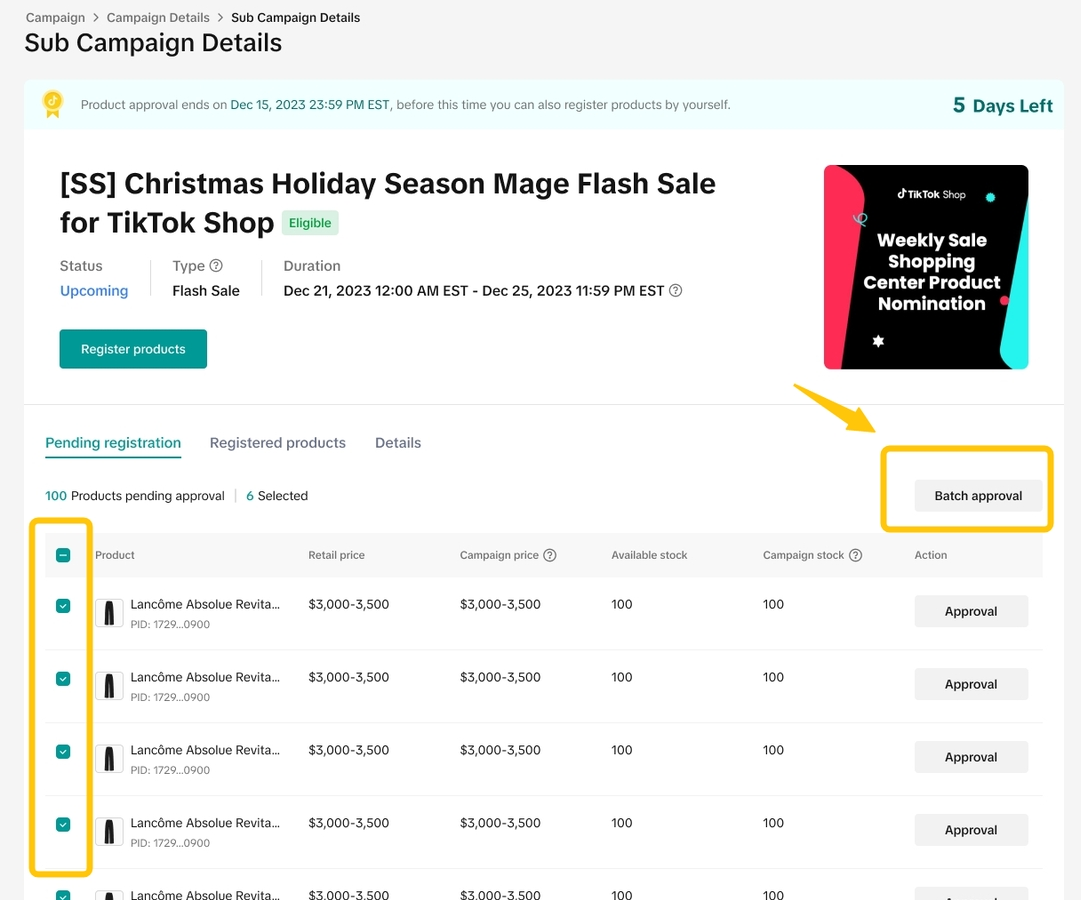
- Option B: Agree to requests for multiple products in bulk
- After checking multiple products, click Batch Approve to agree with the product registrations.
Once you agree to the registration, the status of the products will change from Pending registration to Under review and will enter the campaign product tab for our platform's review. After approval, the campaign price will be locked when the campaign takes effect.
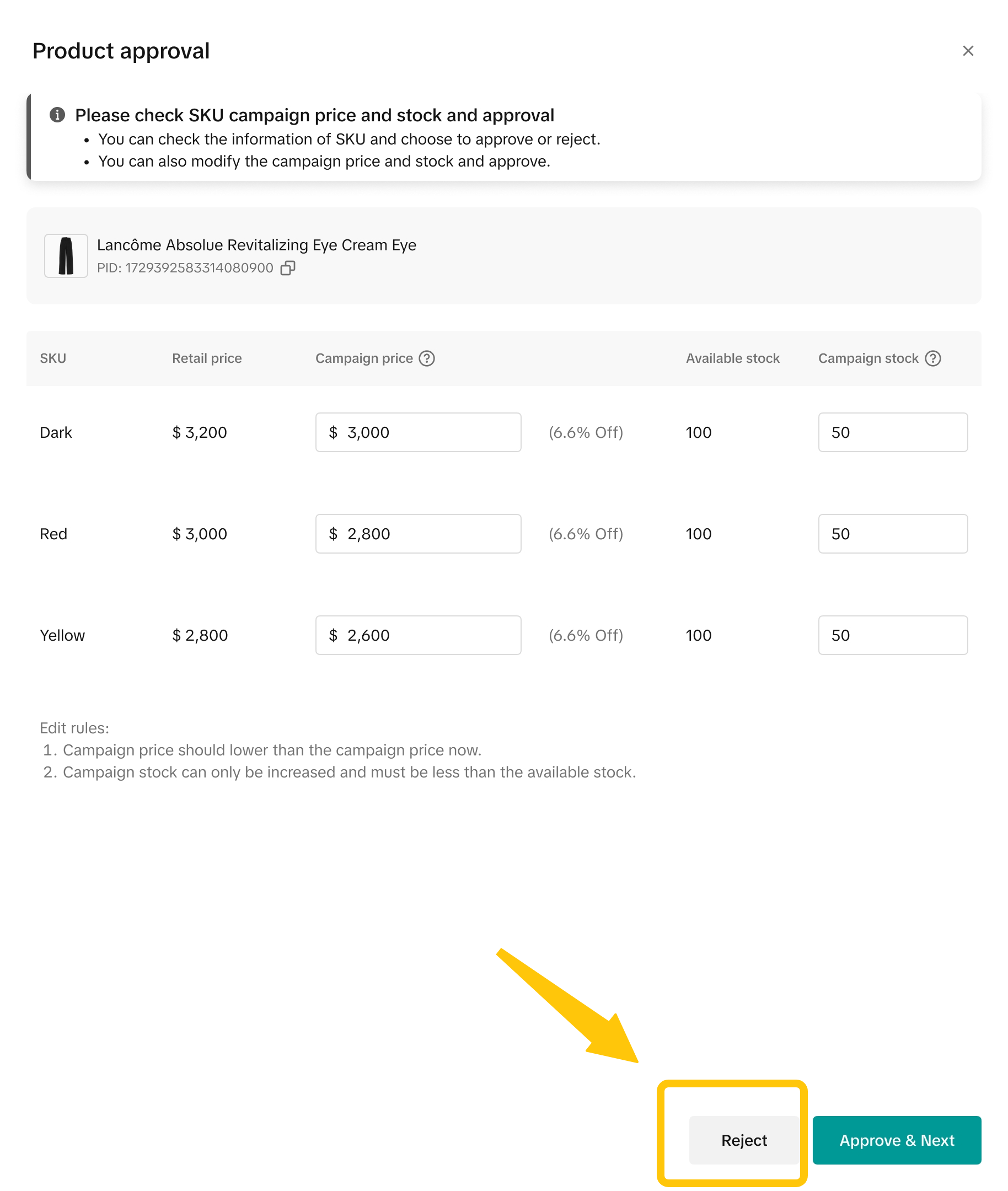
If the product does not meet your expectations, you can choose to reject:
a. Option A: Reject the request for a single product
- Click Reject to reject the request for the product.
b. Option B: Batch reject requests for multiple products
- After checking multiple products, click Batch Reject to reject the requests in batches.
- You will need to provide a reason for rejection.
Once you reject the registration, the status of the products will change from
Pending registration to
Unregistered. The corresponding campaign inventory and price will not take effect during the campaign period. Additionally, the product will no longer be displayed in the
Pending registration products section.
Bulk Import Your Products
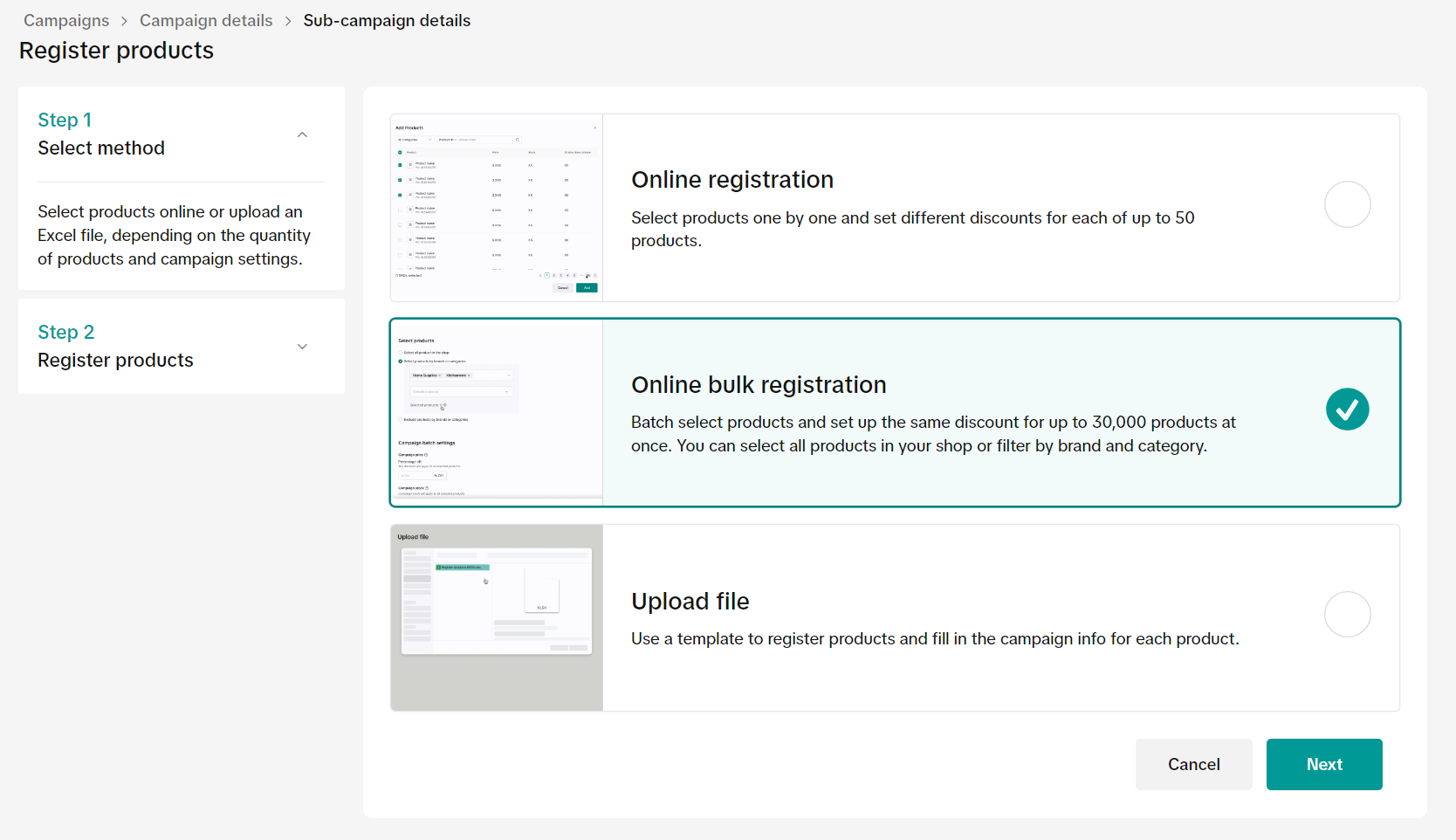
Bulk Import within Seller Center:On the campaign details page, click
Register products and select
Online bulk registration.
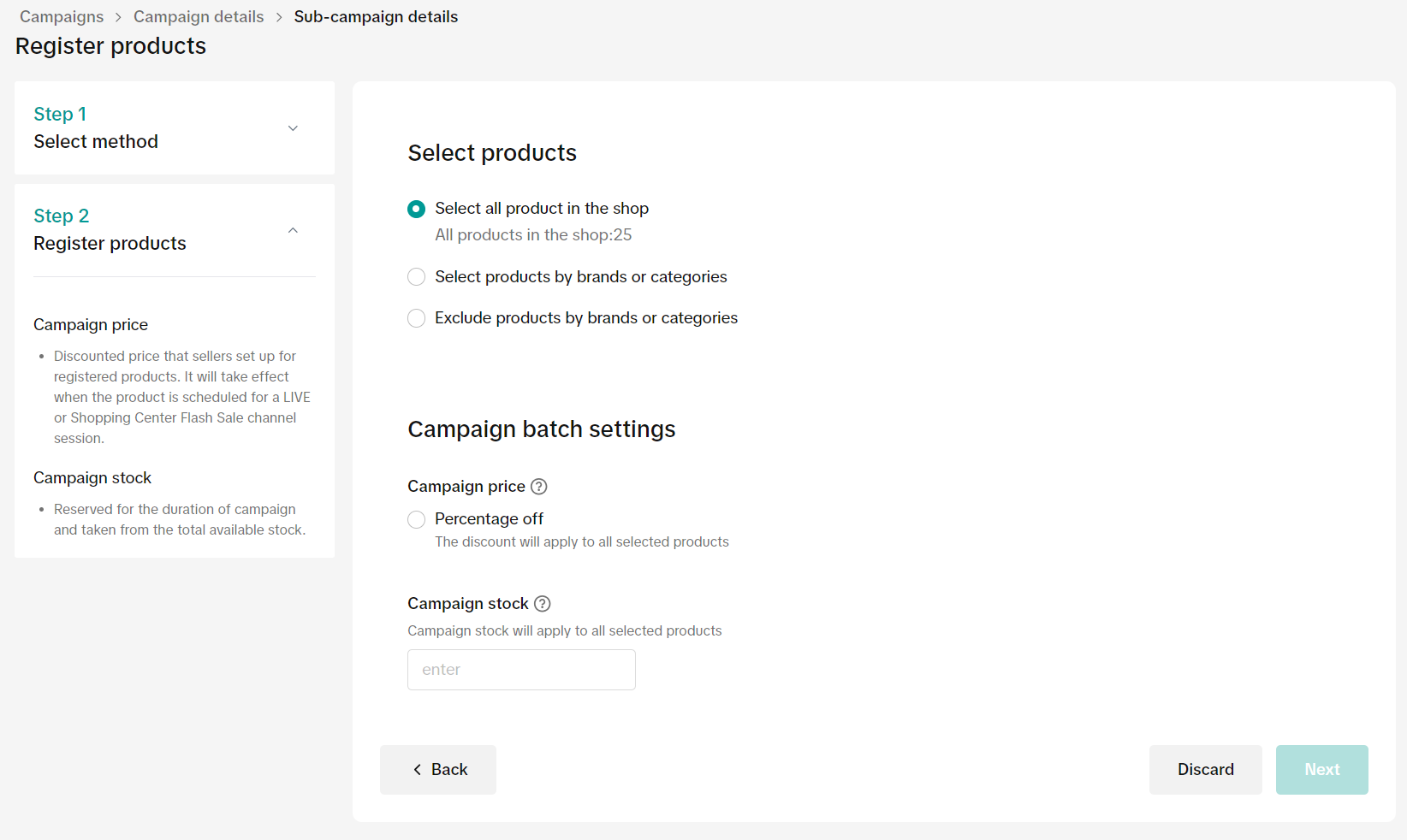
You can choose to add all products in the shop or select specific products by categories or brands.
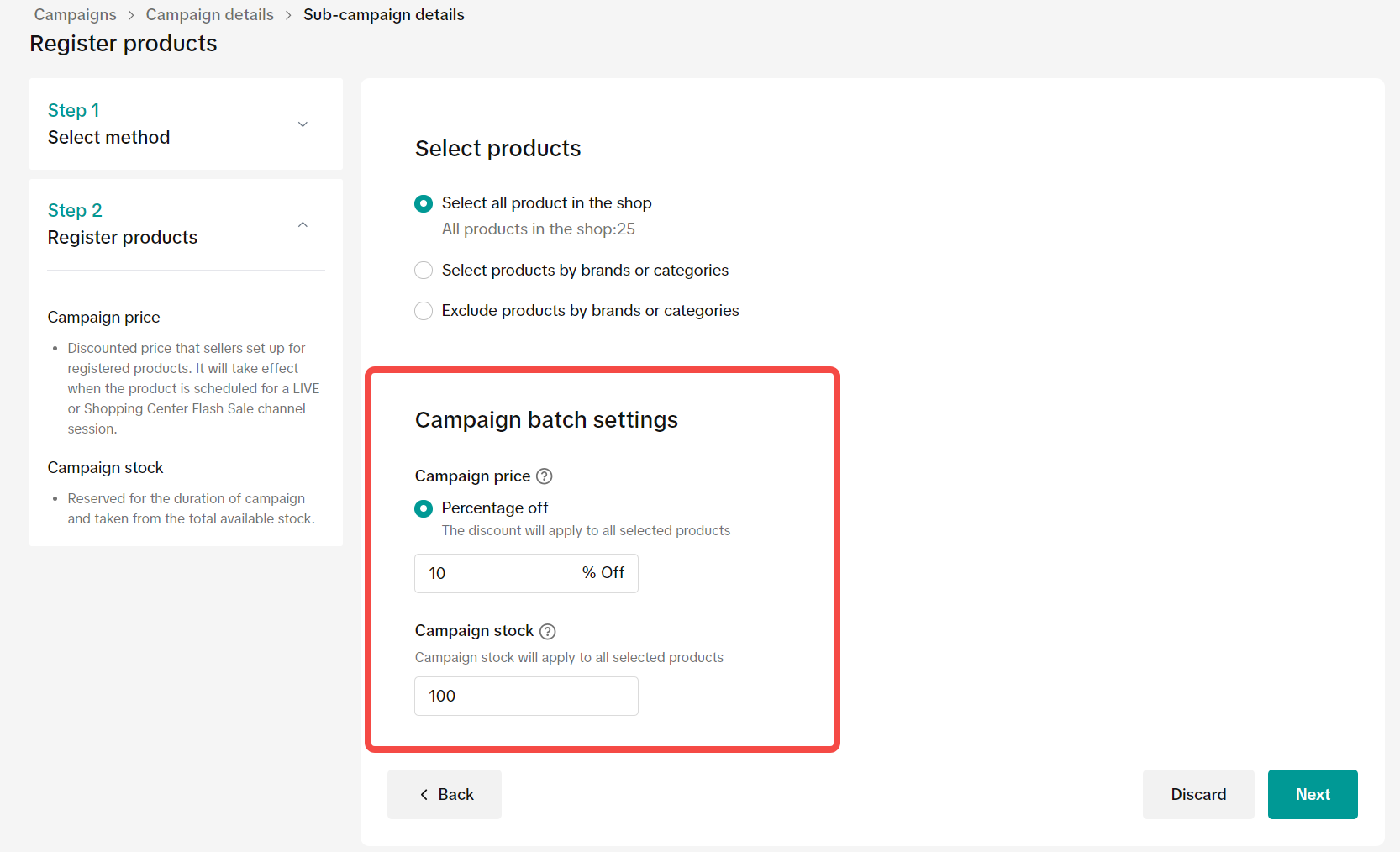
Once you have selected the products, input the campaign price and stock as a batch.
- Campaign price: Percentage (%) off discount will apply to all selected products
- Campaign stock: enter the amount of stock you would want the discount to be applied to
Check all the information before clicking 'Submit'
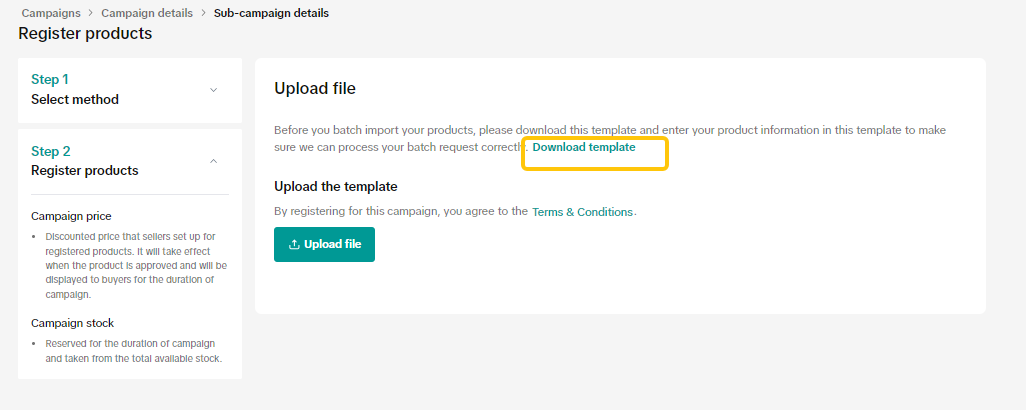
Bulk Import by Excel:On the campaign details page, click
Register Products and select
Import using Excel.
Download the Excel template.
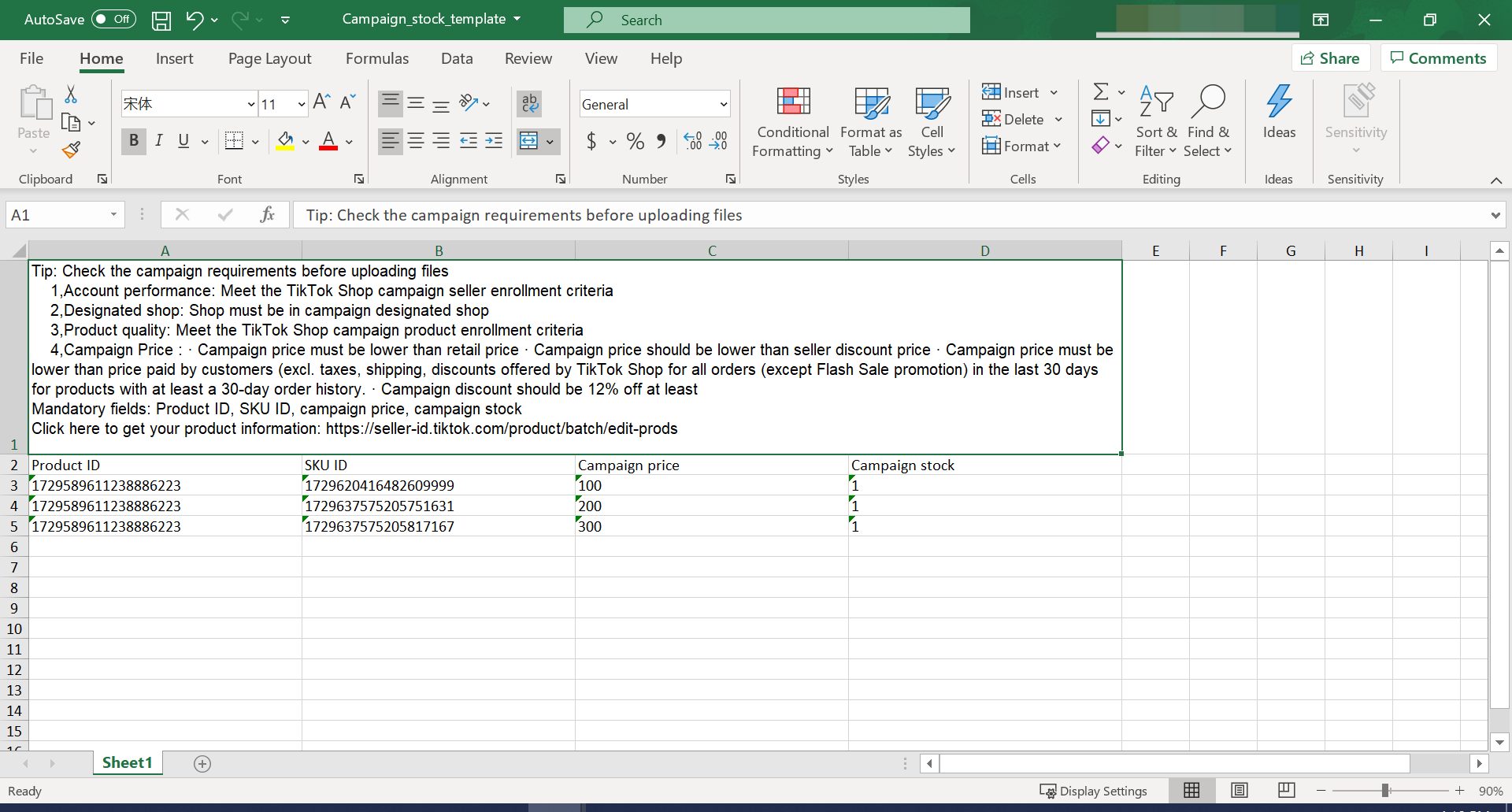
Fill in the Product and SKU IDs, campaign price and campaign quantity. Make sure to adjust your fields to the "Text" format, to ensure your Product and SKU IDs are correctly inputted.
Upload your file until a finished status appears for each file.
You can recheck the final uploaded status by visiting the
Campaigns tab and seeing your uploaded products on the campaign submission page.
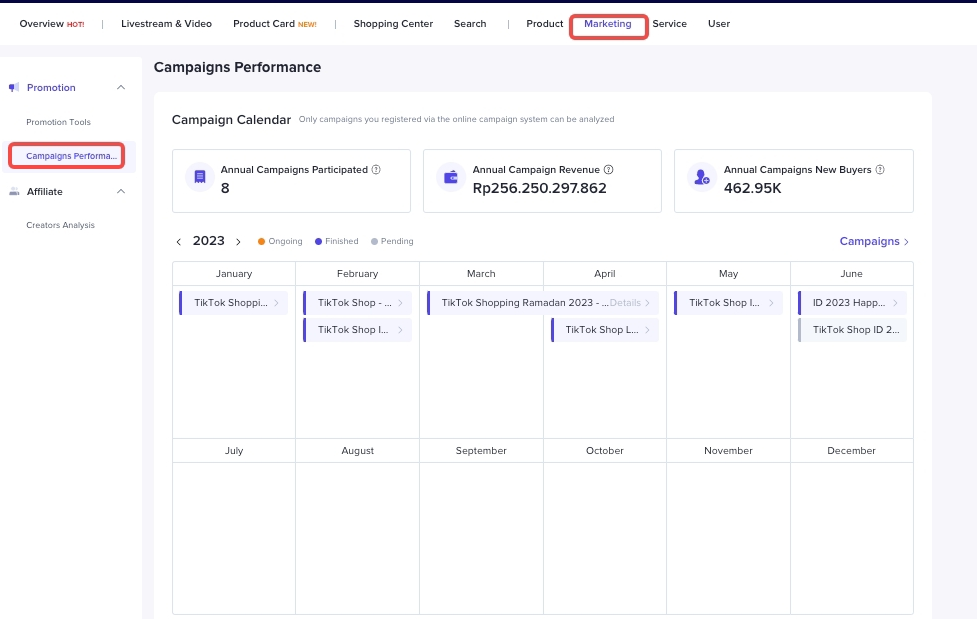
You can view data related to joined campaigns in
Data Compass. Click on
Marketing tab and select
Campaign Performance under the Promotions tab.
All previously joined campaigns will be shown. Campaign details will be available by clicking on each specific campaign.
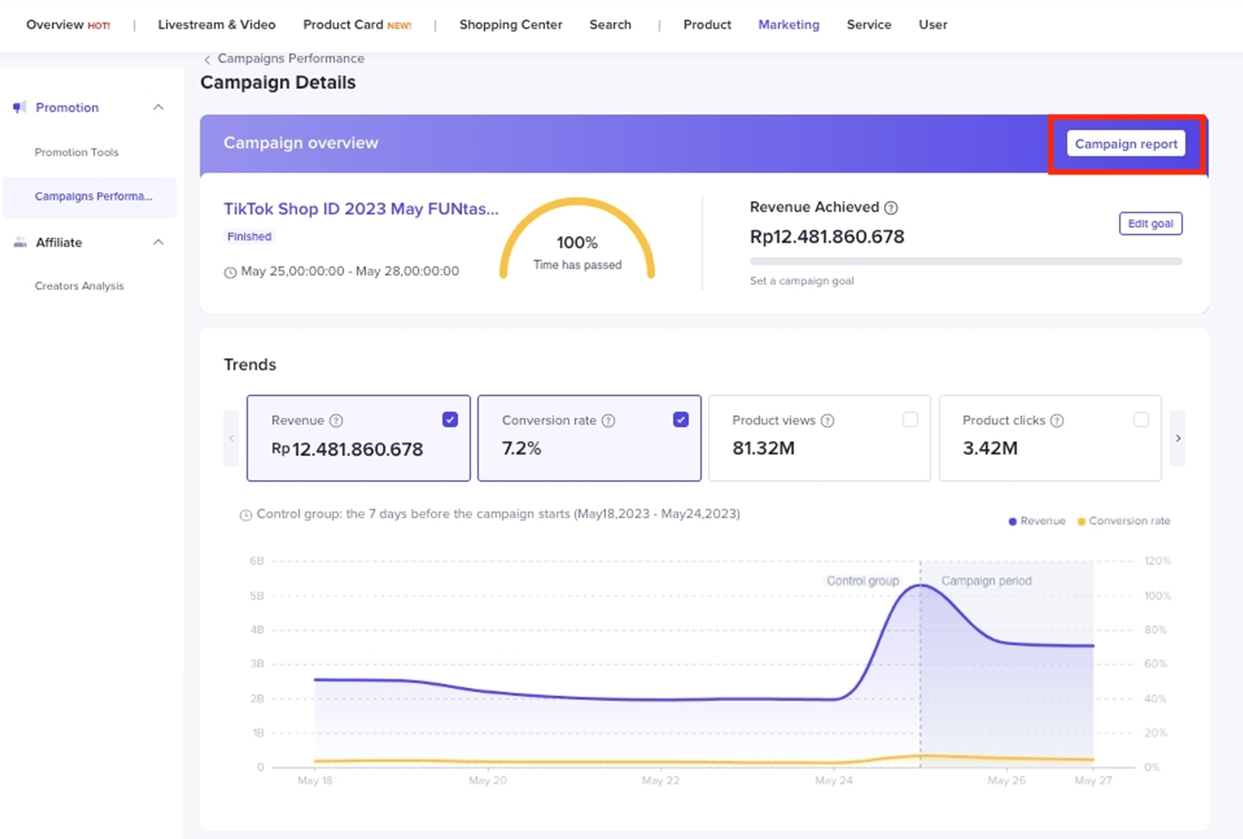
You can click on "Campaign report" to see the summarised campaign metrics.
You can also download and share the report with others.
Learn more about analyzing your products' campaign performance in
this feature guide.
Frequently Asked Questions (FAQs)
- Am I allowed to join more than 1 campaign?
Yes. You can join as many campaigns as you wish. However, please take note that
the lowest submitted campaign price will always take priority.
In the above example, there are 2 campaigns with overlapping dates and 2 different campaign prices. In this scenario, Campaign A's price is lower and will be prioritised over Campaign B. This means this product will be priced at 1000円 between 1-10 Jun, and 1100円 between 11-15 Jun.
- Can I set up other seller promotion tools if I join the campaign?
Yes. You can set up other seller-funded promotion tools, such as Flash Deal or seller vouchers, to be used along with campaigns. However, please take note that the
campaign price will always be prioritised regardless of price.
In the above example, there is a campaign and Flash Deal set during overlapping periods. In this scenario, the campaign price will take effect between 1-5 June and Flash Deal prices between 6-10 June.


 Campaigns are designed to offer great deals to buyers and are promoted across the TikTok Shop platform, to excite, engage and entice buyers to shop.
 This article will teach you how to participate and join in a regular product campaign. This guide will also apply to a direct subsidy campaign.


 After selecting the products, fill in the campaign price and campaign quantity.
 In the Registered Campaigns tab, click on Management for the relevant campaign.
 Select the Registered Product tab to see your submitted products and the review status.
 You can filter for products submitted by Product ID/Name.
 Some campaigns are also eligible for platform subsidies.
 Where platform subsidies are provided, you can view the direct subsidy amount per product on the Registered Products page.

 When your status is Under Review or Approved/Scheduled:

 Click Product confirmation to review recommended products registered by our platform.
 Please double-check the following information for each product:

 You can choose to add all products in the shop or select specific products by categories or brands.
 Once you have selected the products, input the campaign price and stock as a batch.
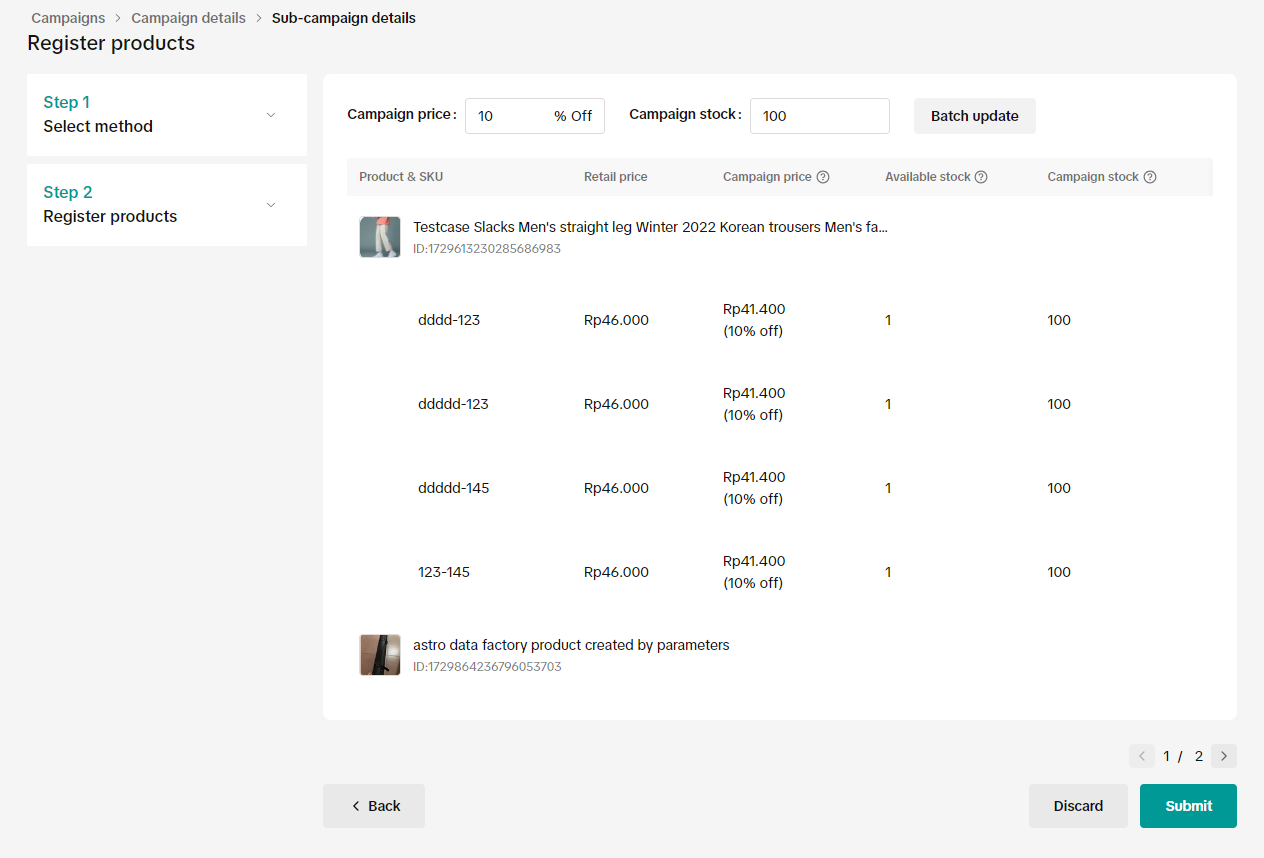 Bulk Import by Excel:On the campaign details page, click Register Products and select Import using Excel.
 Download the Excel template.
 Fill in the Product and SKU IDs, campaign price and campaign quantity. Make sure to adjust your fields to the "Text" format, to ensure your Product and SKU IDs are correctly inputted.
 Upload your file until a finished status appears for each file.
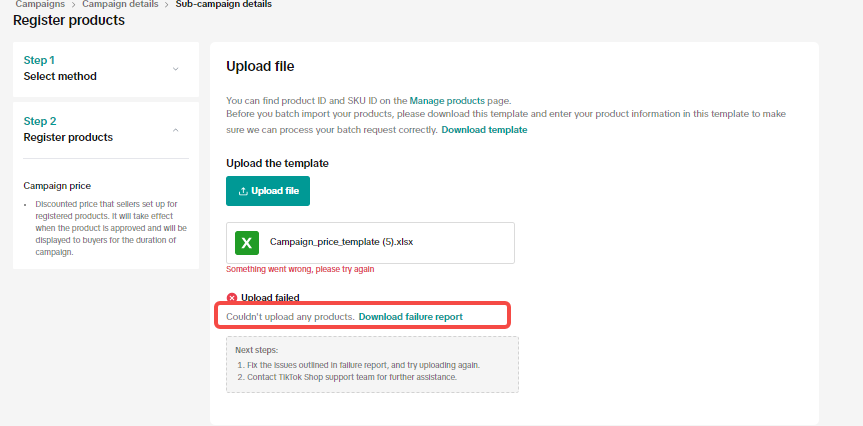 You can recheck the final uploaded status by visiting the Campaigns tab and seeing your uploaded products on the campaign submission page.

 You can click on "Campaign report" to see the summarised campaign metrics.
 You can also download and share the report with others.
 Learn more about analyzing your products' campaign performance in this feature guide.