

LIVE Campaigns
This article teaches you how to use LIVE Campaigns to increase traffic and conversions in your LIVEs. You will learn how to register for and manage LIVE Campaigns in the Seller Center.

 When you register for a LIVE campaign, your LIVEs will be displayed prominently with campaign branding.
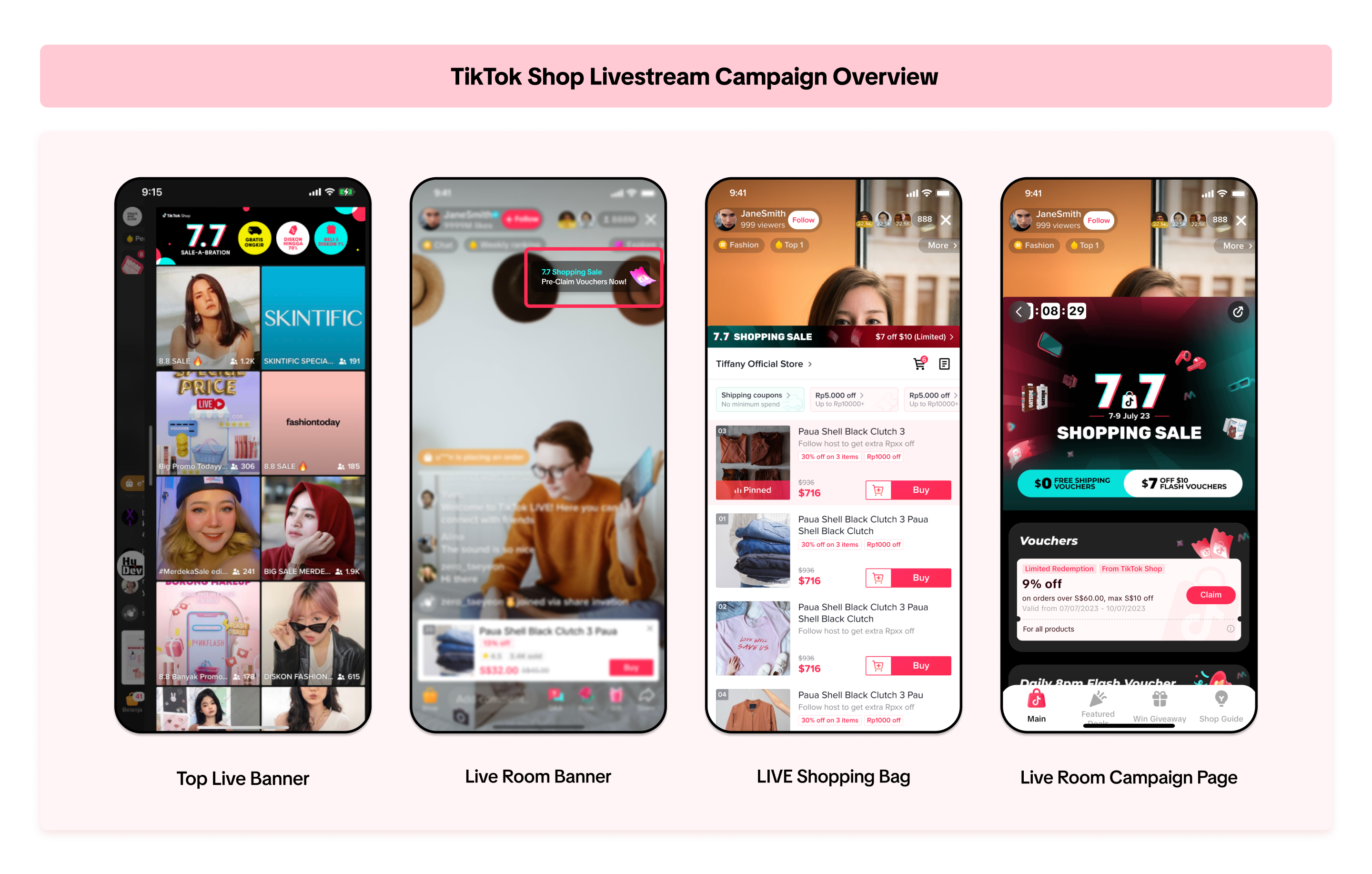 You can join product campaigns in conjunction with LIVE campaigns, offering great deals to buyers during a LIVE session.
For more information on how to join Product Campaigns, please refer to this article here.
This article will teach you how to participate and join in a LIVE campaign.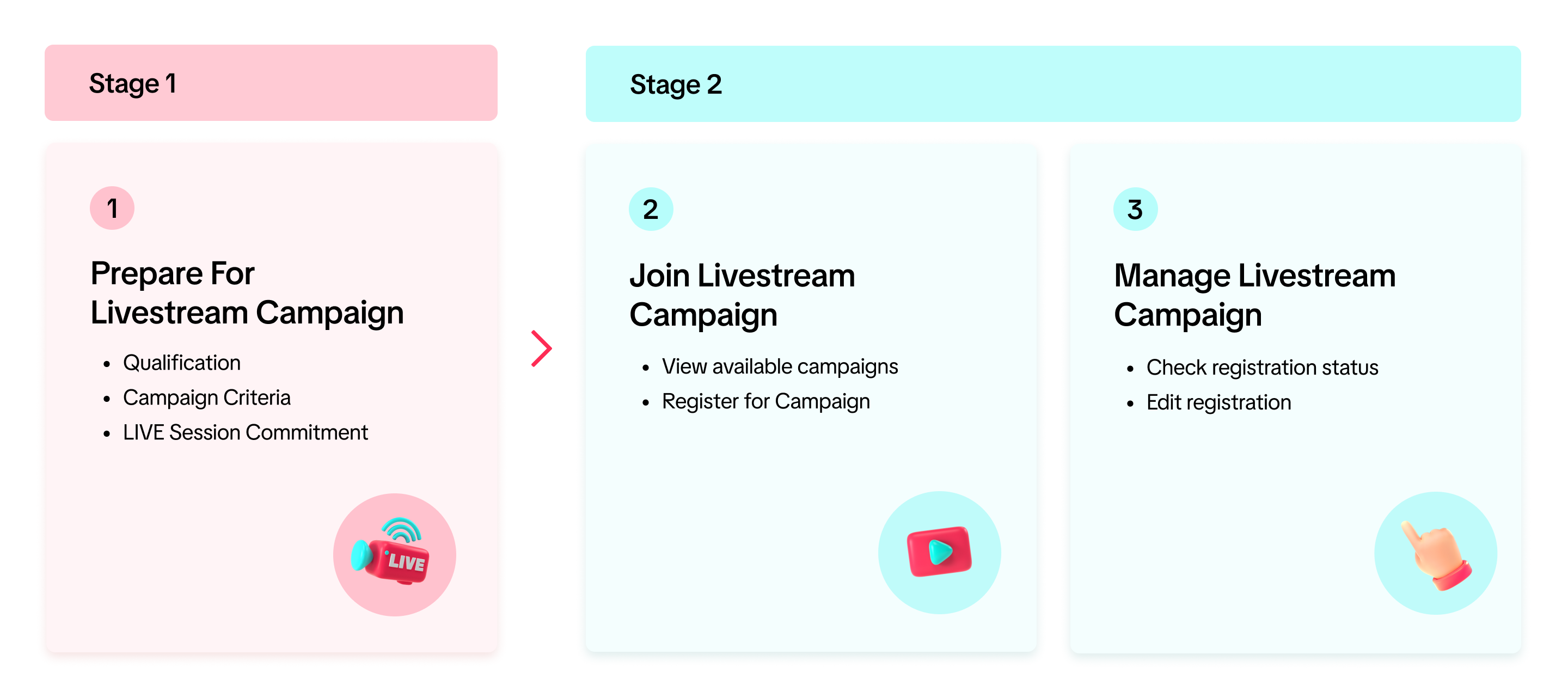
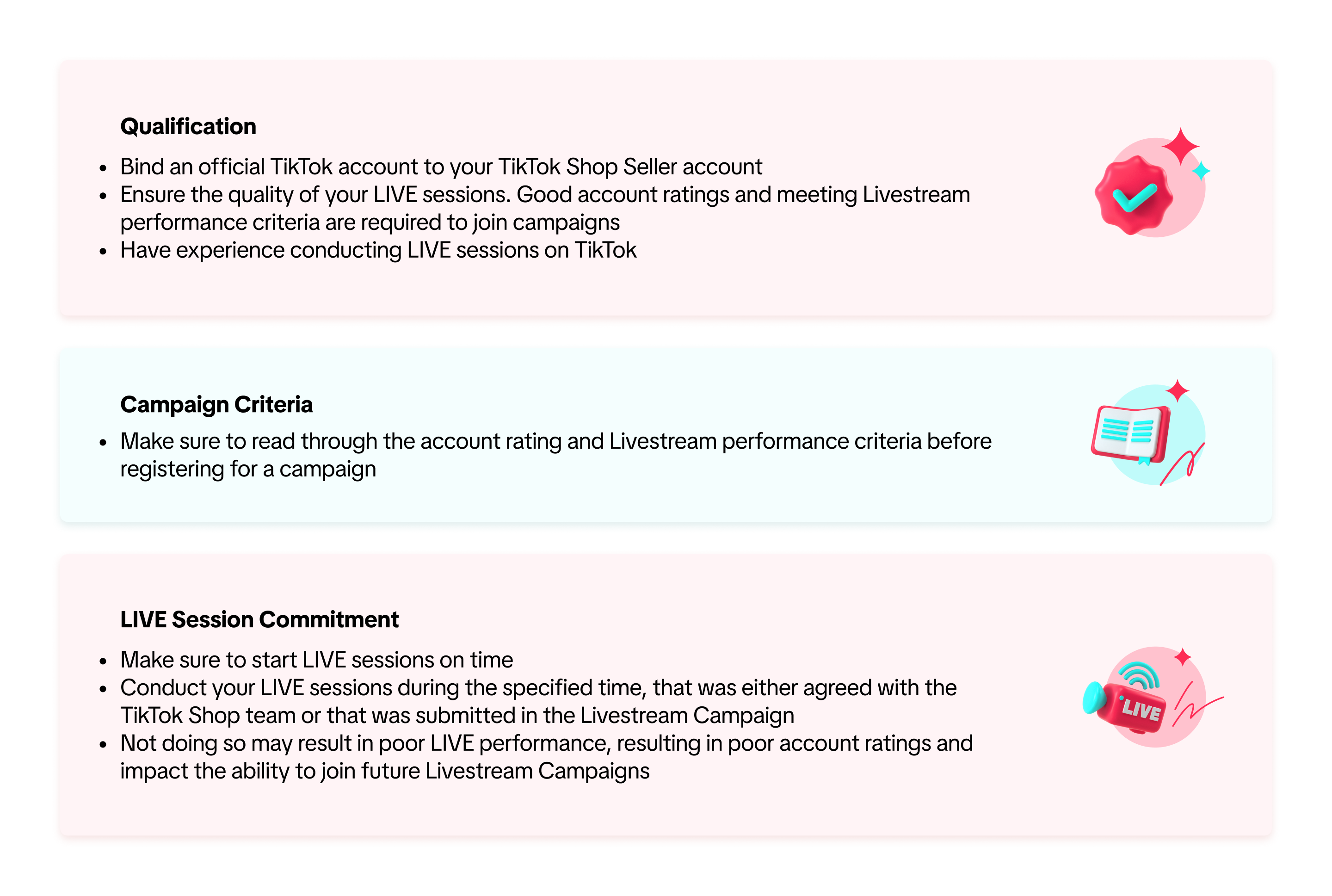

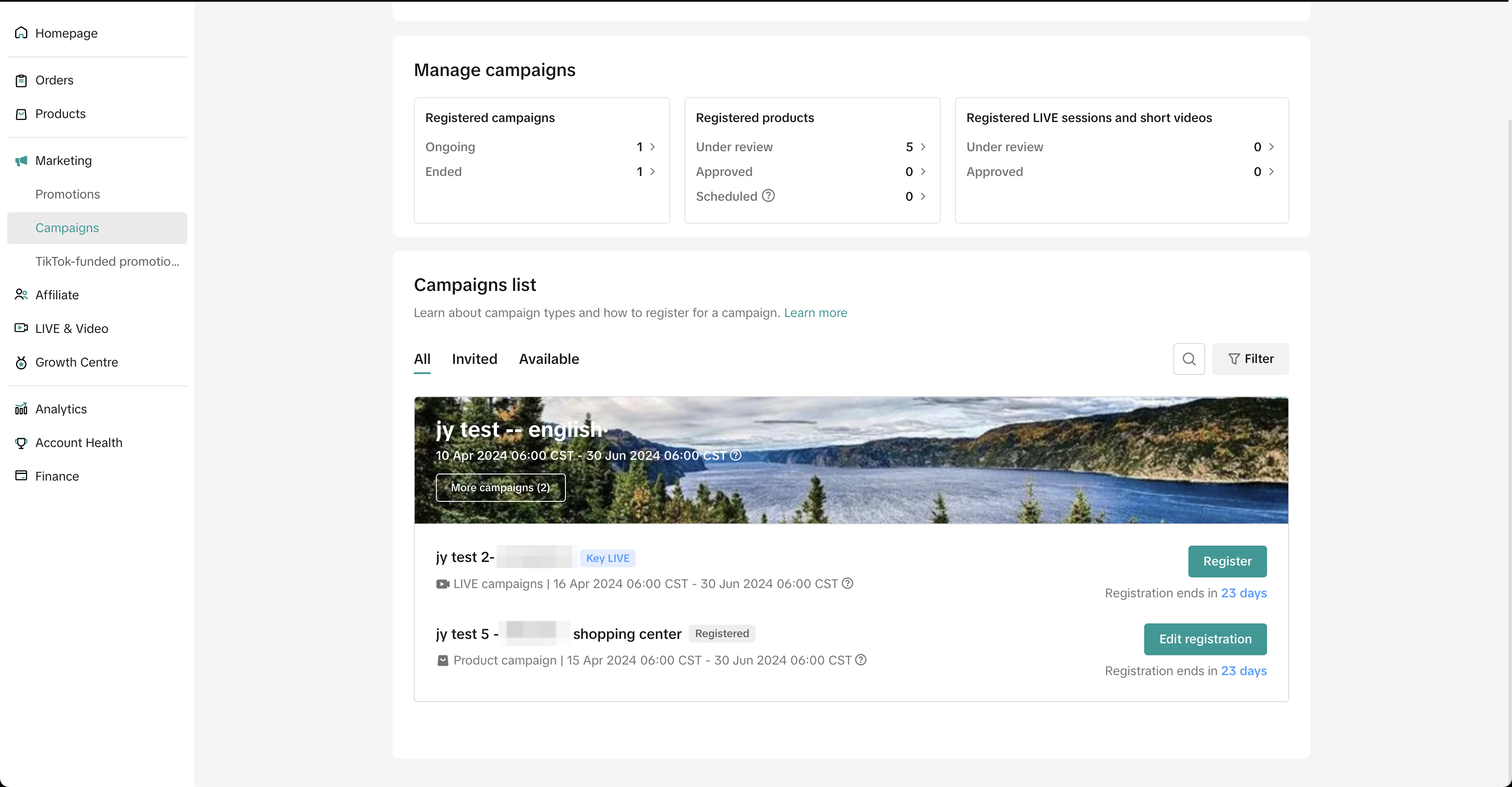
On the campaign details page, select Requirements to check the campaign's eligibility criteria, such as account and LIVE level requirements.
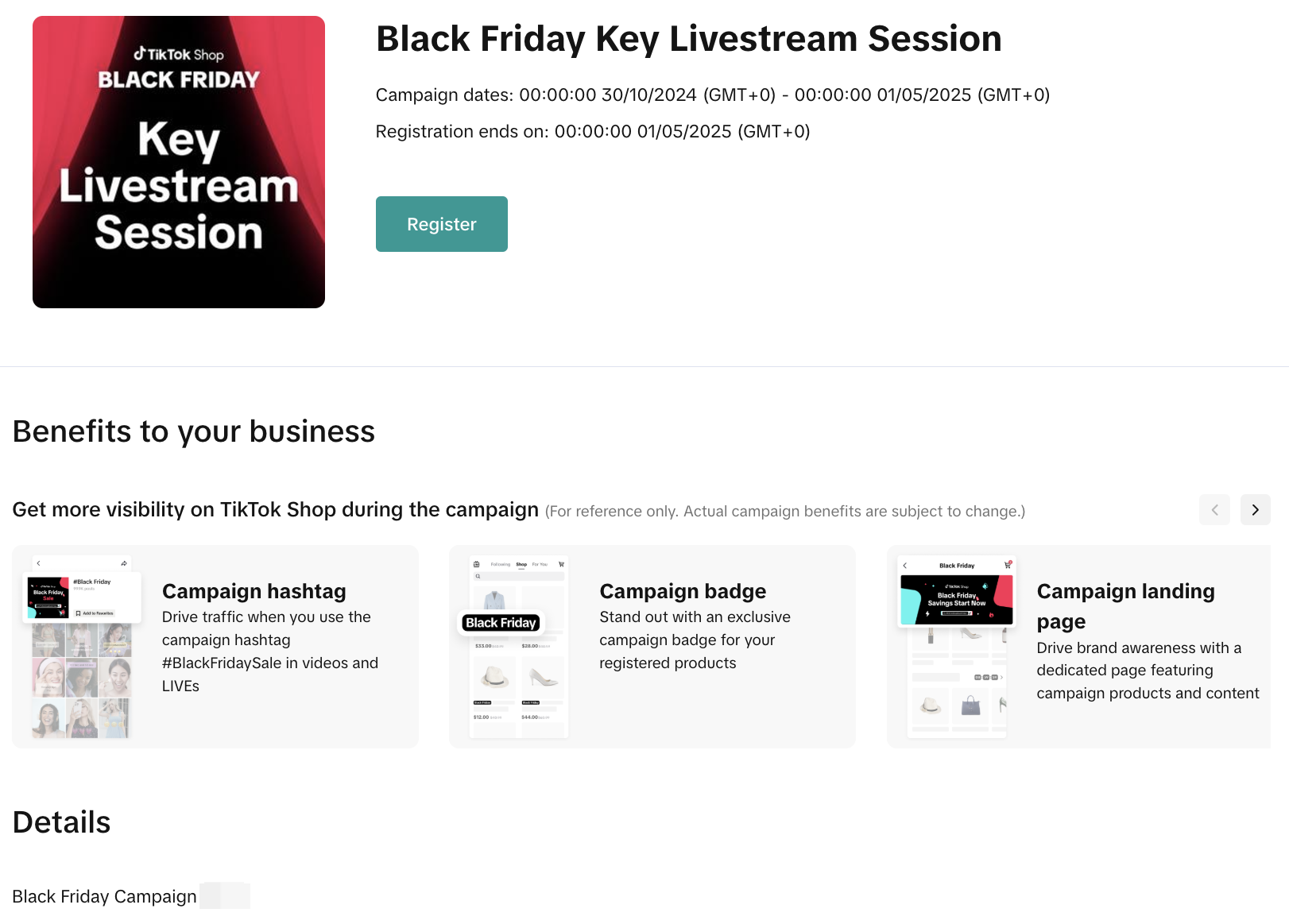 Note: All campaign applications are reviewed. You may be rejected from joining the campaign if you do not meet the criteria for the campaign as listed in the campaign details page.
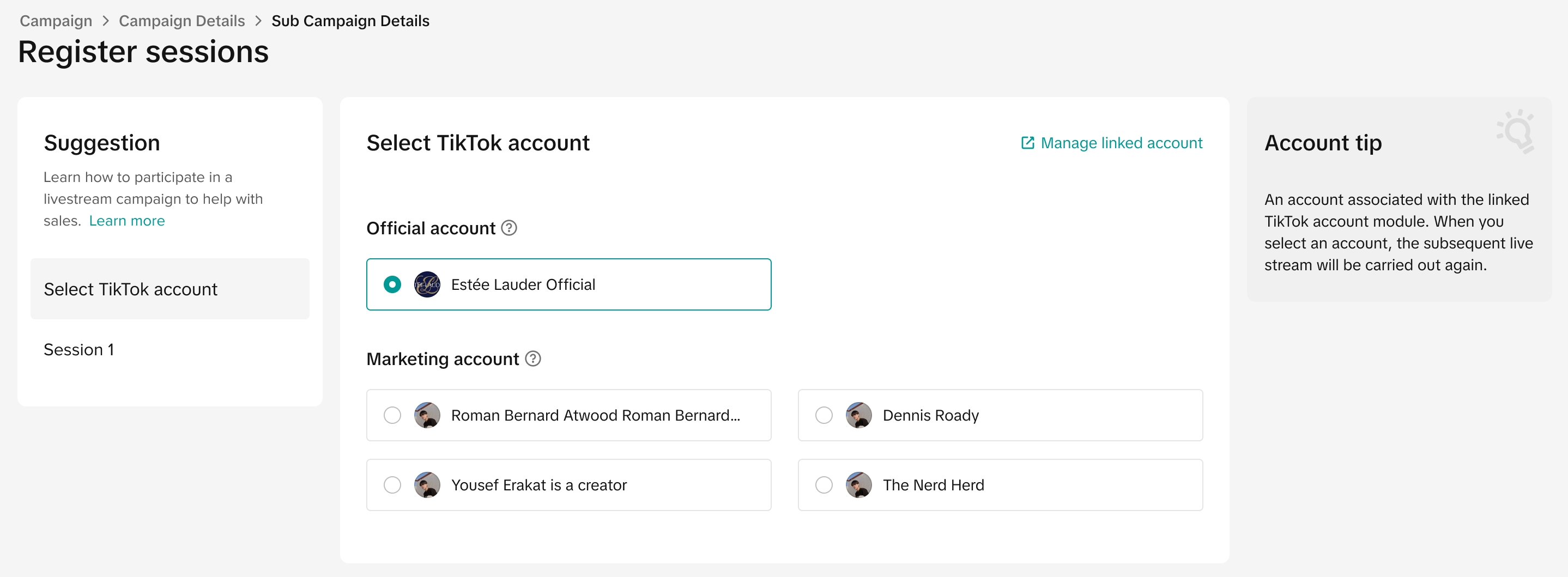 Click on Register. And choose the account you want to use to join the LIVE campaign
2.2.Add LIVE sessionDepending on the type of LIVE Campaign, sellers will see 2 types of LIVE Campaign session pages.
The first type requires you to submit information such as LIVE session duration, LIVE period, and LIVE main category. You will find many LIVE levels that are defined by the campaigns team depending on your shop's revenue or duration commitment.
The benefits that you will get from LIVE campaigns are dependent on the LIVE Level you select.
After you click Submit, the team will review the submission and may reach out to you directly to confirm the registration details.
Please note that the seller can submit multiple LIVE session periods with this LIVE campaign type.
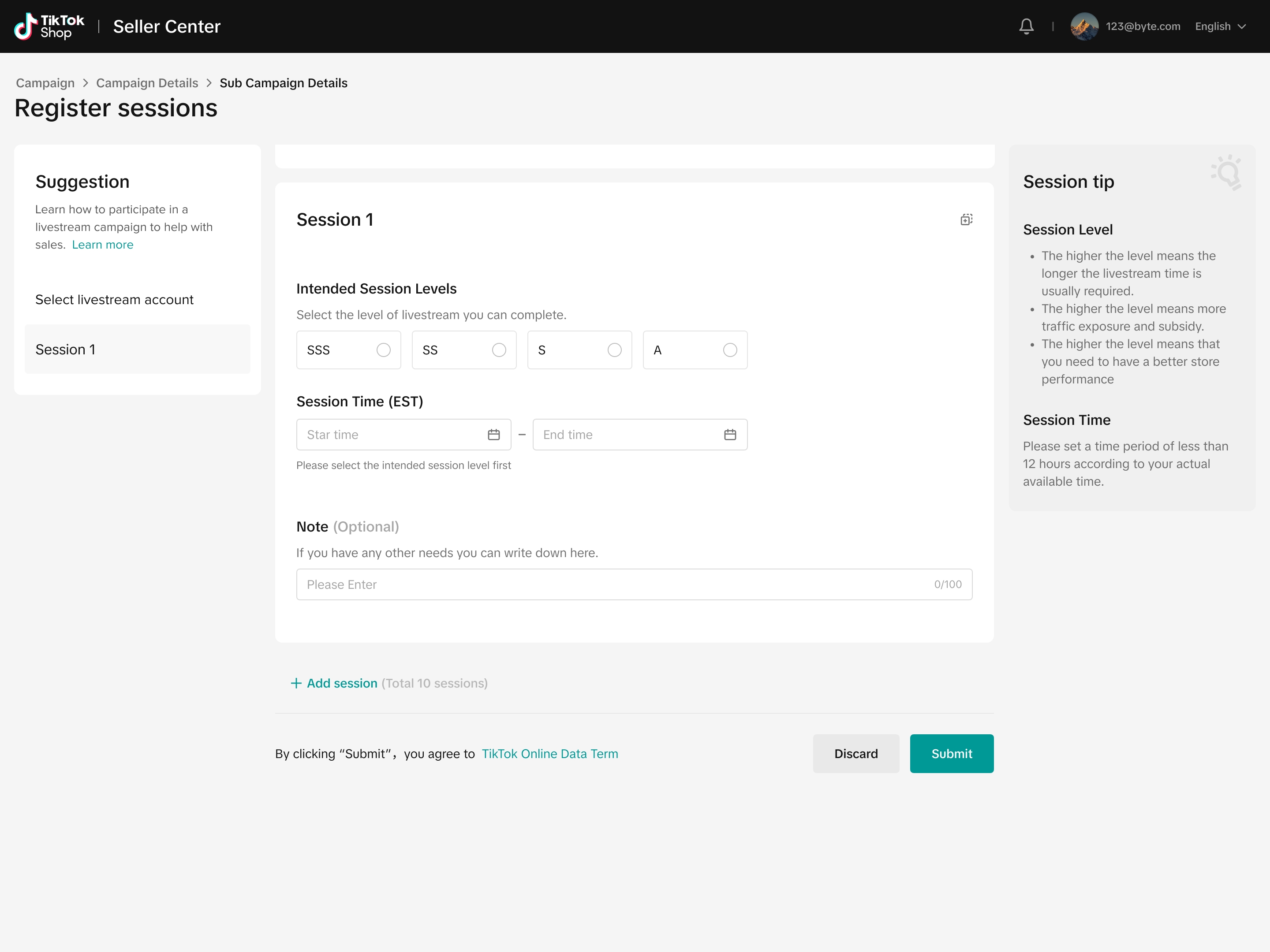 After joining the campaign, sellers will only need to conduct the LIVE during the specified campaign time period.

If you've registered for a particular campaign, click Manage to see your registered sessions.
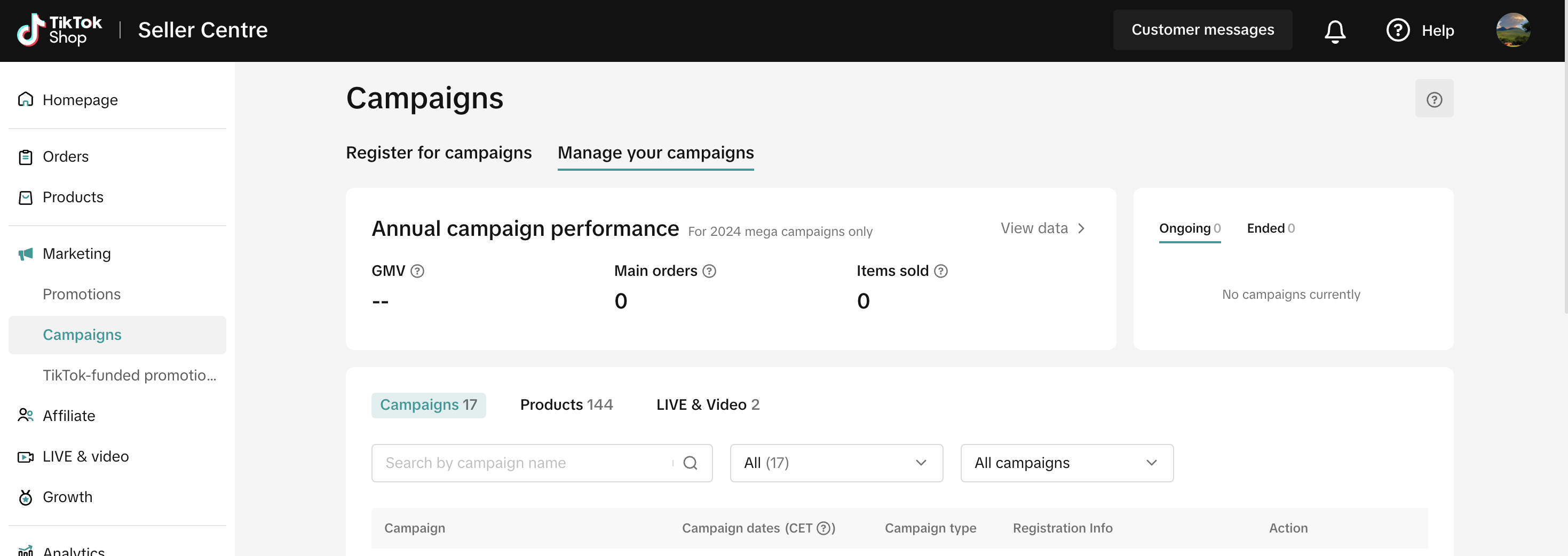 If you've already registered for a LIVE campaign, you may click Duplicate to register additional sessions within the LIVE campaign dates.
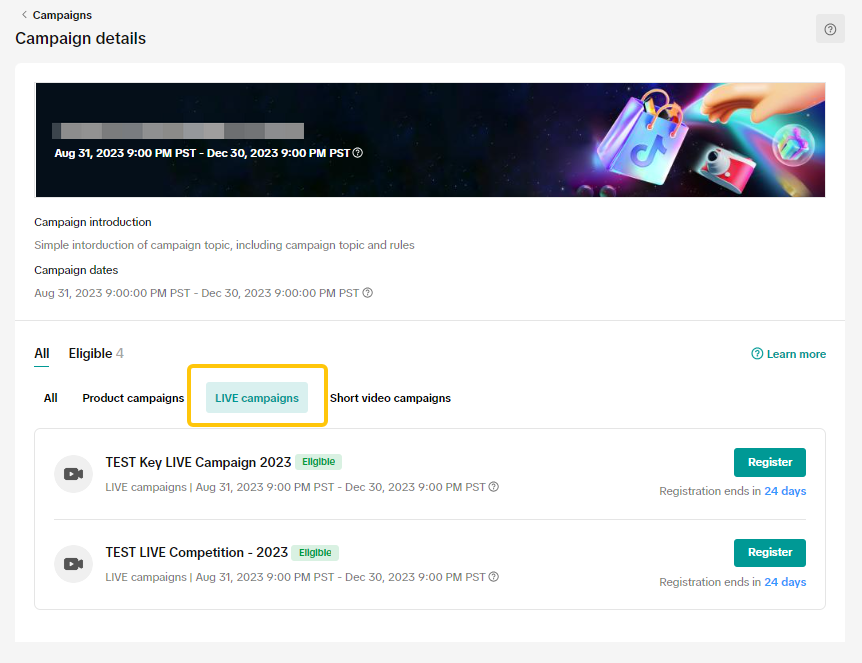
 You will also be able to sign up for campaigns which are open for registration by clicking Register.
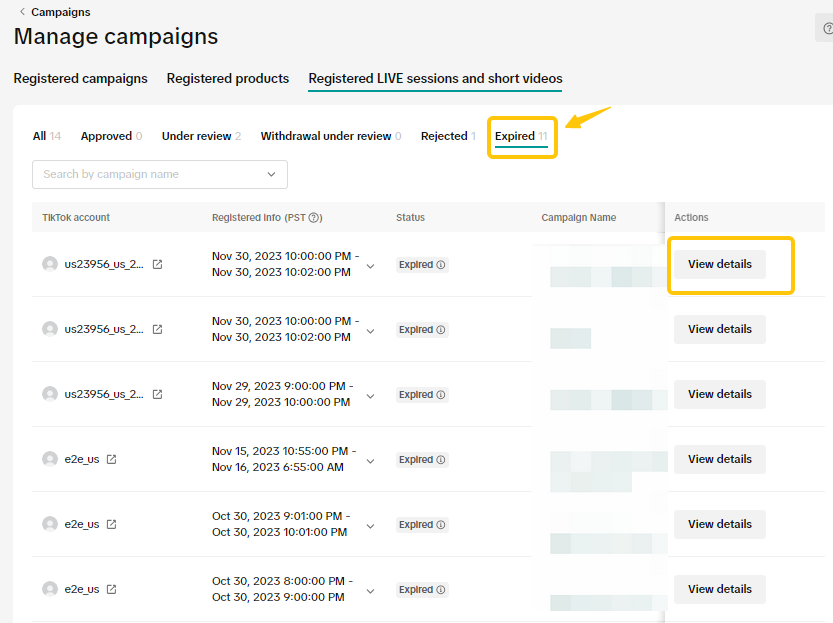
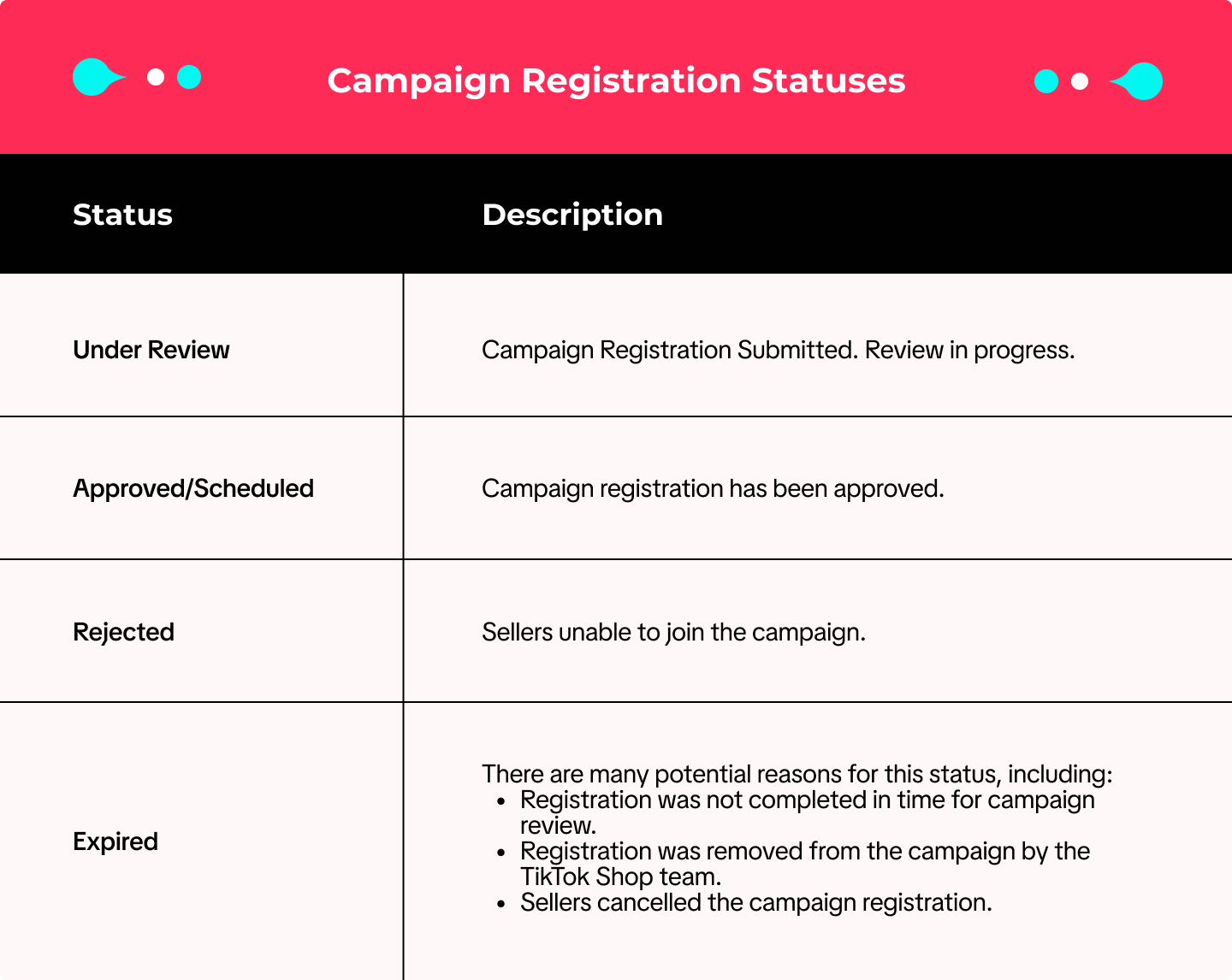
 For campaigns that have ended, filter status as 'Expired' and click on View to see campaign details.

 When your status is Under Review, you are allowed to withdraw from the campaign by clicking Cancel.
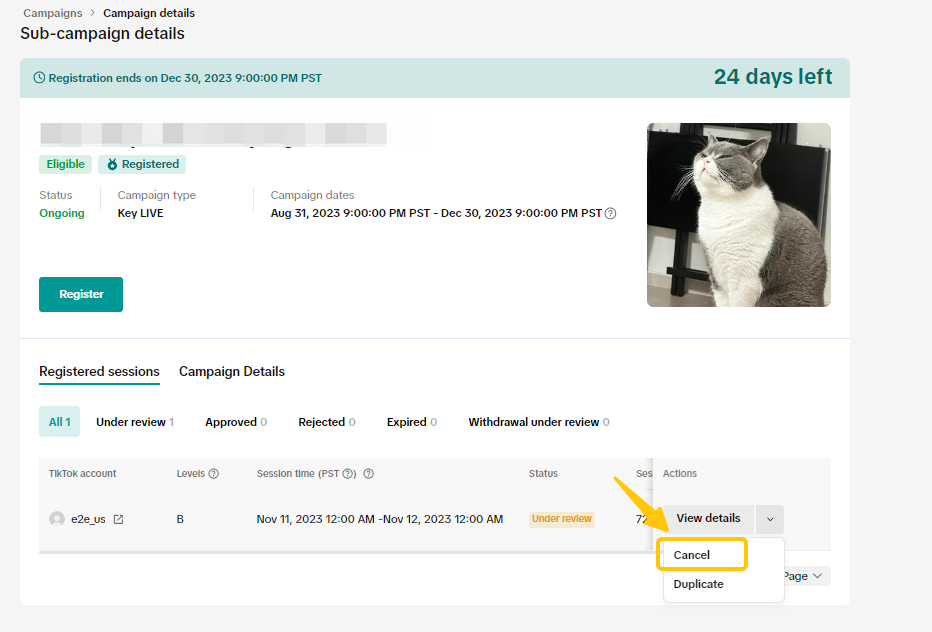 For all statuses, you are also able to create "duplicates" of LIVE sessions, within a LIVE campaign. (Note: this option may not be available for all LIVE campaigns.)

All previously joined campaigns will be shown. Campaign details will be available by clicking on each specific campaign.
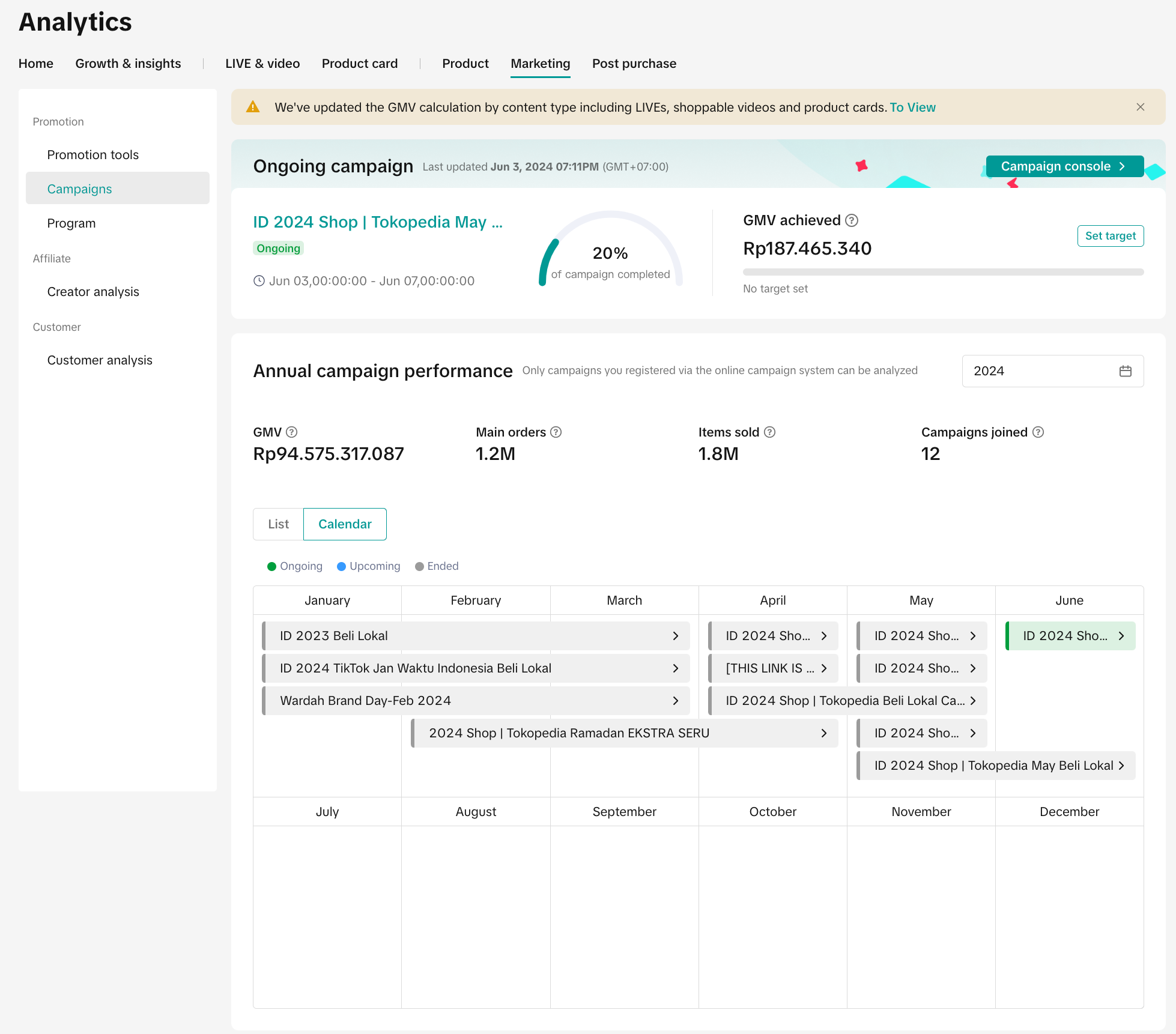
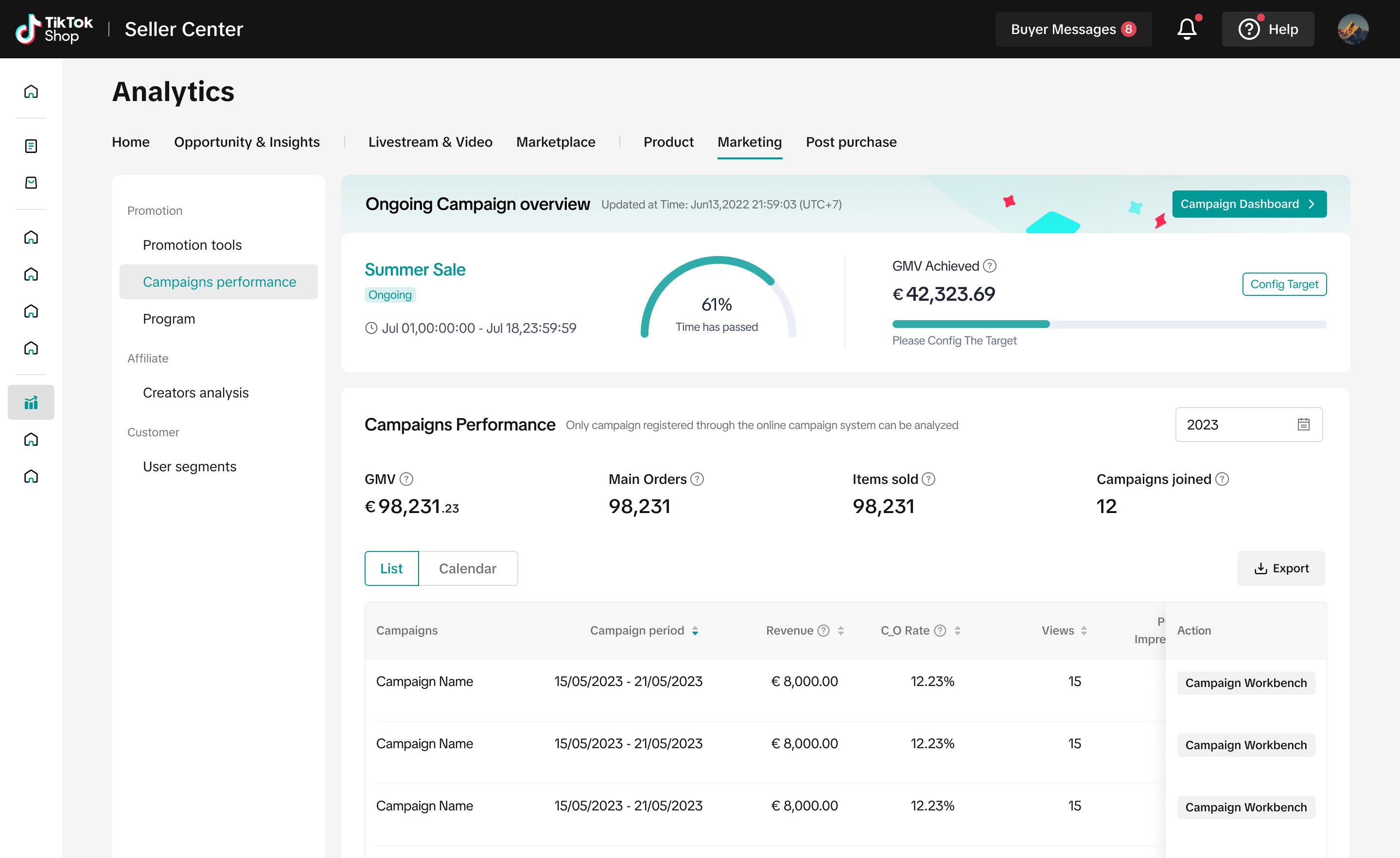 On this page you will have an overview of campaign performance, overall targets on the dashboard as well as a list of best selling products and products which contribute to traffic. The page will be live and available for viewing during as well as after the campaign.
What are LIVE Campaigns?
LIVE Campaigns are promotional events that help sellers to effectively promote their shop and products during LIVE sessions.For more information on how to join Product Campaigns, please refer to this article here.
This article will teach you how to participate and join in a LIVE campaign.
How to Prepare for LIVE Campaigns
How to Join LIVE Campaigns
View Available CampaignsTo register for a LIVE / Short Video campaign on the Seller Center on PC, visit the Campaigns tab.- View Campaign Details
On the campaign details page, select Requirements to check the campaign's eligibility criteria, such as account and LIVE level requirements.
- Sign Up to LIVE Campaign
2.2.Add LIVE sessionDepending on the type of LIVE Campaign, sellers will see 2 types of LIVE Campaign session pages.
The first type requires you to submit information such as LIVE session duration, LIVE period, and LIVE main category. You will find many LIVE levels that are defined by the campaigns team depending on your shop's revenue or duration commitment.
The benefits that you will get from LIVE campaigns are dependent on the LIVE Level you select.
After you click Submit, the team will review the submission and may reach out to you directly to confirm the registration details.
Please note that the seller can submit multiple LIVE session periods with this LIVE campaign type.
How to View Registration for LIVE Campaigns
After submitting your request to join a campaign, you can visit LIVE/Short Video Campaigns page to keep track of your campaign application(s).If you've registered for a particular campaign, click Manage to see your registered sessions.
How to Edit Registration for LIVE Campaigns
How to Track Campaign Performance
You can view data related to joined campaigns on the Analytics page. Click on the Marketing tab and select Campaign Performance under the Promotions tab.All previously joined campaigns will be shown. Campaign details will be available by clicking on each specific campaign.